> ## Documentation Index
> Fetch the complete documentation index at: https://hub.stackone.com/llms.txt
> Use this file to discover all available pages before exploring further.
# Bullhorn Assessment or Background Check Custom Tab Integration
> To set up, activate and use the Bullhorn custom tab for the assessments and background checks integration with StackOne.
export const DifferenceBetweenListEndpointAndStaticIdOfPackage = ({providerName, dynamicPackageImageAtProviderUI, staticPackageImageAtProviderUI}) => {
return <>
The Package's List Endpoint URL allows StackOne to fetch a list of available packages from your system, while the Static Package ID is fixed and available for users to select on the provider's side.
When you have a Package's List Endpoint URL
A list of packages will be available to select in {providerName}.

When you have a Static Package ID
A static package ID will be available to select in {providerName}.
 At least one field is necessary for making packages available in the Provider's UI. Preference will be given to the Package's List Endpoint URL, even if both fields are configured.
;
};
## Overview
StackOne allows you to integrate with Bullhorn for Assessment and Background Check to receive webhook notifications whenever a
recruiter sends the test to a candidate, update the test result, and see the result on the candidate profile in Bullhorn.
This guide covers how you can set up custom tabs in Bullhorn and integrate with StackOne.
## Partnership Requirements
No formal partnership is required to configure the Bullhorn custom tab for Assessment & Background Check, however you must have administrative privileges for your Bullhorn account.
## Provider Side Setup
Log in to Bullhorn and click the **Menu** button.
At least one field is necessary for making packages available in the Provider's UI. Preference will be given to the Package's List Endpoint URL, even if both fields are configured.
;
};
## Overview
StackOne allows you to integrate with Bullhorn for Assessment and Background Check to receive webhook notifications whenever a
recruiter sends the test to a candidate, update the test result, and see the result on the candidate profile in Bullhorn.
This guide covers how you can set up custom tabs in Bullhorn and integrate with StackOne.
## Partnership Requirements
No formal partnership is required to configure the Bullhorn custom tab for Assessment & Background Check, however you must have administrative privileges for your Bullhorn account.
## Provider Side Setup
Log in to Bullhorn and click the **Menu** button.
 Click the **Admin** button.
 Click **View Layout**.
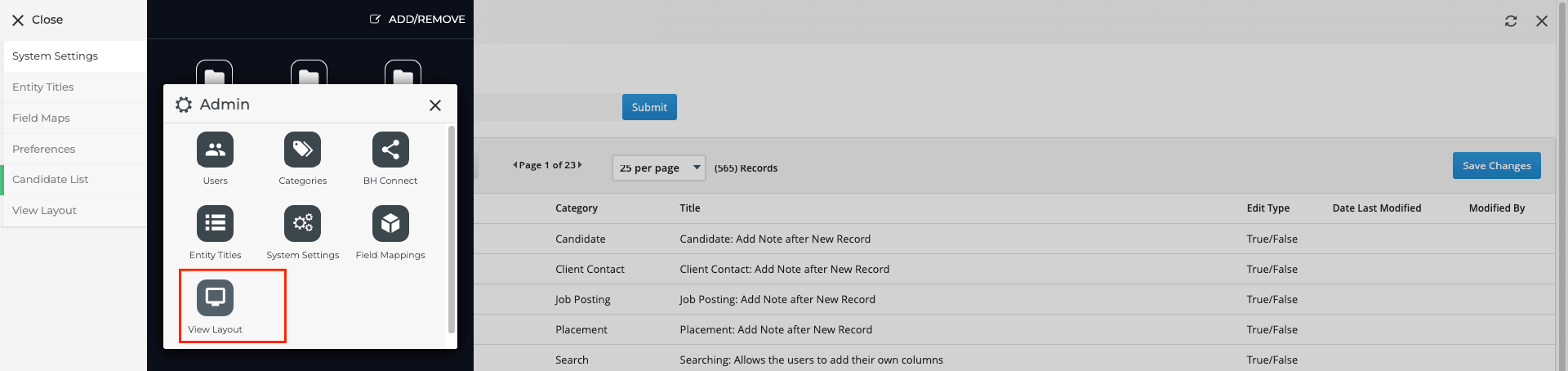 Select the `Candidate` entity from the Field Map Entity dropdown menu.
 Navigate to the **Custom Tab**.
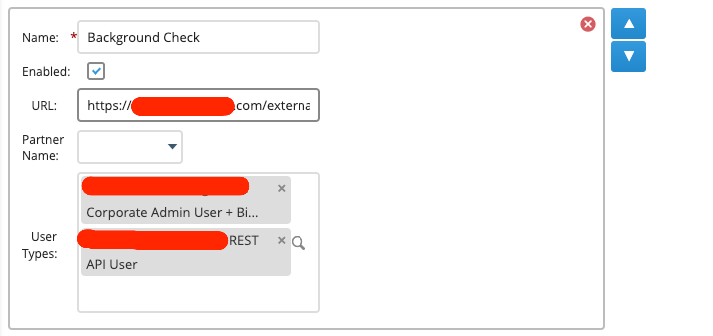
 Click the **Add New** button and enter the required information in the fields:
* **Name:** The name of the tab can be any text, e.g. `Assessments` or `Background Checks`
* **Enabled:** Tick this box to enable the tab
* **URL:** Enter the endpoint URL along with the query parameter: `externalTriggerToken`
```plaintext theme={null}
https://api.stackone.com/external-trigger/bullhorn_ats?externalTriggerToken=
```
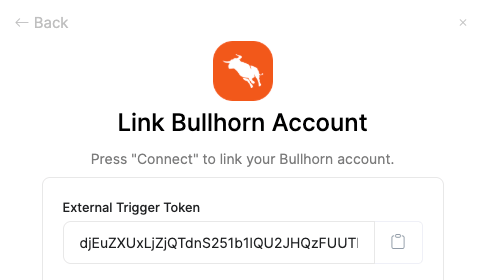
The endpoint URL must include the `externalTriggerToken` query parameter, which you will receive from the StackOne Connector Hub. This token verifies requests from Bullhorn for the specific account.
To obtain the **External Trigger Token**, please follow these steps:
* [StackOne Configuration](#stackone-configuration)
* [ATS User Enablement](#ats-user-enablement)
* **User Types**: Select the user types who will have visibility of this tab.
Click the **Add New** button and enter the required information in the fields:
* **Name:** The name of the tab can be any text, e.g. `Assessments` or `Background Checks`
* **Enabled:** Tick this box to enable the tab
* **URL:** Enter the endpoint URL along with the query parameter: `externalTriggerToken`
```plaintext theme={null}
https://api.stackone.com/external-trigger/bullhorn_ats?externalTriggerToken=
```
The endpoint URL must include the `externalTriggerToken` query parameter, which you will receive from the StackOne Connector Hub. This token verifies requests from Bullhorn for the specific account.
To obtain the **External Trigger Token**, please follow these steps:
* [StackOne Configuration](#stackone-configuration)
* [ATS User Enablement](#ats-user-enablement)
* **User Types**: Select the user types who will have visibility of this tab.
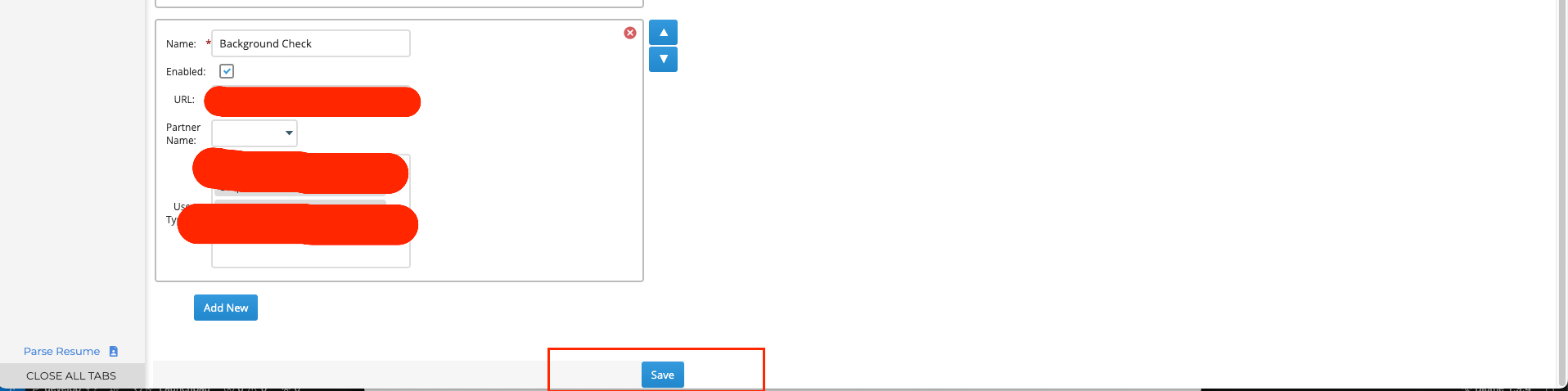
 Click the **Save** button.
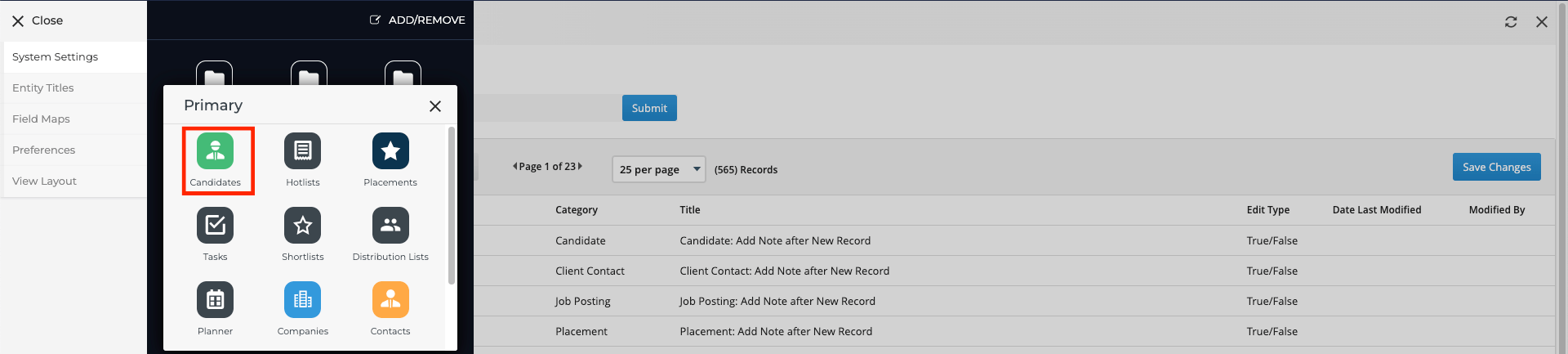
 Navigate to the *Candidates List* page, click the `Menu` button, and then click `Primary`.
 Click the `Candidates` button.
 Click any candidate from the list.
 You will find the custom tab on the candidate detail page either within the main tab area or under the *More* drop-down.
 ## StackOne Configuration
Navigate to the ATS category on the *Integrations* page and enable Bullhorn.
## StackOne Configuration
Navigate to the ATS category on the *Integrations* page and enable Bullhorn.
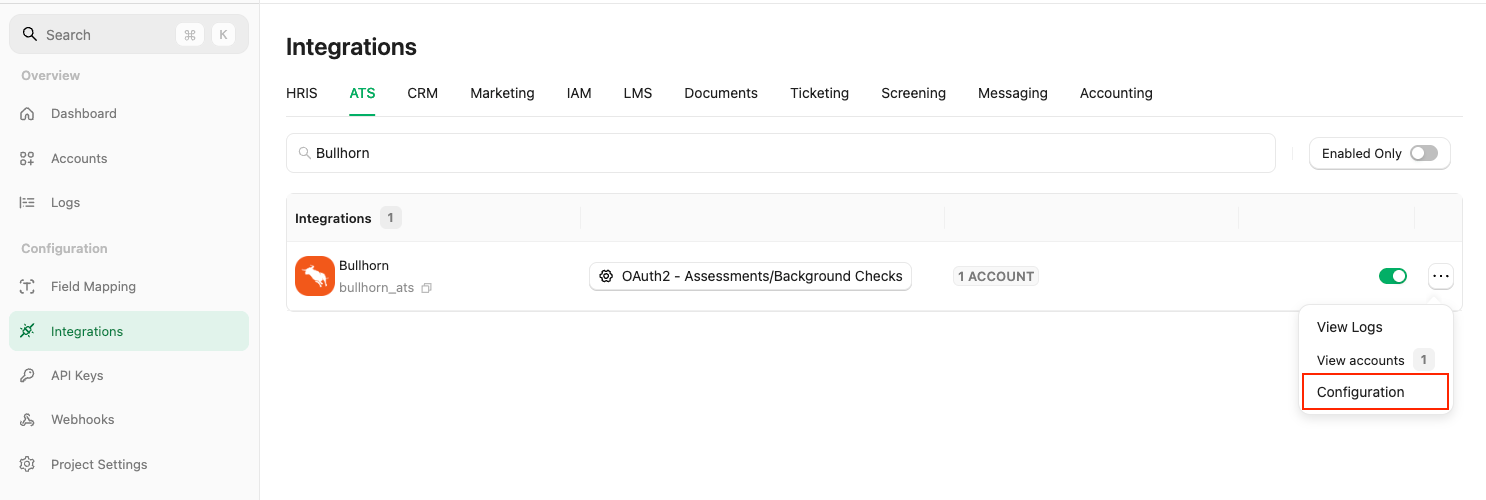 Fill out the necessary fields in the **Bullhorn - Configuration model**:
* **Authentication Type:** Select `OAuth2 - Assessments/Background Checks` to utilize the assessments/background checks integrations.
* **Partner Category:** Bullhorn does not define separate integration categories. You choose which feature to surface in the custom tab. If the tab is for background checks or assessments, select the corresponding category: `Background Checks` or `Assessments`.
* **Package's List Endpoint URL:** Implement and provide an endpoint to StackOne, which StackOne will use to retrieve the list of packages when the recruiter wants to send a test to a candidate.
Implement the following POST endpoint:
```bash theme={null}
curl --location 'https://your-domain.com/' \
--header 'Content-Type: application/json' \
--header 'x-stackone-signature: string' \
--header 'Authorization: Basic ' \
--data '{
"account_id": "456551489512493413",
"provider": "bullhorn_ats"
}'
```
The expected response of the POST endpoint (list of packages). Refer to:
* [List Assessments Packages](/ats/api-reference/assessments/packages/list-assessments-packages)
* [List Background Check Packages](/ats/api-reference/background-checks/packages/list-background-check-packages)
Enter the endpoint into the designated field:
```plaintext theme={null}
https://your-domain.com/
```
* **Package ID:** If you do not have the Package's List Endpoint URL, you can add a static package ID that will be visible to the recruiter when they want to send a test to the candidate.
Fill out the necessary fields in the **Bullhorn - Configuration model**:
* **Authentication Type:** Select `OAuth2 - Assessments/Background Checks` to utilize the assessments/background checks integrations.
* **Partner Category:** Bullhorn does not define separate integration categories. You choose which feature to surface in the custom tab. If the tab is for background checks or assessments, select the corresponding category: `Background Checks` or `Assessments`.
* **Package's List Endpoint URL:** Implement and provide an endpoint to StackOne, which StackOne will use to retrieve the list of packages when the recruiter wants to send a test to a candidate.
Implement the following POST endpoint:
```bash theme={null}
curl --location 'https://your-domain.com/' \
--header 'Content-Type: application/json' \
--header 'x-stackone-signature: string' \
--header 'Authorization: Basic ' \
--data '{
"account_id": "456551489512493413",
"provider": "bullhorn_ats"
}'
```
The expected response of the POST endpoint (list of packages). Refer to:
* [List Assessments Packages](/ats/api-reference/assessments/packages/list-assessments-packages)
* [List Background Check Packages](/ats/api-reference/background-checks/packages/list-background-check-packages)
Enter the endpoint into the designated field:
```plaintext theme={null}
https://your-domain.com/
```
* **Package ID:** If you do not have the Package's List Endpoint URL, you can add a static package ID that will be visible to the recruiter when they want to send a test to the candidate.
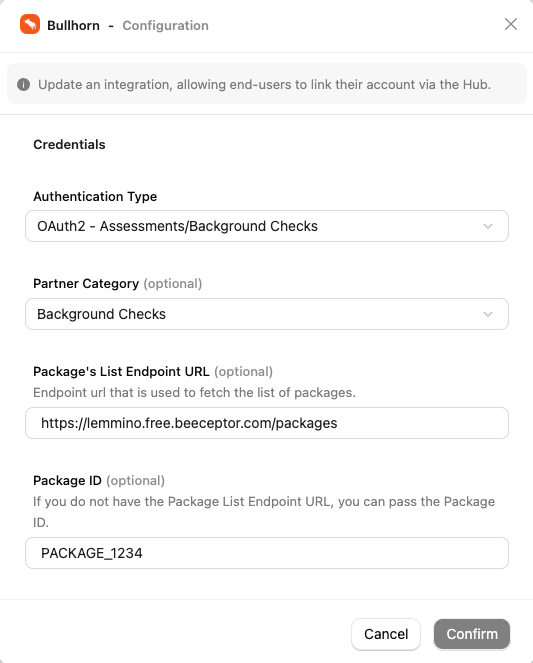 Click on the `Confirm` or `Save Changes` button to enable OAuth APIs, which allows users to link their accounts via the StackOne Connector Hub.
Navigate to the *Webhooks* page, click `+ Add webhook`, and complete the form:
* **Name:** Enter a recognisable name for your webhook.
* **URL:** Enter the URL where the webhook will send notifications of enabled events.
Click on the `Confirm` or `Save Changes` button to enable OAuth APIs, which allows users to link their accounts via the StackOne Connector Hub.
Navigate to the *Webhooks* page, click `+ Add webhook`, and complete the form:
* **Name:** Enter a recognisable name for your webhook.
* **URL:** Enter the URL where the webhook will send notifications of enabled events.
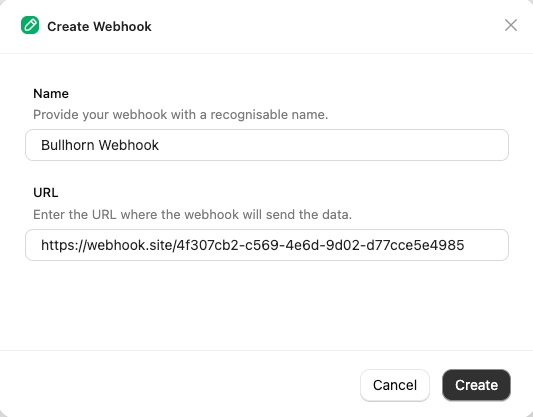 Navigate to the *Events* tab and enable webhook events for Assessment & Background Check, such as `Assessments Order` & `Background Check Order`.
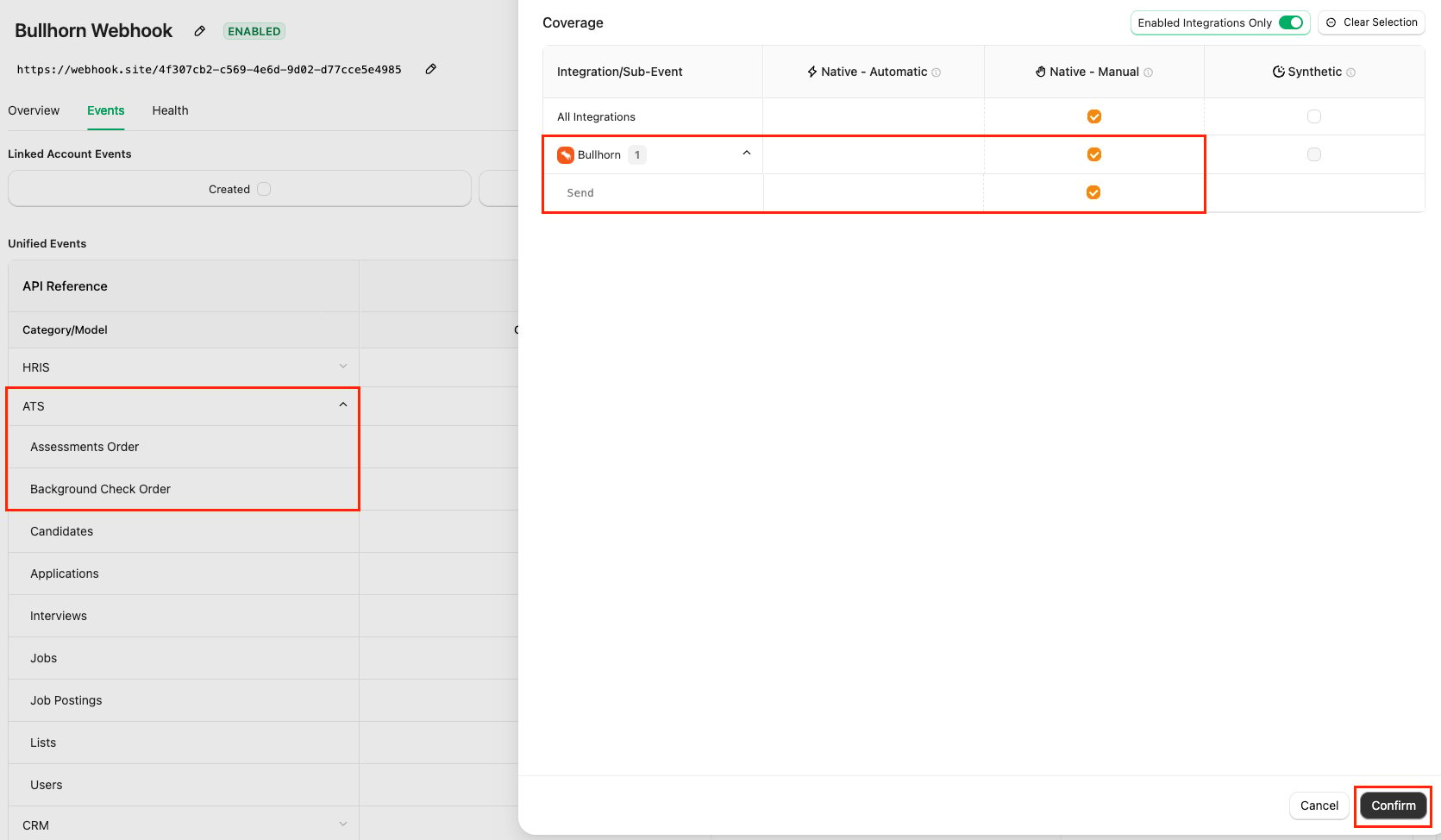 Click the `Confirm` button to save the webhook.
## ATS User Enablement
Navigate to the *Accounts* page or the StackOne Connector Hub to link your Bullhorn account with StackOne.
Click the `Confirm` button to save the webhook.
## ATS User Enablement
Navigate to the *Accounts* page or the StackOne Connector Hub to link your Bullhorn account with StackOne.
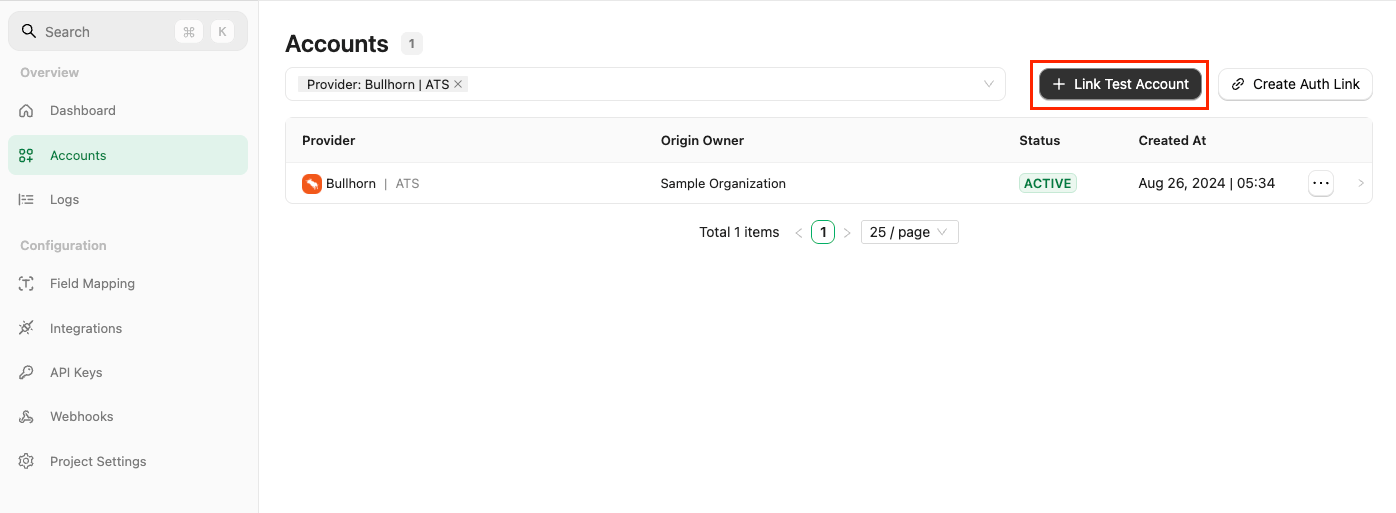 You will receive the `External Trigger Token`, which must be passed as a query parameter along with the endpoint URL when setting up the custom tab in Bullhorn, as outlined in the [Provider Side Setup](#provider-side-setup).
 ## ATS User Experience
After completing the configuration process, users will see the custom tab on the candidate detail page in Bullhorn.
Users can click on the `Send Assessment/Background Check` button, select one of the packages from the drop-down, and click on the `Send` button to send the assessment/background check test to the candidate.
## ATS User Experience
After completing the configuration process, users will see the custom tab on the candidate detail page in Bullhorn.
Users can click on the `Send Assessment/Background Check` button, select one of the packages from the drop-down, and click on the `Send` button to send the assessment/background check test to the candidate.
 A webhook notification will be triggered and you will receive the notification. On Bullhorn UI, the status will be updated to `Pending`.
 Once the result is updated in Bullhorn’s UI, users will see the updated results.
 ## ATS User Experience Customization
Utilize the following endpoints to update the results:
* [Assessment Update Result](/ats/api-reference/assessments/results/update-assessments-result)
* [Background Check Update Result](/ats/api-reference/background-checks/results/update-background-check-result)
Utilize the following endpoint to get endpoint's metadata to update the result of the assessment or background check:
* [Connector Meta Information](https://docs.stackone.com/platform/api-reference/connectors/get-connector-meta-information-legacy) with the provider key `bullhorn_ats` for model `assessments/results.update` or `background_checks/results.update`
## ATS User Experience Customization
Utilize the following endpoints to update the results:
* [Assessment Update Result](/ats/api-reference/assessments/results/update-assessments-result)
* [Background Check Update Result](/ats/api-reference/background-checks/results/update-background-check-result)
Utilize the following endpoint to get endpoint's metadata to update the result of the assessment or background check:
* [Connector Meta Information](https://docs.stackone.com/platform/api-reference/connectors/get-connector-meta-information-legacy) with the provider key `bullhorn_ats` for model `assessments/results.update` or `background_checks/results.update`
| Fields (when provided) | User sees in Bullhorn | Comments |
| ---------------------- | --------------------------------------------------------------------------- | --------------------------------------------- |
| Score's value | Score column will reflect the latest score's value | |
| Result | Status column will reflect the latest result's status | Result enum values from Meta API result field |
| Submission Date | Date column will reflect the latest submission date | |
| Result Url | Results URL column will reflect the latest Result URL as a View Result link | |
When a user opens a Assessment/Background Check custom tab, they will see the updated result with their score and status.
## Testing Checklist
✅ **Provider Setup Validation:**
* Logged-in with Admin account.
* Created and enabled a custom tab with valid user types assigned.
* Added a custom tab for Assessment or Background Check as mentioned in the Provider Side Setup.
* Valid StackOne URL along with the `externalTriggerToken` query parameter.
✅ **StackOne Configuration Validation:**
* Selected `OAuth2 - Assessments/Background Checks` Authentication Type.
* Package's List Endpoint URL is correct.
* Package's List Endpoint response is expected according to the following endpoint's response:
* [List Assessments Packages](/ats/api-reference/assessments/packages/list-assessments-packages)
* [List Background Check Packages](/ats/api-reference/background-checks/packages/list-background-check-packages)
✅ **ATS User Activation Validation:**
* Valid `externalTriggerToken` to the query parameter.
✅ **Create a Webhook**
* Added a webhook for Bullhorn and enabled it with the events such as: `Assessments Order` or `Background Check Order`
* Valid webhook URL to receive assessment/background check notifications.
✅ **ATS User Experience:**
* Custom tab is visible in the candidate detail page either within the main tab area or under the *More* dropdown.
* When selecting a package and sending the webhook, the status is updated to `Pending` along with actions that is updated to `Sent`.
✅ **Update Result**
* Success response from the update result endpoint.
* Updated result details to Bullhorn's UI.
## Troubleshooting
| Symptom | Likely cause | Fix |
| ------------------------------------------------------------------------------- | --------------------------------------------------------------------------------------------------------------------------------------------------------------------------------------------------------------------------------------------------------------------------------------------------------------------------------------------------------------------------------------------------------------------------------------------------------------------- | --------------------------------------------------------------------------------------------------------------------------------------------------------------------------------------------------------------------------------------------------------------------------------------------------------------------------------------------- |
| Unable to access/add custom tab | Logged-in account is not an Admin account | Log in with an Admin account |
| External Trigger Token field is not visible at StackOne Connector Hub | Selected Authentication Type is incorrect. | Select Authentication Type `OAuth2 - Assessments/Background Checks` instead. |
| Custom tab is not visible in candidate detail page | Enabled checkbox is not checked. | Tick **Enabled** checkbox under the custom tab to enable the custom tab to visible within the candidate detail page. |
| Custom tab is visible however getting 500 | **•** Invalid URL.
**•** Invalid External Trigger Token.
**•** Invalid Package's List Endpoint URL. | **•** Verify the StackOne URL.
**•** Verify External Trigger Token.
**•** Verify Package's List Endpoint URL. |
| Packages unavailable despite provided endpoint URL | Empty Response from the Package's List Endpoint URL. | Verify the Package's List Endpoint URL and ensure it returns the expected package data.
If you don’t have the package list endpoint URL, you can use the Package ID with a static package. |
| Test notification is not received | **•** External Trigger Token is invalid.
**•** Invalid webhook URL at StackOne.
**•** Enabled events are not as expected. | **•** Use a valid External Trigger Token.
**•** Check webhook URL at StackOne.
**•** Check enabled events are expected. |
| Status updated to `Pending` but record not found when revisiting the custom tab | **•** Either External Trigger Token is updated after notification has been sent.
**•** Enabled events are updated after notification has been sent.
**•** Custom field is updated and not the previous one that is selected at the time of getting notification sent from the StackOne Connector Hub.
**•** Custom Field data is corrupted due to reuse of that custom field at different places or for different custom tabs. | **•** Verify the External Trigger Token.
**•** Check enabled events are expected.
**•** Check the Custom Field data it can be corrupted.
**•** Select the correct custom field from the StackOne Connector Hub.
**•** Utilize a unique custom field and confirm it is not used elsewhere. |
| Results not updating in Bullhorn | **•** Custom field is updated and not the previous one that was selected at the time of notification sent from the StackOne Connector Hub.
**•** Custom Field data is corrupted due to reuse of that custom field at different places or for different custom tabs. | **•** Select the correct custom field from the StackOne Connector Hub.
**•** Utilize a unique custom field and confirm it is not used elsewhere. |
| Result URL showing error when opened | Added result URL can be expired or is private. | Ensure to add public or signed URLs; verify CORS and expiry. |
For persistent issues, contact StackOne support with detailed error logs and configuration information.