> ## Documentation Index
> Fetch the complete documentation index at: https://hub.stackone.com/llms.txt
> Use this file to discover all available pages before exploring further.

# Workday Application Custom Field

> To create and view application custom field in Workday, follow these steps

<Warning>
  This guidance assumes that you have admin privileges for your Workday account.
</Warning>

## Create Workday Application Custom Field

<Steps>
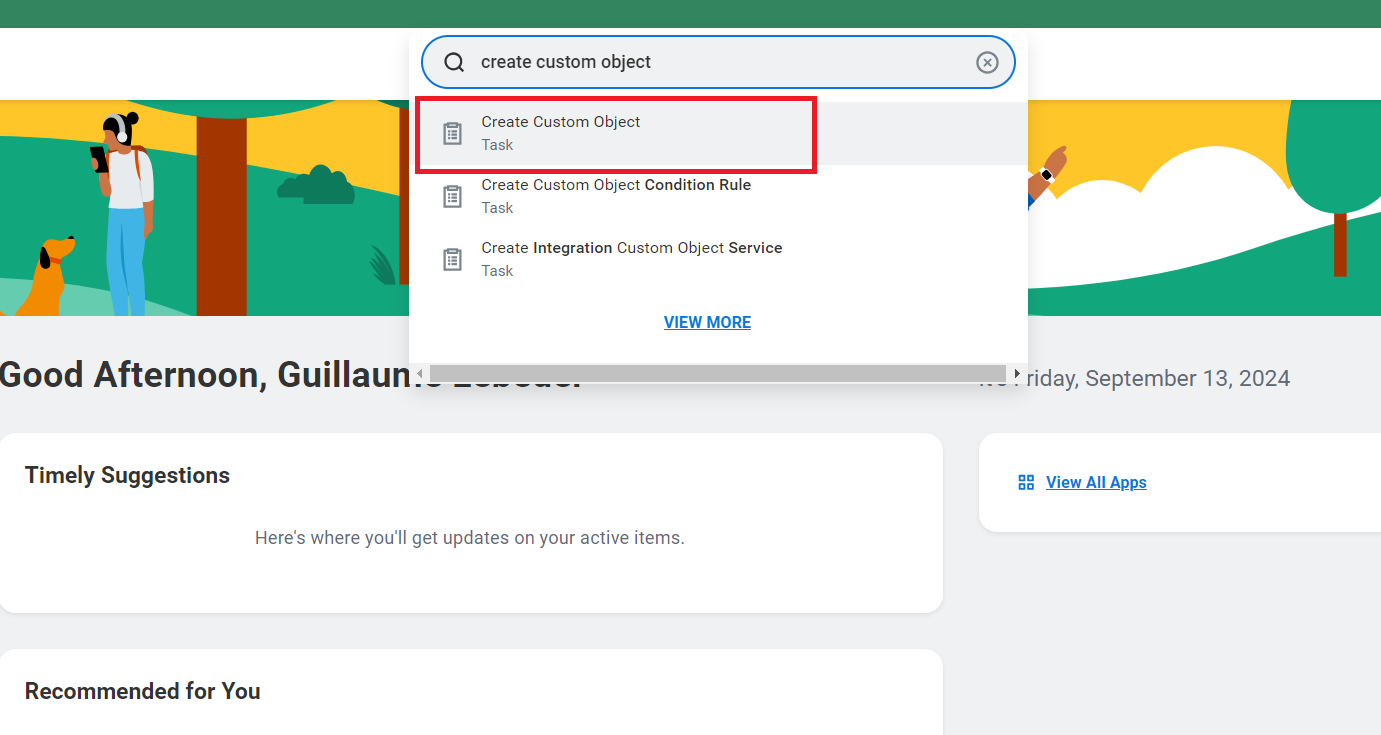
  <Step title="Search for 'Create Custom Object'">
    Search for <b>Create Custom Object</b> in the search bar and select it.

    <Frame>
      <img className="rounded-md" style={{ margin: '0 auto', border: '1px solid #efefef' }} alt="Search Create Custom Object" src="https://mintcdn.com/stackone-hub/0eLvz_3PPJtYMYiJ/images/workday/custom-field/custom-field-01.png?fit=max&auto=format&n=0eLvz_3PPJtYMYiJ&q=85&s=2c45d6200737f5a18cf9b0c271ae27bf" width="1381" height="735" data-path="images/workday/custom-field/custom-field-01.png" />
    </Frame>
  </Step>

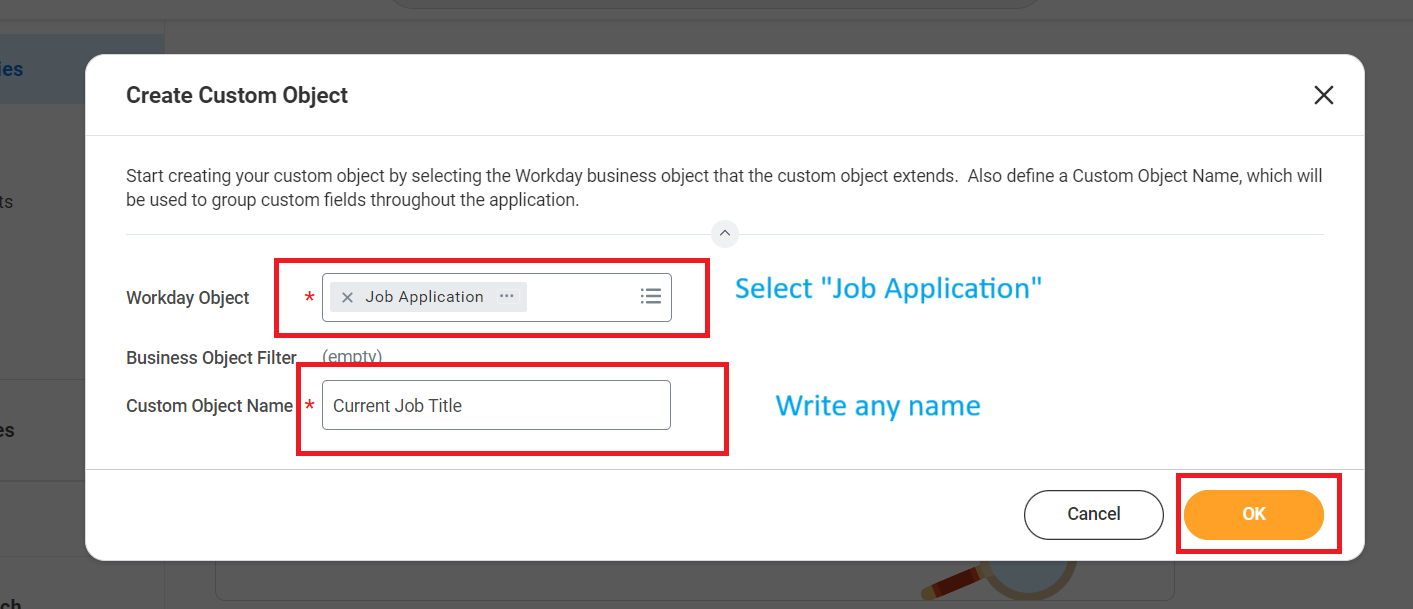
  <Step title="Create Custom Object">
    Select <b>Job Application</b> in Workday Object.<br /> Enter a name for the custom object and click <b>OK</b>

    <Frame>
      <img className="rounded-md" style={{ margin: '0 auto', border: '1px solid #efefef' }} alt="Create Custom Object" src="https://mintcdn.com/stackone-hub/HYJwyqbEuT1SMQL-/images/workday/custom-field/custom-field-24.png?fit=max&auto=format&n=HYJwyqbEuT1SMQL-&q=85&s=3d6cad78399a5c4b76ceea5cf77fc71f" width="1413" height="609" data-path="images/workday/custom-field/custom-field-24.png" />
    </Frame>
  </Step>

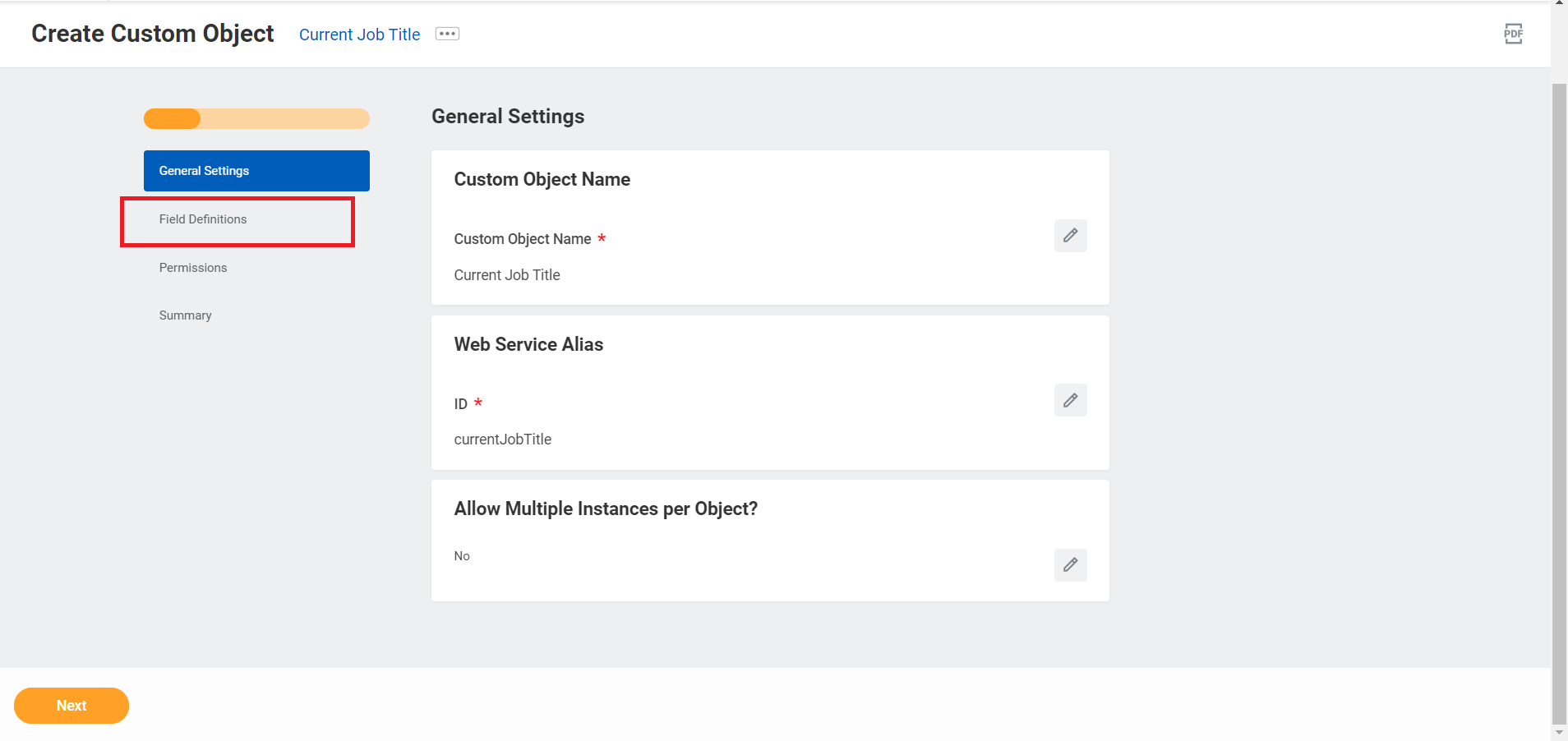
  <Step title="Click 'Field Definitions'">
    Click the <b>Field Definitions</b> tab in the sidebar.

    <Frame>
      <img className="rounded-md" style={{ margin: '0 auto', border: '1px solid #efefef' }} alt="Click Field Definitions" src="https://mintcdn.com/stackone-hub/0eLvz_3PPJtYMYiJ/images/workday/custom-field/custom-field-03.png?fit=max&auto=format&n=0eLvz_3PPJtYMYiJ&q=85&s=7eb03496f82c1308fa6b26156dbede49" width="1908" height="902" data-path="images/workday/custom-field/custom-field-03.png" />
    </Frame>
  </Step>

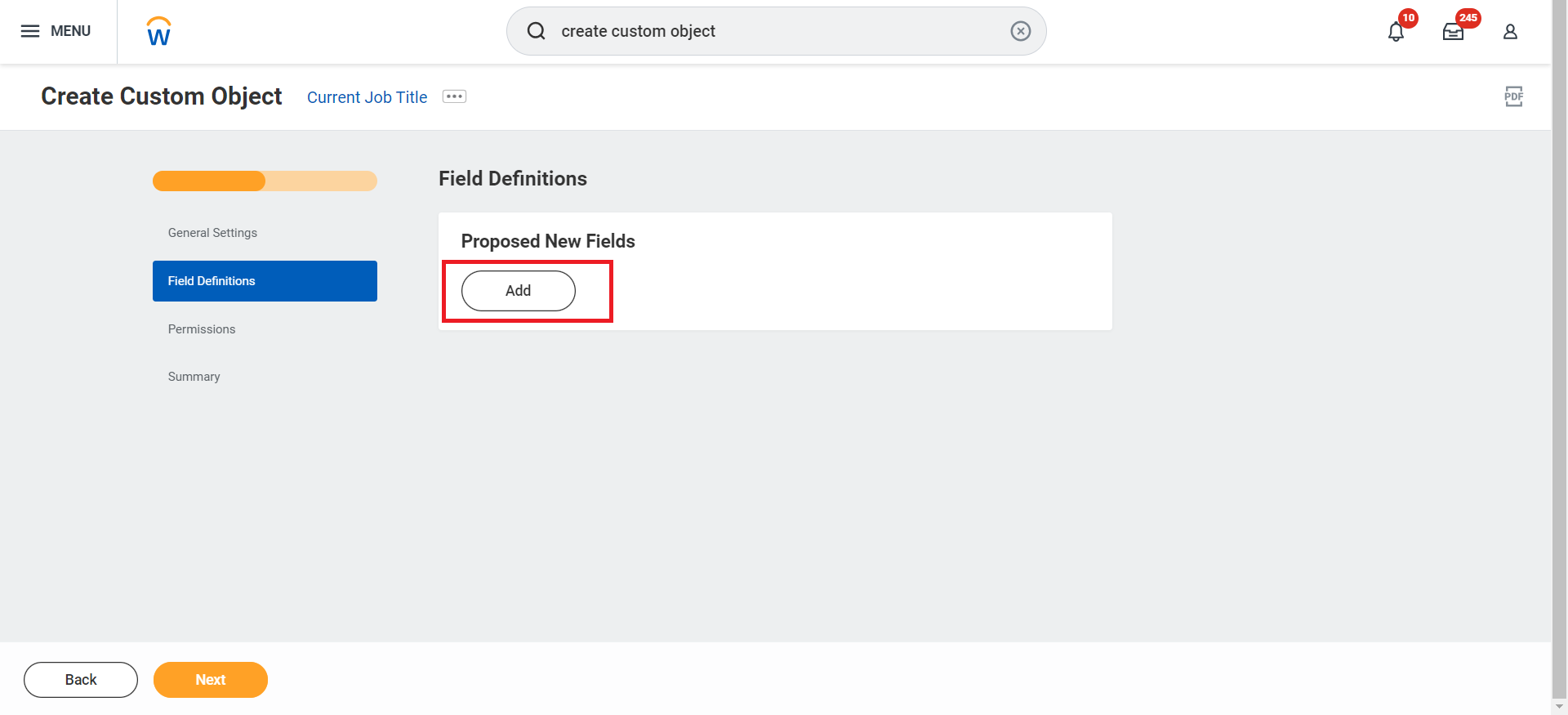
  <Step title="Click 'Add' button">
    Click the <b>Add</b> button in Proposed New Fields.

    <Frame>
      <img className="rounded-md" style={{ margin: '0 auto', border: '1px solid #efefef' }} alt="Click Add button" src="https://mintcdn.com/stackone-hub/0eLvz_3PPJtYMYiJ/images/workday/custom-field/custom-field-04.png?fit=max&auto=format&n=0eLvz_3PPJtYMYiJ&q=85&s=5ad15bed5b75a39aa6a086fd05bd17e7" width="1920" height="875" data-path="images/workday/custom-field/custom-field-04.png" />
    </Frame>
  </Step>

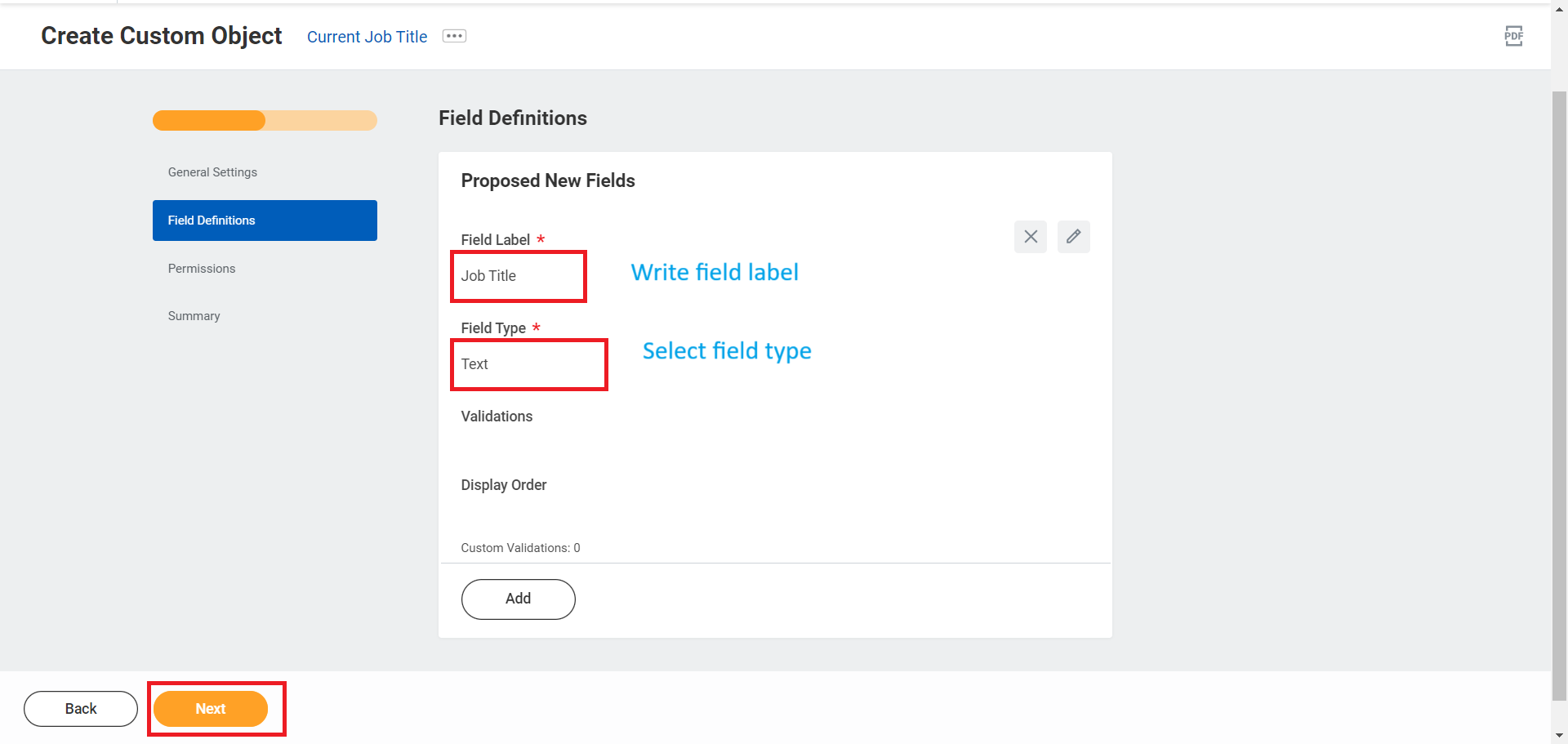
  <Step title="Enter Label & Field Type">
    Enter a label for the field, select a field type from the dropdown menu, and click <b>Next</b>

    <Frame>
      <img className="rounded-md" style={{ margin: '0 auto', border: '1px solid #efefef' }} alt="Enter Label & Field Type" src="https://mintcdn.com/stackone-hub/0eLvz_3PPJtYMYiJ/images/workday/custom-field/custom-field-05.png?fit=max&auto=format&n=0eLvz_3PPJtYMYiJ&q=85&s=1e54c3b6c988c5dbdfc18c08b0940dec" width="1920" height="911" data-path="images/workday/custom-field/custom-field-05.png" />
    </Frame>
  </Step>

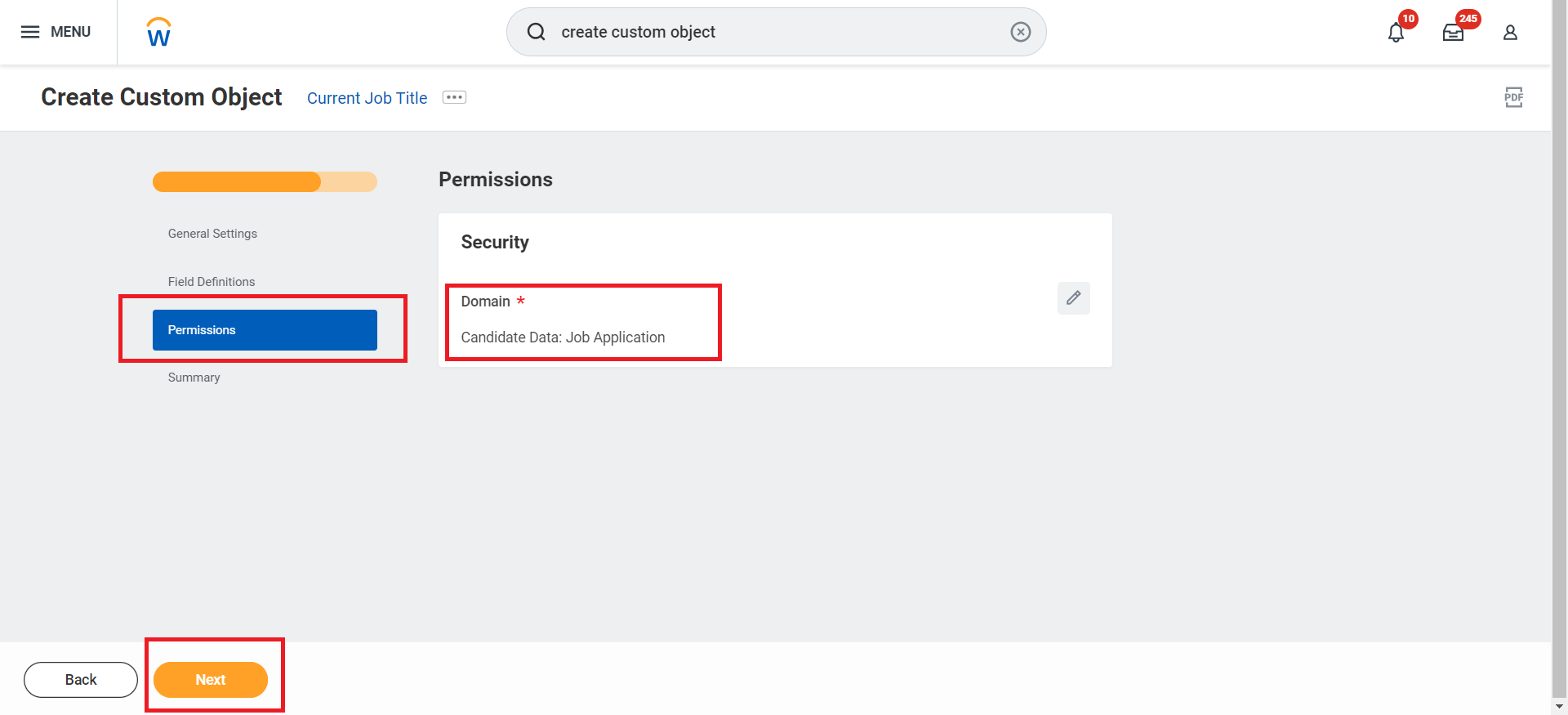
  <Step title="Select 'Candidate Date: Job Application'">
    Select <b>Candidate Date: Job Application</b> in Permissions tab and click <b>Next</b>.

    <Frame>
      <img className="rounded-md" style={{ margin: '0 auto', border: '1px solid #efefef' }} alt="Select Permission" src="https://mintcdn.com/stackone-hub/0eLvz_3PPJtYMYiJ/images/workday/custom-field/custom-field-17.png?fit=max&auto=format&n=0eLvz_3PPJtYMYiJ&q=85&s=1672db90f8be94b13a65da98f360a8cd" width="1920" height="875" data-path="images/workday/custom-field/custom-field-17.png" />
    </Frame>
  </Step>

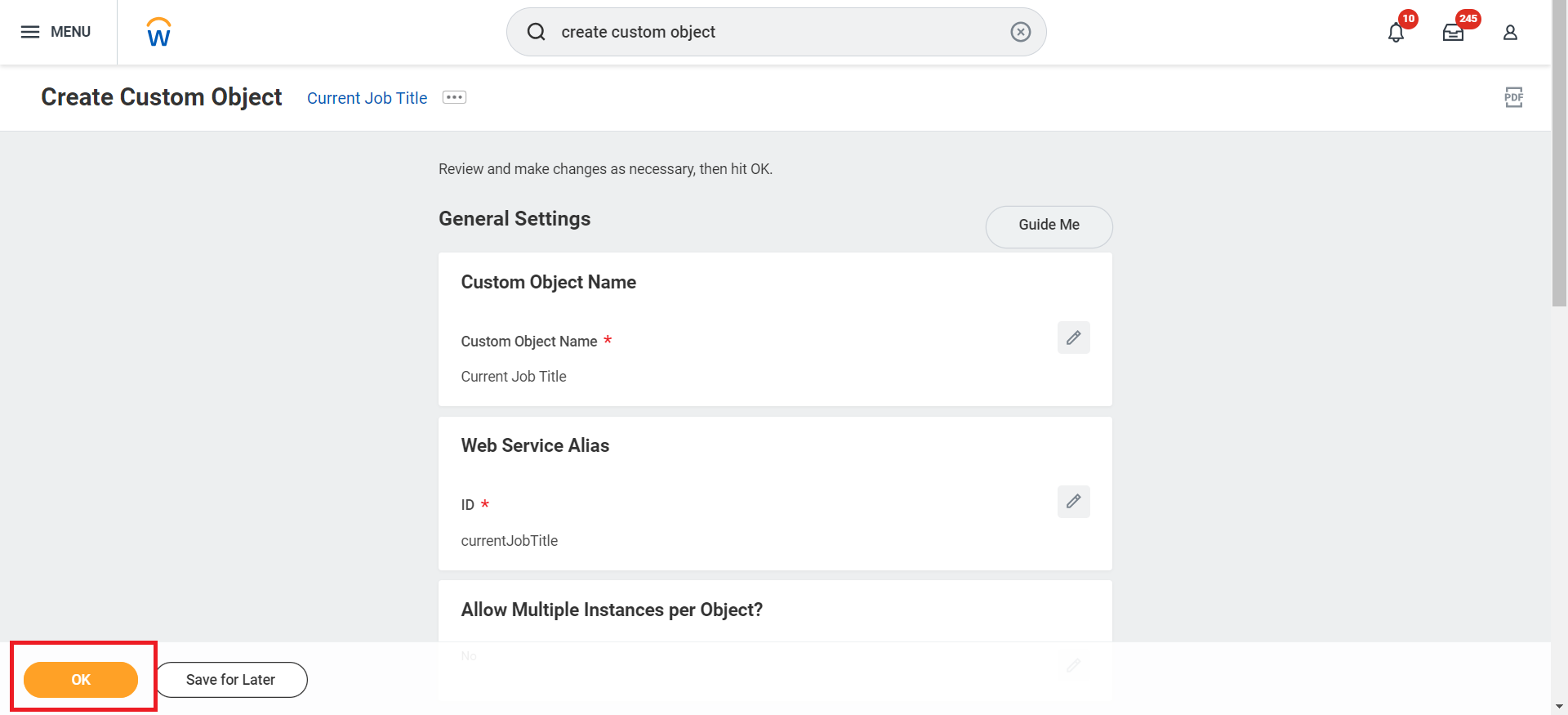
  <Step title="Review and Confirm">
    Verify the custom object summary and click <b>OK</b>

    <Frame>
      <img className="rounded-md" style={{ margin: '0 auto', border: '1px solid #efefef' }} alt="Review and Confirm" src="https://mintcdn.com/stackone-hub/0eLvz_3PPJtYMYiJ/images/workday/custom-field/custom-field-07.png?fit=max&auto=format&n=0eLvz_3PPJtYMYiJ&q=85&s=5b31eec3d74bb4bdcf456bc0b33d13f6" width="1920" height="875" data-path="images/workday/custom-field/custom-field-07.png" />
    </Frame>
  </Step>

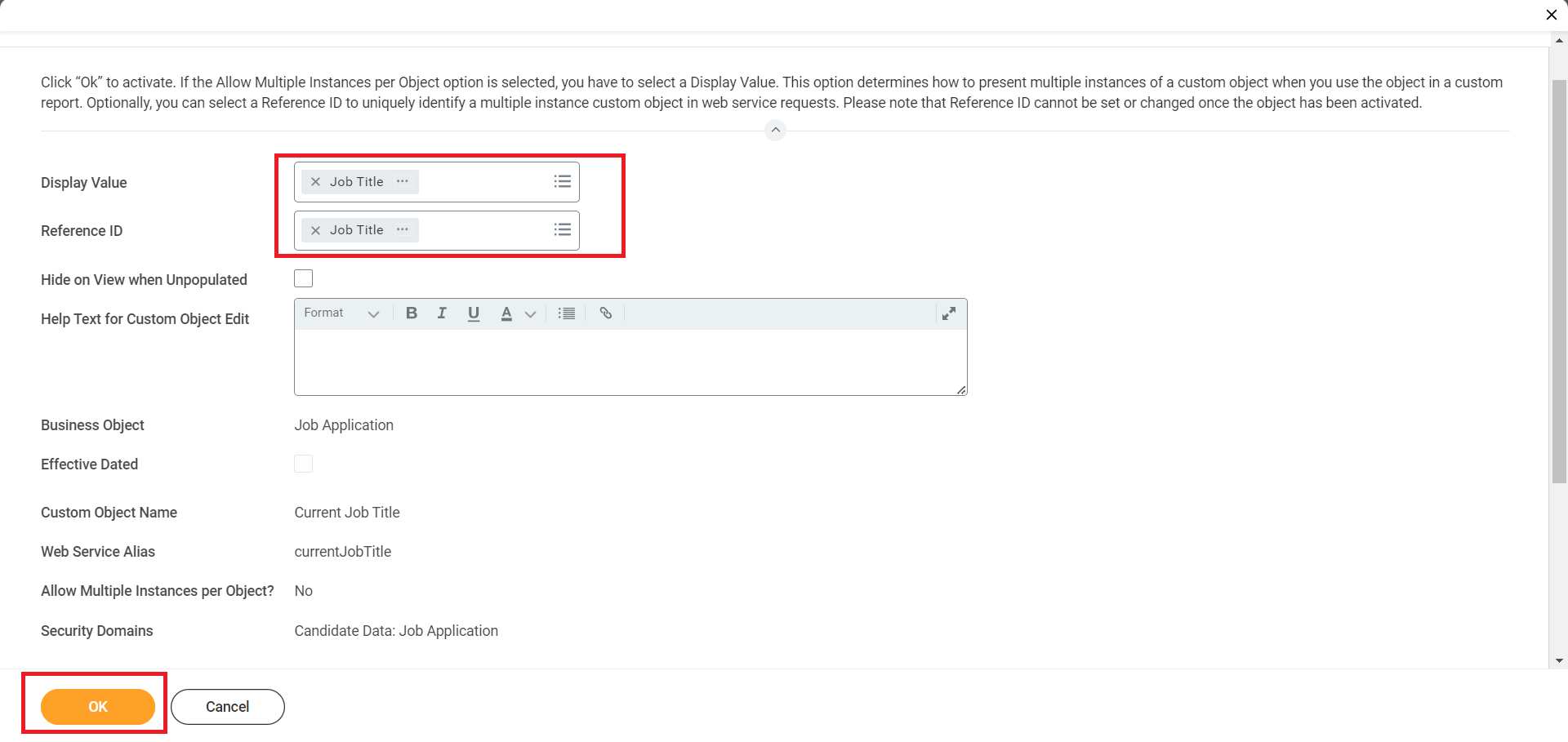
  <Step title="Configure Field Selection">
    Select the newly created custom field from the <b>Display Value</b> and <b>Reference ID</b> dropdowns if the Allow Multiple Instances per Object option is selected, and click <b>OK</b>.

    <Frame>
      <img className="rounded-md" style={{ margin: '0 auto', border: '1px solid #efefef' }} alt="Configure Field Selection" src="https://mintcdn.com/stackone-hub/0eLvz_3PPJtYMYiJ/images/workday/custom-field/custom-field-08.png?fit=max&auto=format&n=0eLvz_3PPJtYMYiJ&q=85&s=39e81680ff9a79dc4db92062ae51aec7" width="1920" height="909" data-path="images/workday/custom-field/custom-field-08.png" />
    </Frame>
  </Step>

  <Step title="Activate Custom Object">
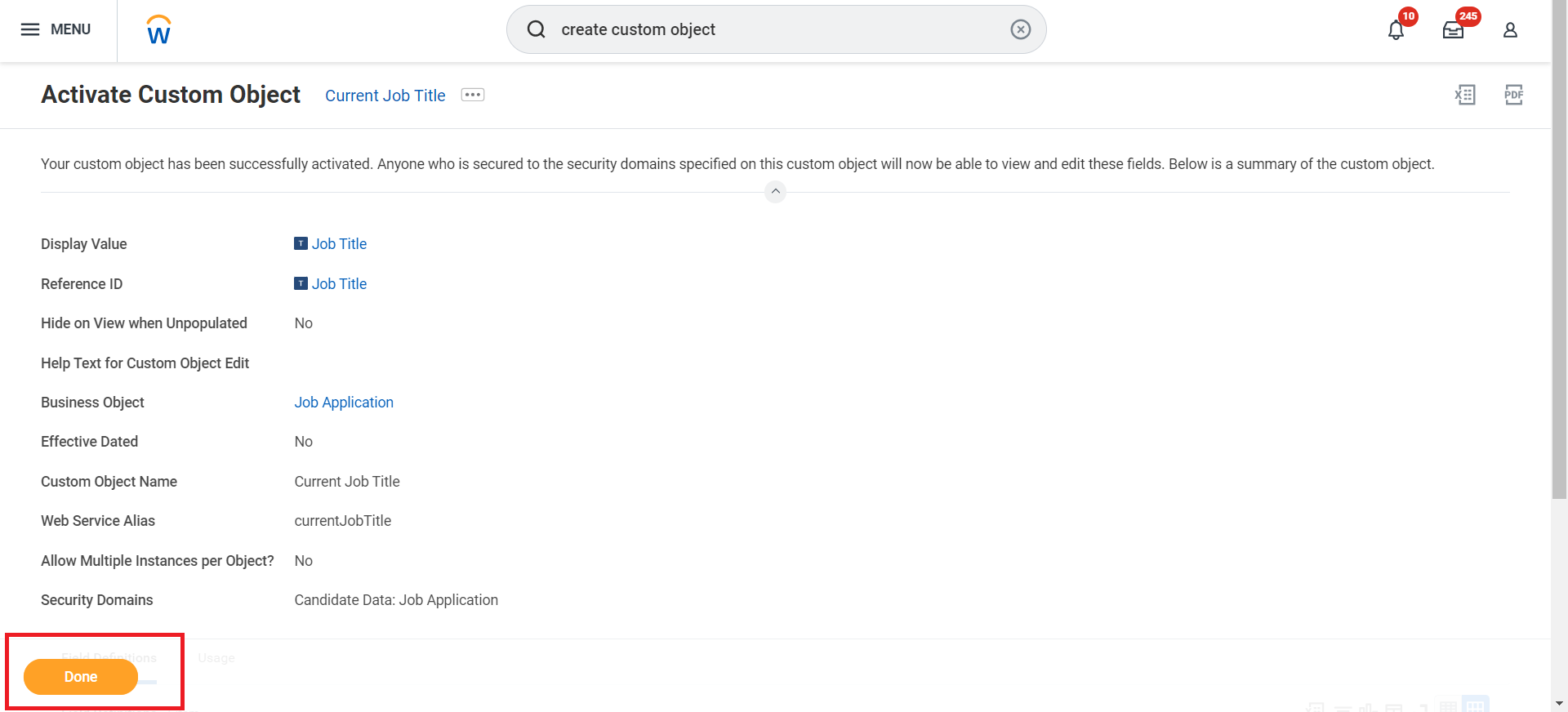
    Activate the custom object by clicking <b>Done</b>

    <Frame>
      <img className="rounded-md" style={{ margin: '0 auto', border: '1px solid #efefef' }} alt="Activate Custom Object" src="https://mintcdn.com/stackone-hub/0eLvz_3PPJtYMYiJ/images/workday/custom-field/custom-field-09.png?fit=max&auto=format&n=0eLvz_3PPJtYMYiJ&q=85&s=601bef7c39701efa97b76dcd1aa4c622" width="1920" height="872" data-path="images/workday/custom-field/custom-field-09.png" />
    </Frame>
  </Step>
</Steps>

## View Workday Application Custom Field
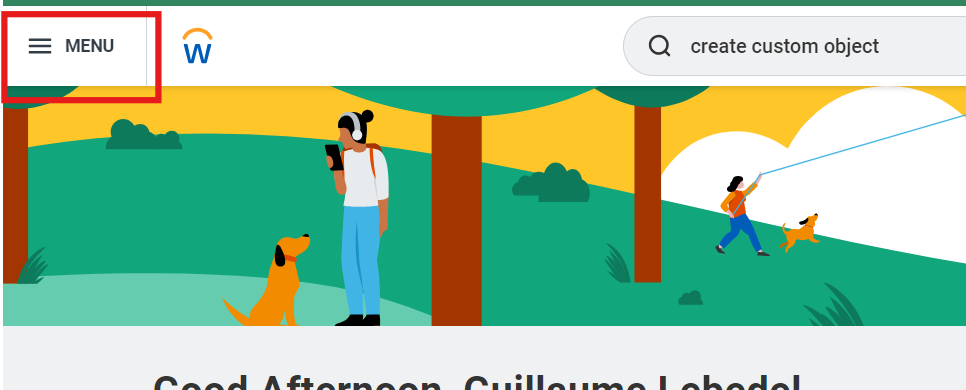
<Steps>
  <Step title="Click on 'Menu'">
    <Frame>
      <img className="rounded-md" style={{ margin: '0 auto', border: '1px solid #efefef' }} alt="Click on Menu" src="https://mintcdn.com/stackone-hub/0eLvz_3PPJtYMYiJ/images/workday/custom-field/custom-field-18.png?fit=max&auto=format&n=0eLvz_3PPJtYMYiJ&q=85&s=be3a7fa34fbafb56632ecaf3ff1ec54e" width="966" height="390" data-path="images/workday/custom-field/custom-field-18.png" />
    </Frame>
  </Step>

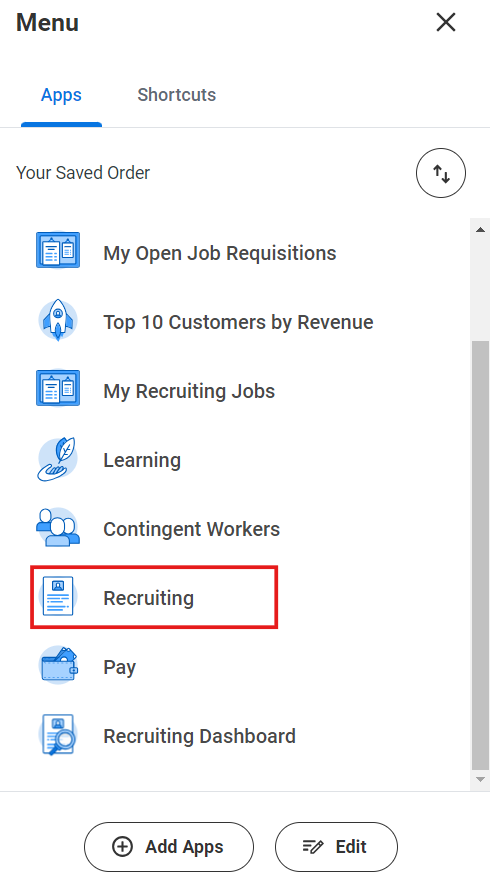
  <Step title="Click 'Recruiting'">
    <Frame>
      <img className="rounded-md" style={{ margin: '0 auto', border: '1px solid #efefef' }} alt="Click Recruiting" src="https://mintcdn.com/stackone-hub/0eLvz_3PPJtYMYiJ/images/workday/custom-field/custom-field-19.png?fit=max&auto=format&n=0eLvz_3PPJtYMYiJ&q=85&s=e1b9c6e1afa7096cfdaf1708f40fd766" width="490" height="882" data-path="images/workday/custom-field/custom-field-19.png" />
    </Frame>
  </Step>

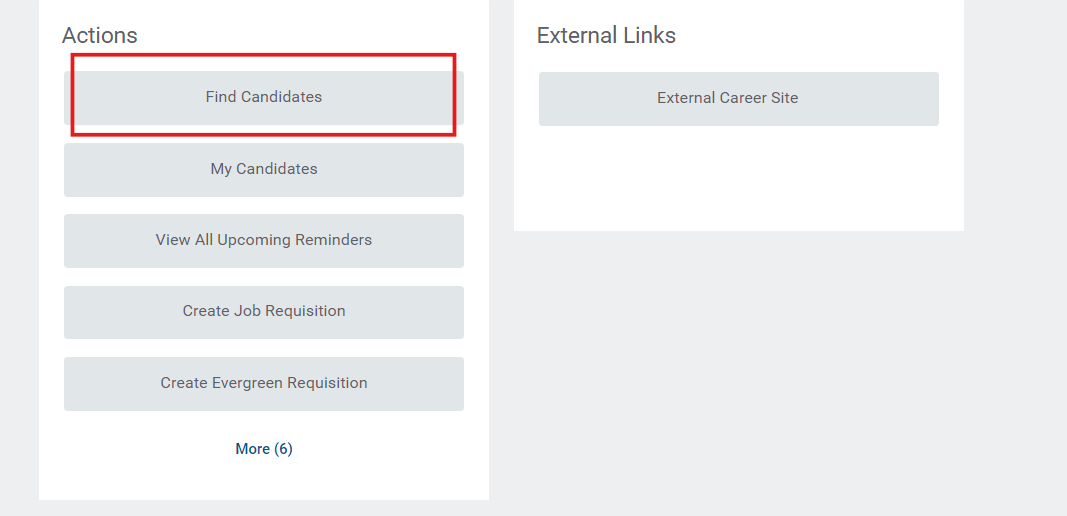
  <Step title="Click on 'Find Candidates'">
    <Frame>
      <img className="rounded-md" style={{ margin: '0 auto', border: '1px solid #efefef' }} alt="Click on Find Candidates" src="https://mintcdn.com/stackone-hub/0eLvz_3PPJtYMYiJ/images/workday/custom-field/custom-field-20.png?fit=max&auto=format&n=0eLvz_3PPJtYMYiJ&q=85&s=ab4d6d76956aeca63ba30a4176373c30" width="1067" height="516" data-path="images/workday/custom-field/custom-field-20.png" />
    </Frame>
  </Step>

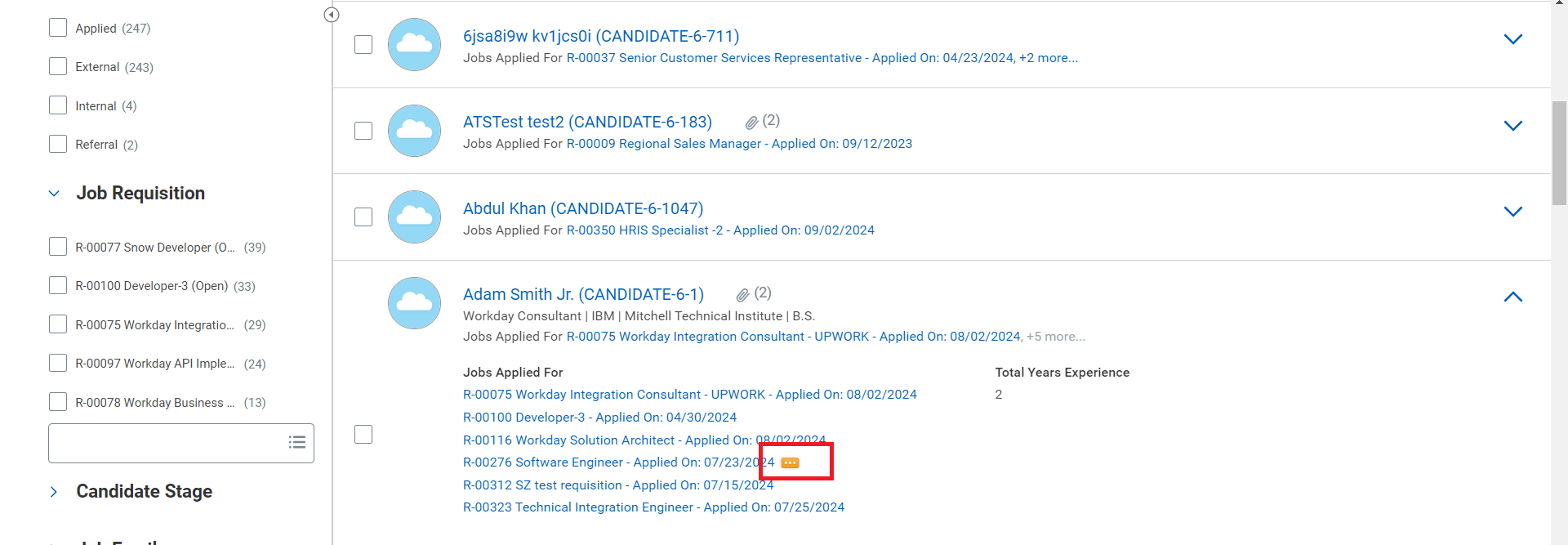
  <Step title="Access Job Application Actions">
    Expand the <b>Job Applied</b> section for the candidate, hover over the job application, and click on the three dots (...).
    <Frame>
      <img className="rounded-md" style={{ margin: '0 auto', border: '1px solid #efefef' }} alt="Access Job Application Actions" src="https://mintcdn.com/stackone-hub/0eLvz_3PPJtYMYiJ/images/workday/custom-field/custom-field-21.png?fit=max&auto=format&n=0eLvz_3PPJtYMYiJ&q=85&s=8c4f395ffe6605ad3bc81e72a5fbb1b4" width="1920" height="667" data-path="images/workday/custom-field/custom-field-21.png" />
    </Frame>
  </Step>

  <Step title="View All Additional Fields">
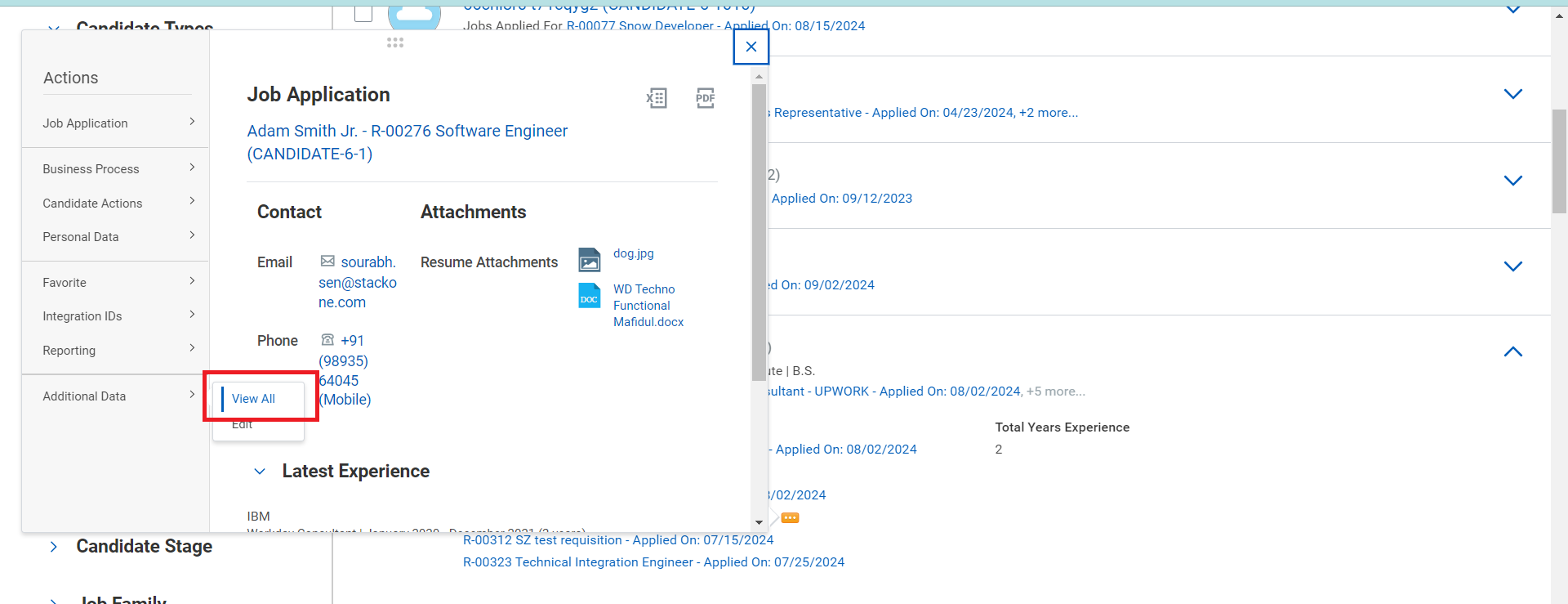
    In the Additional Fields section, click on <b>View All</b>.

    <Frame>
      <img className="rounded-md" style={{ margin: '0 auto', border: '1px solid #efefef' }} alt="View All Additional Fields" src="https://mintcdn.com/stackone-hub/HYJwyqbEuT1SMQL-/images/workday/custom-field/custom-field-22.png?fit=max&auto=format&n=HYJwyqbEuT1SMQL-&q=85&s=508732309b9f377a23a257dd3fe488ea" width="1920" height="739" data-path="images/workday/custom-field/custom-field-22.png" />
    </Frame>
  </Step>

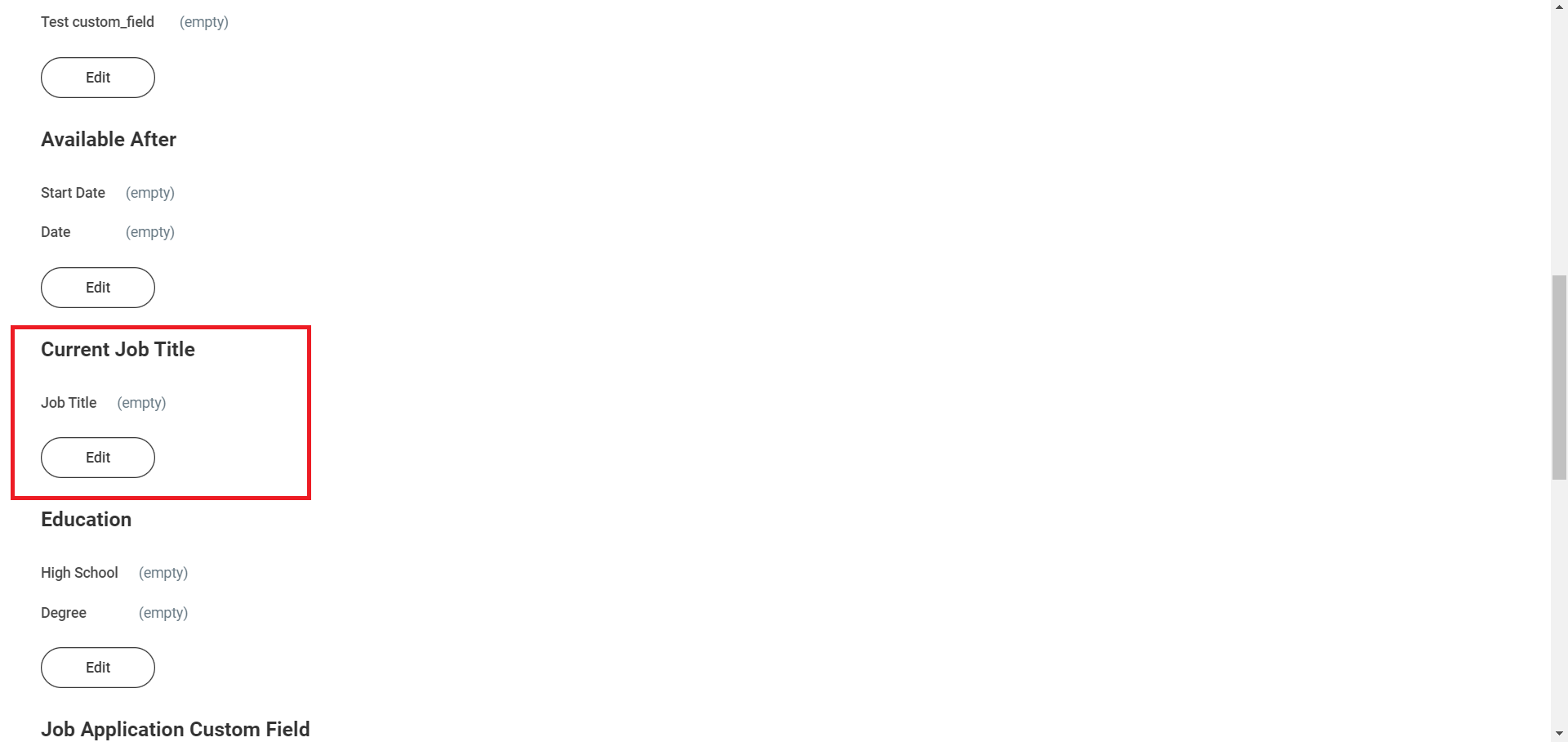
  <Step title="View Newly Created Custom Field">
    Now, you will see the newly created custom field.
    <Frame>
      <img className="rounded-md" style={{ margin: '0 auto', border: '1px solid #efefef' }} alt="View Newly Created Custom Field" src="https://mintcdn.com/stackone-hub/HYJwyqbEuT1SMQL-/images/workday/custom-field/custom-field-23.png?fit=max&auto=format&n=HYJwyqbEuT1SMQL-&q=85&s=0e0f508956fdd5455d3bcd835481c89f" width="1920" height="908" data-path="images/workday/custom-field/custom-field-23.png" />
    </Frame>
  </Step>
</Steps>