> ## Documentation Index
> Fetch the complete documentation index at: https://hub.stackone.com/llms.txt
> Use this file to discover all available pages before exploring further.

# SmartRecruiters Background Check

> To successfully send background check or assessment notifications from SmartRecruiters, follow these steps in your SmartRecruiters account and complete the required actions.

<Warning>
  The following guidance assumes you have Admin privileges for your SmartRecruiters
  account.
</Warning>

## To Get External Trigger Token

<Steps>
  <Step title="Get the External Trigger Token">
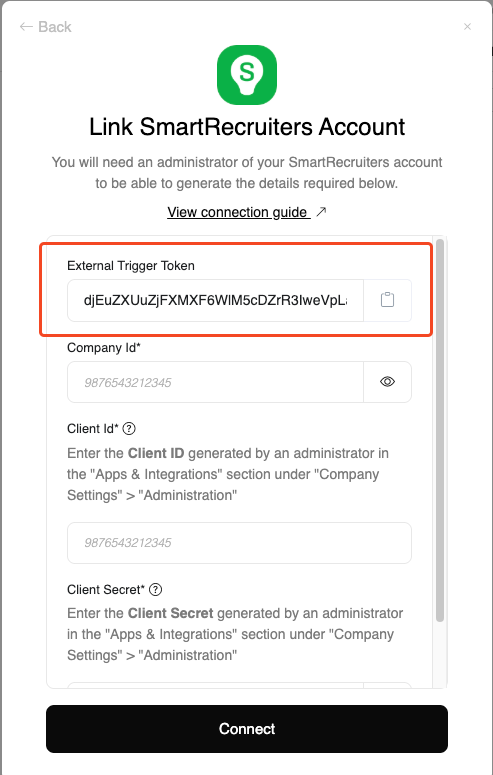
    From the StackOne Hub, you will receive the `External Trigger Token` needed to enable the SmartRecruiters integration.
    <Frame>
      <img className="rounded-md" style={{ margin: '0 auto', border: '1px solid #efefef' }} alt="External Trigger Token" src="https://mintcdn.com/stackone-hub/sGFIi1XaqyOUe9wI/images/smartrecruiters-assessments-background-checks/external-trigger-token.png?fit=max&auto=format&n=sGFIi1XaqyOUe9wI&q=85&s=e9f3eb3fe83893323e699032ae12550d" width="493" height="775" data-path="images/smartrecruiters-assessments-background-checks/external-trigger-token.png" />
    </Frame>
  </Step>
</Steps>

## Enable the integration in your SmartRecruiters account

<Steps>
  <Step title="Open Settings">
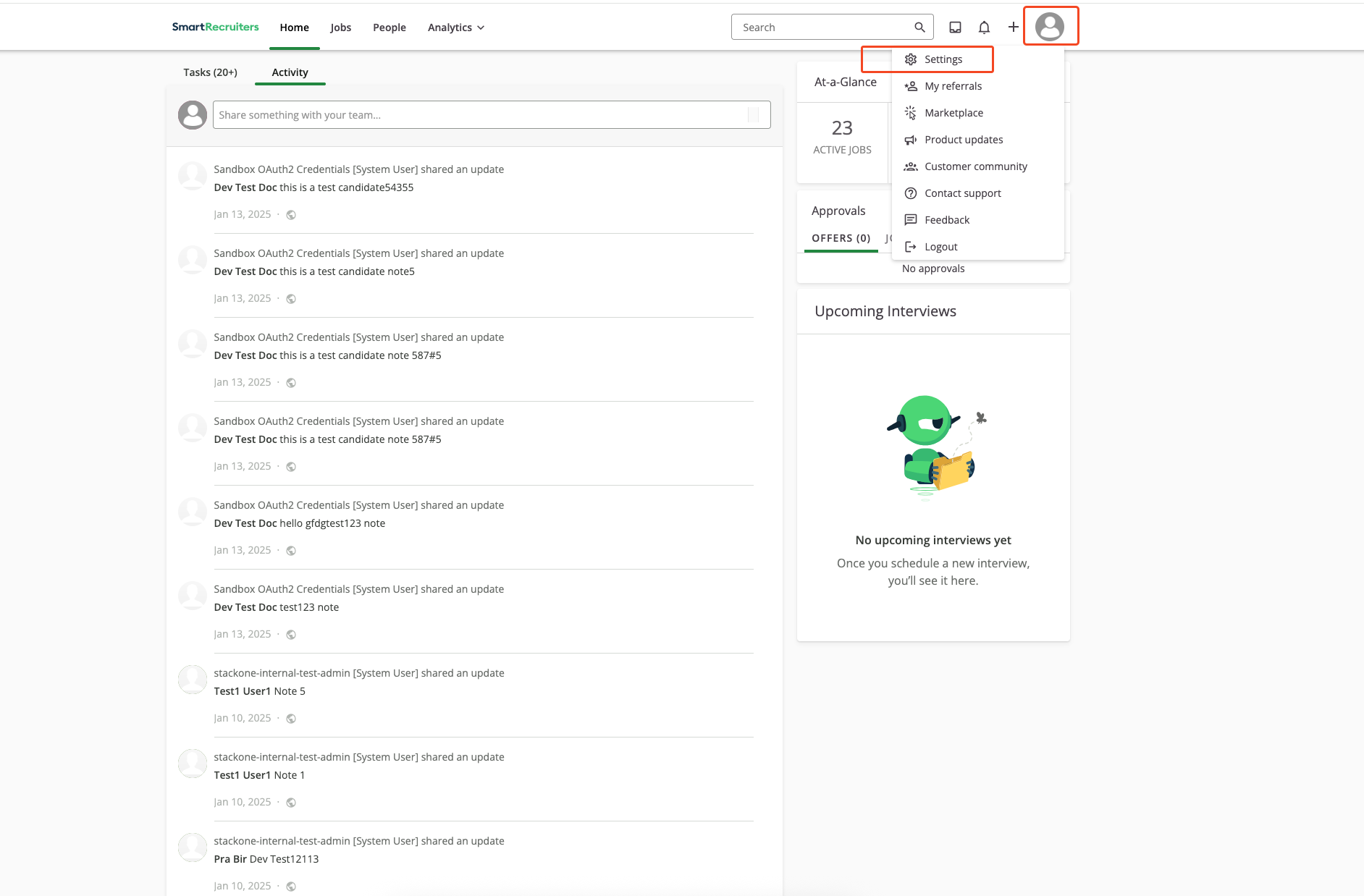
    Navigate to `Settings` in the SmartRecruiters dashboard. On the home page, click your account avatar and select `Settings`.
    <Frame>
      <img className="rounded-md" style={{ margin: '0 auto', border: '1px solid #efefef' }} alt="Navigate to Settings" src="https://mintcdn.com/stackone-hub/sGFIi1XaqyOUe9wI/images/smartrecruiters-assessments-background-checks/sandbox-settings.png?fit=max&auto=format&n=sGFIi1XaqyOUe9wI&q=85&s=710f839e754178593af62b404b4bbe7b" width="1884" height="1238" data-path="images/smartrecruiters-assessments-background-checks/sandbox-settings.png" />
    </Frame>
  </Step>

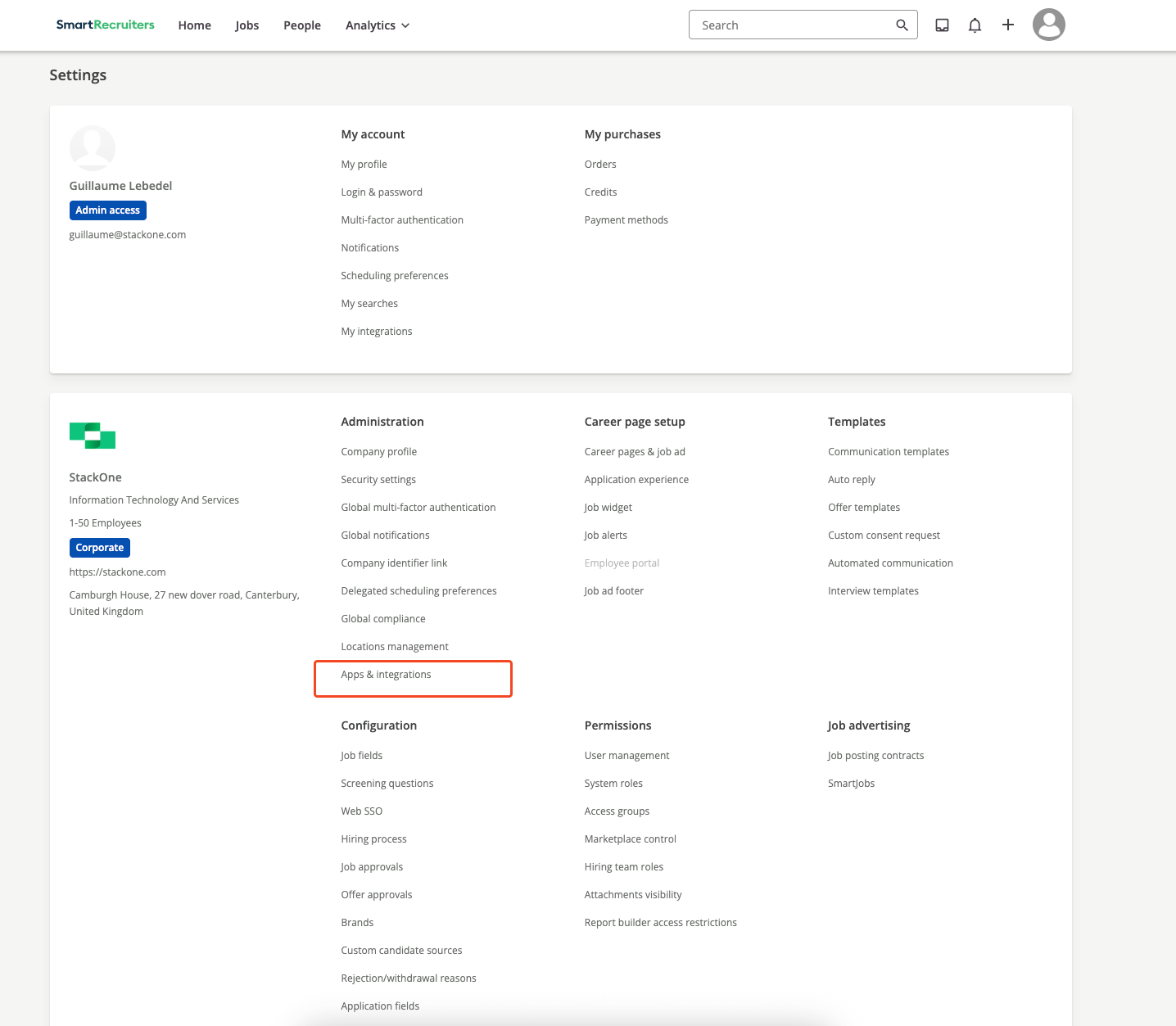
  <Step title="Open Apps & Integrations">
    Select `Apps & Integrations` under Settings.
    <Frame>
      <img className="rounded-md" style={{ margin: '0 auto', border: '1px solid #efefef' }} alt="Apps & Integrations" src="https://mintcdn.com/stackone-hub/sGFIi1XaqyOUe9wI/images/smartrecruiters-assessments-background-checks/integration-page.png?fit=max&auto=format&n=sGFIi1XaqyOUe9wI&q=85&s=618bf602d8500ecea34a882bd1844702" width="1436" height="1253" data-path="images/smartrecruiters-assessments-background-checks/integration-page.png" />
    </Frame>
  </Step>

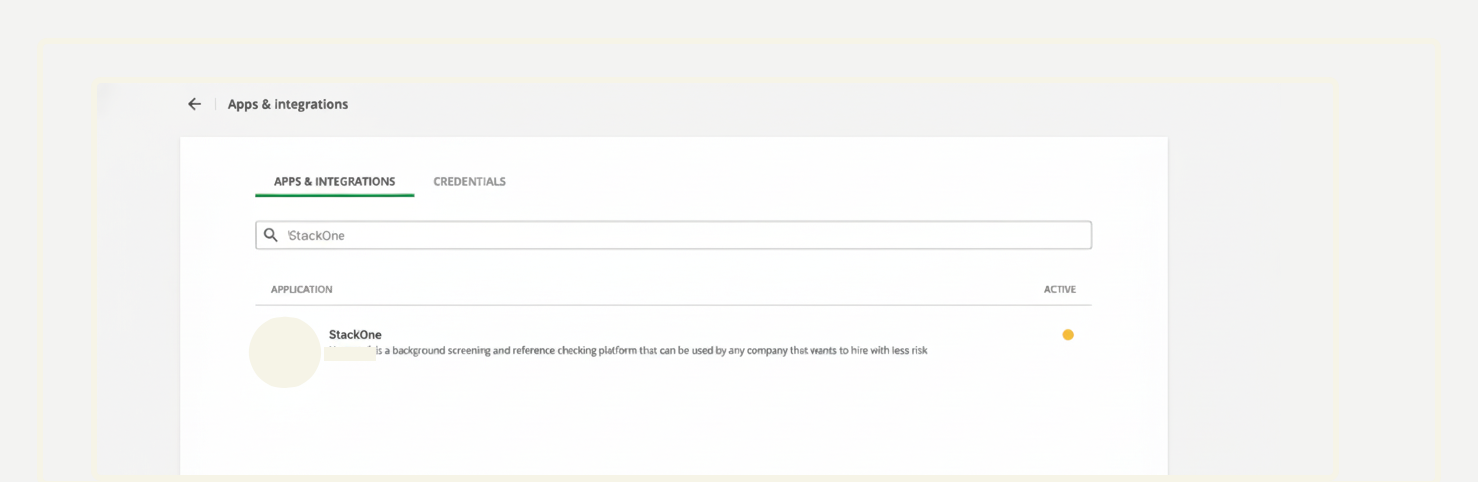
  <Step title="Select the integration">
    Locate and click the target integration in the list.
    <Frame>
      <img className="rounded-md" style={{ margin: '0 auto', border: '1px solid #efefef' }} alt="Select Integration" src="https://mintcdn.com/stackone-hub/DkVMwpaWAW1JeOp2/images/smartrecruiters-assessments-background-checks/select-integration.png?fit=max&auto=format&n=DkVMwpaWAW1JeOp2&q=85&s=063f748eb1d8328b24b26f025d187192" width="1478" height="482" data-path="images/smartrecruiters-assessments-background-checks/select-integration.png" />
    </Frame>
  </Step>

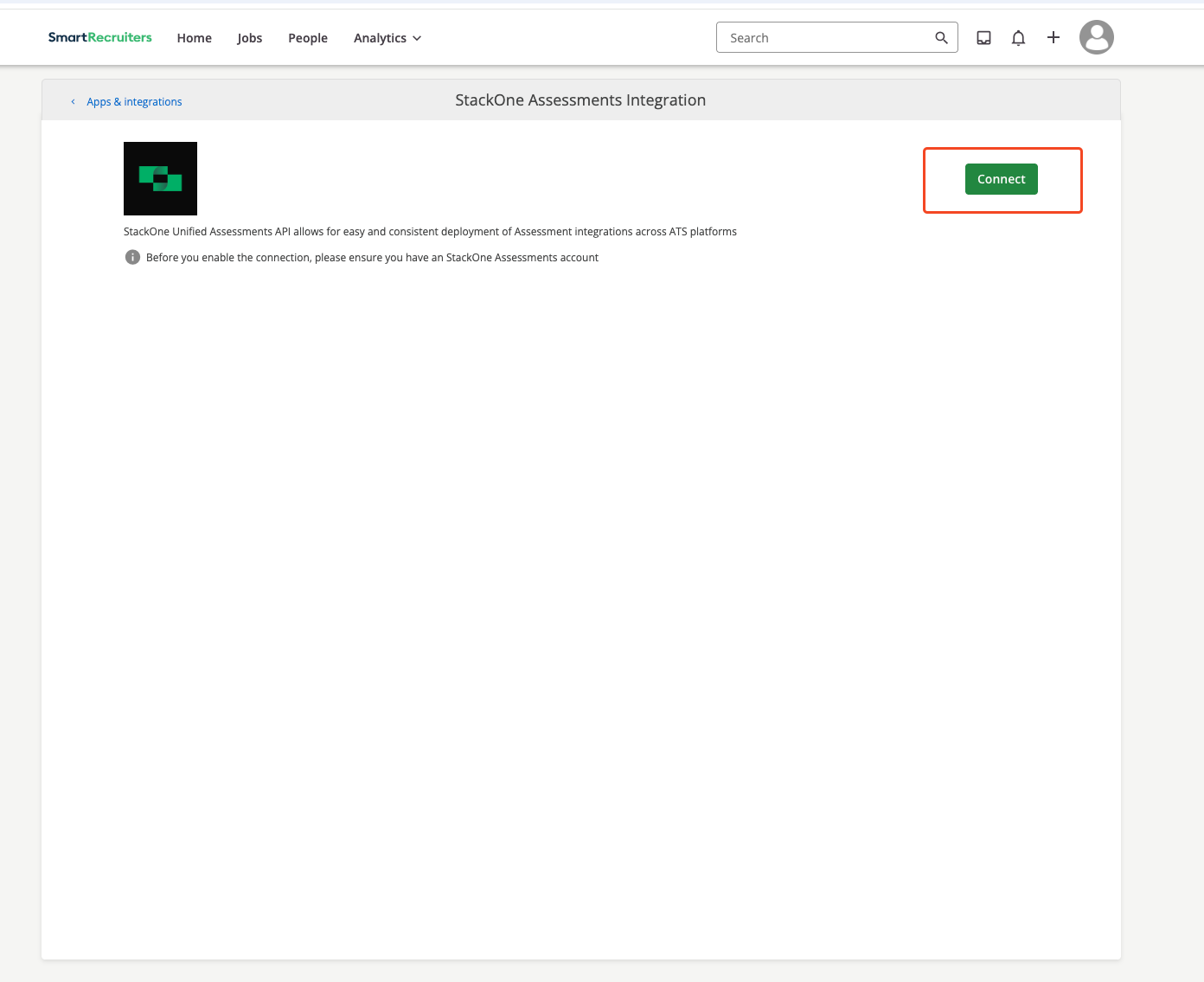
  <Step title="Review details & Connect">
    Review the integration details and click `Connect`.
    <Frame>
      <img className="rounded-md" style={{ margin: '0 auto', border: '1px solid #efefef' }} alt="View Integration Details" src="https://mintcdn.com/stackone-hub/sGFIi1XaqyOUe9wI/images/smartrecruiters-assessments-background-checks/integration-details.png?fit=max&auto=format&n=sGFIi1XaqyOUe9wI&q=85&s=76678ecc33c19ec8e1caf8e19443450d" width="1392" height="1135" data-path="images/smartrecruiters-assessments-background-checks/integration-details.png" />
    </Frame>
  </Step>

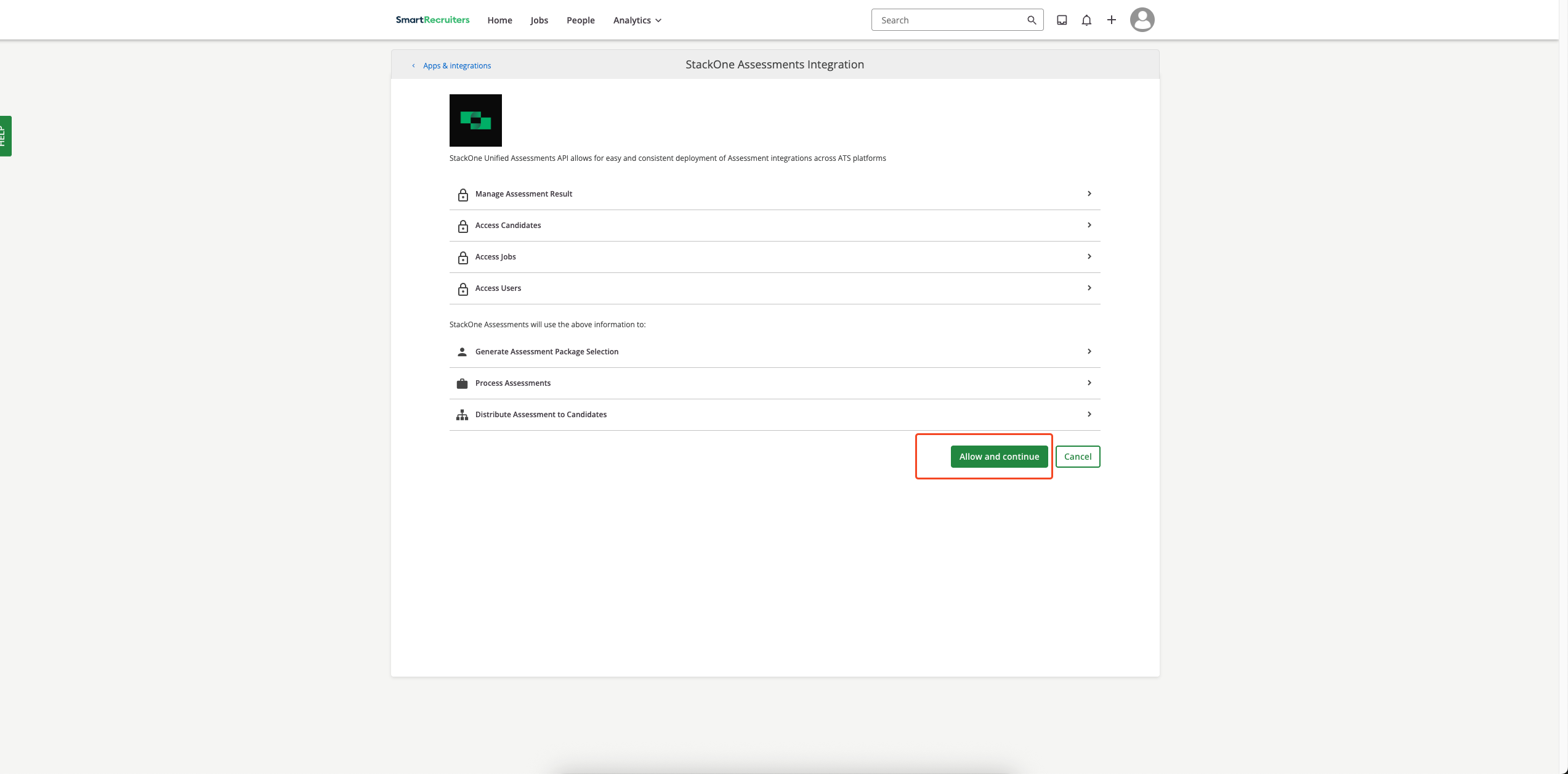
  <Step title="Authorize integration">
    1. Review the requested permissions.
    2. Click the **Allow and Continue** button.
    <Frame>
      <img className="rounded-md" style={{ margin: '0 auto', border: '1px solid #efefef' }} alt="Enable Integration Connect Button" src="https://mintcdn.com/stackone-hub/sGFIi1XaqyOUe9wI/images/smartrecruiters-assessments-background-checks/enable-integration.png?fit=max&auto=format&n=sGFIi1XaqyOUe9wI&q=85&s=499da4853a6ef1ac4cd610430bbe388f" width="2546" height="1256" data-path="images/smartrecruiters-assessments-background-checks/enable-integration.png" />
    </Frame>
  </Step>

  <Step title="Submit credentials">
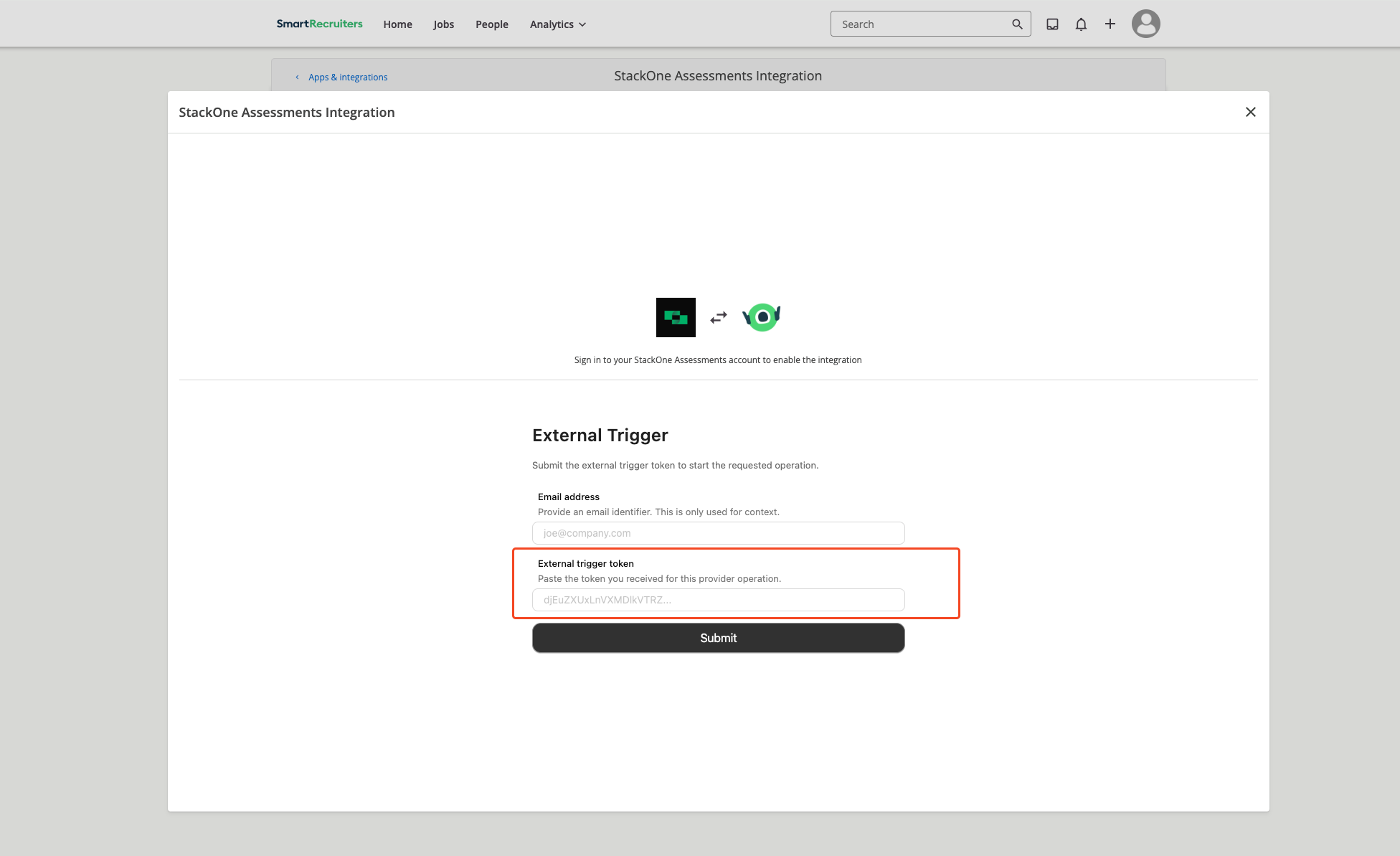
    Enter the external trigger token and your email in the form, then click the `Submit` button.
    <Frame>
      <img className="rounded-md" style={{ margin: '0 auto', border: '1px solid #efefef' }} alt="Input External Trigger Token" src="https://mintcdn.com/stackone-hub/sGFIi1XaqyOUe9wI/images/smartrecruiters-assessments-background-checks/input-external-trigger-token.png?fit=max&auto=format&n=sGFIi1XaqyOUe9wI&q=85&s=cc6a147d19604dba2d6f918200447c06" width="1952" height="1193" data-path="images/smartrecruiters-assessments-background-checks/input-external-trigger-token.png" />
    </Frame>
  </Step>

  <Step title="Confirm connection">
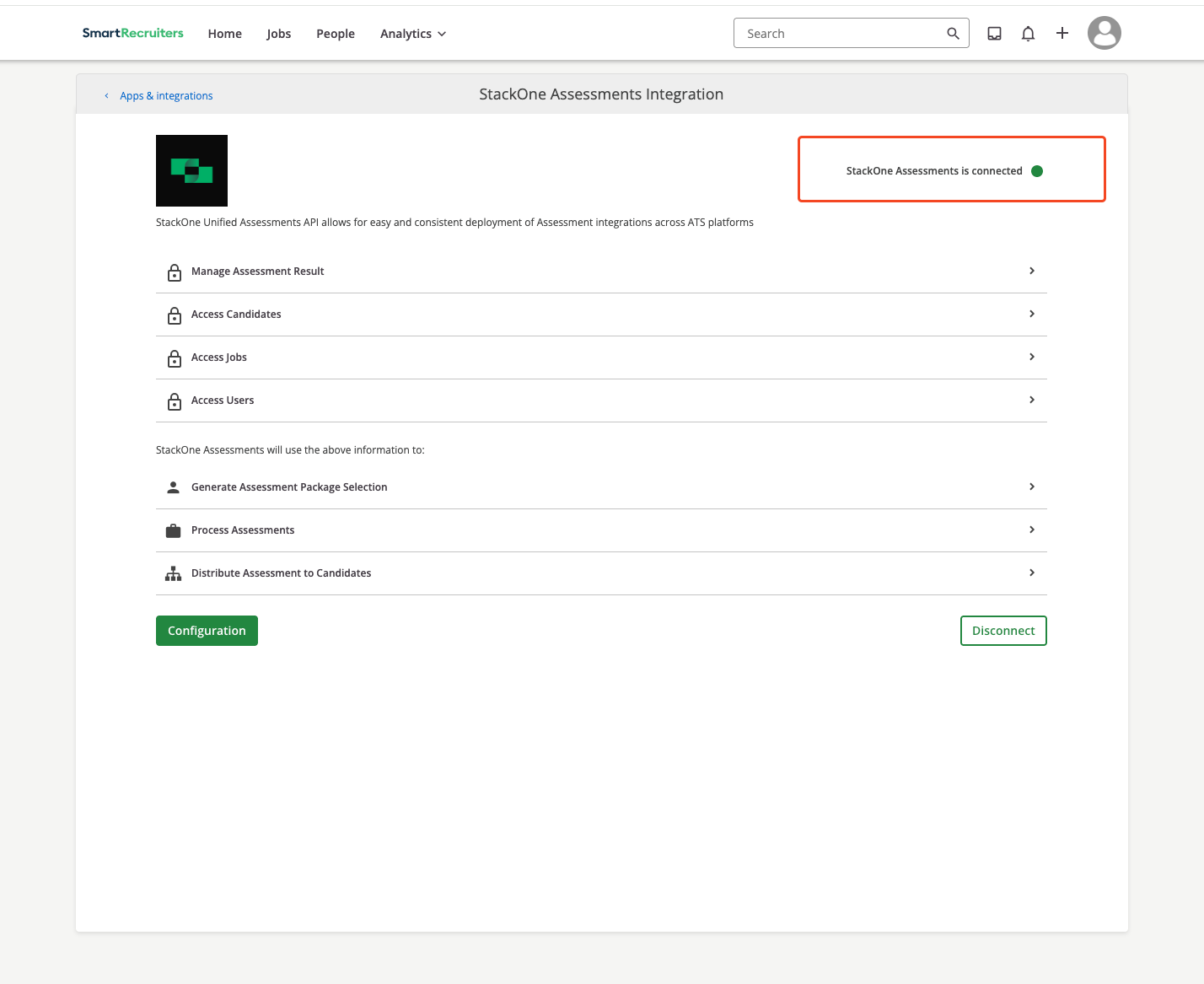
    After successful verification, a confirmation message appears in the top‑right corner: `StackOne Assessments is connected`.
    <Frame>
      <img className="rounded-md" style={{ margin: '0 auto', border: '1px solid #efefef' }} alt="Integration Connected Successfully" src="https://mintcdn.com/stackone-hub/sGFIi1XaqyOUe9wI/images/smartrecruiters-assessments-background-checks/integration-connected.png?fit=max&auto=format&n=sGFIi1XaqyOUe9wI&q=85&s=8a42849ec5f110ac909bd4205255cb03" width="1428" height="1167" data-path="images/smartrecruiters-assessments-background-checks/integration-connected.png" />
    </Frame>
  </Step>
</Steps>

## Add an assessment / background check to a candidate

SmartRecruiters supports two assessment delivery modes: <b>Ad-hoc</b> (manual per candidate) and <b>Auto Trigger</b> (auto‑triggered by workflow configuration).

### Ad-hoc Assessments

<Steps>
  <Step title="Open candidate profile">
    1. Log in to SmartRecruiters.
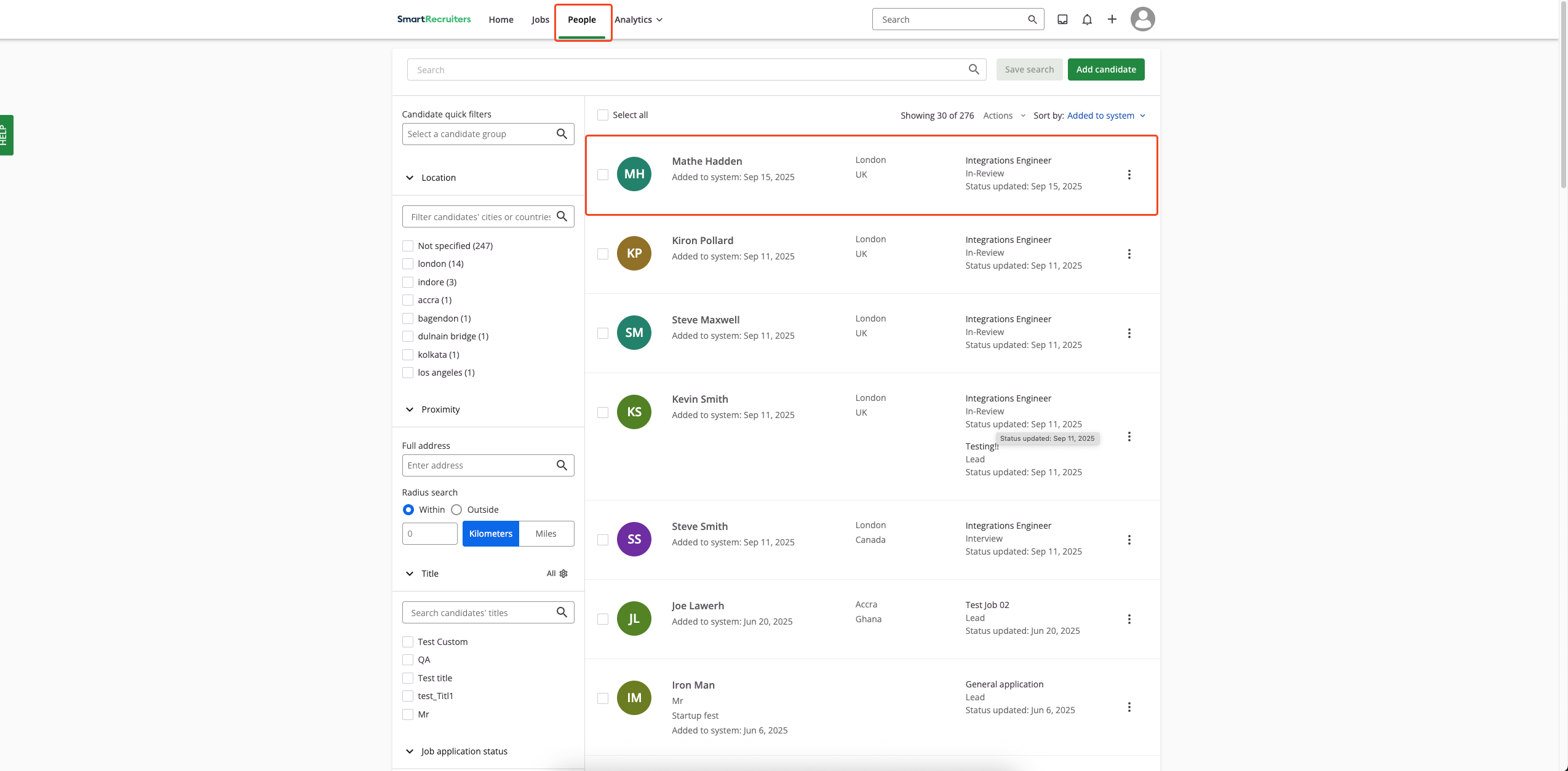
    2. Navigate to **People**.
    3. Open the desired candidate profile.
    <Frame>
      <img className="rounded-md" style={{ margin: '0 auto', border: '1px solid #efefef' }} alt="Select Candidate" src="https://mintcdn.com/stackone-hub/sGFIi1XaqyOUe9wI/images/smartrecruiters-assessments-background-checks/select-candidate.png?fit=max&auto=format&n=sGFIi1XaqyOUe9wI&q=85&s=11f9e9e83ff57d4604627eb1d3870a0c" width="2549" height="1254" data-path="images/smartrecruiters-assessments-background-checks/select-candidate.png" />
    </Frame>
  </Step>

  <Step title="Initiate assessment/background check">
    From the candidate profile:

    1. Look for the assessment section

    <Info>
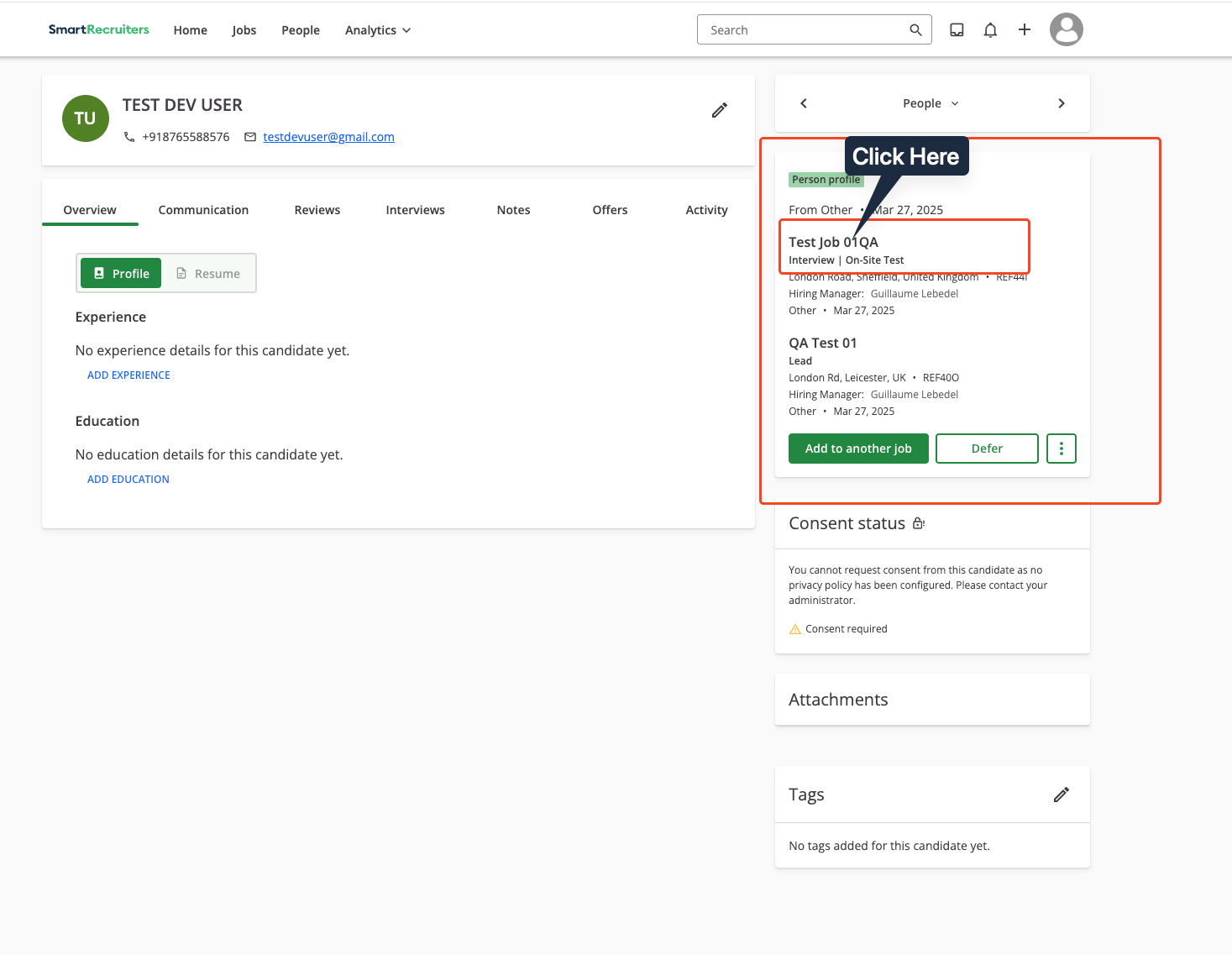
      If a candidate has multiple jobs, the `Assessments` section won't appear directly on their profile. To access the assessments in this case, please follow these steps to navigate to the `Assessments` section for that candidate.

      <AccordionGroup>
        <Accordion title="How to navigate to Assessments section for candidates with multiple jobs">
          **Step 1: Navigate to Person profile**

          Navigate to the `Person profile` and click on the `Job` for which you want to add the assessment.
          <Frame>
            <img className="rounded-md" style={{ margin: '0 auto', border: '1px solid #efefef' }} alt="Select Job on Candidate Profile" src="https://mintcdn.com/stackone-hub/y38n8WChcnKCTSnp/images/smartrecruiters-assessments-background-checks/select-job-on-candidate-profile.png?fit=max&auto=format&n=y38n8WChcnKCTSnp&q=85&s=3259352e1086f230307df231d49bb6e0" width="1467" height="1137" data-path="images/smartrecruiters-assessments-background-checks/select-job-on-candidate-profile.png" />
          </Frame>

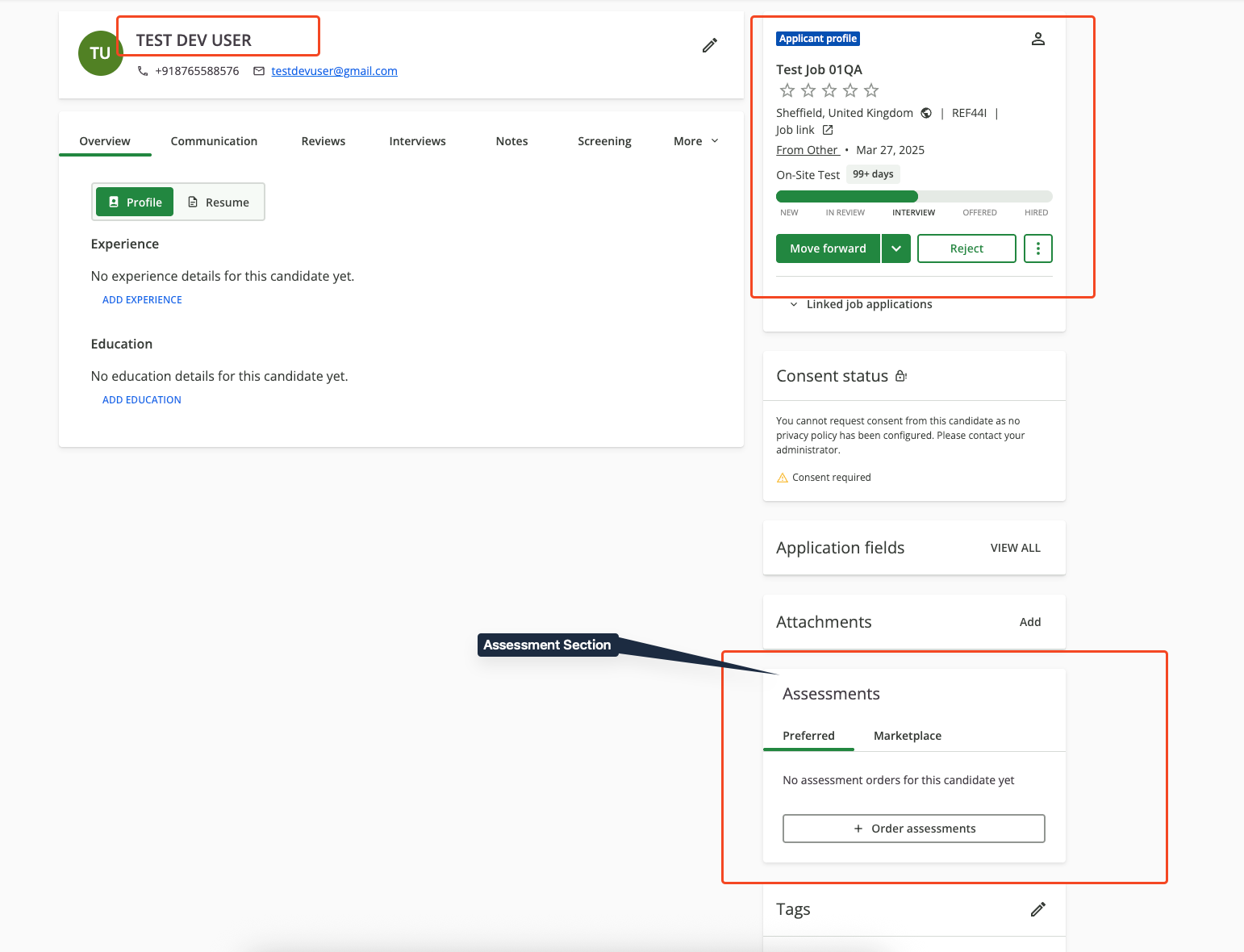
          **Step 2: Find Assessments Section**

          Once you open the `Job` for the candidate, you will find the `Assessments` section there, specific to that particular job application.
          <Frame>
            <img className="rounded-md" style={{ margin: '0 auto', border: '1px solid #efefef' }} alt="Assessment Section in Job Application" src="https://mintcdn.com/stackone-hub/k-EYguSsPEhhygIS/images/smartrecruiters-assessments-background-checks/assessment-section-in-job-application.png?fit=max&auto=format&n=k-EYguSsPEhhygIS&q=85&s=8c8e2bff6ceed46c1d1fe8f7eb640544" width="1542" height="1180" data-path="images/smartrecruiters-assessments-background-checks/assessment-section-in-job-application.png" />
          </Frame>
        </Accordion>
      </AccordionGroup>
    </Info>

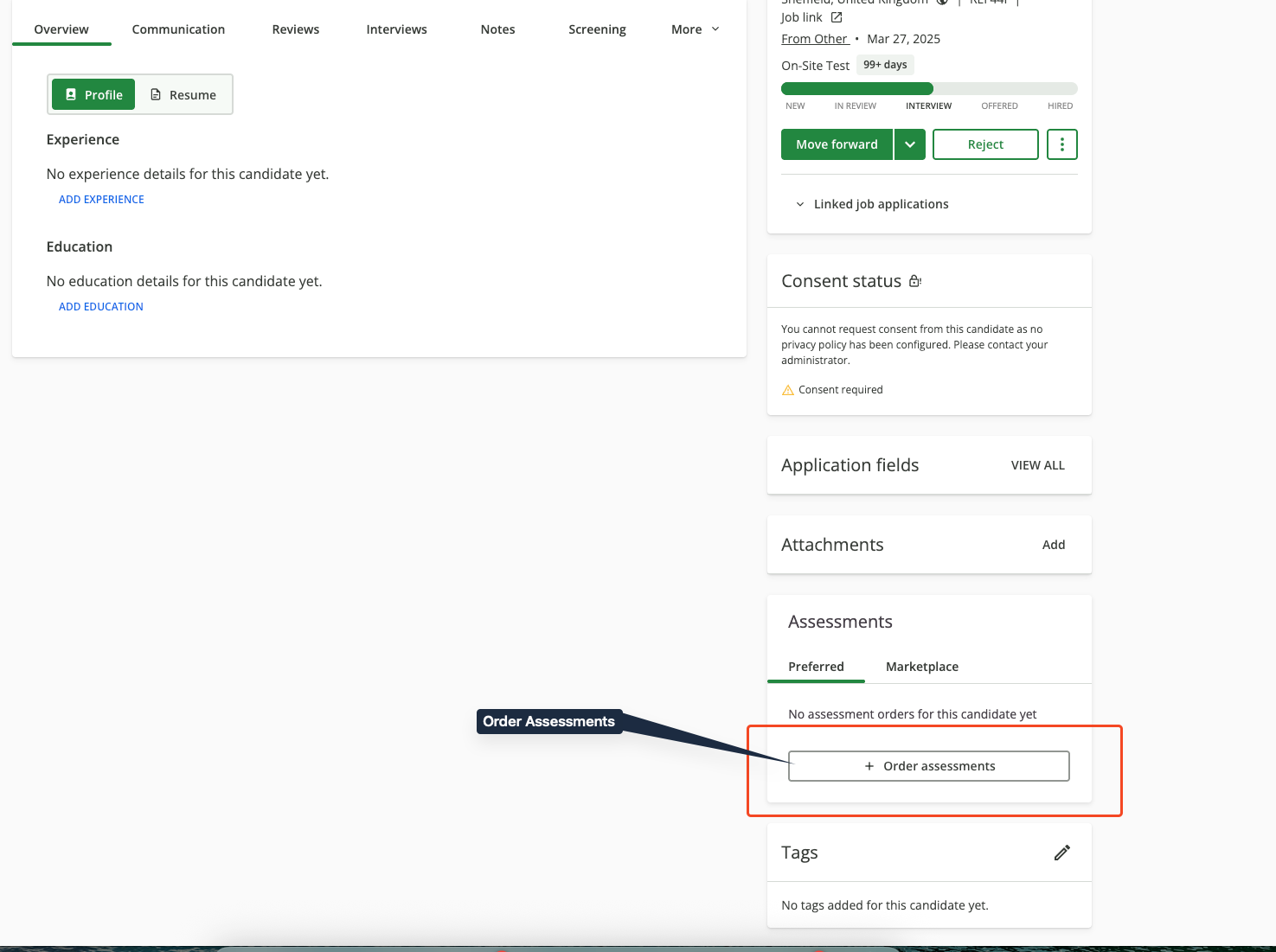
    2. Click the `Order Assessments` button.
    <Frame>
      <img className="rounded-md" style={{ margin: '0 auto', border: '1px solid #efefef' }} alt="Package Selection Form" src="https://mintcdn.com/stackone-hub/k-EYguSsPEhhygIS/images/smartrecruiters-assessments-background-checks/order-assessment-button.png?fit=max&auto=format&n=k-EYguSsPEhhygIS&q=85&s=76d0e026ca63b0198b148eb2f6181065" width="1475" height="1101" data-path="images/smartrecruiters-assessments-background-checks/order-assessment-button.png" />
    </Frame>
  </Step>

  <Step title="Select package">
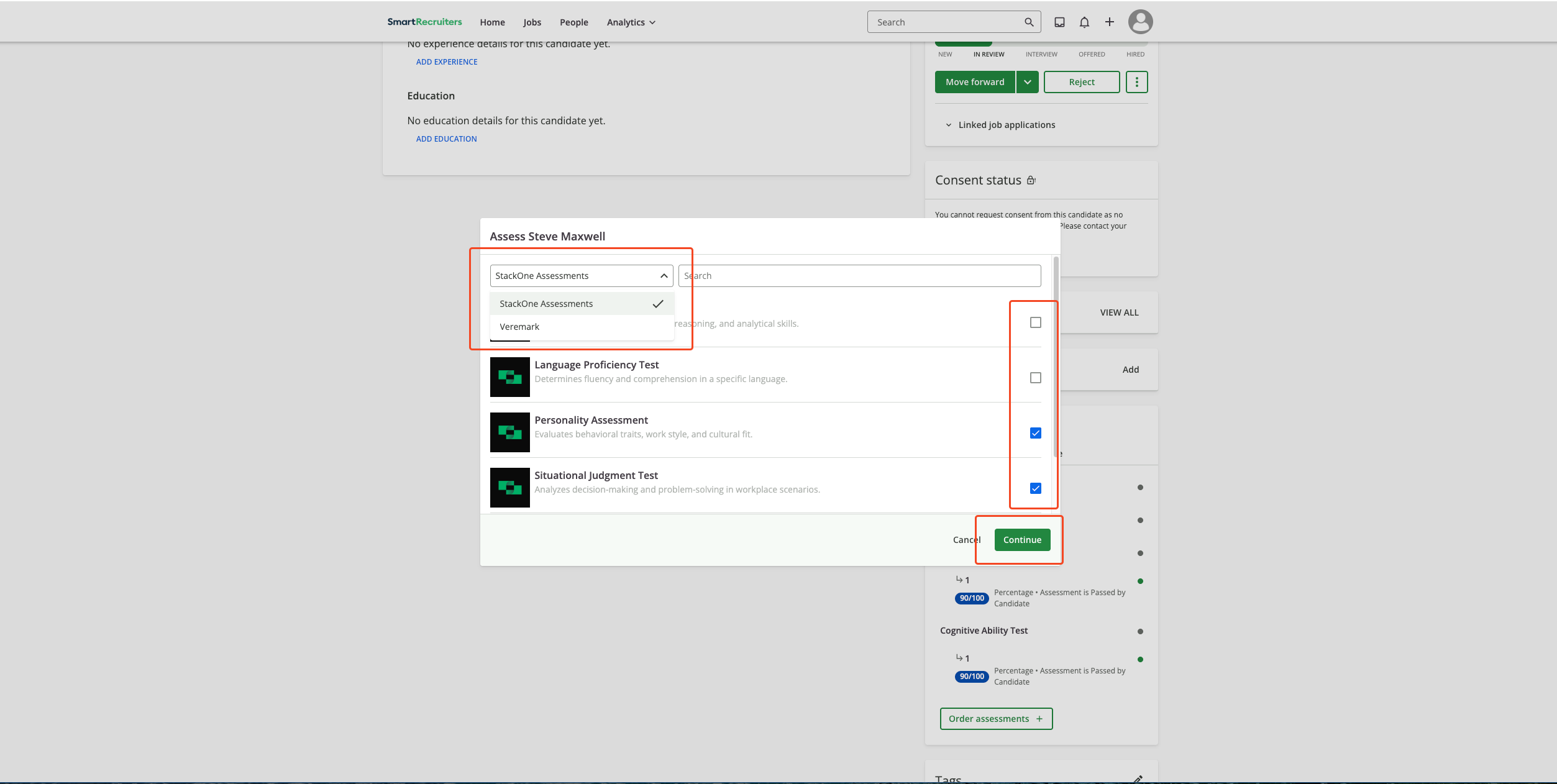
    In the assessment modal:

    1. <b>Select Assessment Partner</b>: Choose the assessment vendor.
    2. <b>Select Package</b>: Pick a test package.
    3. Click **Continue**.
    <Frame>
      <img className="rounded-md" style={{ margin: '0 auto', border: '1px solid #efefef' }} alt="Package Selection Form" src="https://mintcdn.com/stackone-hub/sGFIi1XaqyOUe9wI/images/smartrecruiters-assessments-background-checks/package-selection-form.png?fit=max&auto=format&n=sGFIi1XaqyOUe9wI&q=85&s=7602093491d7b9dc1e5cce941f2571fc" width="2506" height="1262" data-path="images/smartrecruiters-assessments-background-checks/package-selection-form.png" />
    </Frame>
  </Step>

  <Step title="Send to candidate">
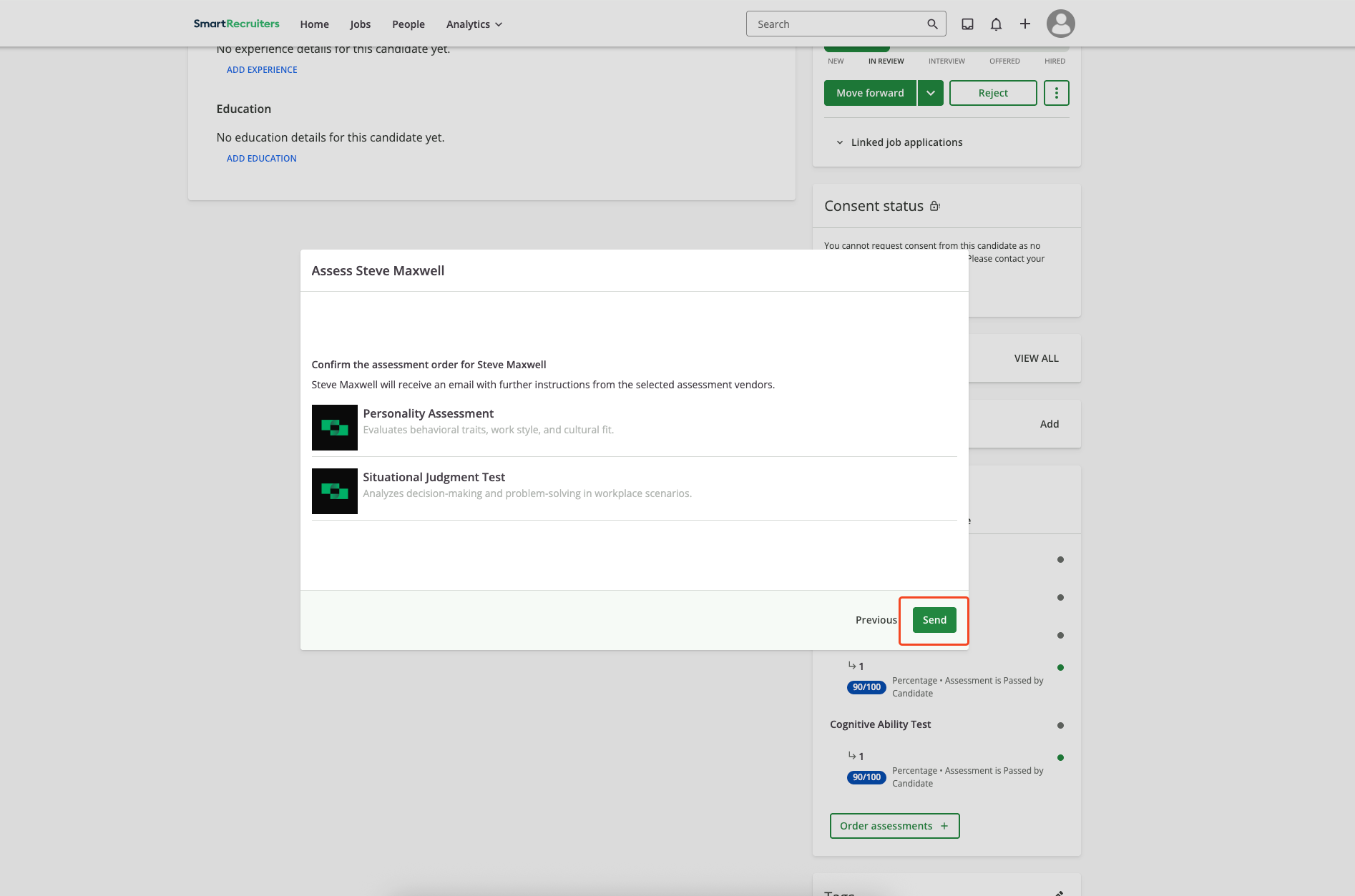
    1. Review test details and candidate information.
    2. Click **Send**.
    3. The candidate receives an email with the test link and instructions.
    <Frame>
      <img className="rounded-md" style={{ margin: '0 auto', border: '1px solid #efefef' }} alt="Send Test to Candidate" src="https://mintcdn.com/stackone-hub/DkVMwpaWAW1JeOp2/images/smartrecruiters-assessments-background-checks/send-test-to-candidate.png?fit=max&auto=format&n=DkVMwpaWAW1JeOp2&q=85&s=63ed9d6d776a7ee4cf151aa8045cd6ba" width="1894" height="1253" data-path="images/smartrecruiters-assessments-background-checks/send-test-to-candidate.png" />
    </Frame>
  </Step>
</Steps>

### Auto Trigger Assessments

Configure an assessment that auto‑triggers when a candidate is added to a job or moved into the assessment stage:

<Steps>
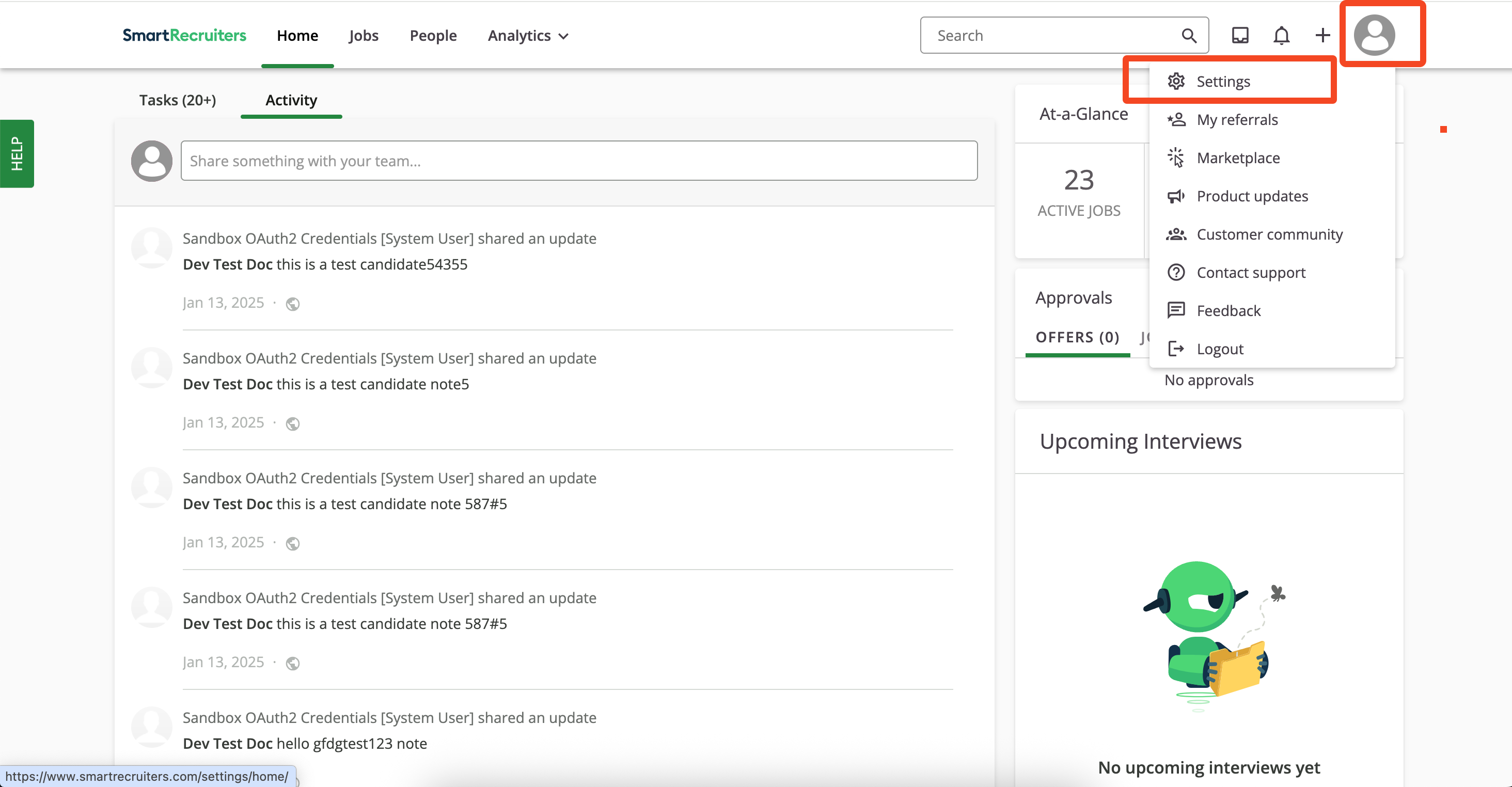
  <Step title="Open Settings">
    Click the profile icon and select `Settings`.
    <Frame>
      <img className="rounded-md" style={{ margin: '0 auto', border: '1px solid #efefef' }} alt="Access Admin Settings" src="https://mintcdn.com/stackone-hub/sGFIi1XaqyOUe9wI/images/smartrecruiters-assessments-background-checks/access-admin-settings.png?fit=max&auto=format&n=sGFIi1XaqyOUe9wI&q=85&s=0821e61321b6648040ec9de0a3363ba3" width="2928" height="1524" data-path="images/smartrecruiters-assessments-background-checks/access-admin-settings.png" />
    </Frame>
  </Step>

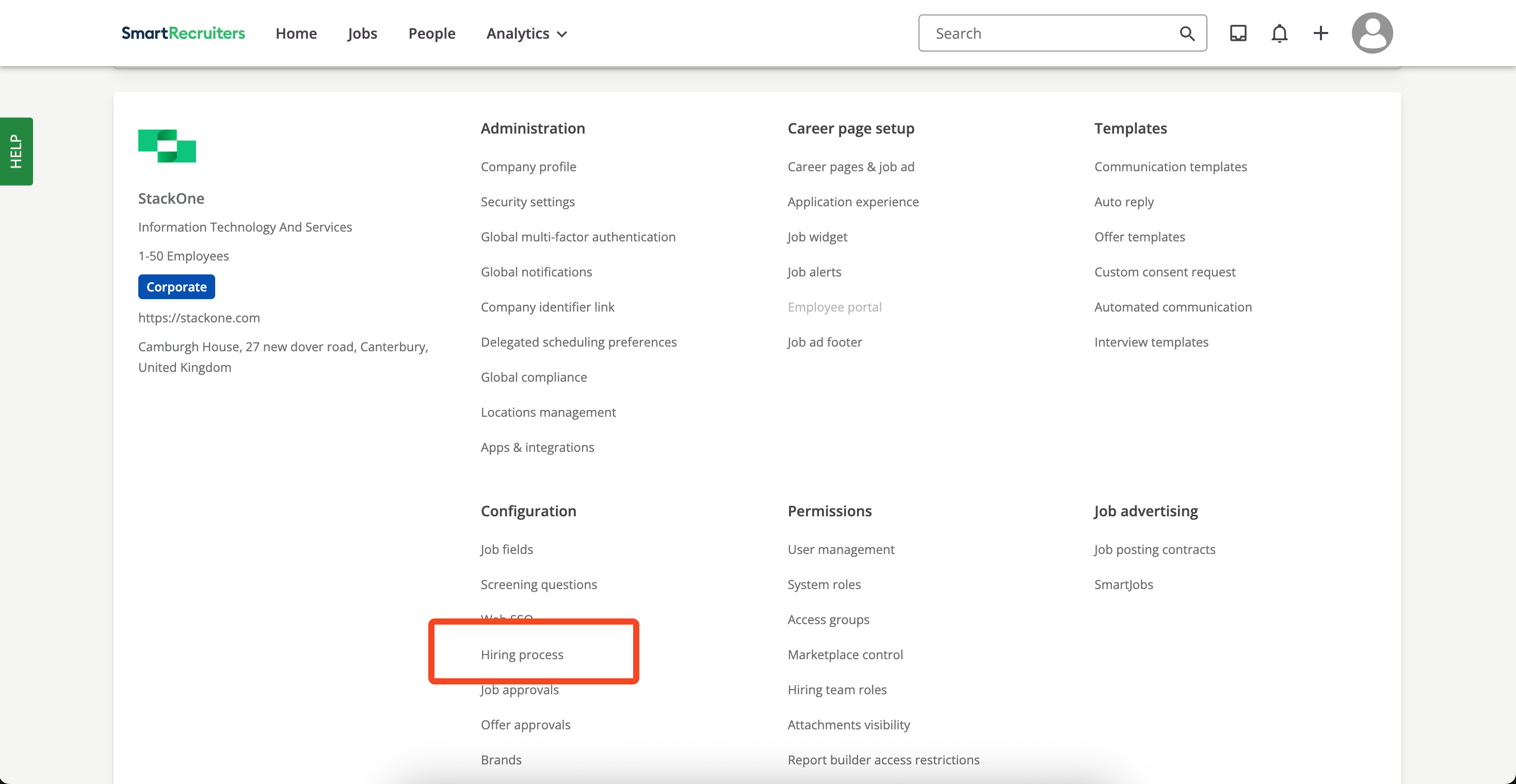
  <Step title="Open Hiring Process">
    Under Settings, click `Hiring Process`.
    <Frame>
      <img className="rounded-md" style={{ margin: '0 auto', border: '1px solid #efefef' }} alt="Access Hiring Process" src="https://mintcdn.com/stackone-hub/sGFIi1XaqyOUe9wI/images/smartrecruiters-assessments-background-checks/access-hiring-process.png?fit=max&auto=format&n=sGFIi1XaqyOUe9wI&q=85&s=c49e0af7abca0bb47fa5bd1cd0a7c264" width="2938" height="1520" data-path="images/smartrecruiters-assessments-background-checks/access-hiring-process.png" />
    </Frame>
  </Step>

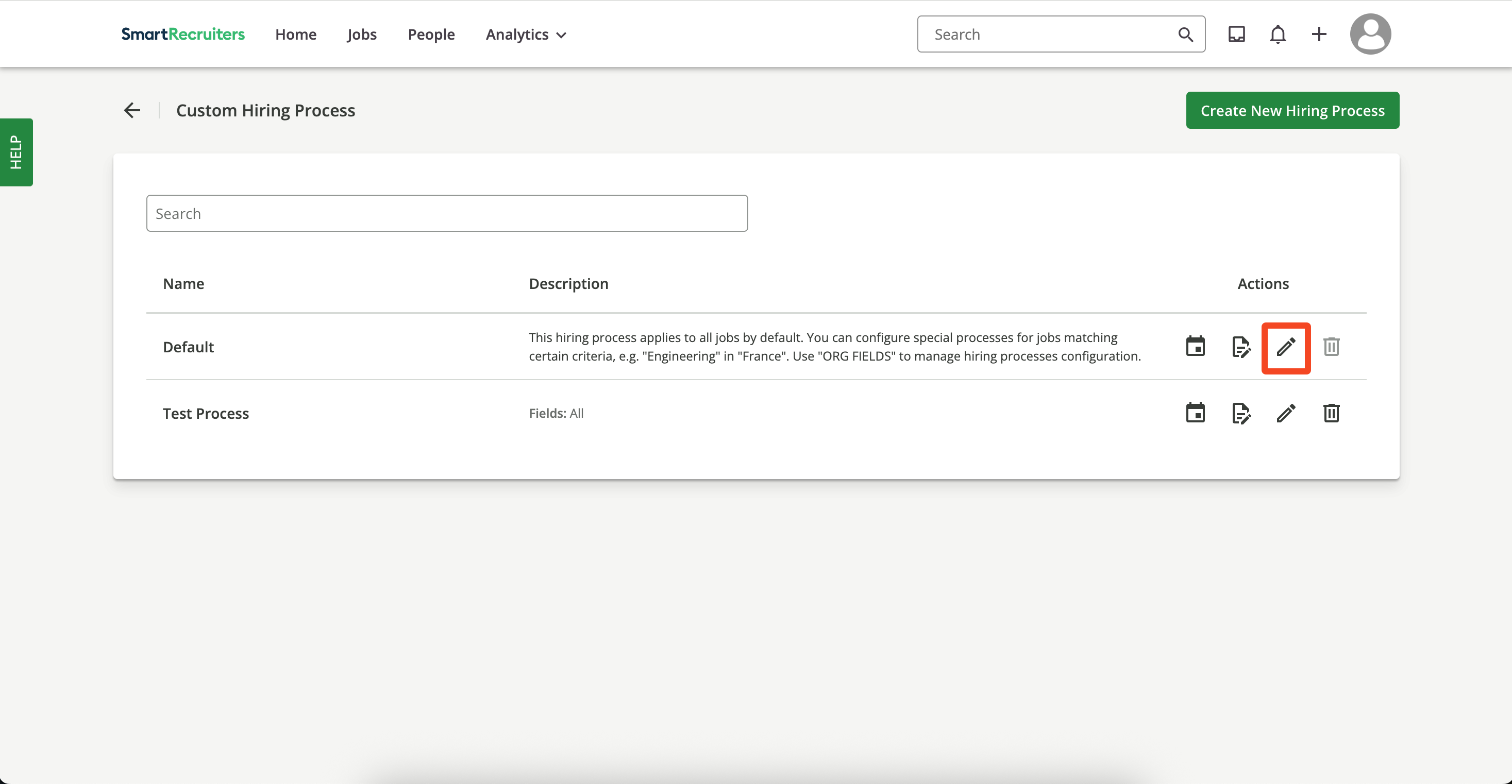
  <Step title="Select hiring process">
    Create a new hiring process or select the default one, then click the `Edit` icon.
    <Frame>
      <img className="rounded-md" style={{ margin: '0 auto', border: '1px solid #efefef' }} alt="Select Hiring Process" src="https://mintcdn.com/stackone-hub/DkVMwpaWAW1JeOp2/images/smartrecruiters-assessments-background-checks/select-hiring-process-type.png?fit=max&auto=format&n=DkVMwpaWAW1JeOp2&q=85&s=80449f92a5f32aea71690f5c26684e2f" width="2934" height="1522" data-path="images/smartrecruiters-assessments-background-checks/select-hiring-process-type.png" />
    </Frame>
  </Step>

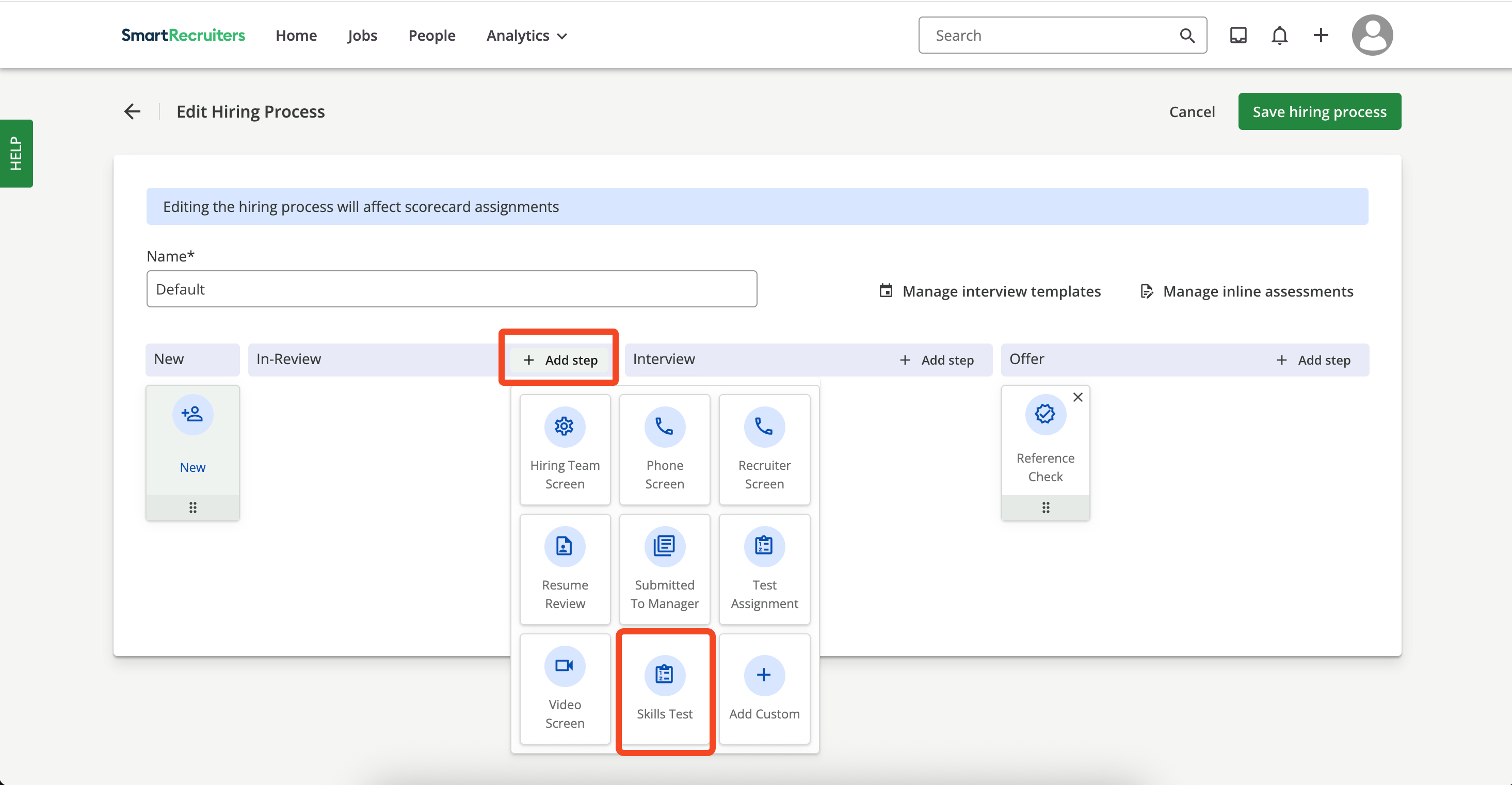
  <Step title="Add step">
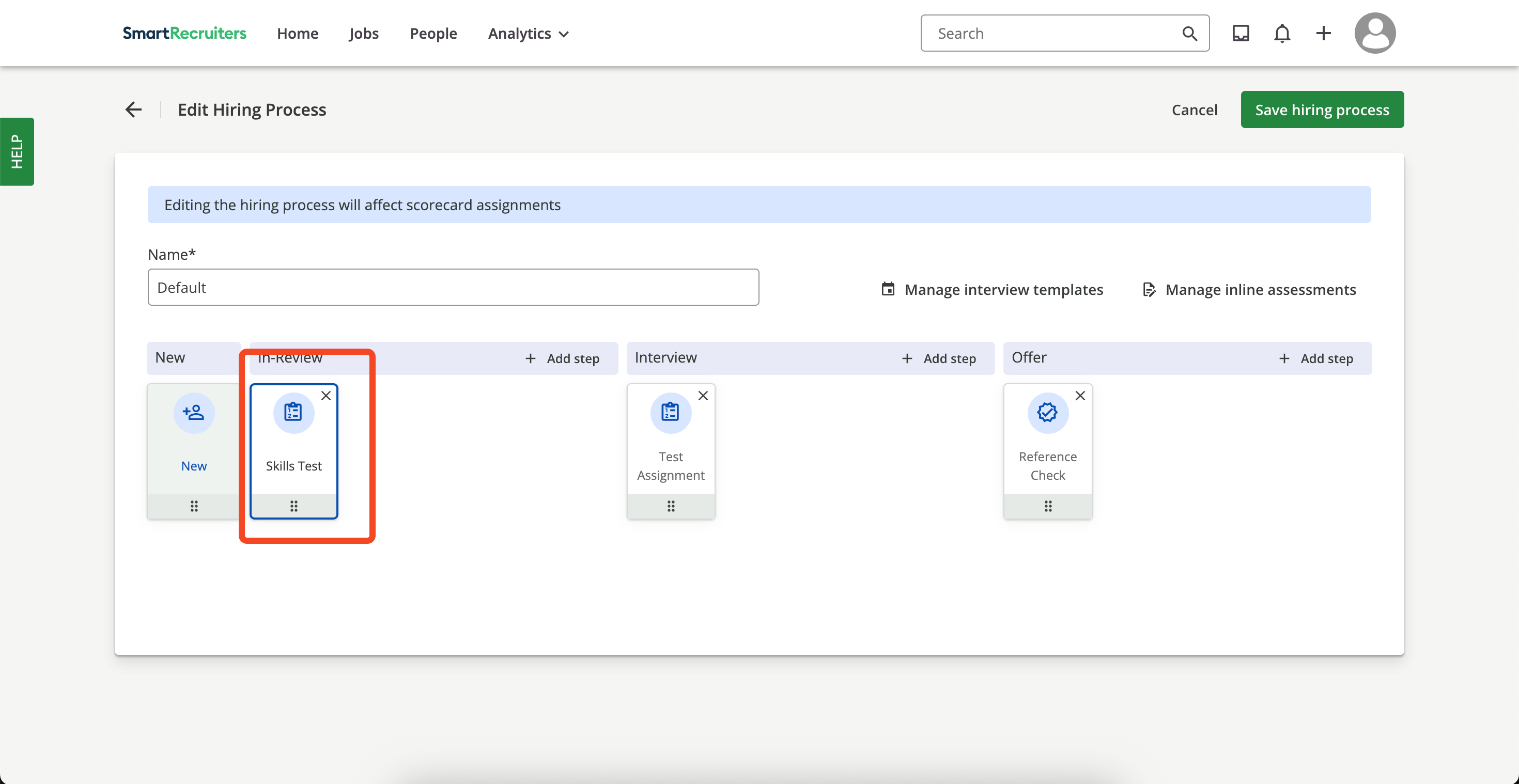
    Click `Add Step` and choose `Skills Test` or any other `Stage` on which you want to configure the `Assessments`.
    <Frame>
      <img className="rounded-md" style={{ margin: '0 auto', border: '1px solid #efefef' }} alt="Add Skills Test Step" src="https://mintcdn.com/stackone-hub/sGFIi1XaqyOUe9wI/images/smartrecruiters-assessments-background-checks/add-select-step.png?fit=max&auto=format&n=sGFIi1XaqyOUe9wI&q=85&s=30b1769f7744cc061ea18840edd79ea3" width="2930" height="1522" data-path="images/smartrecruiters-assessments-background-checks/add-select-step.png" />
    </Frame>

    Once you select the step, it will be added to the hiring process.
    <Frame>
      <img className="rounded-md" style={{ margin: '0 auto', border: '1px solid #efefef' }} alt="Skills Test Step Added" src="https://mintcdn.com/stackone-hub/DkVMwpaWAW1JeOp2/images/smartrecruiters-assessments-background-checks/selected-step.png?fit=max&auto=format&n=DkVMwpaWAW1JeOp2&q=85&s=24f61dc919a40e2fb6e36983f7c82466" width="2940" height="1518" data-path="images/smartrecruiters-assessments-background-checks/selected-step.png" />
    </Frame>

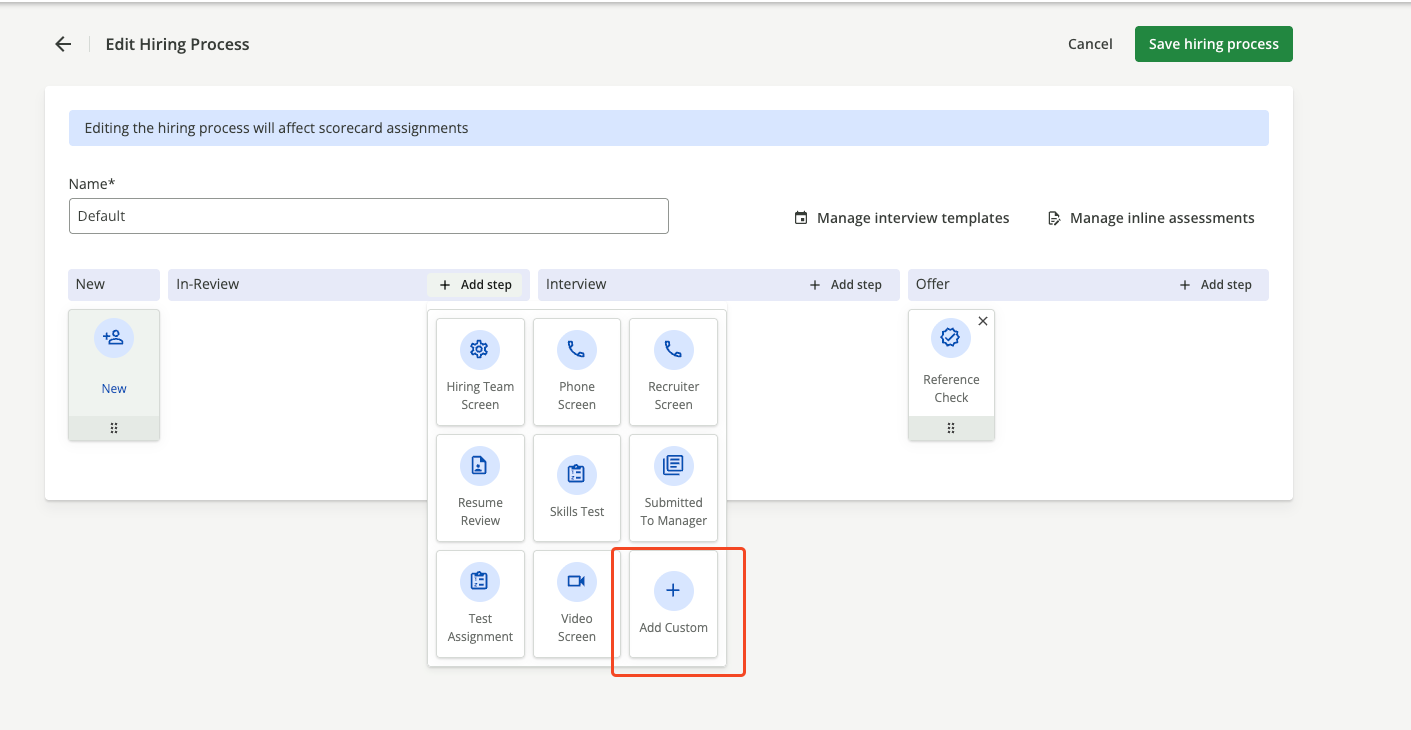
    You can also add a `Custom Stage` by selecting the `Add Custom` button.
    <Frame>
      <img className="rounded-md" style={{ margin: '0 auto', border: '1px solid #efefef' }} alt="Skills Test Step Added" src="https://mintcdn.com/stackone-hub/y38n8WChcnKCTSnp/images/smartrecruiters-assessments-background-checks/select-custom-stage.png?fit=max&auto=format&n=y38n8WChcnKCTSnp&q=85&s=17117355e86c145cb5337a4e11a6af09" width="1411" height="730" data-path="images/smartrecruiters-assessments-background-checks/select-custom-stage.png" />
    </Frame>

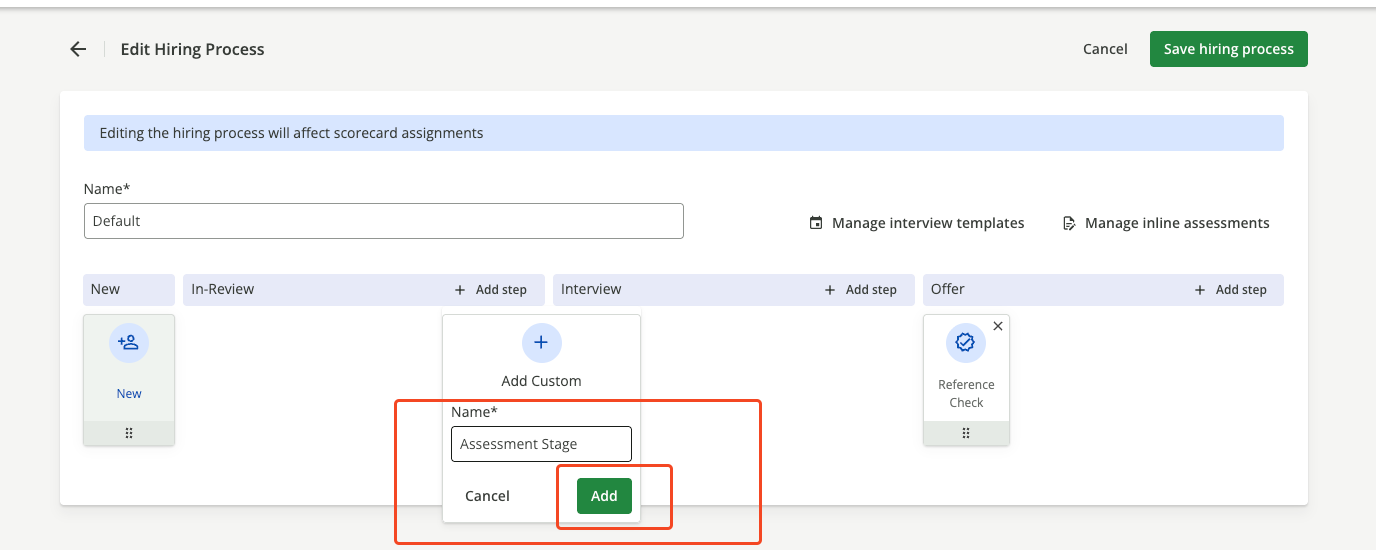
    Enter the name of the `Stage`.

    <Frame>
      <img className="rounded-md" style={{ margin: '0 auto', border: '1px solid #efefef' }} alt="Skills Test Step Added" src="https://mintcdn.com/stackone-hub/sIqM6v4sIR5nESoZ/images/smartrecruiters-assessments-background-checks/custom-stage-name.png?fit=max&auto=format&n=sIqM6v4sIR5nESoZ&q=85&s=87156eeaea0459722b70d52e73d7a4e0" width="1376" height="550" data-path="images/smartrecruiters-assessments-background-checks/custom-stage-name.png" />
    </Frame>

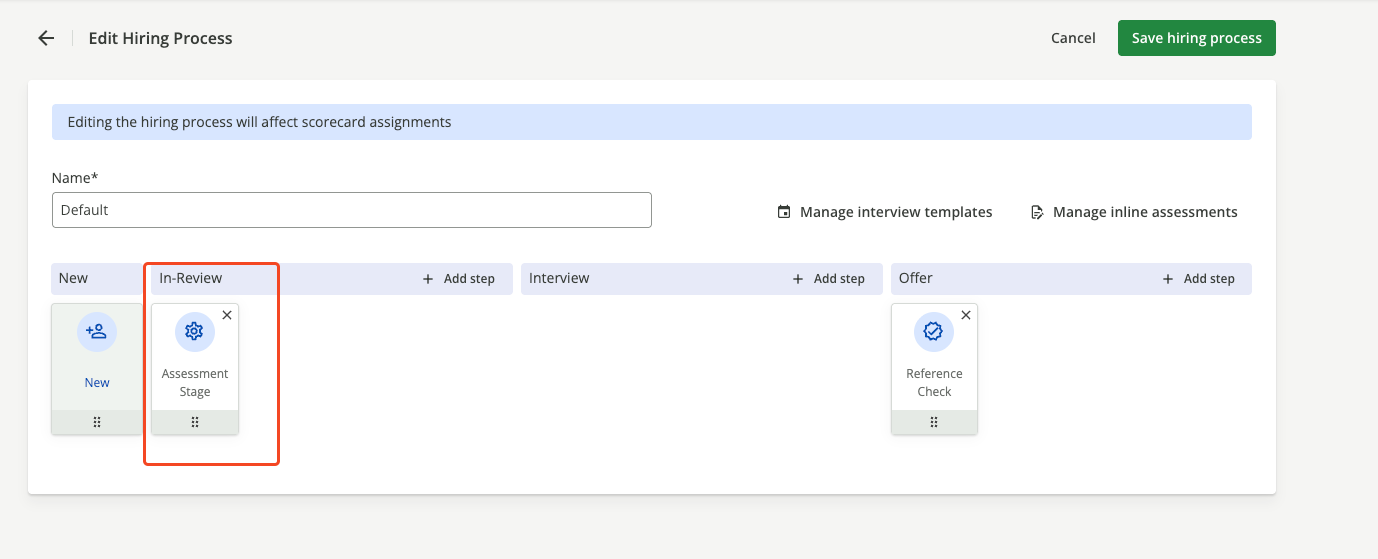
    Once you click the `Add` button, the step will be added to the hiring process.
    <Frame>
      <img className="rounded-md" style={{ margin: '0 auto', border: '1px solid #efefef' }} alt="Skills Test Step Added" src="https://mintcdn.com/stackone-hub/y38n8WChcnKCTSnp/images/smartrecruiters-assessments-background-checks/selected-custom-step.png?fit=max&auto=format&n=y38n8WChcnKCTSnp&q=85&s=7255d963cd92218398f6d19e5f67f460" width="1378" height="559" data-path="images/smartrecruiters-assessments-background-checks/selected-custom-step.png" />
    </Frame>
  </Step>

  <Step title="Save hiring process">
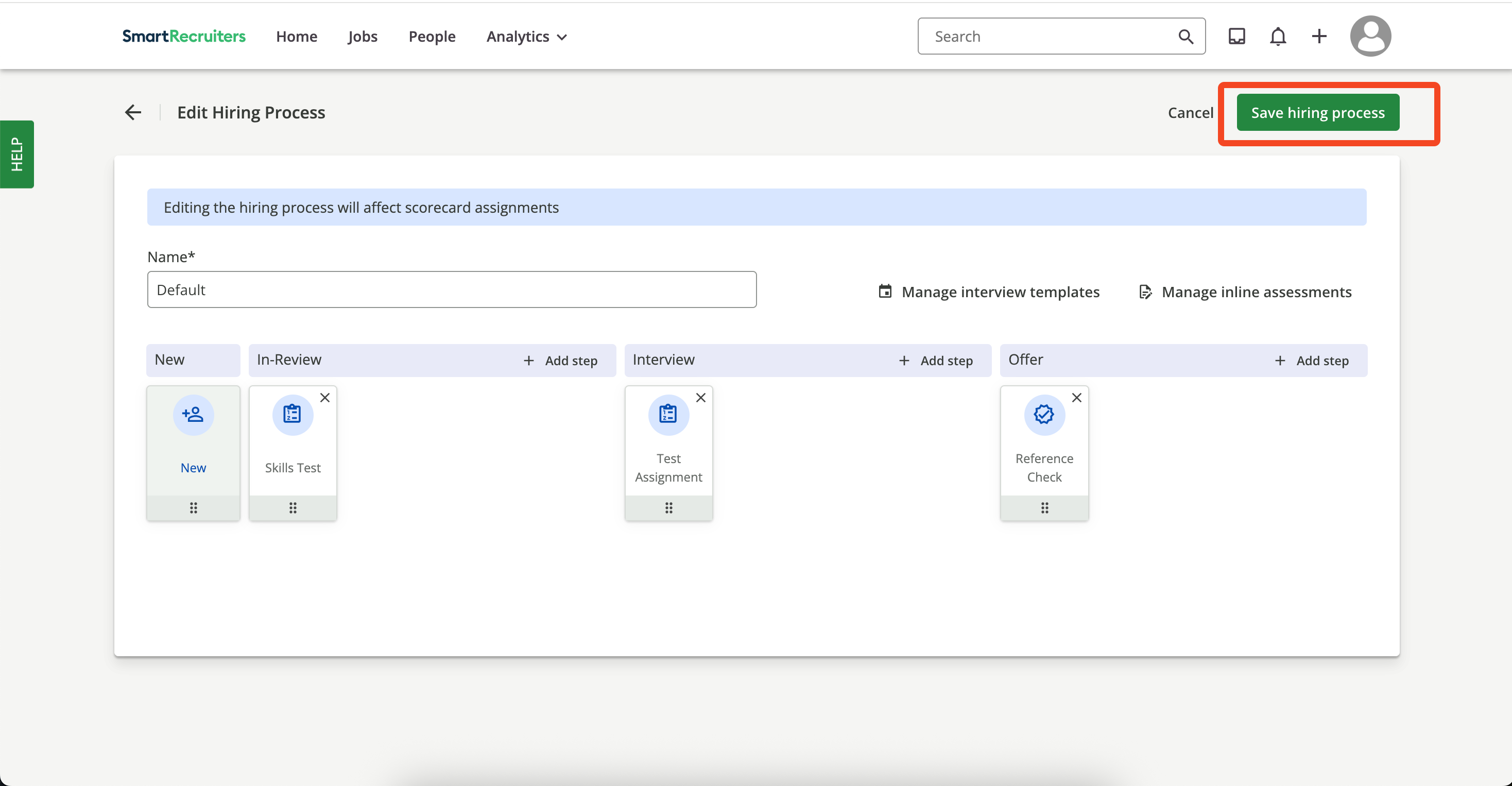
    Click `Save Hiring Process` to persist the changes.
    <Frame>
      <img className="rounded-md" style={{ margin: '0 auto', border: '1px solid #efefef' }} alt="Save Hiring Process" src="https://mintcdn.com/stackone-hub/sGFIi1XaqyOUe9wI/images/smartrecruiters-assessments-background-checks/save-hiring-process.png?fit=max&auto=format&n=sGFIi1XaqyOUe9wI&q=85&s=d5a120fa8d26c8c330edcc8629fc20c4" width="2936" height="1526" data-path="images/smartrecruiters-assessments-background-checks/save-hiring-process.png" />
    </Frame>
  </Step>

  <Step title="Add assessment entry">
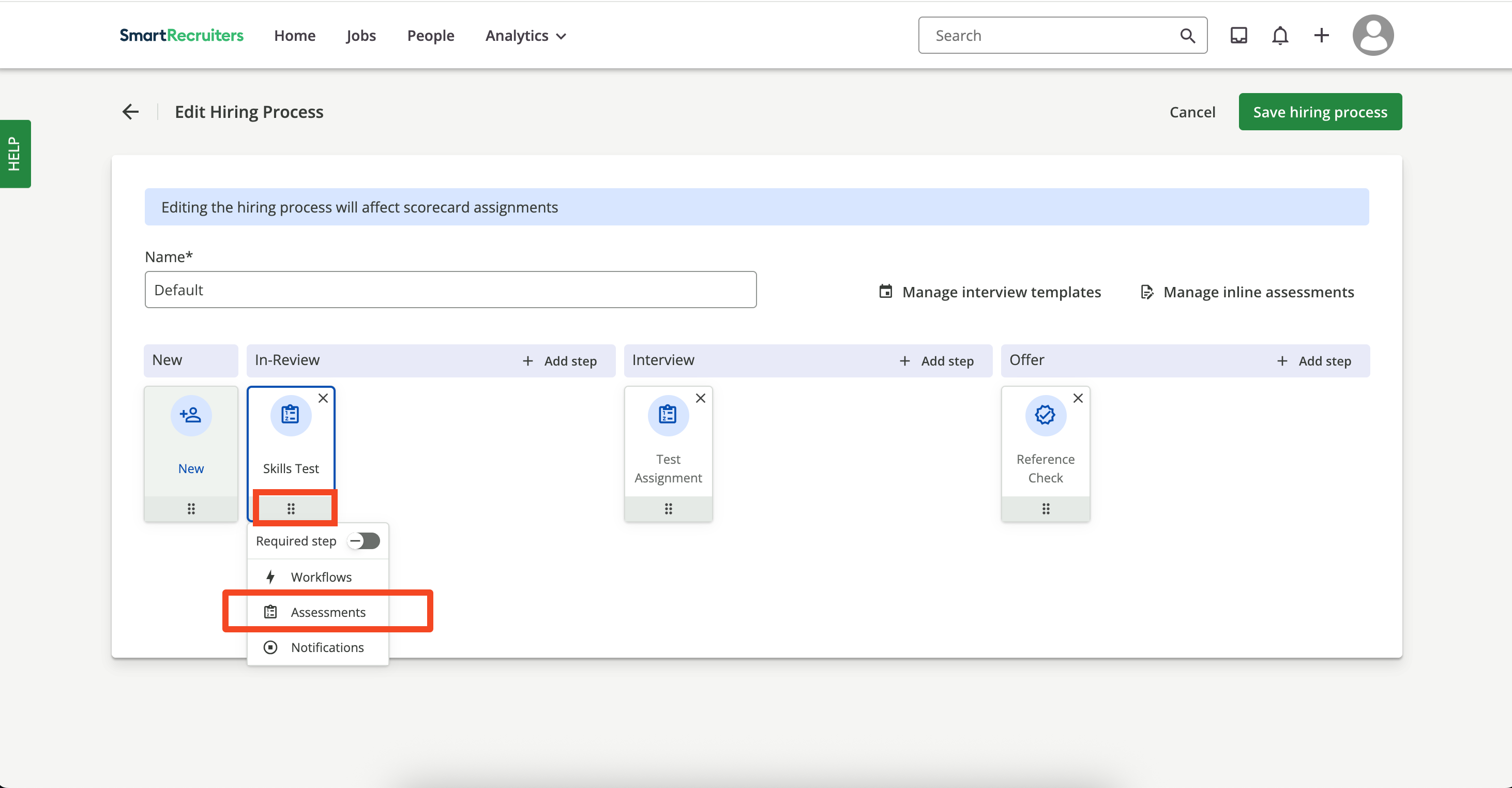
    In the `Skills Test` step, open the menu and select `Assessments`.
    <Frame>
      <img className="rounded-md" style={{ margin: '0 auto', border: '1px solid #efefef' }} alt="Add Assessments" src="https://mintcdn.com/stackone-hub/sGFIi1XaqyOUe9wI/images/smartrecruiters-assessments-background-checks/add-assessments.png?fit=max&auto=format&n=sGFIi1XaqyOUe9wI&q=85&s=524c96e37eb806aa2aa8280d82795fef" width="2924" height="1524" data-path="images/smartrecruiters-assessments-background-checks/add-assessments.png" />
    </Frame>
  </Step>

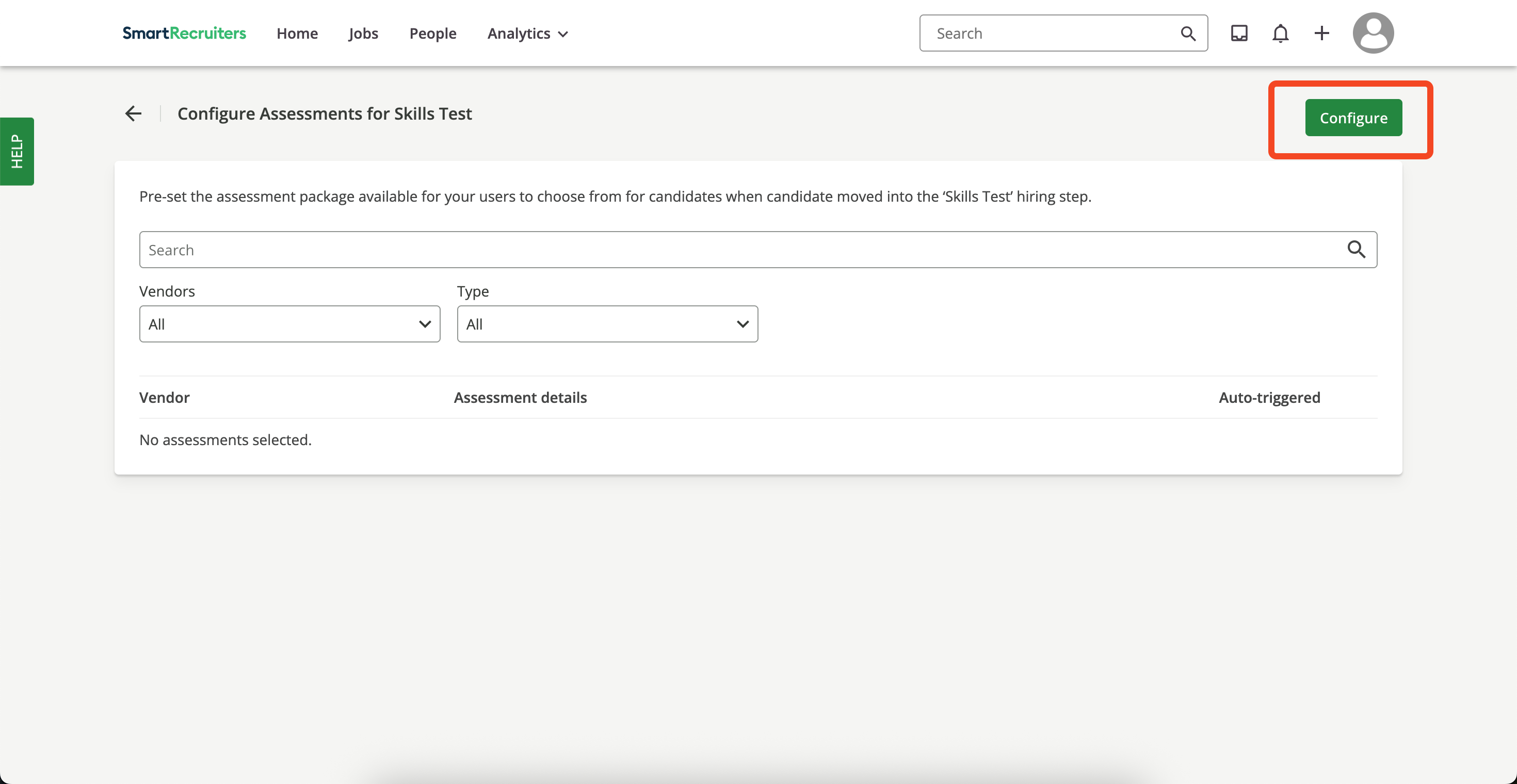
  <Step title="Configure assessment">
    Click `Configure`.

    <Frame>
      <img className="rounded-md" style={{ margin: '0 auto', border: '1px solid #efefef' }} alt="Configure Assessment" src="https://mintcdn.com/stackone-hub/sGFIi1XaqyOUe9wI/images/smartrecruiters-assessments-background-checks/configure-assessments.png?fit=max&auto=format&n=sGFIi1XaqyOUe9wI&q=85&s=34513a85fbaa75abe60ee56b4b9d45c7" width="2940" height="1520" data-path="images/smartrecruiters-assessments-background-checks/configure-assessments.png" />
    </Frame>

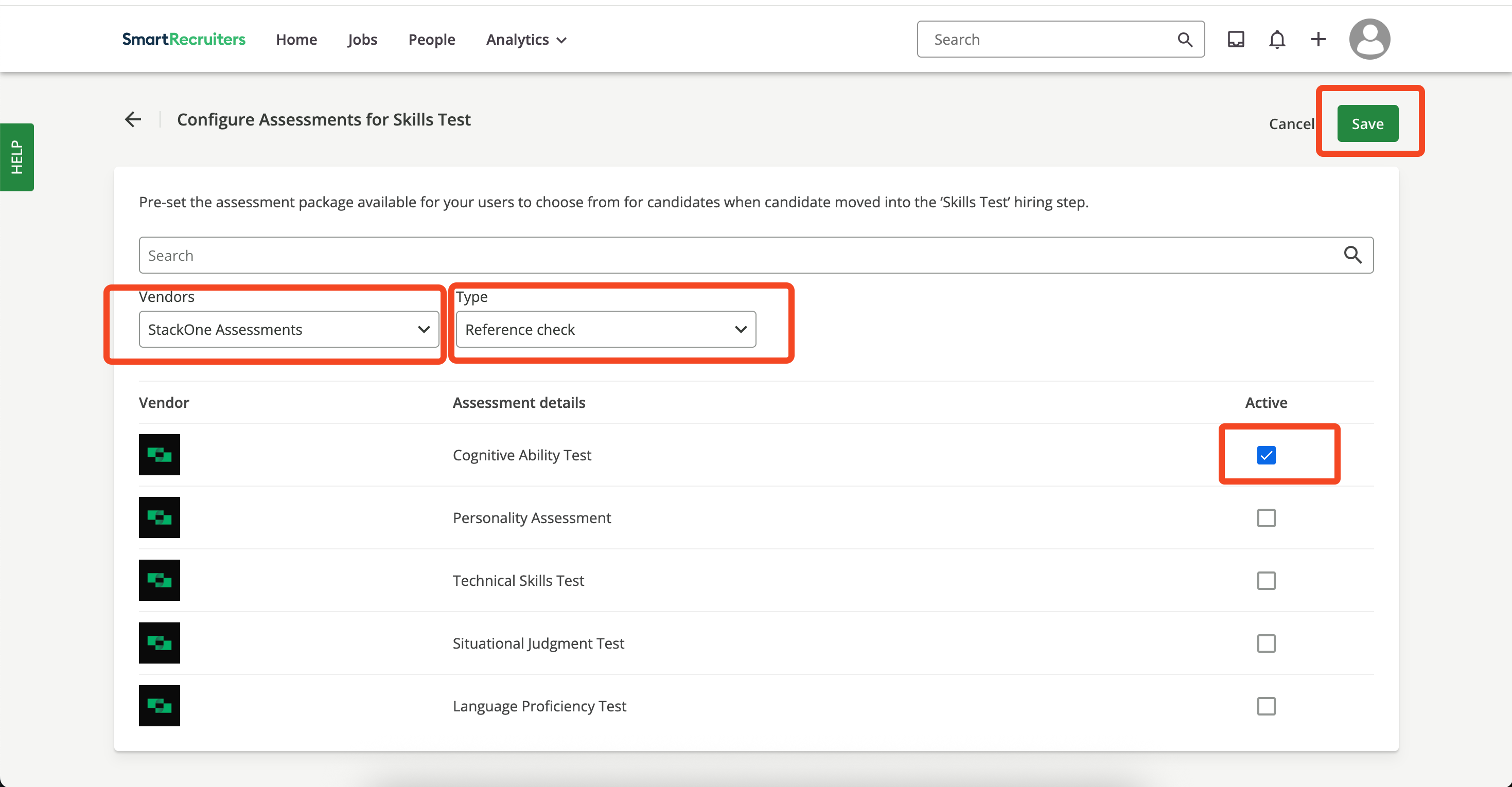
    Select the assessment partner, assessment type, and package. Click `Save`.
    <Frame>
      <img className="rounded-md" style={{ margin: '0 auto', border: '1px solid #efefef' }} alt="Select Assessment Package" src="https://mintcdn.com/stackone-hub/sGFIi1XaqyOUe9wI/images/smartrecruiters-assessments-background-checks/select-assessment-package-config.png?fit=max&auto=format&n=sGFIi1XaqyOUe9wI&q=85&s=4bd2be83ee26660e7f23fdcb656ef26e" width="2938" height="1530" data-path="images/smartrecruiters-assessments-background-checks/select-assessment-package-config.png" />
    </Frame>
  </Step>

  <Step title="Enable auto‑trigger">
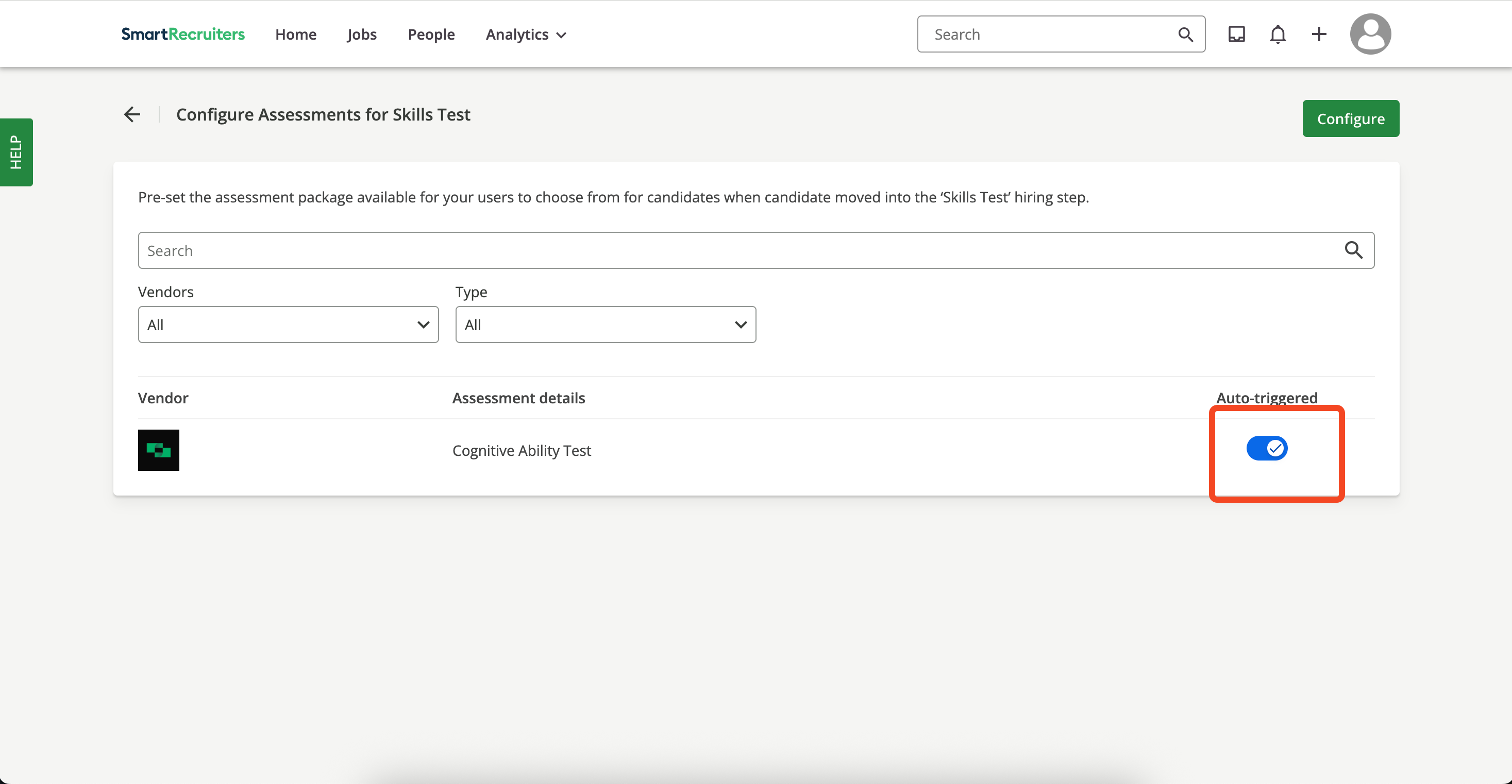
    Return to the `Config` page and enable the `Auto-triggered` toggle for the package.
    <Frame>
      <img className="rounded-md" style={{ margin: '0 auto', border: '1px solid #efefef' }} alt="Enable Auto Trigger" src="https://mintcdn.com/stackone-hub/sGFIi1XaqyOUe9wI/images/smartrecruiters-assessments-background-checks/enable-auto-trigger.png?fit=max&auto=format&n=sGFIi1XaqyOUe9wI&q=85&s=9117f5eaec099160eb93d679890955cc" width="2934" height="1522" data-path="images/smartrecruiters-assessments-background-checks/enable-auto-trigger.png" />
    </Frame>
  </Step>

  <Step title="Add candidate">
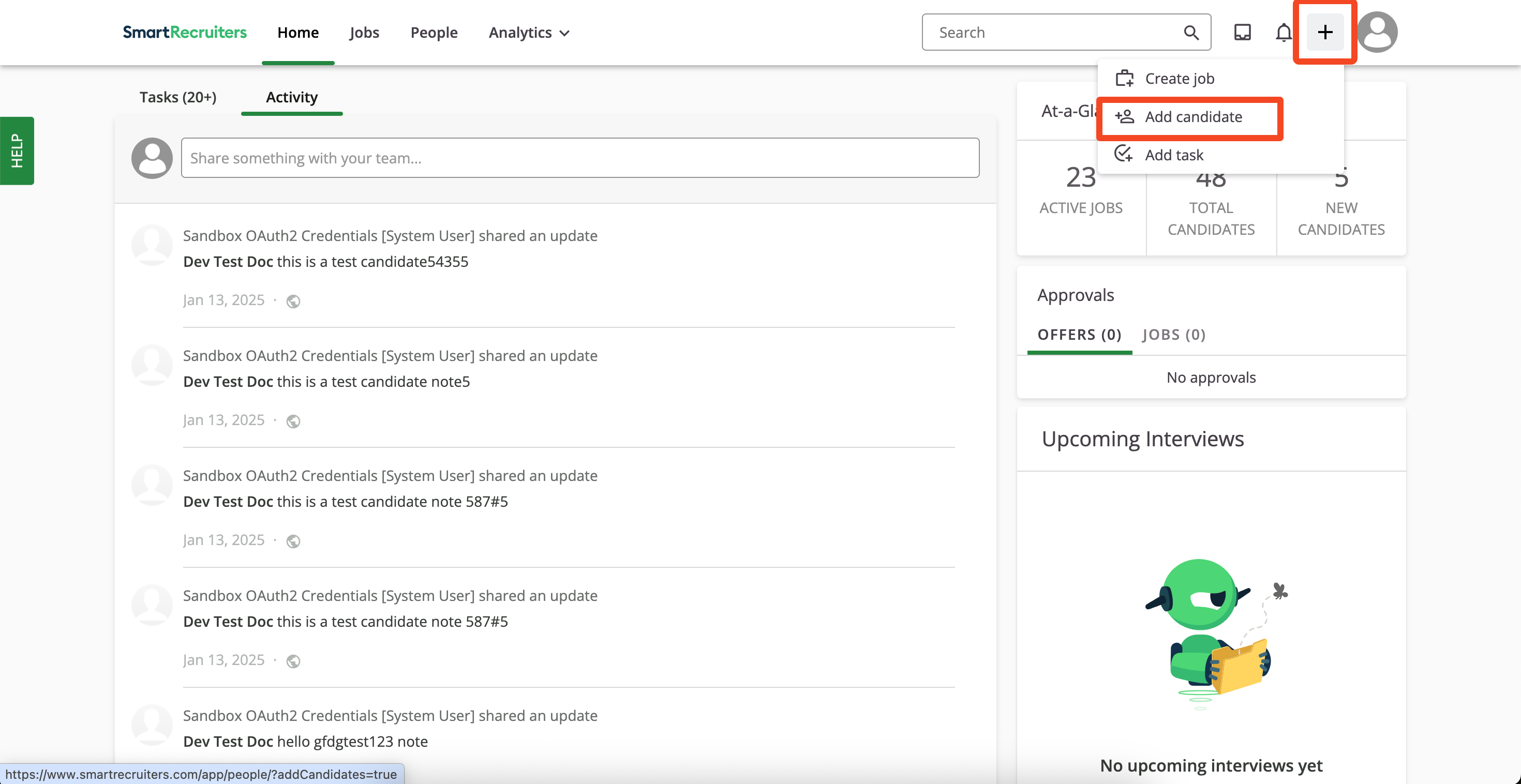
    Click the `+` icon (top right) and choose `Add Candidate`.
    <Frame>
      <img className="rounded-md" style={{ margin: '0 auto', border: '1px solid #efefef' }} alt="Add Candidate" src="https://mintcdn.com/stackone-hub/sGFIi1XaqyOUe9wI/images/smartrecruiters-assessments-background-checks/add-candidate.png?fit=max&auto=format&n=sGFIi1XaqyOUe9wI&q=85&s=eb91dba1c63591585df35eb33ab6b094" width="2940" height="1516" data-path="images/smartrecruiters-assessments-background-checks/add-candidate.png" />
    </Frame>

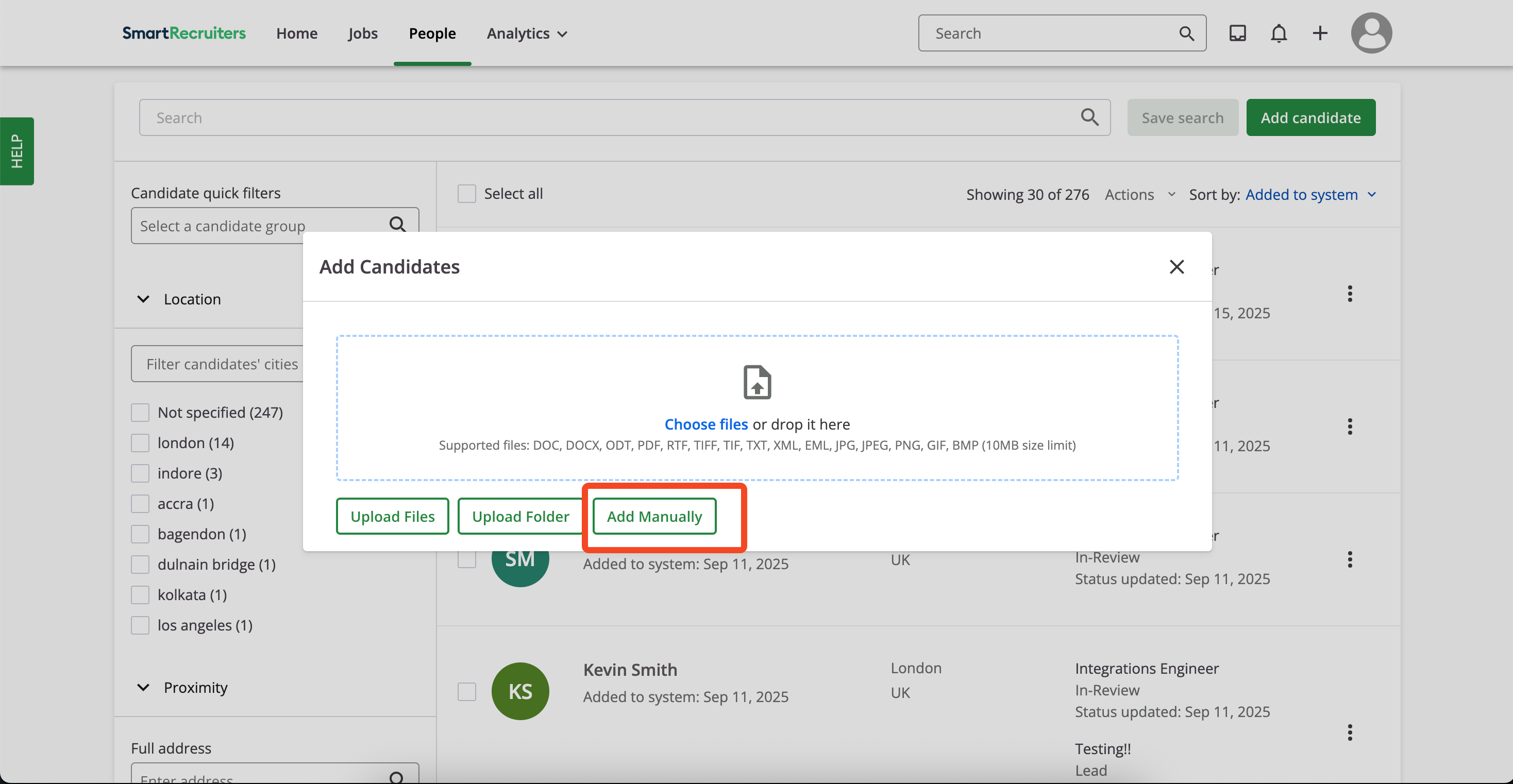
    You can upload files or add a candidate manually. For this guide we follow the manual addition form path.
    <Frame>
      <img className="rounded-md" style={{ margin: '0 auto', border: '1px solid #efefef' }} alt="Manually Added Candidate" src="https://mintcdn.com/stackone-hub/sGFIi1XaqyOUe9wI/images/smartrecruiters-assessments-background-checks/manually-added-candidate.png?fit=max&auto=format&n=sGFIi1XaqyOUe9wI&q=85&s=5892b65267e7ecd2c6e8082bdb9efc92" width="2936" height="1522" data-path="images/smartrecruiters-assessments-background-checks/manually-added-candidate.png" />
    </Frame>

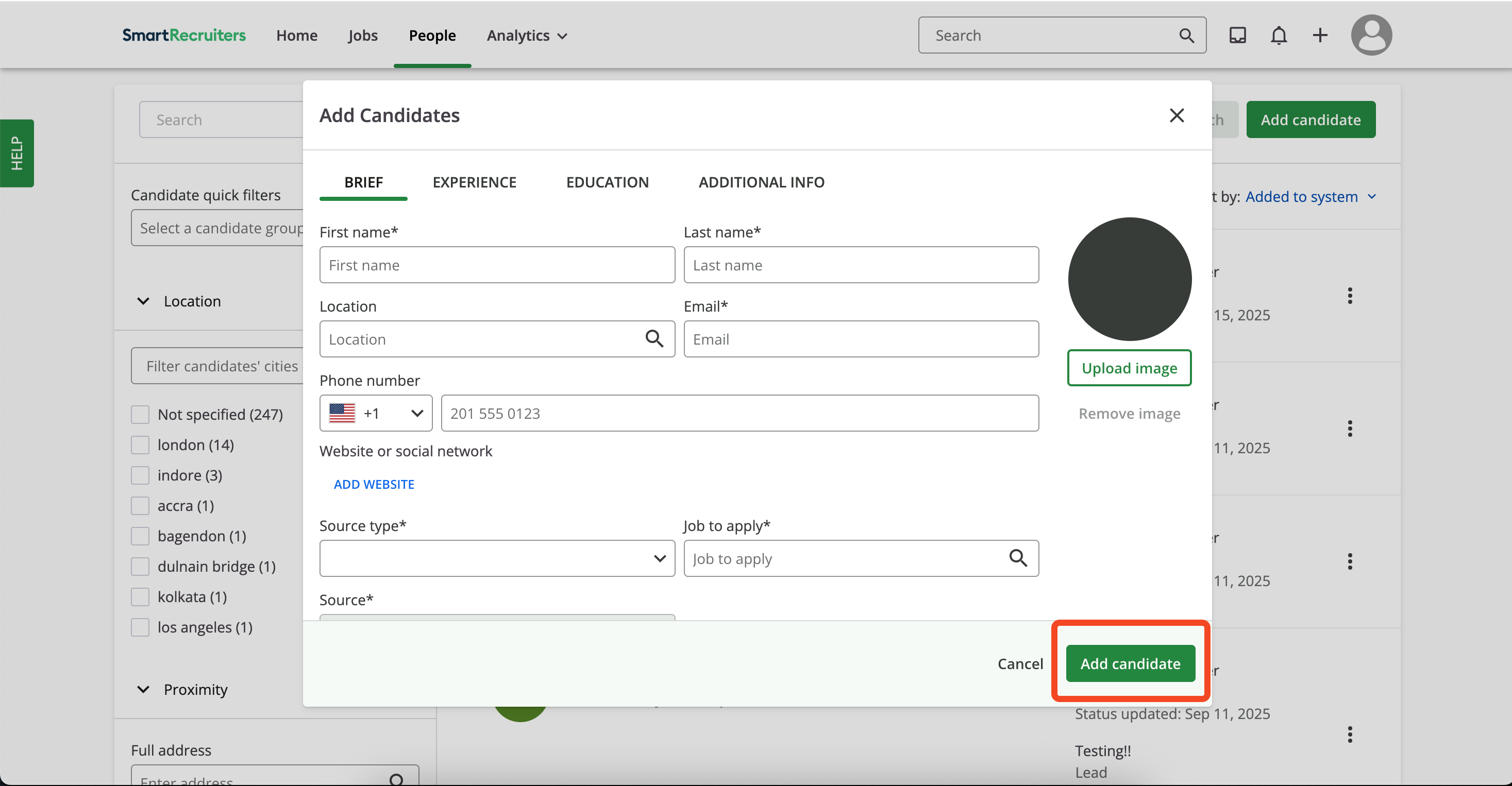
    Complete the form and click `Add Candidate`.
    <Frame>
      <img className="rounded-md" style={{ margin: '0 auto', border: '1px solid #efefef' }} alt="Candidate Form" src="https://mintcdn.com/stackone-hub/sGFIi1XaqyOUe9wI/images/smartrecruiters-assessments-background-checks/candidate-form.png?fit=max&auto=format&n=sGFIi1XaqyOUe9wI&q=85&s=bb91f5411ce7b892350f490885f0d297" width="2934" height="1526" data-path="images/smartrecruiters-assessments-background-checks/candidate-form.png" />
    </Frame>
  </Step>

  <Step title="Move candidate to assessment stage">
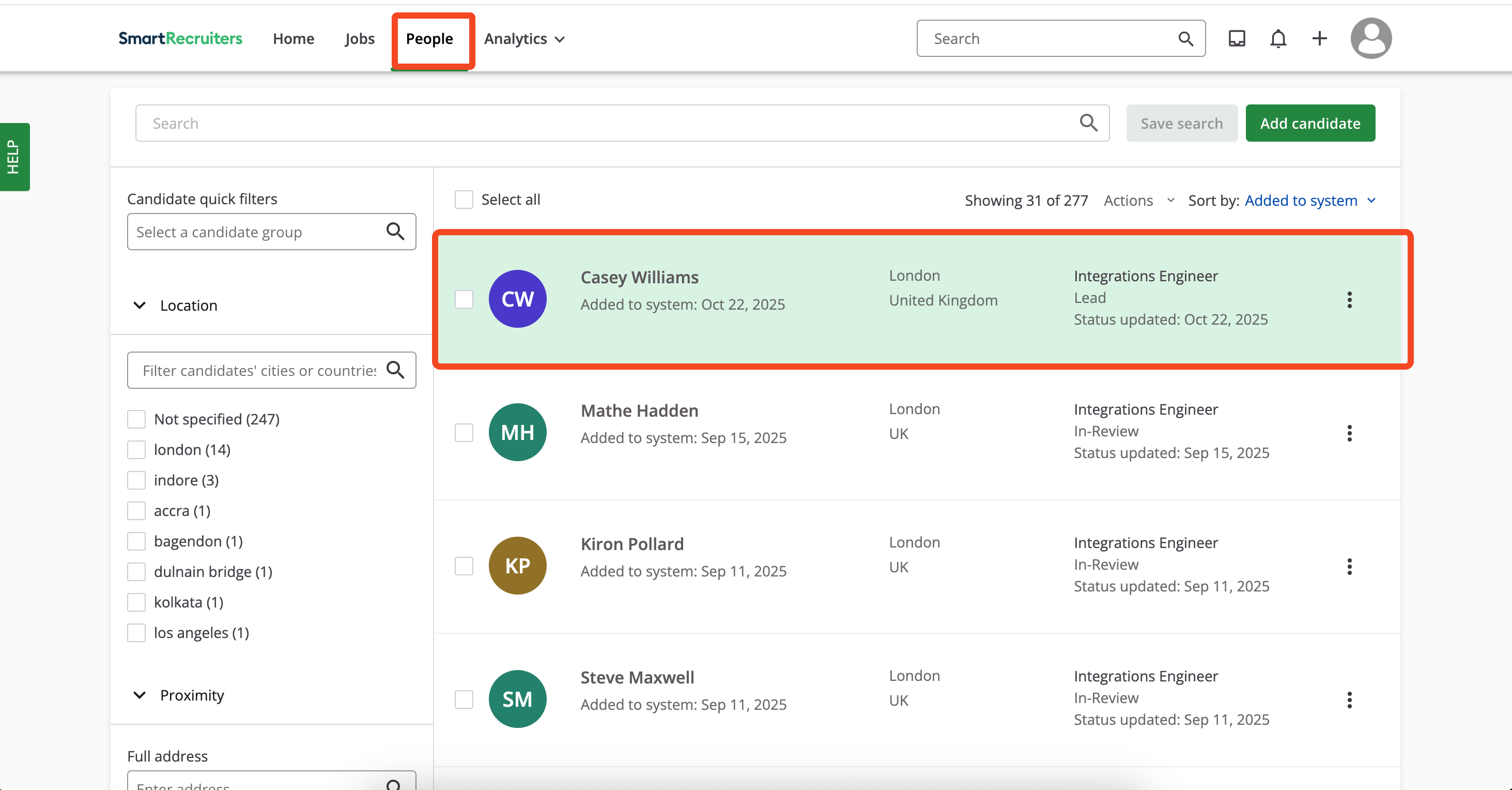
    Open **People** and select the candidate.
    <Frame>
      <img className="rounded-md" style={{ margin: '0 auto', border: '1px solid #efefef' }} alt="Select Candidate for Stage" src="https://mintcdn.com/stackone-hub/sGFIi1XaqyOUe9wI/images/smartrecruiters-assessments-background-checks/select-candidate-for-stage.png?fit=max&auto=format&n=sGFIi1XaqyOUe9wI&q=85&s=b7542b8a07d81440a627319b382b6f8e" width="2926" height="1528" data-path="images/smartrecruiters-assessments-background-checks/select-candidate-for-stage.png" />
    </Frame>

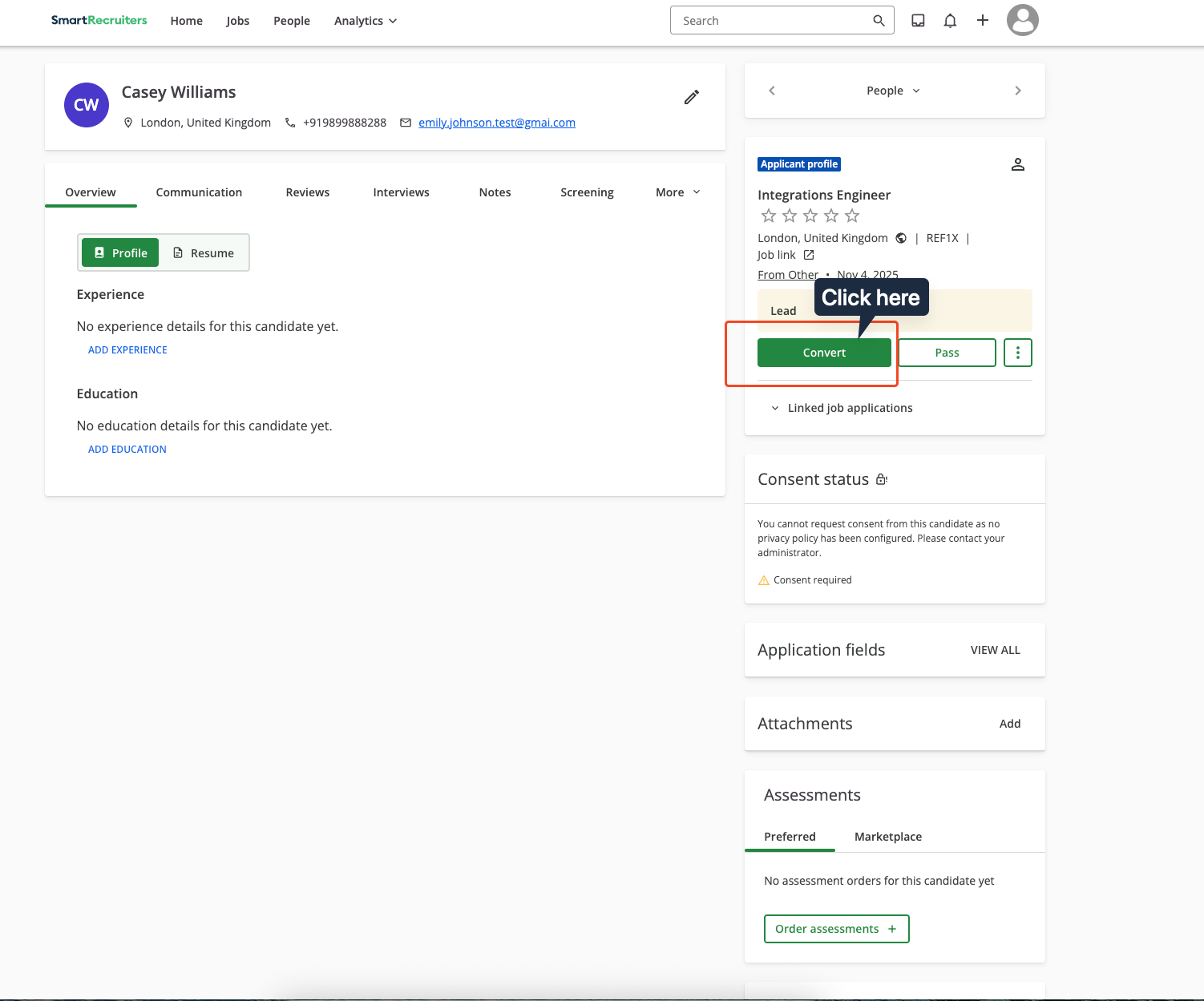
    Click the `Convert` button under the `Applicant profile` section.
    <Frame>
      <img className="rounded-md" style={{ margin: '0 auto', border: '1px solid #efefef' }} alt="Select Candidate for Stage" src="https://mintcdn.com/stackone-hub/y38n8WChcnKCTSnp/images/smartrecruiters-assessments-background-checks/select-convert-candidate-profile.png?fit=max&auto=format&n=y38n8WChcnKCTSnp&q=85&s=a2c627d73144a7defa3b5e0d45e69453" width="1502" height="1249" data-path="images/smartrecruiters-assessments-background-checks/select-convert-candidate-profile.png" />
    </Frame>

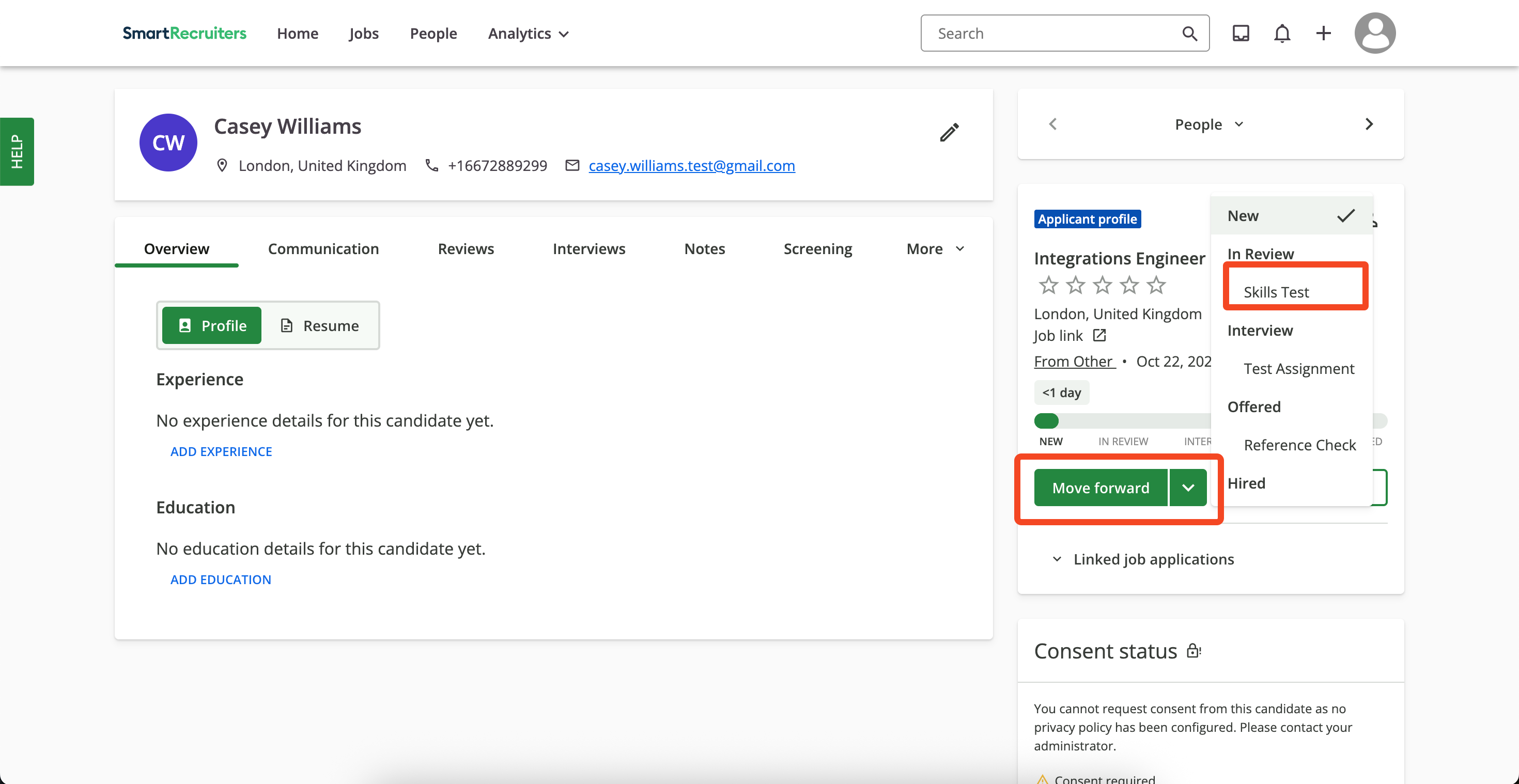
    Click `Move Forward` and select `Skills Test` under the `In Review` stage.
    <Frame>
      <img className="rounded-md" style={{ margin: '0 auto', border: '1px solid #efefef' }} alt="Select Assessment Stage" src="https://mintcdn.com/stackone-hub/sGFIi1XaqyOUe9wI/images/smartrecruiters-assessments-background-checks/select-assessment-stage.png?fit=max&auto=format&n=sGFIi1XaqyOUe9wI&q=85&s=16aef1461bb4f435d50dd32846a4510c" width="2940" height="1518" data-path="images/smartrecruiters-assessments-background-checks/select-assessment-stage.png" />
    </Frame>

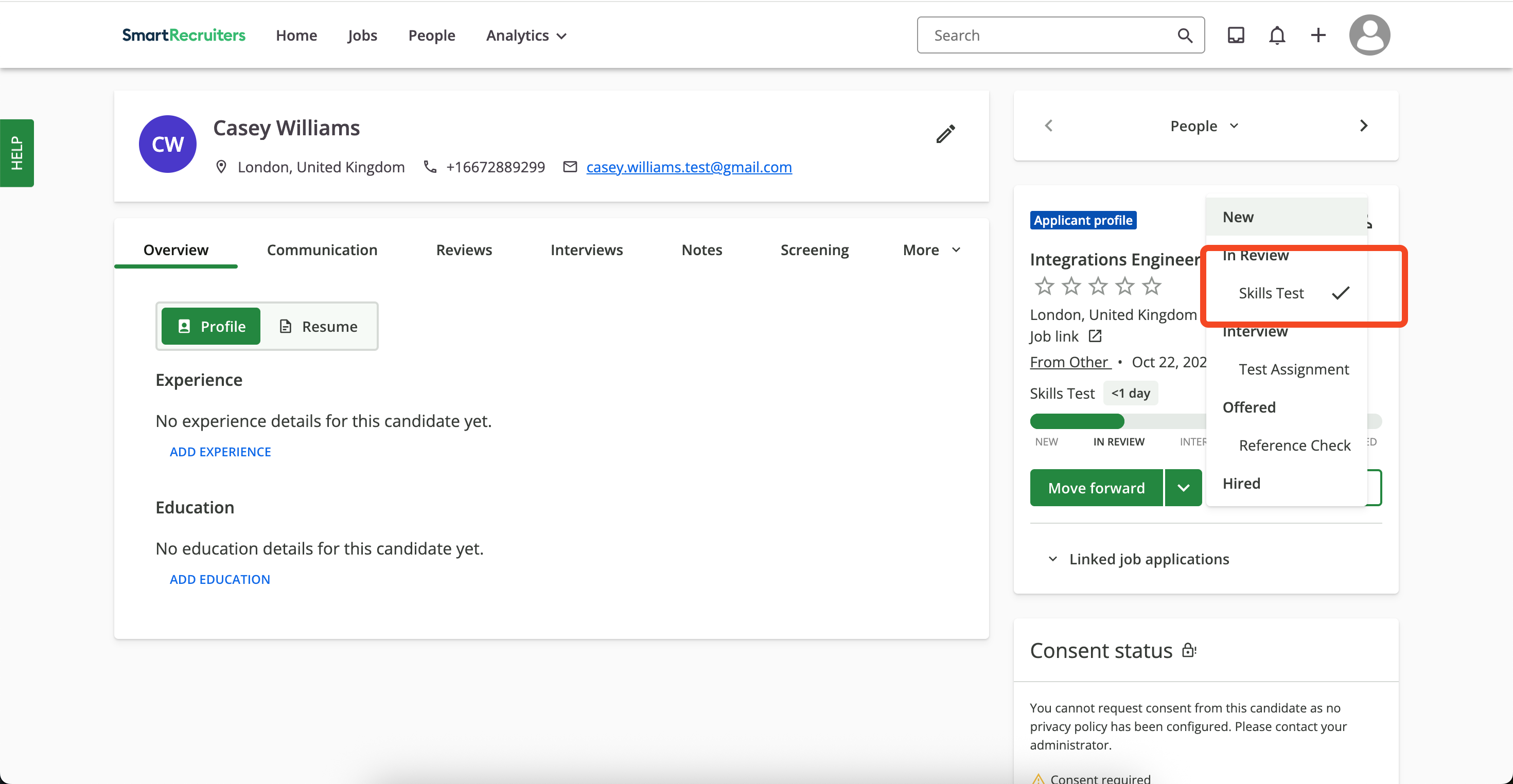
    A checkmark appears on `Skills Test` once the assessment order is sent.
    <Frame>
      <img className="rounded-md" style={{ margin: '0 auto', border: '1px solid #efefef' }} alt="Inline Stage Sent" src="https://mintcdn.com/stackone-hub/sGFIi1XaqyOUe9wI/images/smartrecruiters-assessments-background-checks/inline-stage-sent.png?fit=max&auto=format&n=sGFIi1XaqyOUe9wI&q=85&s=51b69f0b3c881c9f9d49838e15fe55a0" width="2940" height="1524" data-path="images/smartrecruiters-assessments-background-checks/inline-stage-sent.png" />
    </Frame>
  </Step>
</Steps>

## View order status and assessment result in SmartRecruiters

Navigate to the candidate application to check the status of assessment orders or results.

<Steps>
  <Step title="View status">
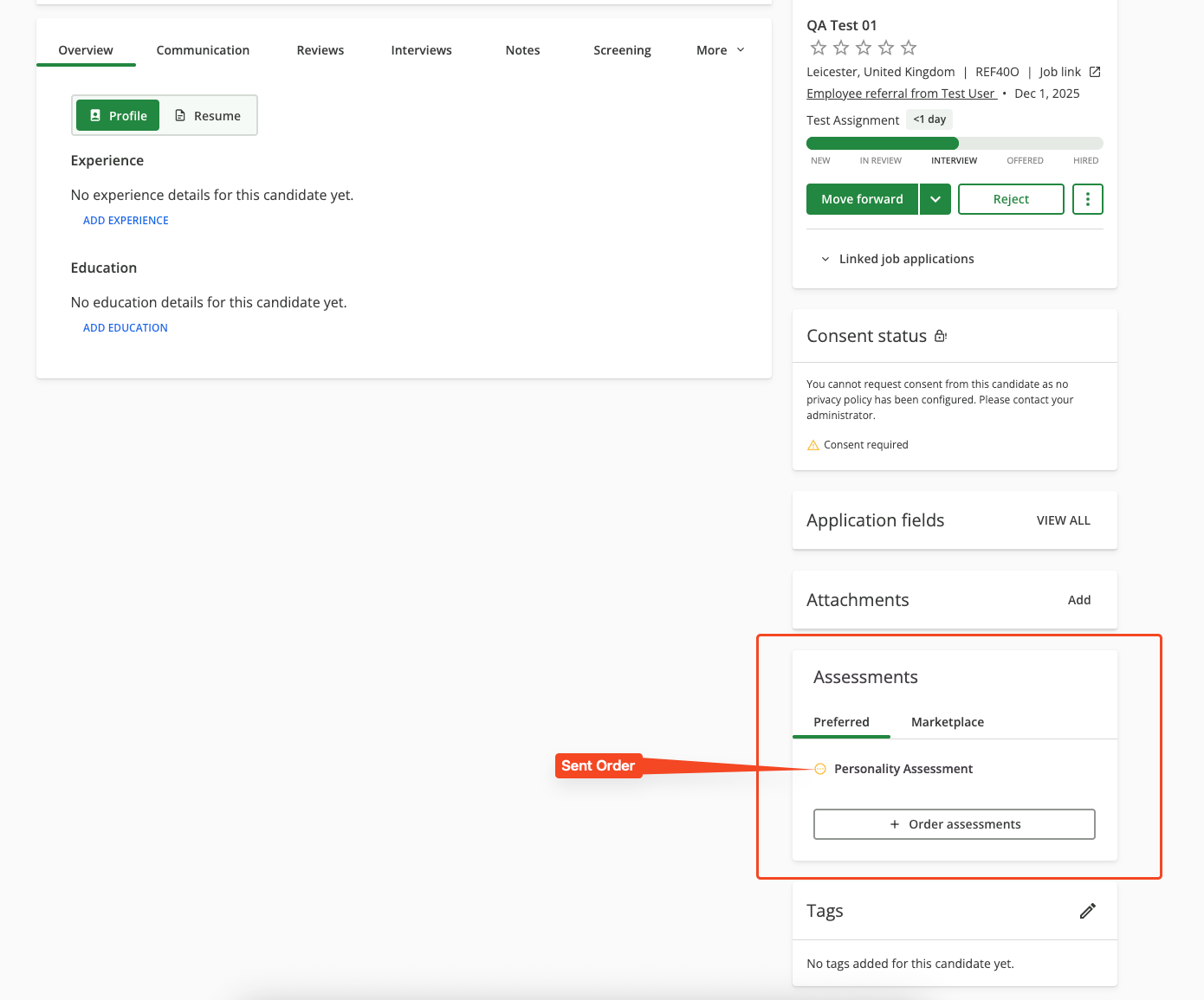
    When an assessment is sent to the candidate, you will see the assessment status in the candidate's application profile.
    <Frame>
      <img className="rounded-md" style={{ margin: '0 auto', border: '1px solid #efefef' }} alt="Assessment Sent Status" src="https://mintcdn.com/stackone-hub/k-EYguSsPEhhygIS/images/smartrecruiters-assessments-background-checks/assessment-sent-status.png?fit=max&auto=format&n=k-EYguSsPEhhygIS&q=85&s=4094fec31b665514876d4342af659855" width="1390" height="1155" data-path="images/smartrecruiters-assessments-background-checks/assessment-sent-status.png" />
    </Frame>
  </Step>

  <Step title="View results">
    After the candidate completes the assessment:

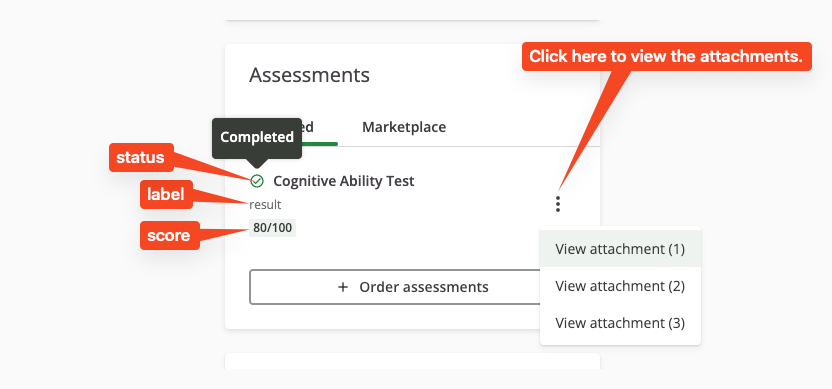
    1. **Status updates**: Track status (Sent, In Progress, Completed) in the candidate profile.
    2. **Score updates**: View the score or result of the assessment for the candidate.
    3. **Attachments / report**: Open the detailed results or follow the full report link (if provided).
    <Frame>
      <img className="rounded-md" style={{ margin: '0 auto', border: '1px solid #efefef' }} alt="Assessment Status and Result Tracking" src="https://mintcdn.com/stackone-hub/k-EYguSsPEhhygIS/images/smartrecruiters-assessments-background-checks/assessment-status-and-result-tracking.png?fit=max&auto=format&n=k-EYguSsPEhhygIS&q=85&s=95ebaad43977b7dbb9659c12b49e573d" width="832" height="389" data-path="images/smartrecruiters-assessments-background-checks/assessment-status-and-result-tracking.png" />
    </Frame>
  </Step>
</Steps>

## Useful Links

<Card title="API Reference" icon="link" href="https://developers.smartrecruiters.com/reference/apply-api">
  [https://developers.smartrecruiters.com/reference/apply-api](https://developers.smartrecruiters.com/reference/apply-api)
</Card>