> ## Documentation Index
> Fetch the complete documentation index at: https://hub.stackone.com/llms.txt
> Use this file to discover all available pages before exploring further.

# SAP SuccessFactors Job visibility on UI

> To make hidden jobs visible in SAP SuccessFactors, follow these steps

<Warning>
  This guidance assumes that you have admin privileges for your SAP SuccessFactors account.
</Warning>

<Steps>
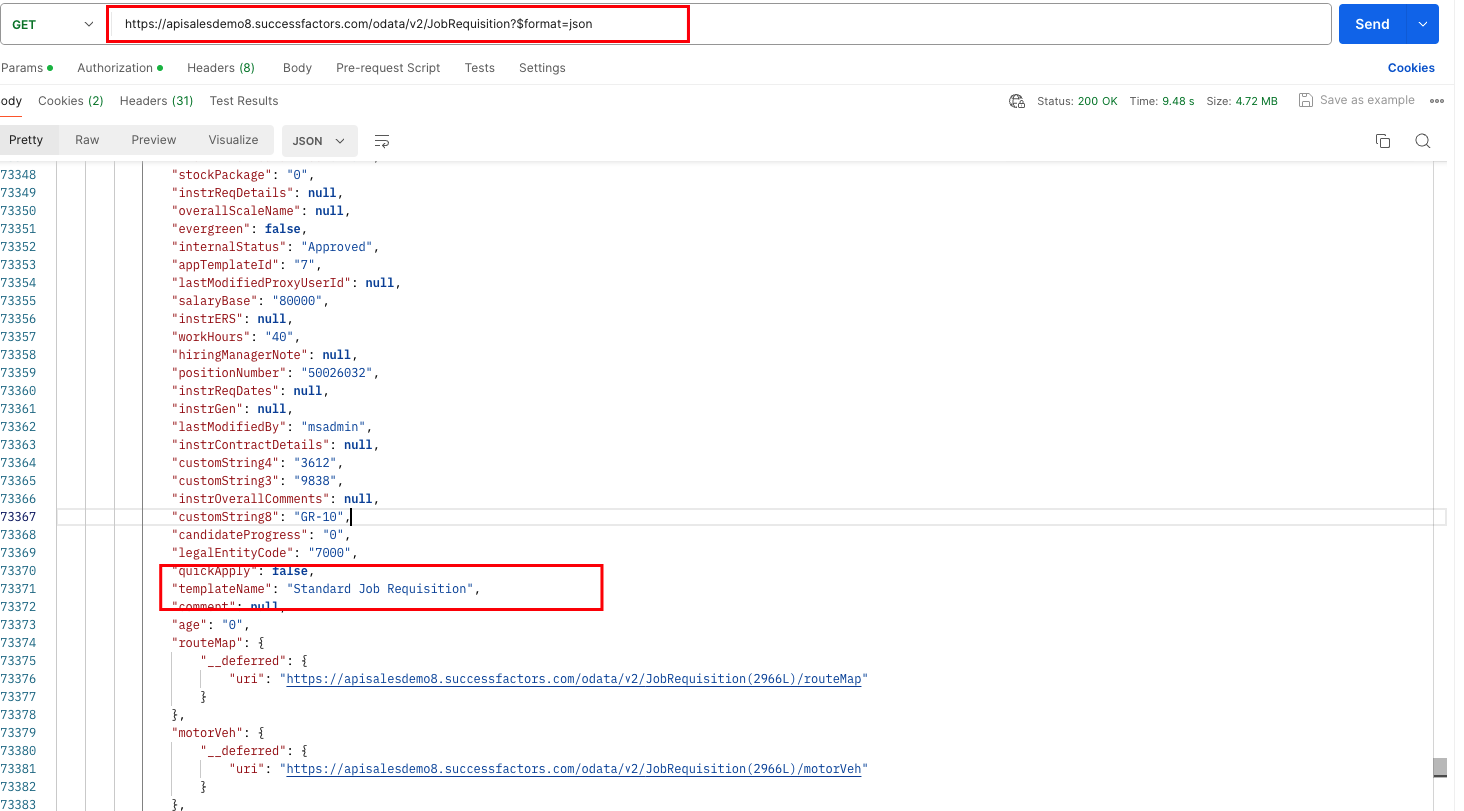
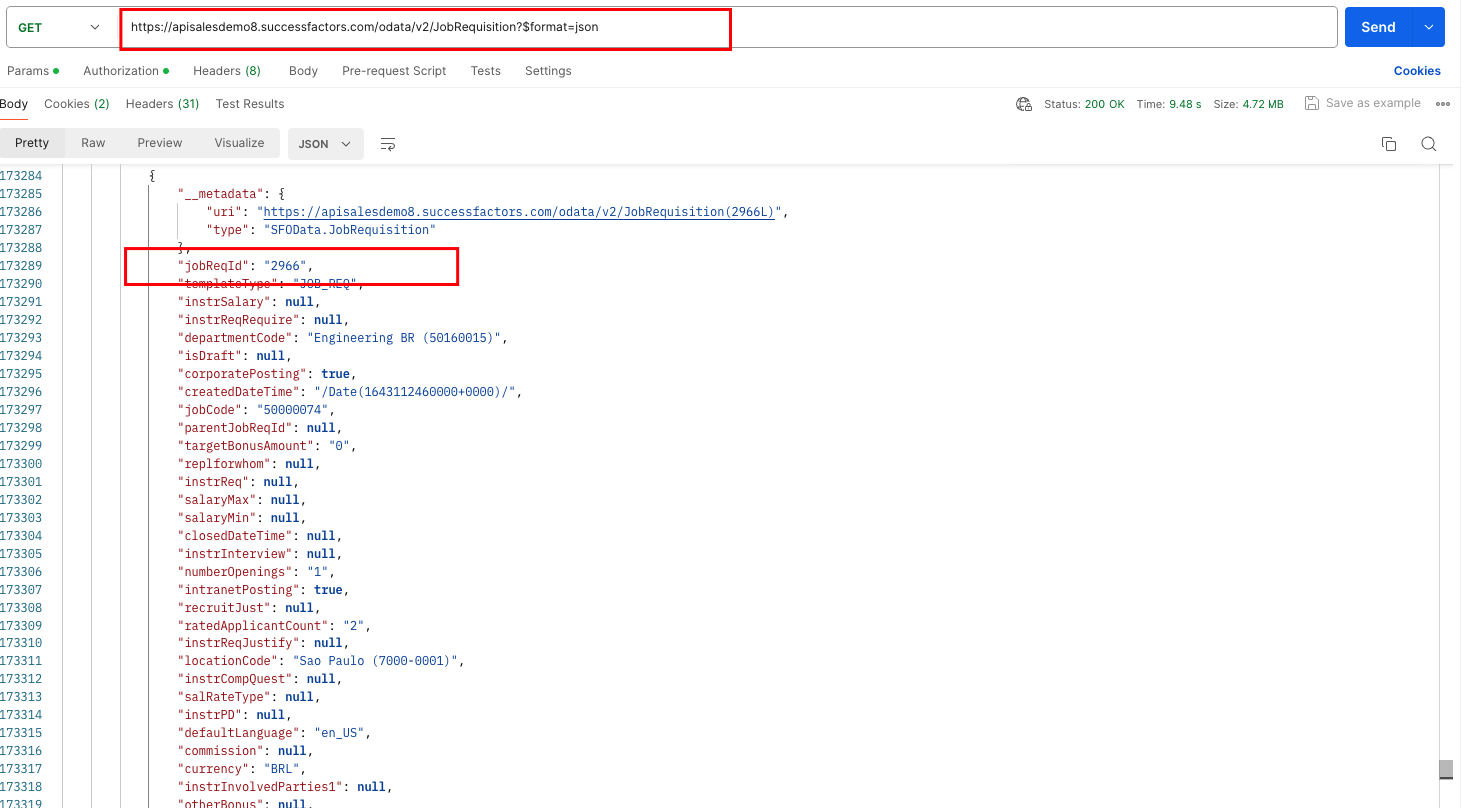
  <Step title="Get the job templateName or jobRequisitionId">
    Retrieve the job template name (templateName) or job requisition id (jobReqId) from the API response that is not visible in the UI.
    <Frame>
      <img className="rounded-md" style={{ margin: '0 auto', border: '1px solid #efefef' }} alt="Add Webhook" src="https://mintcdn.com/stackone-hub/DSTDvdfXE5cXWfs9/images/sapsuccessfactors/job-visibility-ui-1.png?fit=max&auto=format&n=DSTDvdfXE5cXWfs9&q=85&s=ac987bf4a703e573a12294041cadaa86" width="1464" height="811" data-path="images/sapsuccessfactors/job-visibility-ui-1.png" />
    </Frame>

    <Frame>
      <img className="rounded-md" style={{ margin: '0 auto', border: '1px solid #efefef' }} alt="Webhook Enabled" src="https://mintcdn.com/stackone-hub/DSTDvdfXE5cXWfs9/images/sapsuccessfactors/job-visibility-ui-2.png?fit=max&auto=format&n=DSTDvdfXE5cXWfs9&q=85&s=f0549177dbb64008a42f2a3f0f7f5d6d" width="1471" height="808" data-path="images/sapsuccessfactors/job-visibility-ui-2.png" />
    </Frame>
  </Step>

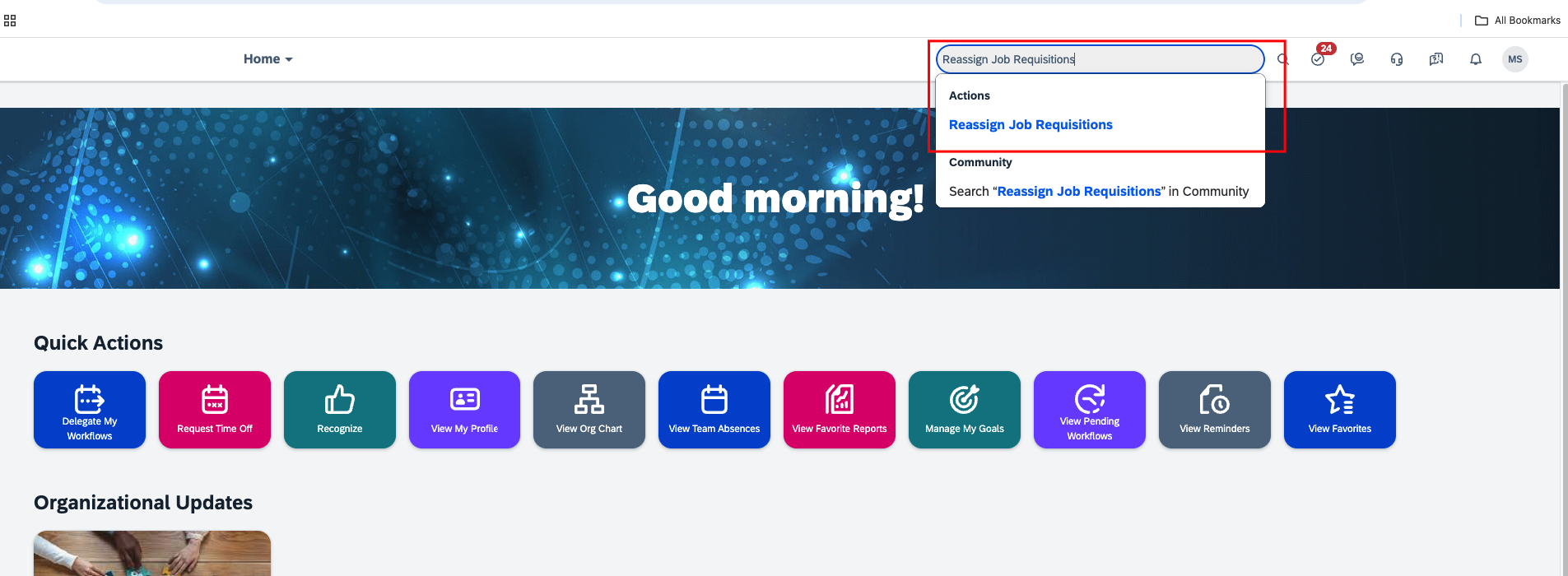
  <Step title="Go to > Admin Center > Reassign Job Requisitions">
    <Frame>
      <img className="rounded-md" style={{ margin: '0 auto', border: '1px solid #efefef' }} alt="Edit Events" src="https://mintcdn.com/stackone-hub/DSTDvdfXE5cXWfs9/images/sapsuccessfactors/job-visibility-ui-3.png?fit=max&auto=format&n=DSTDvdfXE5cXWfs9&q=85&s=2136dbe505bde01988c37a0be4d61c07" width="1905" height="700" data-path="images/sapsuccessfactors/job-visibility-ui-3.png" />
    </Frame>
  </Step>

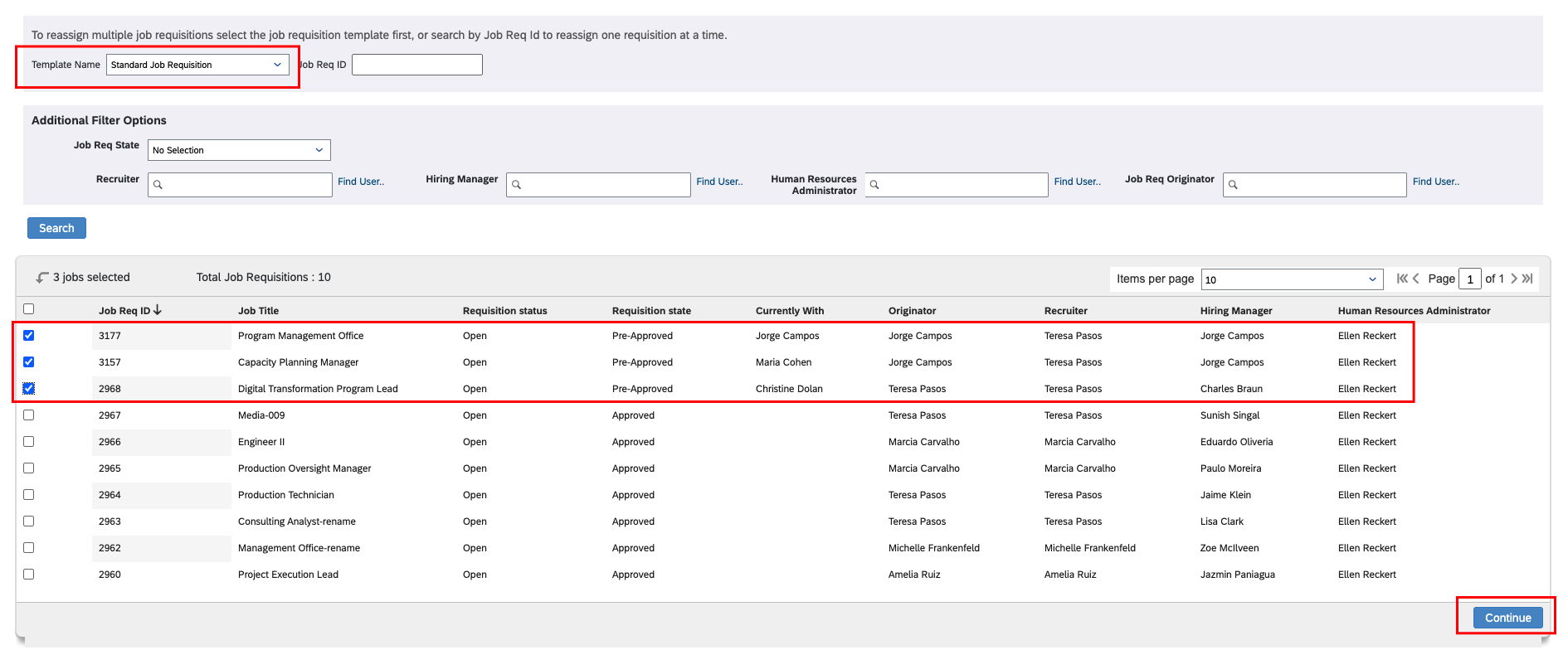
  <Step title="Select > Template Name or enter Job Req Id > Search">
    <Frame>
      <img className="rounded-md" style={{ margin: '0 auto', border: '1px solid #efefef' }} alt="Search IS" src="https://mintcdn.com/stackone-hub/DSTDvdfXE5cXWfs9/images/sapsuccessfactors/job-visibility-ui-4.png?fit=max&auto=format&n=DSTDvdfXE5cXWfs9&q=85&s=fdf7ef8ab8e97253add89e6d05946d27" width="1910" height="306" data-path="images/sapsuccessfactors/job-visibility-ui-4.png" />
    </Frame>
  </Step>

  <Step title="Select the jobs that are not visible in the UI, and then click on Continue">
    <Frame>
      <img className="rounded-md" style={{ margin: '0 auto', border: '1px solid #efefef' }} alt="Endpoint Attribute" src="https://mintcdn.com/stackone-hub/DSTDvdfXE5cXWfs9/images/sapsuccessfactors/job-visibility-ui-5.png?fit=max&auto=format&n=DSTDvdfXE5cXWfs9&q=85&s=4ec70acfbc13e4300e04107554322f81" width="1890" height="784" data-path="images/sapsuccessfactors/job-visibility-ui-5.png" />
    </Frame>
  </Step>

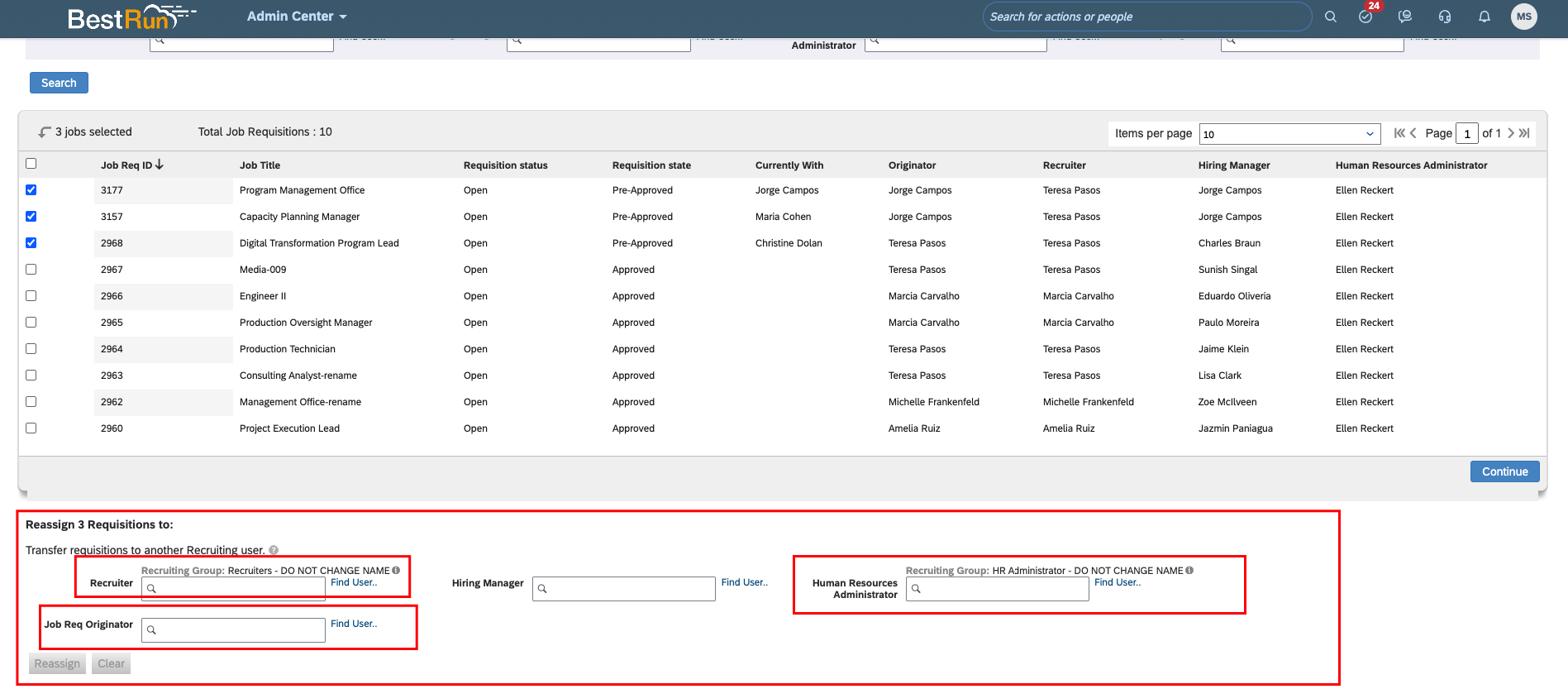
  <Step title="Assign the active users or admin to the Recruiter, Human Resources Administrator, and Job Requisition Originator roles.">
    <Frame>
      <img className="rounded-md" style={{ margin: '0 auto', border: '1px solid #efefef' }} alt="Endpoint Attribute" src="https://mintcdn.com/stackone-hub/DSTDvdfXE5cXWfs9/images/sapsuccessfactors/job-visibility-ui-6.png?fit=max&auto=format&n=DSTDvdfXE5cXWfs9&q=85&s=299623c258a10089bc2d9a3cb8e3c343" width="1897" height="833" data-path="images/sapsuccessfactors/job-visibility-ui-6.png" />
    </Frame>
  </Step>
</Steps>

<Note>
  Note: If you don't have a job template name or job requisition ID, you can manually go through each template and check if any job has empty fields for the recruiter, originator, or human resource administrator, or if these fields are assigned to inactive users. If any such cases are found, you need to reassign the recruiter, originator, and human resource administrator.
</Note>