> ## Documentation Index
> Fetch the complete documentation index at: https://hub.stackone.com/llms.txt
> Use this file to discover all available pages before exploring further.

# SAP SuccessFactors Offer Template Configuration for Offer Creation

> To configure Offer Template in SAP SuccessFactors, follow these steps

<Warning>
  This guidance assumes that you have admin privileges for your SAP SuccessFactors account.
</Warning>

# Configure Offer Template

<Note>
  Note: Offers can only be created using an Offer Template that does not include any offer approver steps.
</Note>

<Steps>
  <Step title="Go to the Offer Templates">
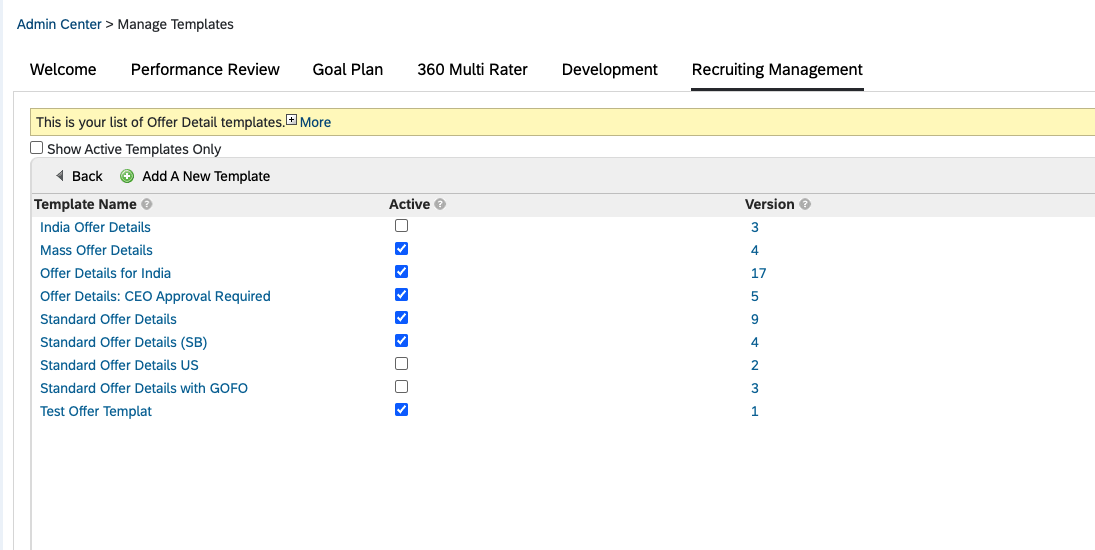
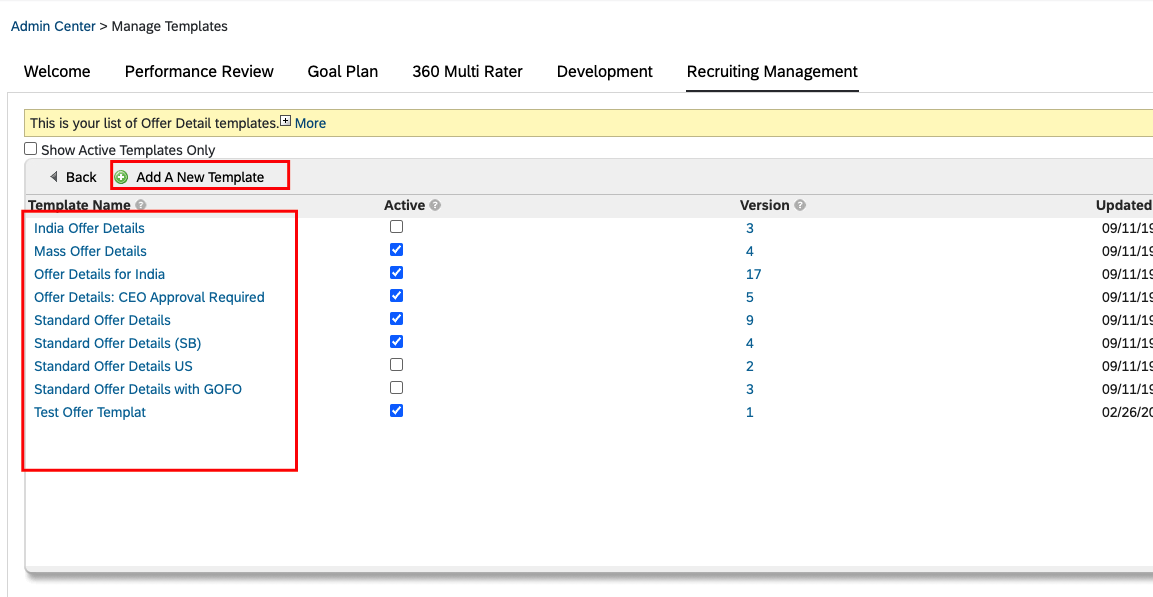
    You can find the Offer Templates by navigating to the *<b>Admin Center > Manage Templates > Recruiting Management > Offer Detail</b>*

    <Frame>
      <img className="rounded-md" style={{ margin: '0 auto', border: '1px solid #efefef' }} alt="Offer Templates" src="https://mintcdn.com/stackone-hub/DSTDvdfXE5cXWfs9/images/sapsuccessfactors/sapsuccessfactors-create-offer/create-offer-1.png?fit=max&auto=format&n=DSTDvdfXE5cXWfs9&q=85&s=815f2ffef7fcad5c081ac65d556632e8" width="1095" height="550" data-path="images/sapsuccessfactors/sapsuccessfactors-create-offer/create-offer-1.png" />
    </Frame>
  </Step>

  <Step title="Add/Edit Offer Template">
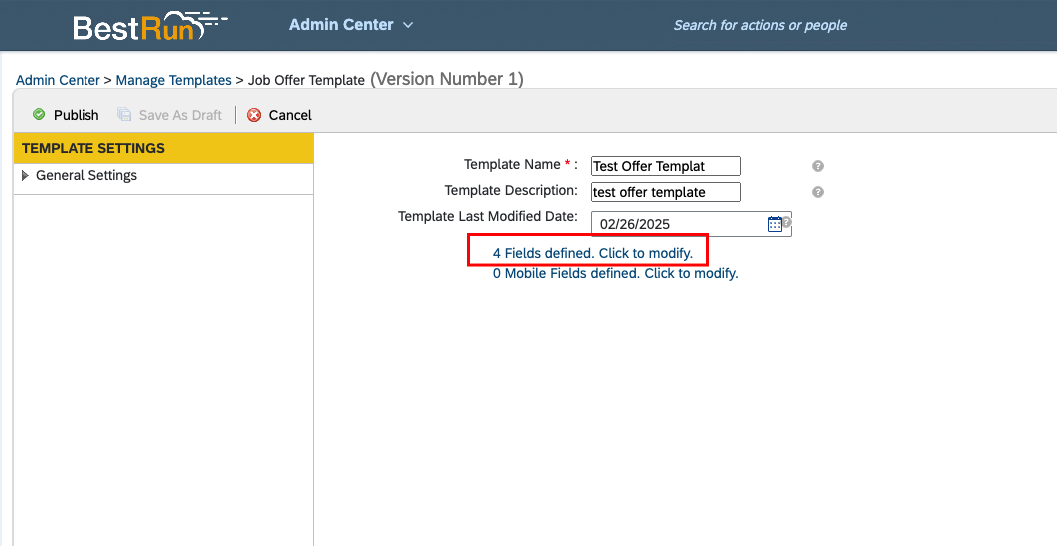
    1. Click on *<b>Add A New Template</b>* button to add a new Offer Template. if you want to update an existing one, please select the offer template which you want to update from the list.
    2. Add/Edit Template Name and then,
    3. Click on the *<b>Fields defined. Click to modify</b>* link to configure fields in the template.
    <Frame>
      <img className="rounded-md" style={{ margin: '0 auto', border: '1px solid #efefef' }} alt="Add/Edit Template" src="https://mintcdn.com/stackone-hub/DSTDvdfXE5cXWfs9/images/sapsuccessfactors/sapsuccessfactors-create-offer/create-offer-2.png?fit=max&auto=format&n=DSTDvdfXE5cXWfs9&q=85&s=17cba09275c030ed7f9f22f7ddeae647" width="1153" height="597" data-path="images/sapsuccessfactors/sapsuccessfactors-create-offer/create-offer-2.png" />
    </Frame>

    <Frame>
      <img className="rounded-md" style={{ margin: '0 auto', border: '1px solid #efefef' }} alt="Add/Edit Template" src="https://mintcdn.com/stackone-hub/DSTDvdfXE5cXWfs9/images/sapsuccessfactors/sapsuccessfactors-create-offer/create-offer-3.png?fit=max&auto=format&n=DSTDvdfXE5cXWfs9&q=85&s=1d7a68c0d4354f8c0bec9af8bf4daa45" width="1057" height="546" data-path="images/sapsuccessfactors/sapsuccessfactors-create-offer/create-offer-3.png" />
    </Frame>
  </Step>

  <Step title="Configure Fields">
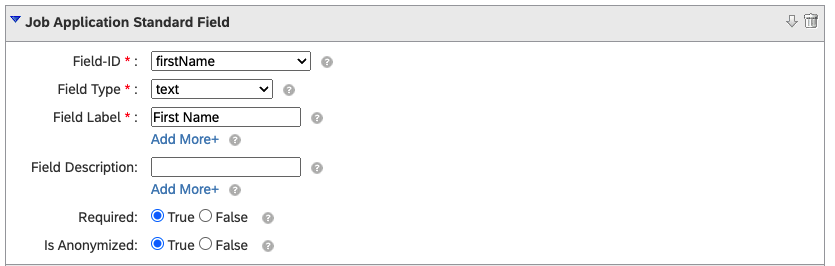
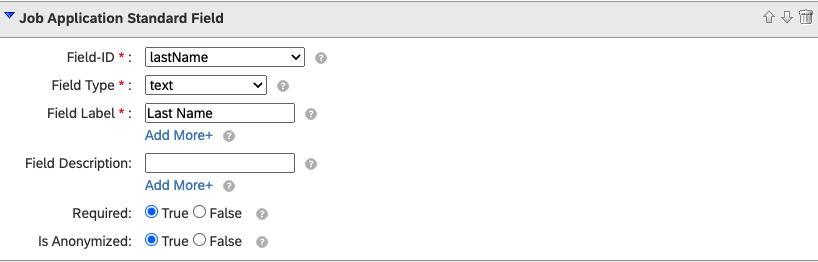
    The offer template should be configured with the following fields. Additional fields are optional.

    <b>1. firstName </b>

    <Frame>
      <img className="rounded-md" style={{ margin: '0 auto', border: '1px solid #efefef' }} alt="First Name" src="https://mintcdn.com/stackone-hub/DSTDvdfXE5cXWfs9/images/sapsuccessfactors/sapsuccessfactors-create-offer/create-offer-4.png?fit=max&auto=format&n=DSTDvdfXE5cXWfs9&q=85&s=8142fe12fba41b1af7981abb5f25ffae" width="835" height="266" data-path="images/sapsuccessfactors/sapsuccessfactors-create-offer/create-offer-4.png" />
    </Frame>

    <br />

    <b>2. lastName </b>

    <Frame>
      <img className="rounded-md" style={{ margin: '0 auto', border: '1px solid #efefef' }} alt="Last Name" src="https://mintcdn.com/stackone-hub/DSTDvdfXE5cXWfs9/images/sapsuccessfactors/sapsuccessfactors-create-offer/create-offer-5.png?fit=max&auto=format&n=DSTDvdfXE5cXWfs9&q=85&s=277990647ea135720c4a3270da29ebfd" width="818" height="262" data-path="images/sapsuccessfactors/sapsuccessfactors-create-offer/create-offer-5.png" />
    </Frame>

    <br />

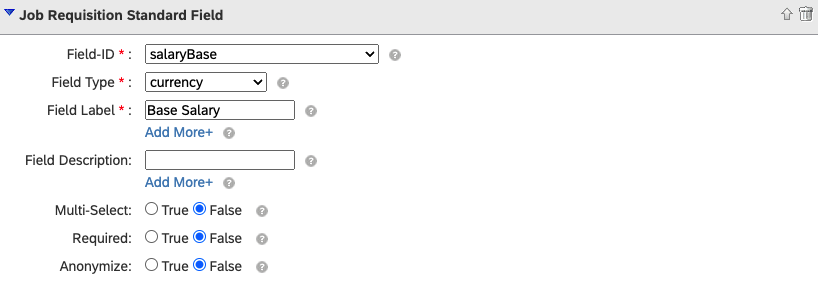
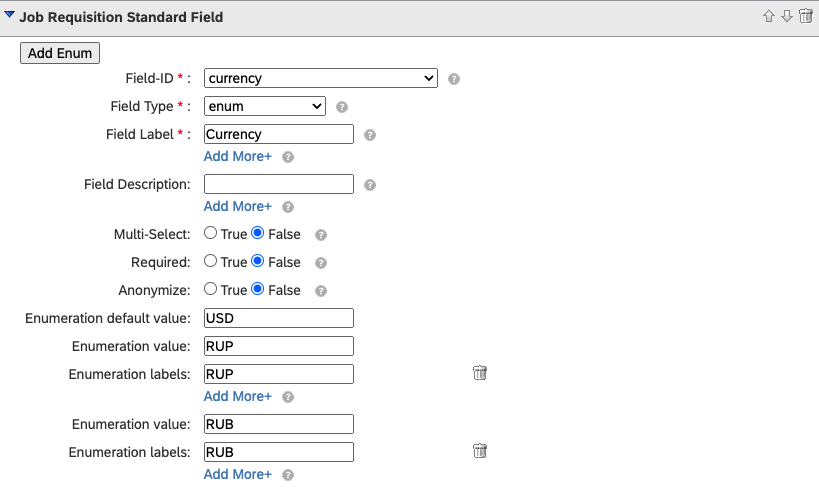
    <b>3. currency </b>

    Note: You can modify list of enums according to your use case.
    <Frame>
      <img className="rounded-md" style={{ margin: '0 auto', border: '1px solid #efefef' }} alt="Currency" src="https://mintcdn.com/stackone-hub/DSTDvdfXE5cXWfs9/images/sapsuccessfactors/sapsuccessfactors-create-offer/create-offer-6.png?fit=max&auto=format&n=DSTDvdfXE5cXWfs9&q=85&s=51b3a52f485b48a6f03d138e3903309b" width="819" height="493" data-path="images/sapsuccessfactors/sapsuccessfactors-create-offer/create-offer-6.png" />
    </Frame>

    <br />

    <b>4. salaryBase </b>

    <Frame>
      <img className="rounded-md" style={{ margin: '0 auto', border: '1px solid #efefef' }} alt="Salary Base" src="https://mintcdn.com/stackone-hub/DSTDvdfXE5cXWfs9/images/sapsuccessfactors/sapsuccessfactors-create-offer/create-offer-7.png?fit=max&auto=format&n=DSTDvdfXE5cXWfs9&q=85&s=62900d1980b0e3e34287e623587d0cee" width="818" height="285" data-path="images/sapsuccessfactors/sapsuccessfactors-create-offer/create-offer-7.png" />
    </Frame>
  </Step>

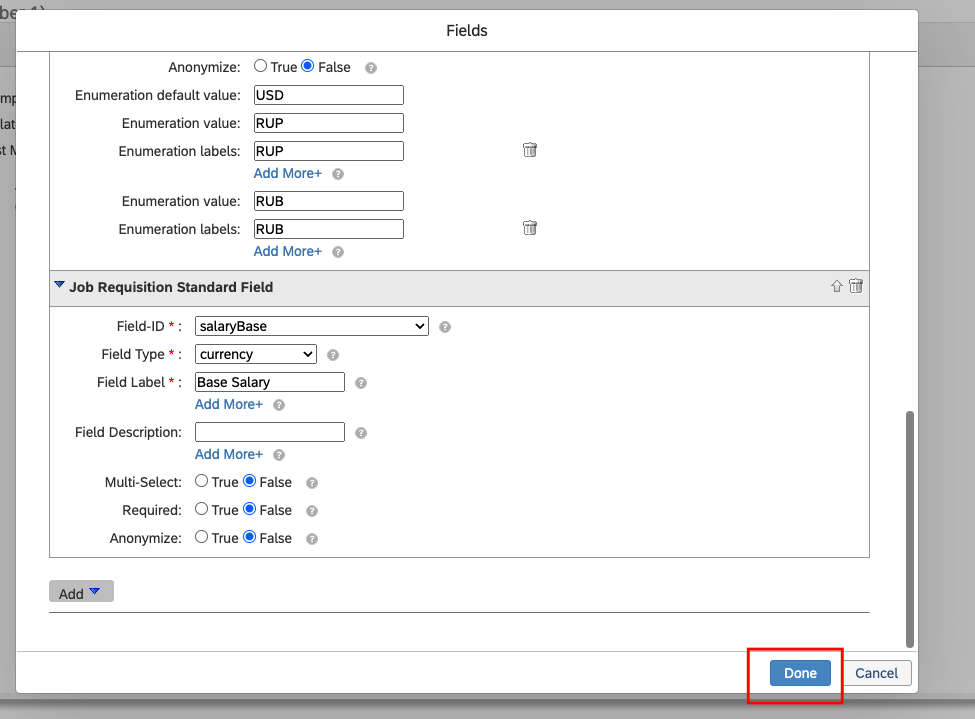
  <Step title="Save and Publish Template">
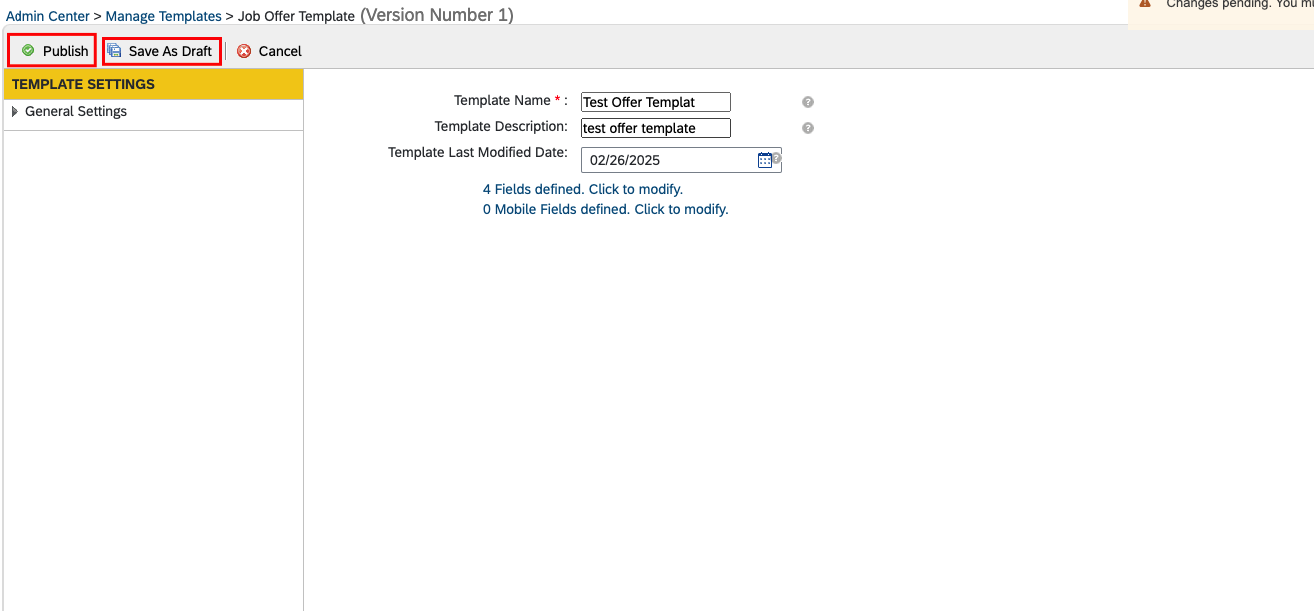
    Once the field configuration is completed, save the template as a draft and then publish it.
    <Frame>
      <img className="rounded-md" style={{ margin: '0 auto', border: '1px solid #efefef' }} alt="Add/Edit Template" src="https://mintcdn.com/stackone-hub/DSTDvdfXE5cXWfs9/images/sapsuccessfactors/sapsuccessfactors-create-offer/create-offer-8.png?fit=max&auto=format&n=DSTDvdfXE5cXWfs9&q=85&s=b13cfd4c0e484f7717edbb9a42409bc2" width="975" height="719" data-path="images/sapsuccessfactors/sapsuccessfactors-create-offer/create-offer-8.png" />
    </Frame>

    <Frame>
      <img className="rounded-md" style={{ margin: '0 auto', border: '1px solid #efefef' }} alt="Add/Edit Template" src="https://mintcdn.com/stackone-hub/DSTDvdfXE5cXWfs9/images/sapsuccessfactors/sapsuccessfactors-create-offer/create-offer-9.png?fit=max&auto=format&n=DSTDvdfXE5cXWfs9&q=85&s=24a4c152f2e9535bb2470346a6010189" width="1314" height="611" data-path="images/sapsuccessfactors/sapsuccessfactors-create-offer/create-offer-9.png" />
    </Frame>
  </Step>
</Steps>