> ## Documentation Index
> Fetch the complete documentation index at: https://hub.stackone.com/llms.txt
> Use this file to discover all available pages before exploring further.
# SAP SuccessFactors Assessment
> To send webhook notifications successfully from SAP SuccessFactors, follow these steps in your SAP SuccessFactors account and complete the required actions.
## Associate assessment to the job requisition
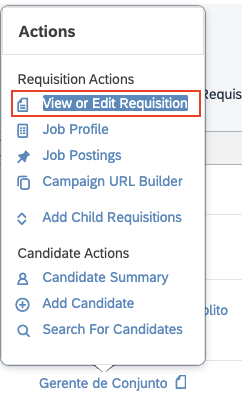
Navigate to specific *Job Requisition*, hover over the specific requisition title to open the Actions menu and then select `View or Edit Requisition`.
 Click on the link labeled as `Add More Assessments` to add an assessment association row where you can select below details
 * **Status:** Select the stage at which the vendor established the assessment integration feature.
* **Vendor:** Select the vendor.
* **Assessment:** Select the assessment package that the recruiter wants to send to the candidate.
If the assessment vendor packages are not listed in the dropdown menu, please reach out to the vendor to arrange for the assessment packages.
* **Status:** Select the stage at which the vendor established the assessment integration feature.
* **Vendor:** Select the vendor.
* **Assessment:** Select the assessment package that the recruiter wants to send to the candidate.
If the assessment vendor packages are not listed in the dropdown menu, please reach out to the vendor to arrange for the assessment packages.
The vendor will provide you with a CSV file of the assessment vendor packages, which you can upload from the *Provisioning Account* by navigating to *Managing Recruiting* and selecting *Import/Export Assessment Vendor Packages*.
* **Email Template:** Select the email template that will be sent to the candidate once the assessment is triggered.
## To send the assessment to the candidate
If the message `This candidate has been forwarded to this job but has not yet applied for it` appears on the candidate's job application, then the assessment order cannot be generated. The candidate must apply for the specific job requisition.
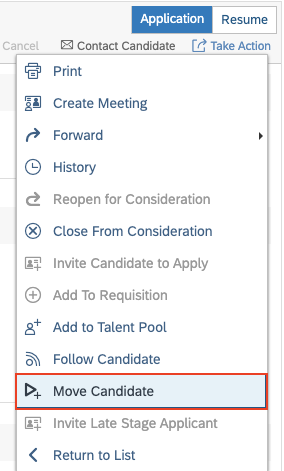
Navigate to the specific *Job Requisition* and click on Candidates. Select the candidate, then choose the `Move Candidate` option from the Take Action menu.
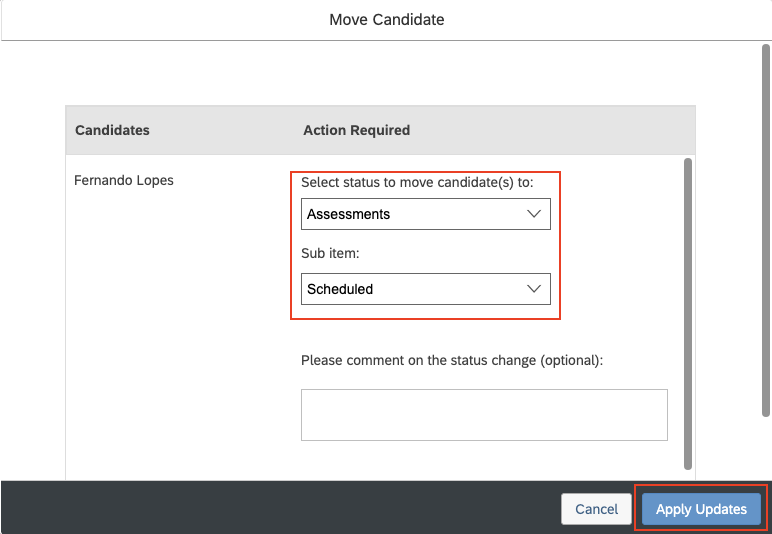
 Choose `Assessment` or particular stage on that you want to trigger the assessment from the dropdown menu, then click `Apply Updates` to move the candidate forward.
 Assessment will be automatically triggered when a candidate moves successfully. You will see an 'Initiated' message in the Assessment portlet for that candidate's application.
 If you see an 'Initiation Failed' message, you can re-trigger the assessment from the Take Action menu
## To check the results of the assessment
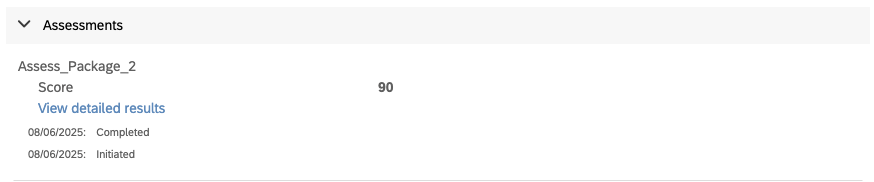
Navigate to the stage where the assessment was triggered. The results will be available in the Assessment portlet within the candidate's application.
If you see an 'Initiation Failed' message, you can re-trigger the assessment from the Take Action menu
## To check the results of the assessment
Navigate to the stage where the assessment was triggered. The results will be available in the Assessment portlet within the candidate's application.
 ## Useful Links
[https://api.sap.com/products/SAPSuccessFactors/apis/all](https://api.sap.com/products/SAPSuccessFactors/apis/all)
## Useful Links
[https://api.sap.com/products/SAPSuccessFactors/apis/all](https://api.sap.com/products/SAPSuccessFactors/apis/all)