> ## Documentation Index
> Fetch the complete documentation index at: https://hub.stackone.com/llms.txt
> Use this file to discover all available pages before exploring further.

# Bullhorn Job Custom Fields

> To create and view job custom fields in Bullhorn, follow these steps.

<Warning>
  This guide assumes you have administrative privileges for your Bullhorn account.
</Warning>

## Configure Bullhorn Job Custom Fields
<Steps>
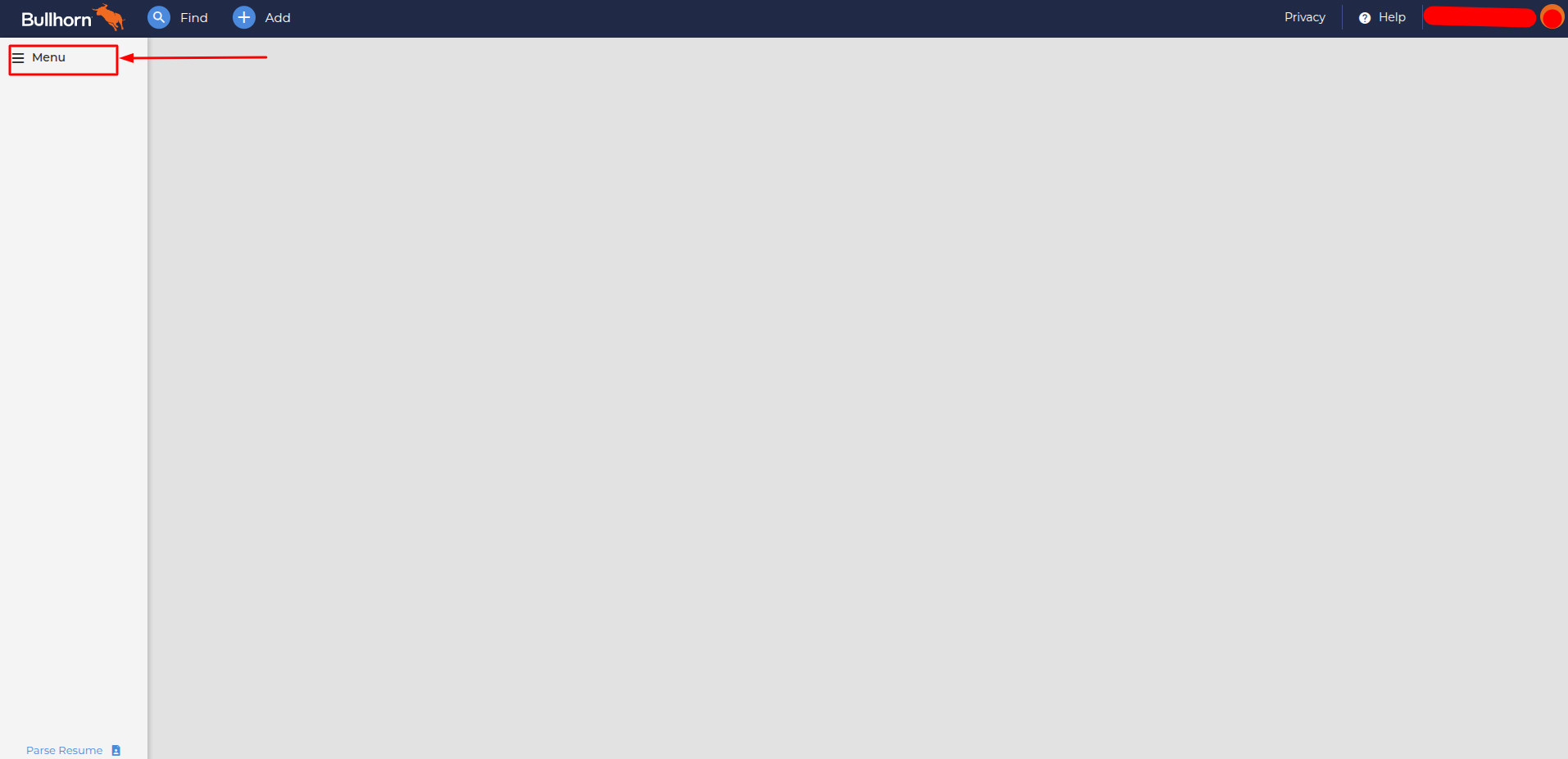
  <Step title="Access the Main Menu">
    <Frame>
      <img className="rounded-md" style={{ margin: '0 auto', border: '1px solid #efefef' }} alt="Dashboard window" src="https://mintcdn.com/stackone-hub/Yn_6S3z7TpLl43ff/images/bullhorn/custom-field/custom-field-01.png?fit=max&auto=format&n=Yn_6S3z7TpLl43ff&q=85&s=1462bf02fc60b9a2c20f3a1cdafe6f91" width="1914" height="927" data-path="images/bullhorn/custom-field/custom-field-01.png" />
    </Frame>
  </Step>

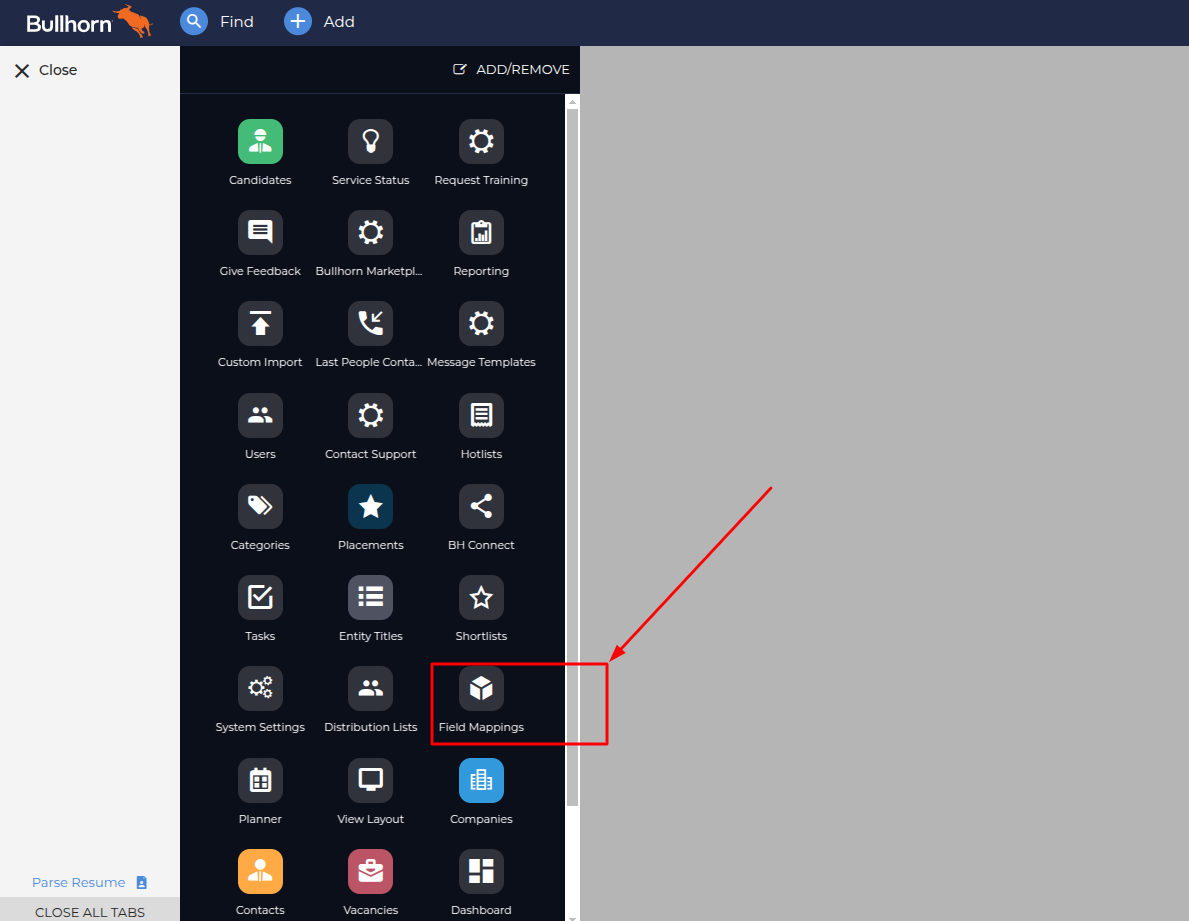
  <Step title="Open Field Mappings">
    <Frame>
      <img className="rounded-md" style={{ margin: '0 auto', border: '1px solid #efefef' }} alt="Admin menu" src="https://mintcdn.com/stackone-hub/Yn_6S3z7TpLl43ff/images/bullhorn/custom-field/custom-field-config-01.png?fit=max&auto=format&n=Yn_6S3z7TpLl43ff&q=85&s=421f8baba4b867031c42646ae2dde9b2" width="1189" height="921" data-path="images/bullhorn/custom-field/custom-field-config-01.png" />
    </Frame>
  </Step>

  <Step title="Choose Field Group">
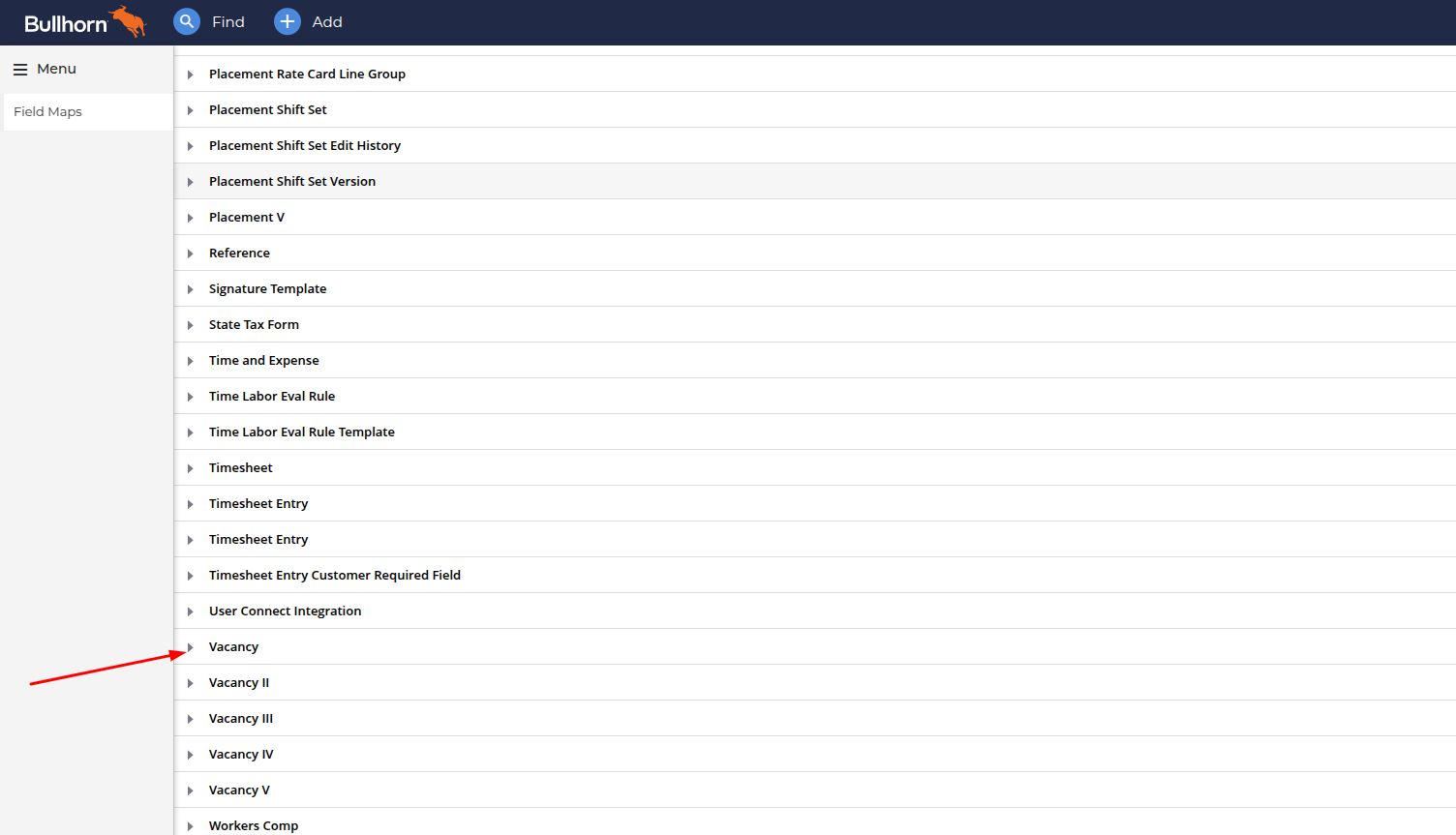
    Scroll down and select the `Vacancy` group to configure the custom field.
    <Frame>
      <img className="rounded-md" style={{ margin: '0 auto', border: '1px solid #efefef' }} alt="Fields Group" src="https://mintcdn.com/stackone-hub/Yn_6S3z7TpLl43ff/images/bullhorn/job-custom-field/custom-field-config-04.png?fit=max&auto=format&n=Yn_6S3z7TpLl43ff&q=85&s=0fab9080678dfb559ff32db29376487d" width="1504" height="863" data-path="images/bullhorn/job-custom-field/custom-field-config-04.png" />
    </Frame>
  </Step>

  <Step title="Review Job Fields">
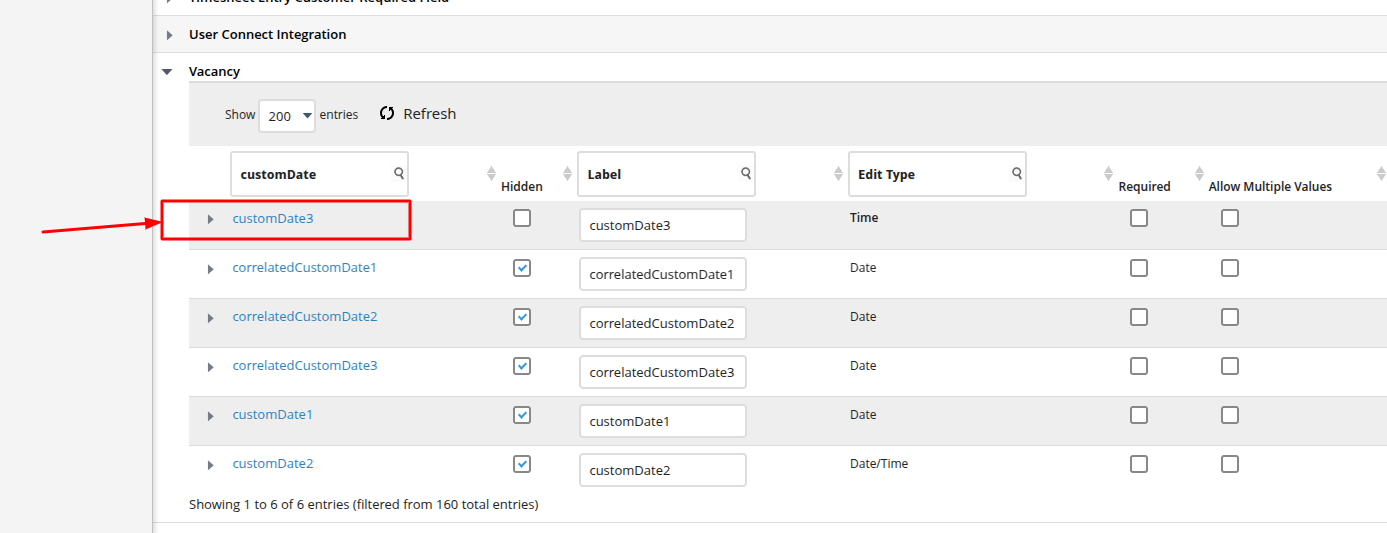
    Review the vacancy-related fields and select an unused one to configure.
    <Frame>
      <img className="rounded-md" style={{ margin: '0 auto', border: '1px solid #efefef' }} alt="Fields Group" src="https://mintcdn.com/stackone-hub/Yn_6S3z7TpLl43ff/images/bullhorn/job-custom-field/custom-field-config-05.png?fit=max&auto=format&n=Yn_6S3z7TpLl43ff&q=85&s=3493cdeeff8a9788f25cb9e5be7df711" width="1387" height="533" data-path="images/bullhorn/job-custom-field/custom-field-config-05.png" />
    </Frame>
  </Step>

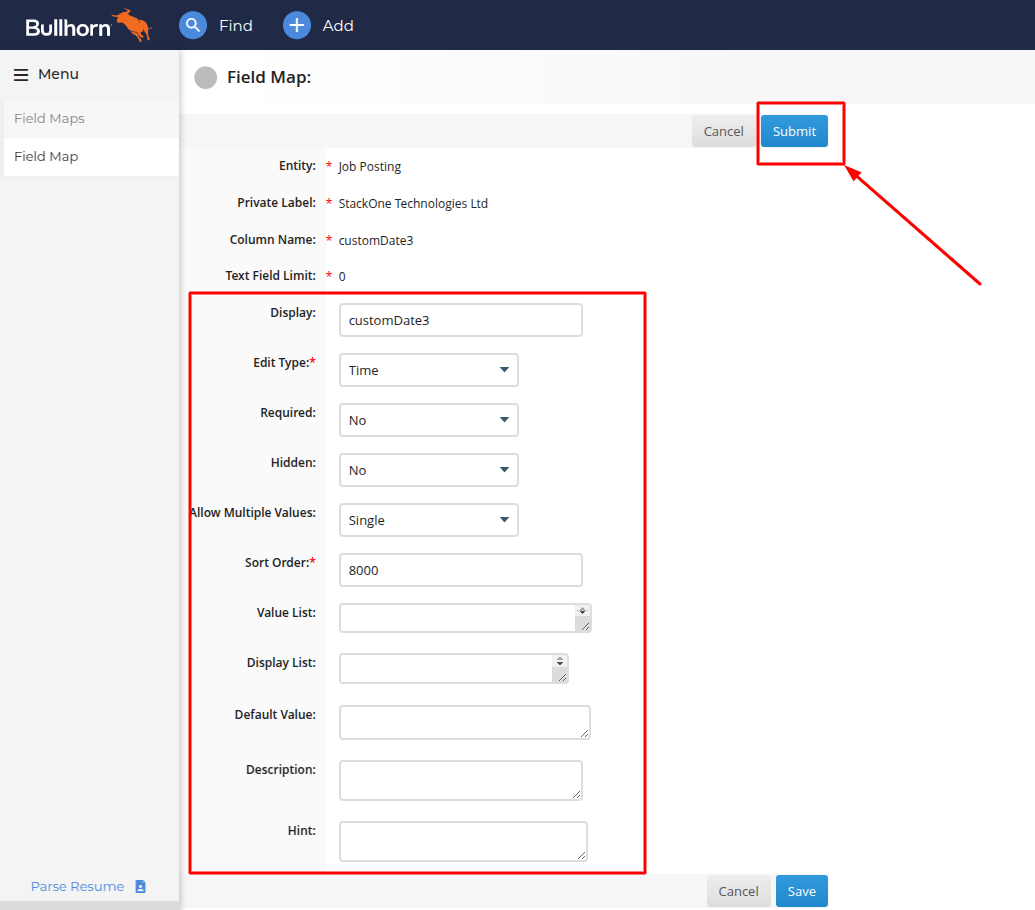
  <Step title="Configure Field Settings">
    In the custom fields configuration form, set your desired values and click the <b>`Save`</b> button to apply your changes.

    <Frame>
      <img className="rounded-md" style={{ margin: '0 auto', border: '1px solid #efefef' }} alt="Fields Group" src="https://mintcdn.com/stackone-hub/Yn_6S3z7TpLl43ff/images/bullhorn/job-custom-field/custom-field-config-06.png?fit=max&auto=format&n=Yn_6S3z7TpLl43ff&q=85&s=11bdefe024a82d99fef80182d5c44117" width="1035" height="910" data-path="images/bullhorn/job-custom-field/custom-field-config-06.png" />
    </Frame>
  </Step>

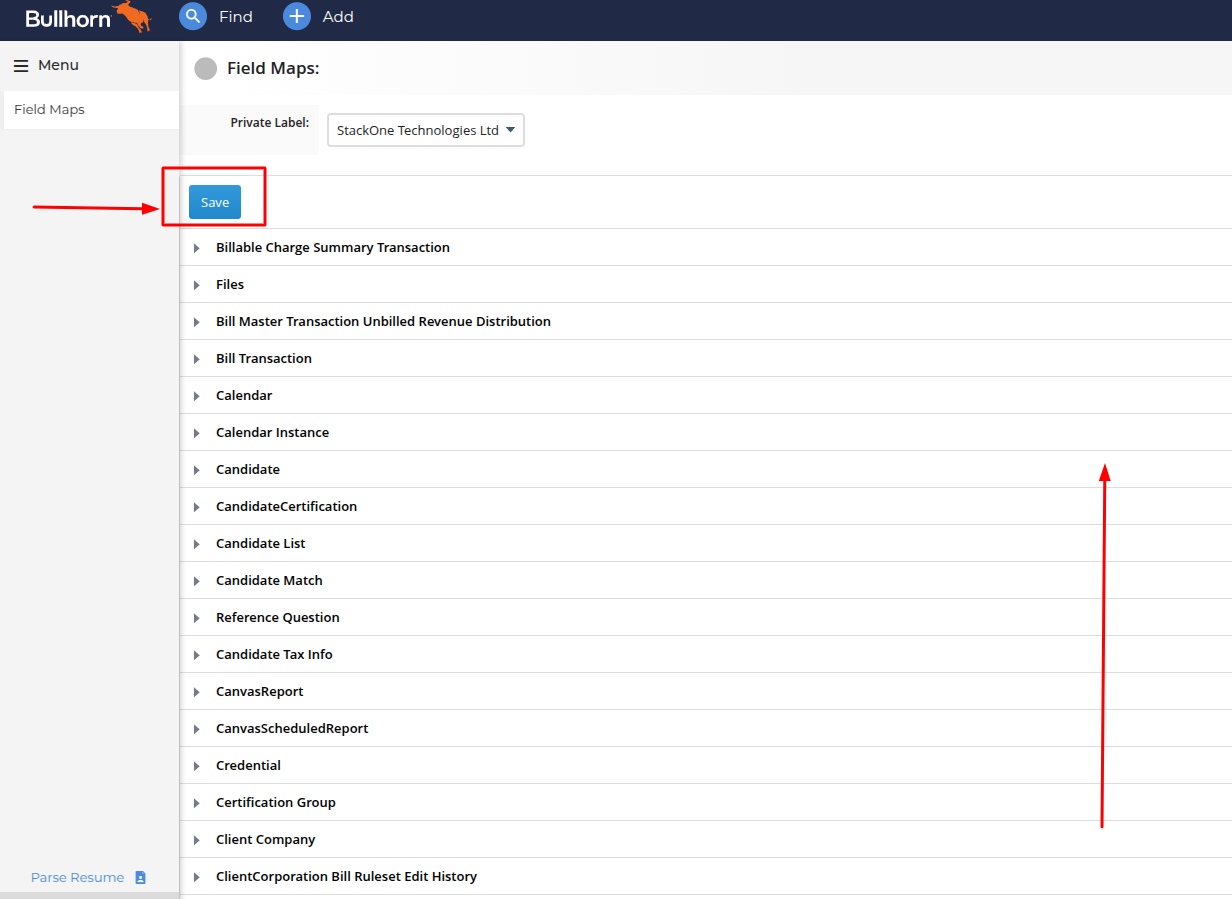
  <Step title="Save Field Configuration">
    Return to the top of the page and click the <b>`Save`</b> button to finalize your changes.

    <Frame>
      <img className="rounded-md" style={{ margin: '0 auto', border: '1px solid #efefef' }} alt="Fields Group" src="https://mintcdn.com/stackone-hub/Yn_6S3z7TpLl43ff/images/bullhorn/custom-field/custom-field-config-05.png?fit=max&auto=format&n=Yn_6S3z7TpLl43ff&q=85&s=37db4db83e15aeb73020e56168e727f3" width="1232" height="899" data-path="images/bullhorn/custom-field/custom-field-config-05.png" />
    </Frame>
  </Step>

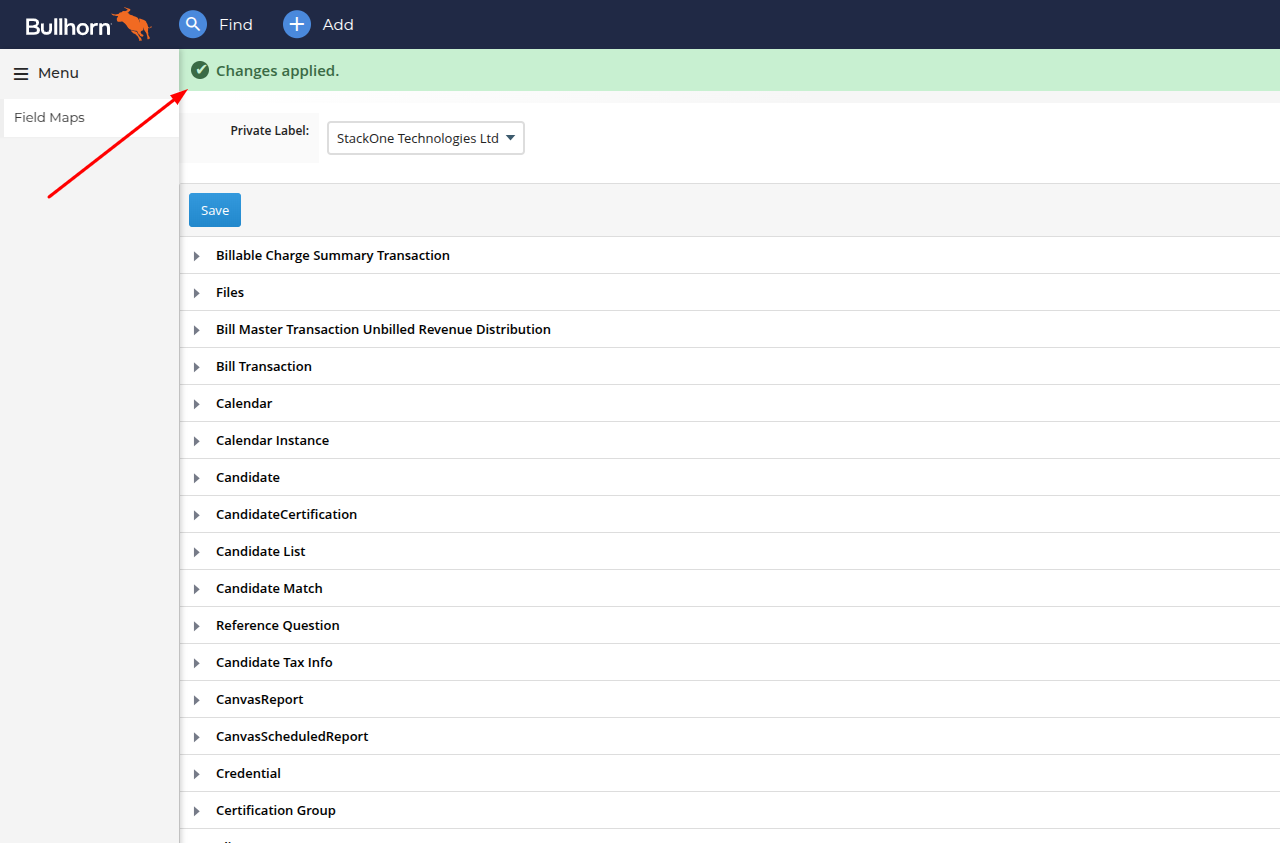
  <Step title="Confirm Configuration">
    A confirmation message will appear once your configuration has been successfully saved.
    <Frame>
      <img className="rounded-md" style={{ margin: '0 auto', border: '1px solid #efefef' }} alt="Fields Group" src="https://mintcdn.com/stackone-hub/Yn_6S3z7TpLl43ff/images/bullhorn/custom-field/custom-field-config-06.png?fit=max&auto=format&n=Yn_6S3z7TpLl43ff&q=85&s=d241e6812d8a88bdd5194dea5209f46b" width="1280" height="843" data-path="images/bullhorn/custom-field/custom-field-config-06.png" />
    </Frame>
  </Step>
</Steps>

## Using Bullhorn Job Custom Fields

<Steps>
  <Step title="Access the Main Menu">
    <Frame>
      <img className="rounded-md" style={{ margin: '0 auto', border: '1px solid #efefef' }} alt="Dashboard window" src="https://mintcdn.com/stackone-hub/Yn_6S3z7TpLl43ff/images/bullhorn/custom-field/custom-field-01.png?fit=max&auto=format&n=Yn_6S3z7TpLl43ff&q=85&s=1462bf02fc60b9a2c20f3a1cdafe6f91" width="1914" height="927" data-path="images/bullhorn/custom-field/custom-field-01.png" />
    </Frame>
  </Step>

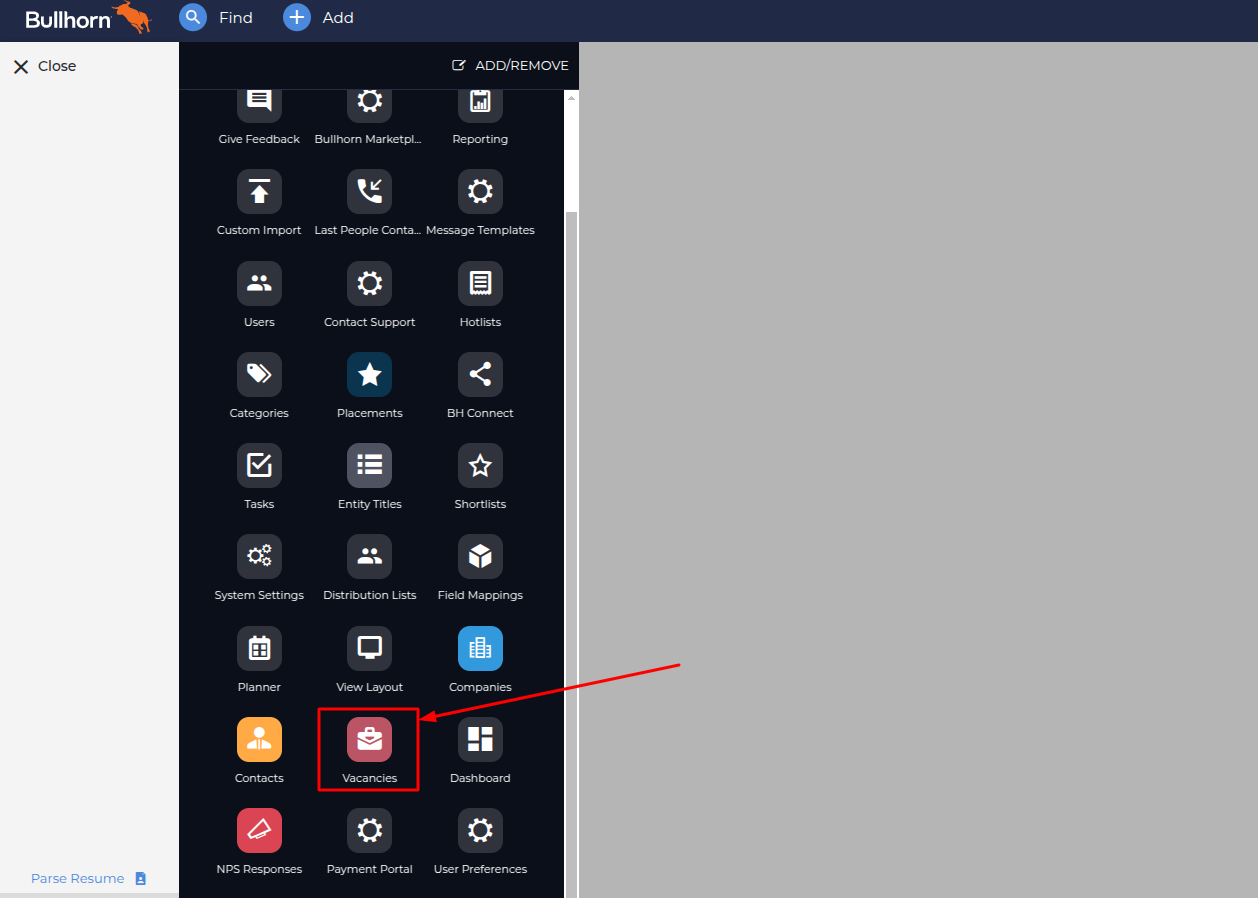
  <Step title="Navigate to Vacancies">
    <Frame>
      <img className="rounded-md" style={{ margin: '0 auto', border: '1px solid #efefef' }} alt="Admin menu" src="https://mintcdn.com/stackone-hub/Yn_6S3z7TpLl43ff/images/bullhorn/job-custom-field/custom-field-02.png?fit=max&auto=format&n=Yn_6S3z7TpLl43ff&q=85&s=815e8fa4f542c6edc53788feff39f9f6" width="1258" height="898" data-path="images/bullhorn/job-custom-field/custom-field-02.png" />
    </Frame>
  </Step>

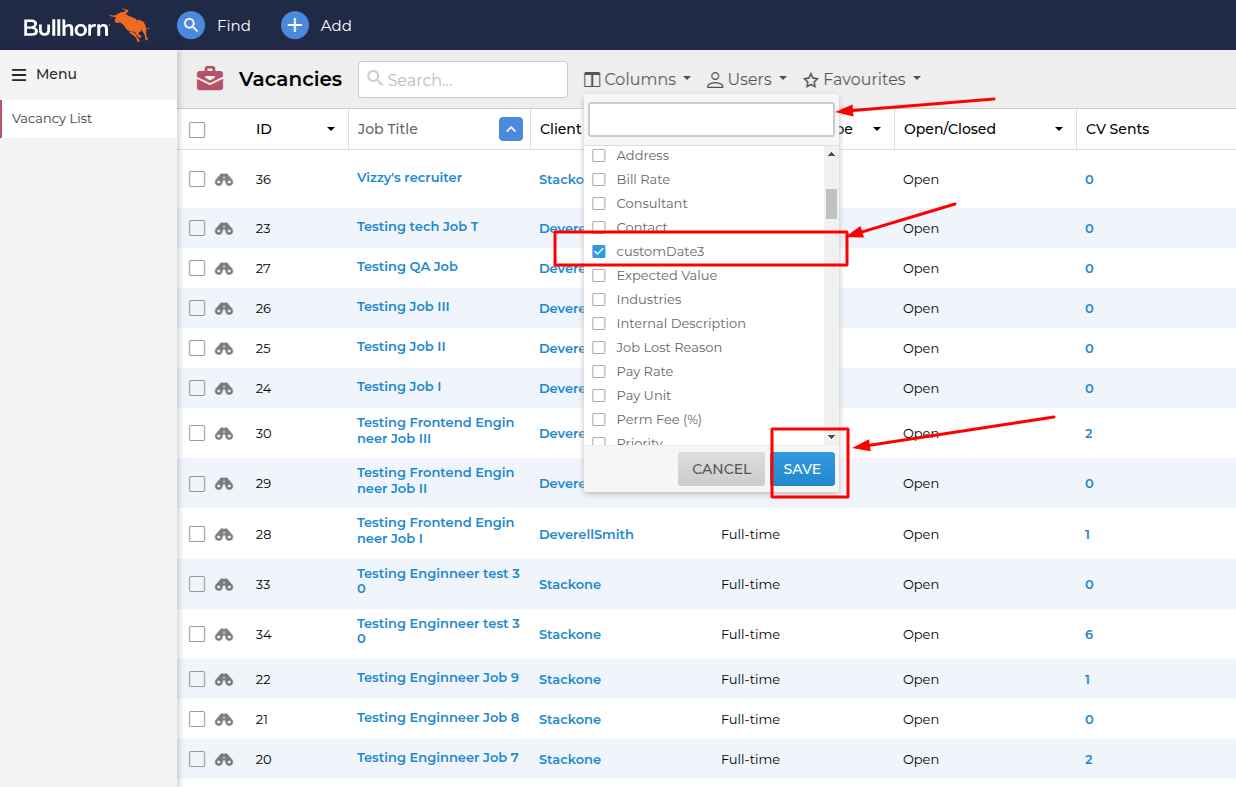
  <Step title="Open Column Settings">
    In the custom fields table, scroll down and select the desired custom fields by checking their corresponding checkboxes in the dropdown menu.\
    Then, click the <b>`Save`</b> button to apply your changes.

    <Frame>
      <img className="rounded-md" style={{ margin: '0 auto', border: '1px solid #efefef' }} alt="Vacancy table" src="https://mintcdn.com/stackone-hub/Yn_6S3z7TpLl43ff/images/bullhorn/job-custom-field/custom-field-03.png?fit=max&auto=format&n=Yn_6S3z7TpLl43ff&q=85&s=c78d2c906dcfb5820a3dd5e73009b285" width="1236" height="787" data-path="images/bullhorn/job-custom-field/custom-field-03.png" />
    </Frame>
  </Step>

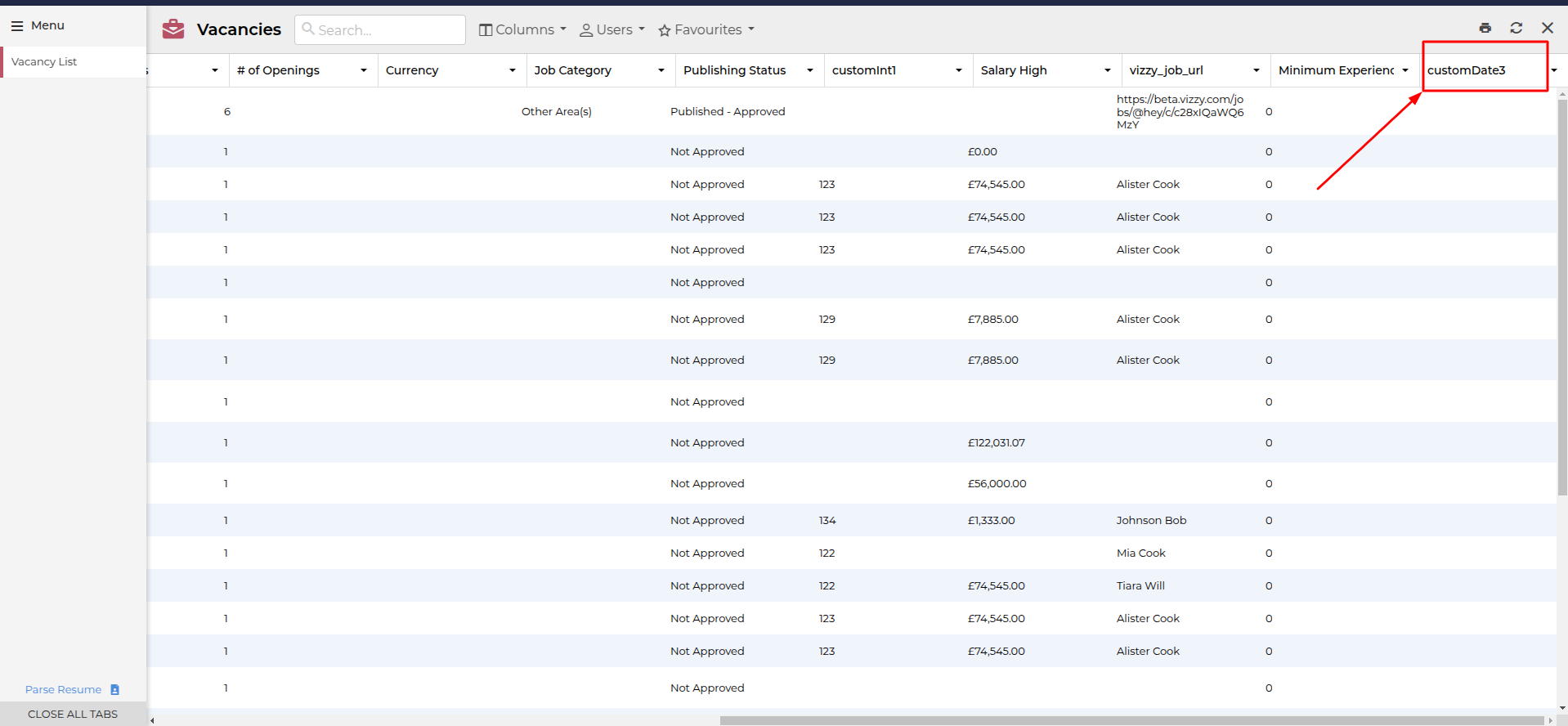
  <Step title="Arrange Custom Fields in Table">
    The custom field will now appear in the Vacancies Table. You can reposition it by dragging and dropping to your preferred location.
    <Frame>
      <img className="rounded-md" style={{ margin: '0 auto', border: '1px solid #efefef' }} alt="Custom fields column" src="https://mintcdn.com/stackone-hub/Yn_6S3z7TpLl43ff/images/bullhorn/job-custom-field/custom-field-04.png?fit=max&auto=format&n=Yn_6S3z7TpLl43ff&q=85&s=74df0bce85e8f07e3b547f031164080f" width="1918" height="888" data-path="images/bullhorn/job-custom-field/custom-field-04.png" />
    </Frame>
  </Step>

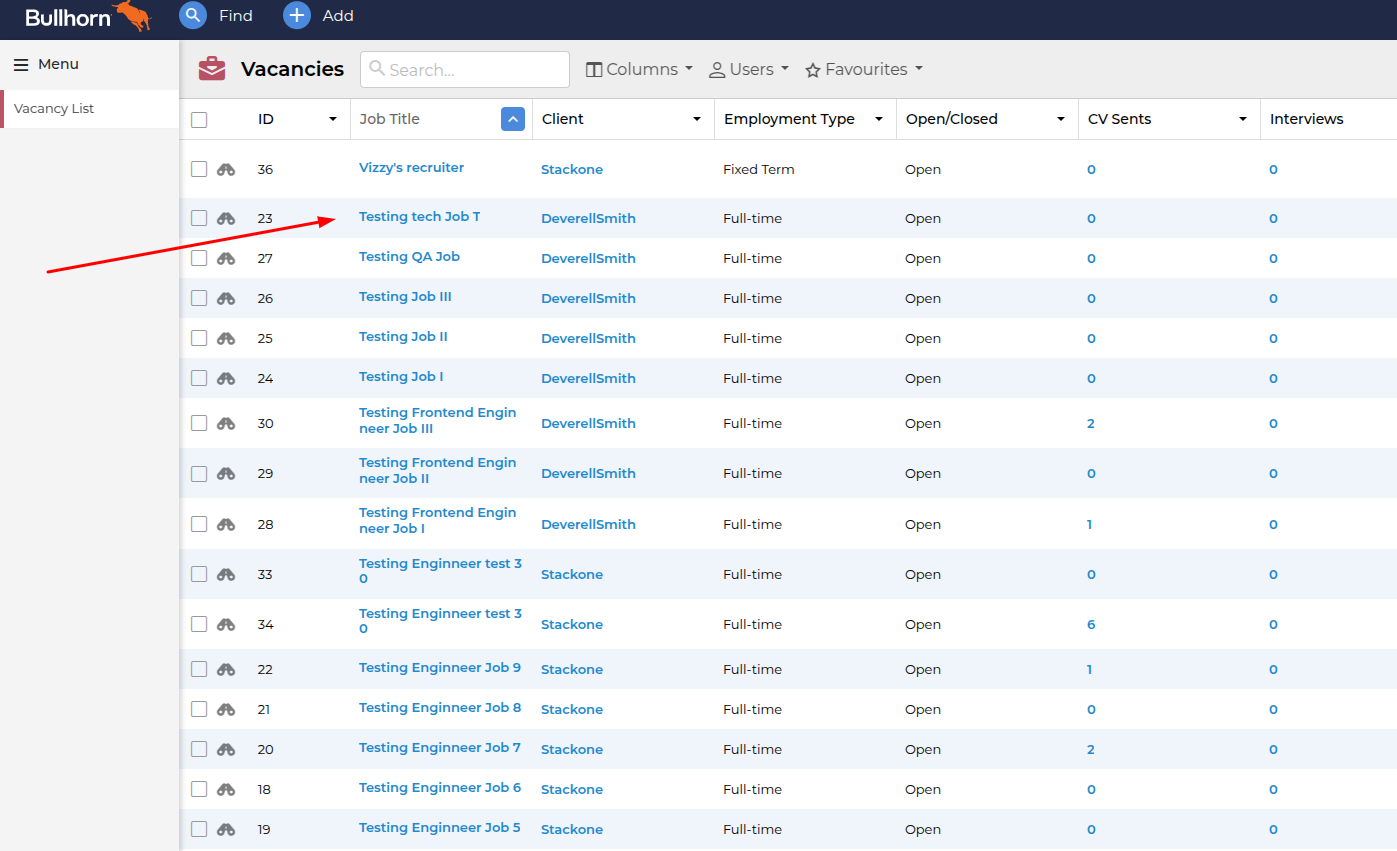
  <Step title="Access Vacancy Details">
    In the Vacancies table, click on any vacancy to view its detailed information.
    <Frame>
      <img className="rounded-md" style={{ margin: '0 auto', border: '1px solid #efefef' }} alt="Custom fields view in the table" src="https://mintcdn.com/stackone-hub/Yn_6S3z7TpLl43ff/images/bullhorn/job-custom-field/custom-field-05.png?fit=max&auto=format&n=Yn_6S3z7TpLl43ff&q=85&s=8482fa8af90ef67bb02d5f812d834edf" width="1397" height="851" data-path="images/bullhorn/job-custom-field/custom-field-05.png" />
    </Frame>
  </Step>

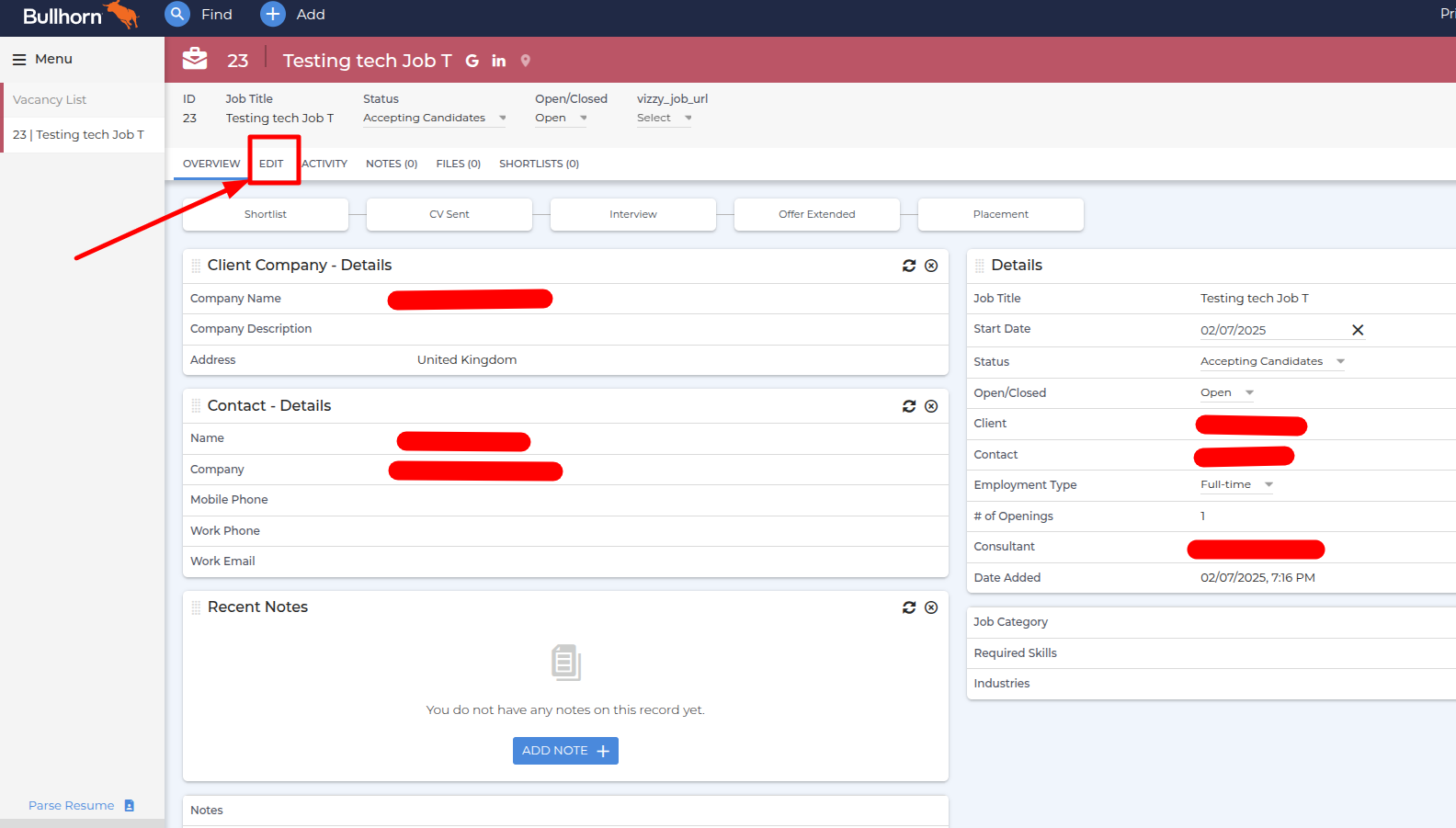
  <Step title="Enter Edit Mode">
    In the vacancy detail view, click the <b>`Edit`</b> button to modify or add custom field values.
    <Frame>
      <img className="rounded-md" style={{ margin: '0 auto', border: '1px solid #efefef' }} alt="Vacancy" src="https://mintcdn.com/stackone-hub/Yn_6S3z7TpLl43ff/images/bullhorn/job-custom-field/custom-field-06.png?fit=max&auto=format&n=Yn_6S3z7TpLl43ff&q=85&s=9f5baccc6d616d00708305c07d84aa20" width="1584" height="901" data-path="images/bullhorn/job-custom-field/custom-field-06.png" />
    </Frame>
  </Step>

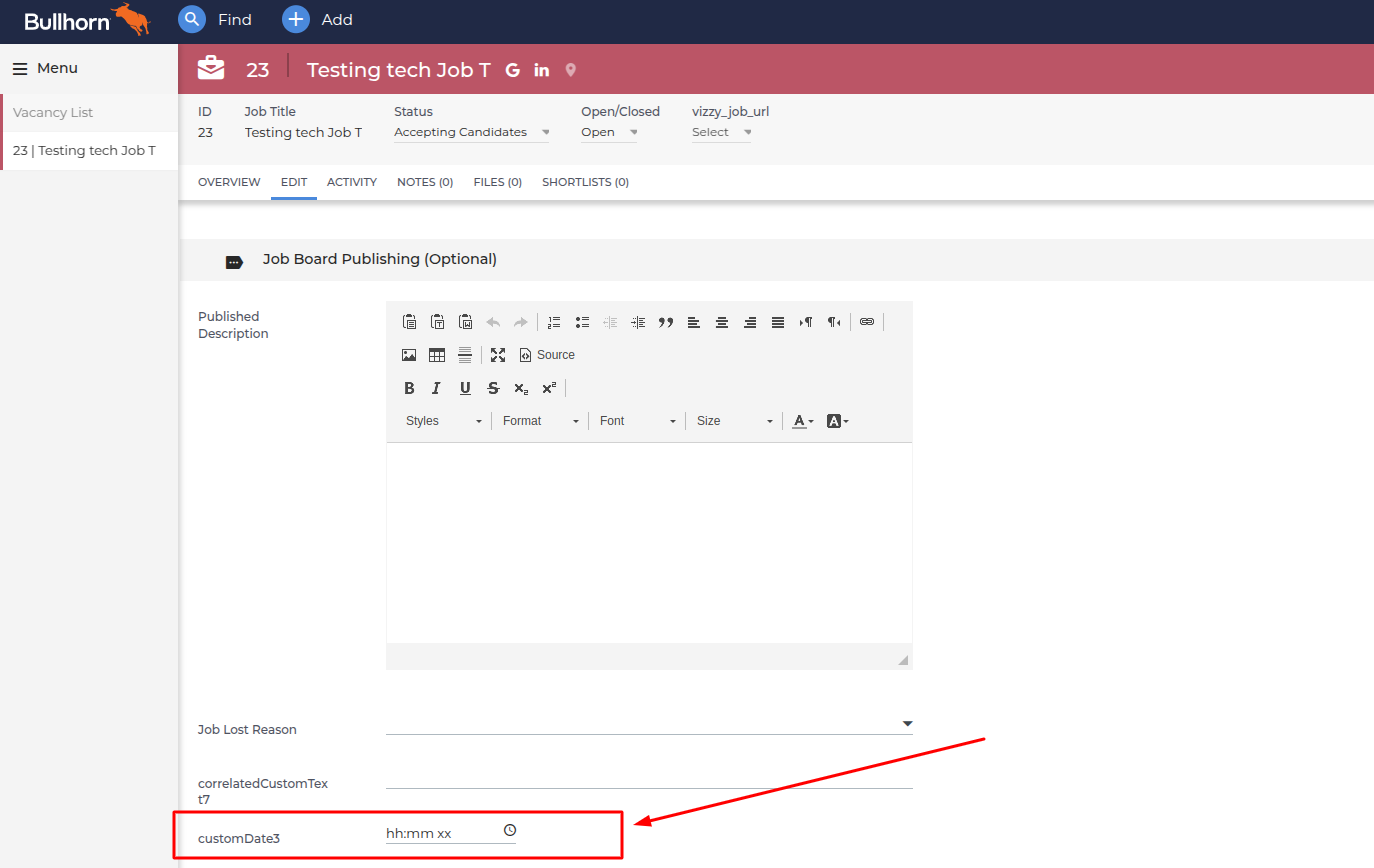
  <Step title="View and Edit Custom Field">
    The custom field will be displayed in the vacancy edit section, where you can view and modify its value.
    <Frame>
      <img className="rounded-md" style={{ margin: '0 auto', border: '1px solid #efefef' }} alt="Vacancy has multiple fields" src="https://mintcdn.com/stackone-hub/Yn_6S3z7TpLl43ff/images/bullhorn/job-custom-field/custom-field-07.png?fit=max&auto=format&n=Yn_6S3z7TpLl43ff&q=85&s=08878df89023da72c3317925005b2e2b" width="1374" height="868" data-path="images/bullhorn/job-custom-field/custom-field-07.png" />
    </Frame>
  </Step>
</Steps>

## Useful Links

<Card title="API Reference" icon="link" href="https://kb.bullhorn.com/ats/Content/BHATS/Topics/creatingCustomField.htm?Highlight=custom%20fields">
  [https://kb.bullhorn.com/ats/Content/BHATS/Topics/creatingCustomField.htm?Highlight=custom%20fields](https://kb.bullhorn.com/ats/Content/BHATS/Topics/creatingCustomField.htm?Highlight=custom%20fields)
</Card>