> ## Documentation Index
> Fetch the complete documentation index at: https://hub.stackone.com/llms.txt
> Use this file to discover all available pages before exploring further.

# Klaviyo

> Follow these steps to connect Klaviyo via the StackOne Hub successfully.

<Warning>
  Ensure you have a paid Klaviyo plan and that you are an Admin or Owner in your Klaviyo account.
</Warning>

If you've been directed to StackOne to integrate with Klaviyo, the following steps will help you understand the process and any necessary actions to configure successful integration.

## Enable Klaviyo SCIM user provisioning

<Steps>
  <Step title="Open Settings">
    Click your organization name in the lower left corner, then Settings in the modal that appears.
  </Step>

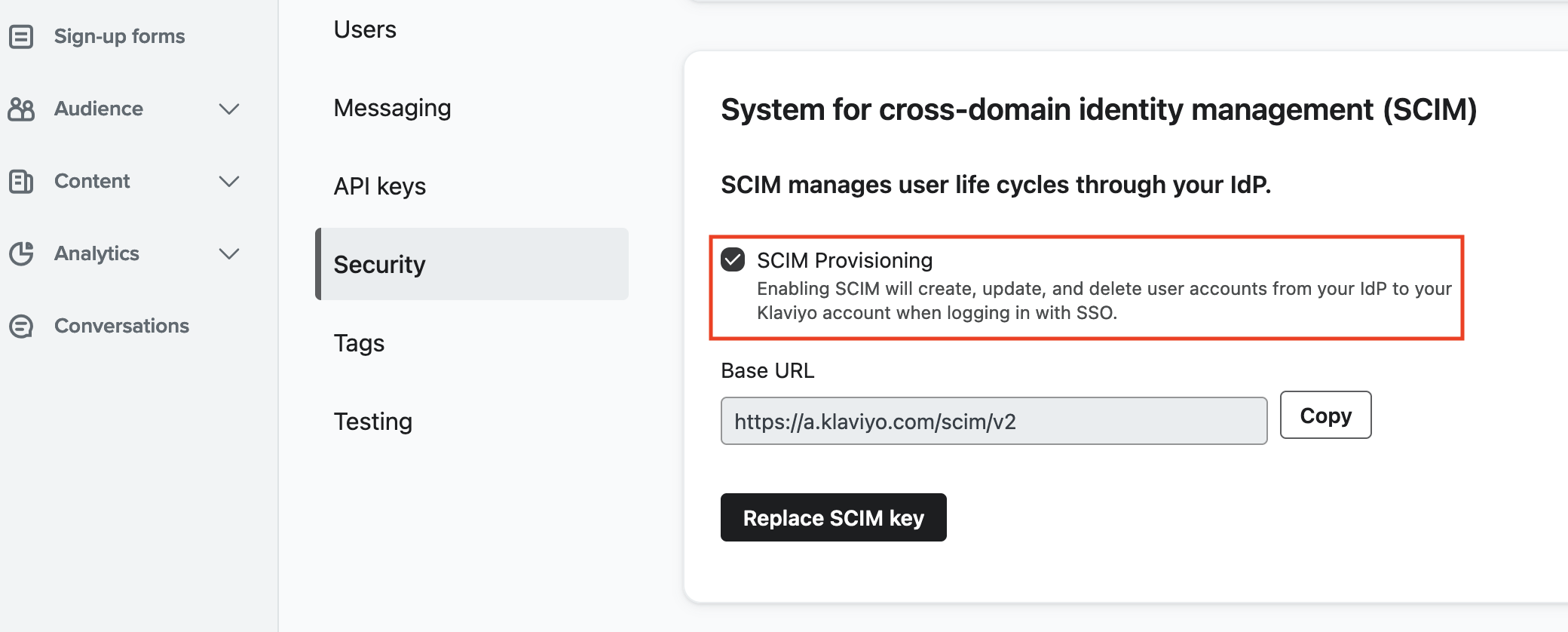
  <Step title="Navigate to Security">
    Click Security.

    <Frame>
      <img className="rounded-md" style={{ margin: '0 auto', border: '1px solid #efefef' }} alt="Security" src="https://mintcdn.com/stackone-hub/WMxmqS-isIyZCNQU/images/klaviyo/image2.png?fit=max&auto=format&n=WMxmqS-isIyZCNQU&q=85&s=669cafcfd4604039c0276a87d911661a" width="2080" height="838" data-path="images/klaviyo/image2.png" />
    </Frame>
  </Step>

  <Step title="Enable SCIM Provisioning">
    Scroll down to System for cross-domain identity management (SCIM) and check the SCIM Provisioning box.
    <Frame>
      <img className="rounded-md" style={{ margin: '0 auto', border: '1px solid #efefef' }} alt="SCIM Provisioning" src="https://mintcdn.com/stackone-hub/WMxmqS-isIyZCNQU/images/klaviyo/image3.png?fit=max&auto=format&n=WMxmqS-isIyZCNQU&q=85&s=59cd7bdcf47f87005a686cd9b0d50dea" width="2392" height="834" data-path="images/klaviyo/image3.png" />
    </Frame>
  </Step>
</Steps>

## Generate a Klaviyo SCIM key

<Steps>
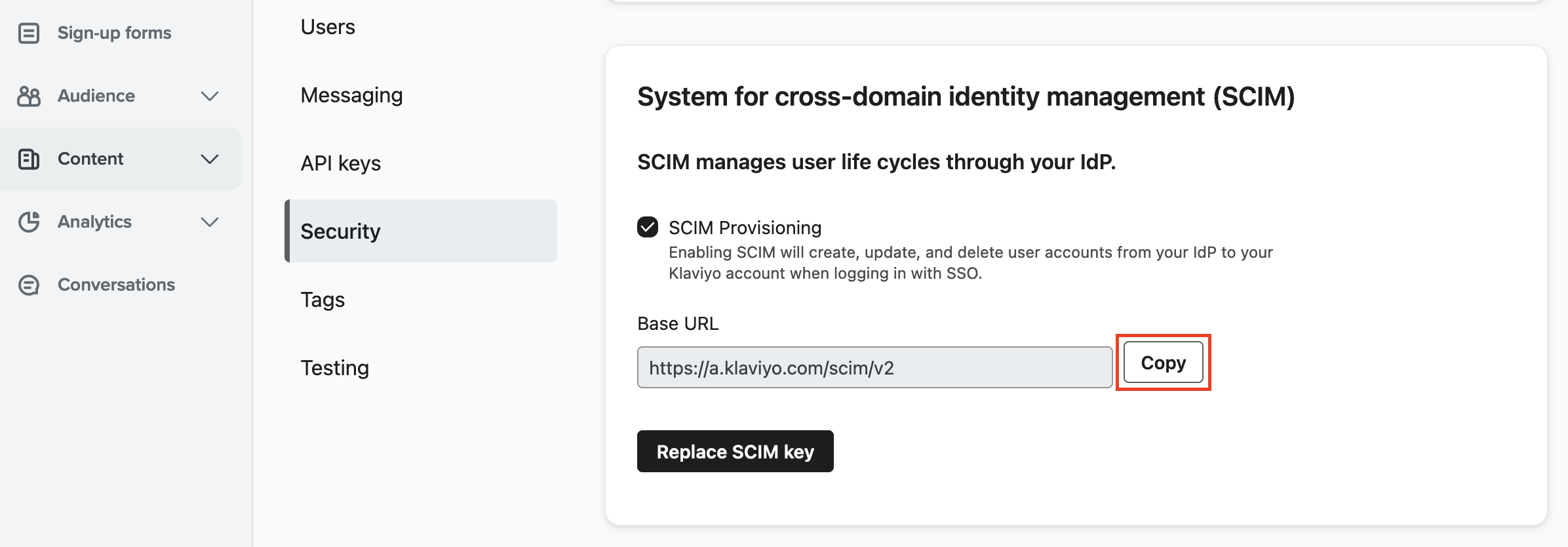
  <Step title="Generate SCIM Key">
    In the System for cross-domain identity management (SCIM) section, click Copy to display the SCIM key.

    <Frame>
      <img className="rounded-md" style={{ margin: '0 auto', border: '1px solid #efefef' }} alt="Generate SCIM Key" src="https://mintcdn.com/stackone-hub/WMxmqS-isIyZCNQU/images/klaviyo/image3.png?fit=max&auto=format&n=WMxmqS-isIyZCNQU&q=85&s=59cd7bdcf47f87005a686cd9b0d50dea" width="2392" height="834" data-path="images/klaviyo/image3.png" />
    </Frame>
  </Step>

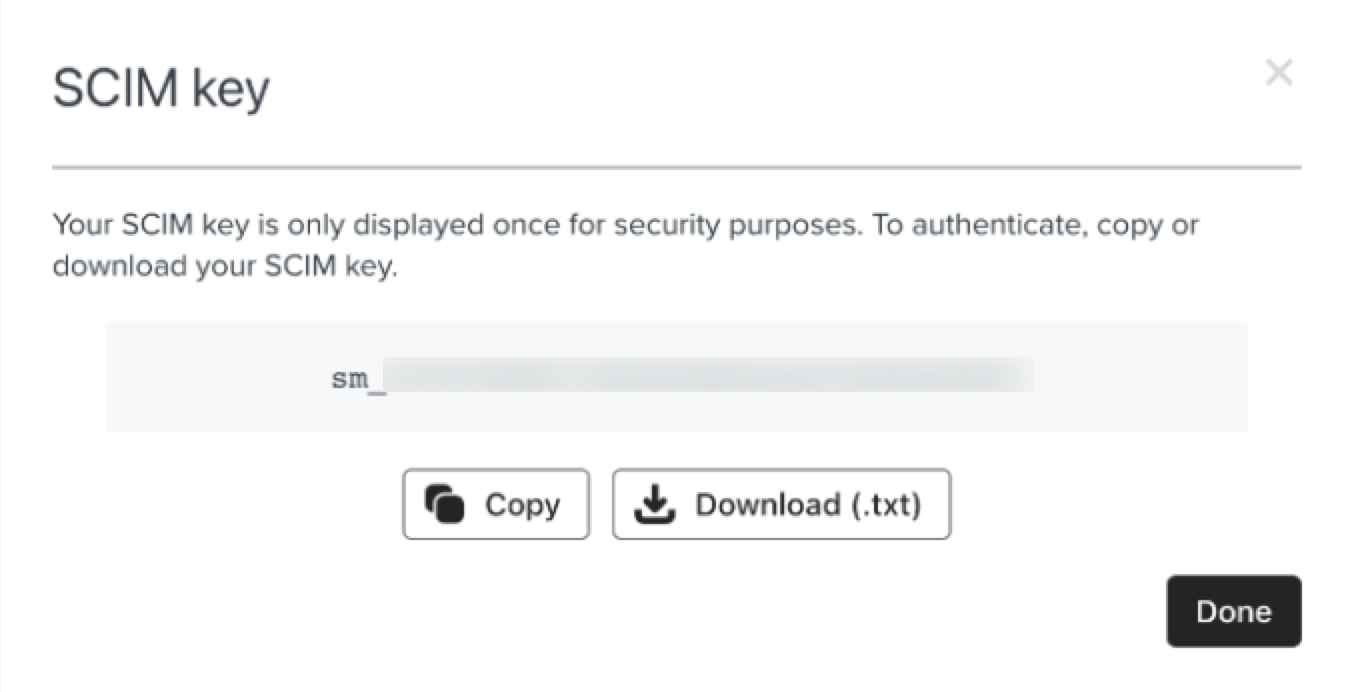
  <Step title="Copy SCIM Key">
    Copy or download the access key to a safe place, including the prefix `Klaviyo-API-Key`.

    <ul>
      <li>Note that this key is only displayed once. If copying it, paste it somewhere secure immediately.</li>
    </ul>

    <Frame>
      <img className="rounded-md" style={{ margin: '0 auto', border: '1px solid #efefef' }} alt="Copy SCIM Key" src="https://mintcdn.com/stackone-hub/WMxmqS-isIyZCNQU/images/klaviyo/image4.png?fit=max&auto=format&n=WMxmqS-isIyZCNQU&q=85&s=9f919cce8ec393381874a7ee09b0859b" width="1350" height="692" data-path="images/klaviyo/image4.png" />
    </Frame>
  </Step>
</Steps>

## Connecting with StackOne

<Steps>
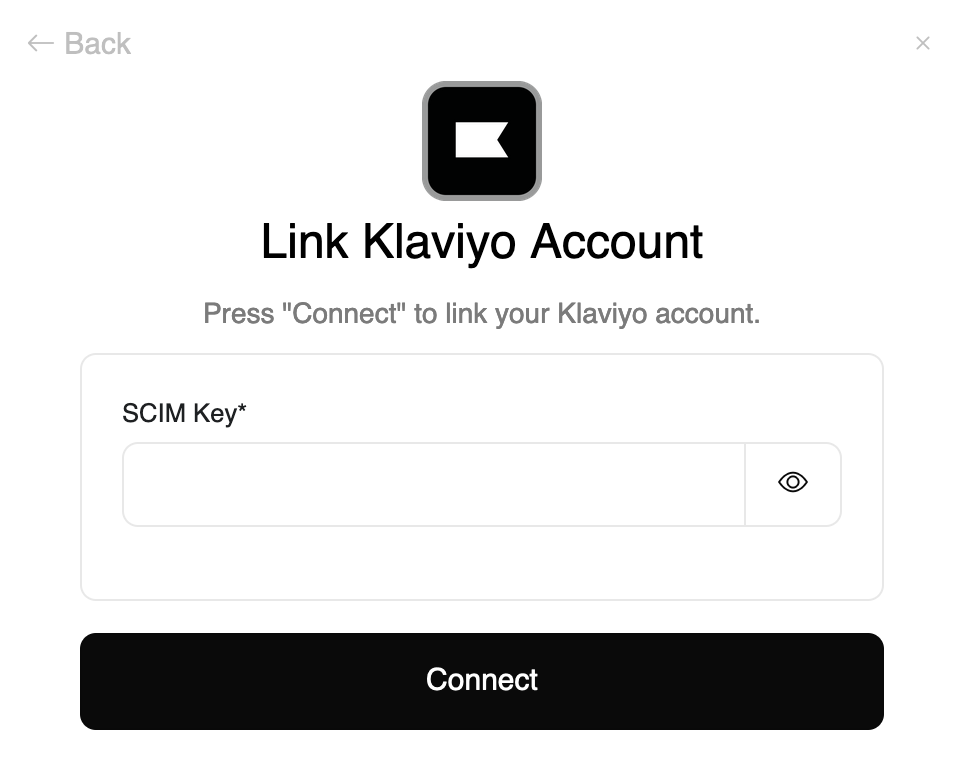
  <Step title="Enter SCIM Key">
    Upon reaching the Link Account page, enter the SCIM key and proceed by clicking the Connect button.
    <Frame>
      <img className="rounded-md" style={{ margin: '0 auto', border: '1px solid #efefef' }} alt="Link Account" src="https://mintcdn.com/stackone-hub/WMxmqS-isIyZCNQU/images/klaviyo/image5.png?fit=max&auto=format&n=WMxmqS-isIyZCNQU&q=85&s=abb282761939527abef8b3ef0a8be8f9" width="964" height="762" data-path="images/klaviyo/image5.png" />
    </Frame>
  </Step>
</Steps>