> ## Documentation Index
> Fetch the complete documentation index at: https://hub.stackone.com/llms.txt
> Use this file to discover all available pages before exploring further.
# Workday Learning (REST API)
> If you've been directed to StackOne to integrate with Workday Learning (REST API), the following steps will help you understand the process and any necessary actions to configure successful integration.
This guidance assumes you have Admin privileges for your Workday account.
## Finding your Workday Tenant
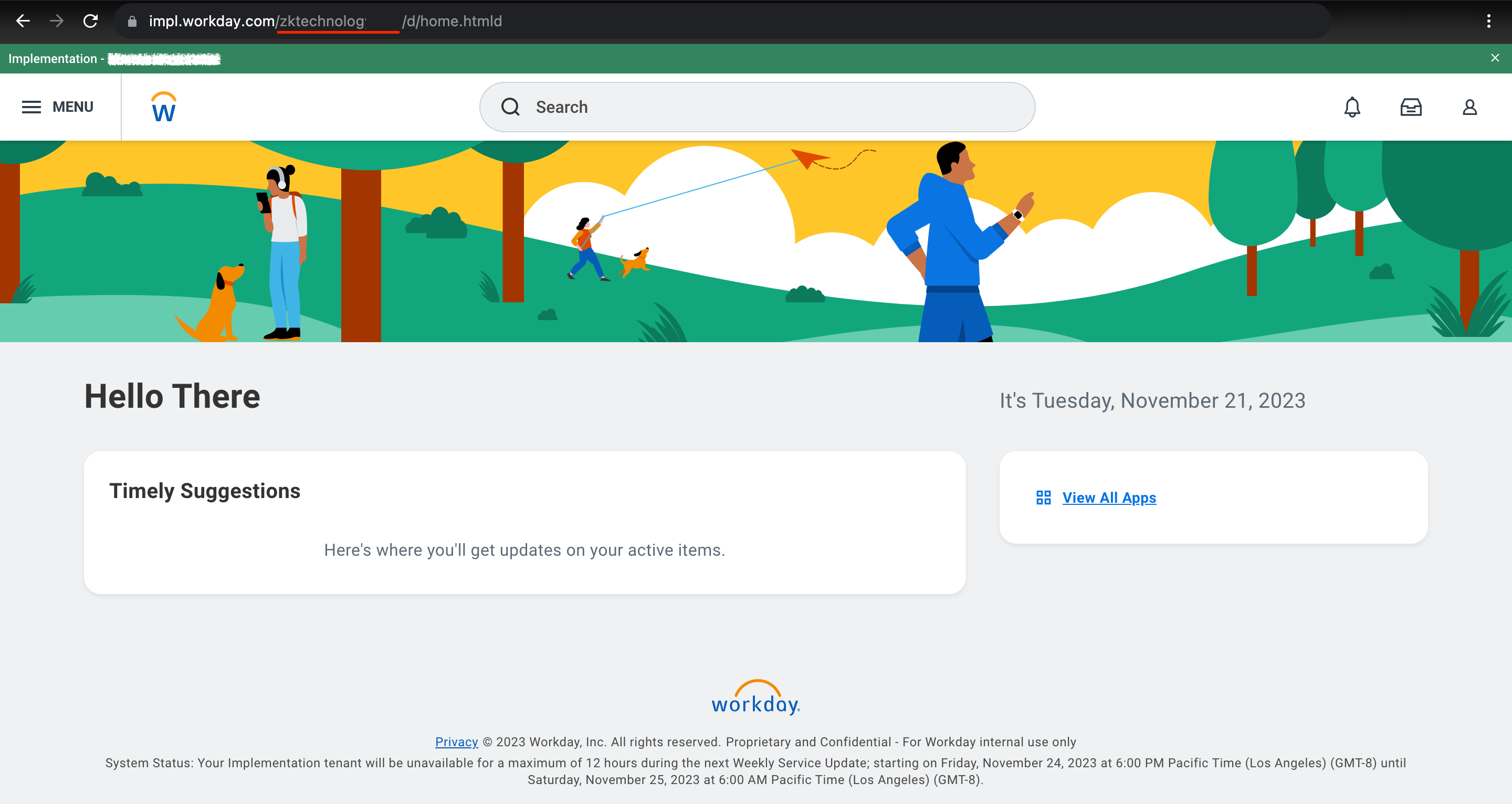
Log into your Workday account. Look at the address bar at the top of the browser window where the URL is displayed. Find your tenant immediately after `workday.com/`.
 ## Register the Rest API Client
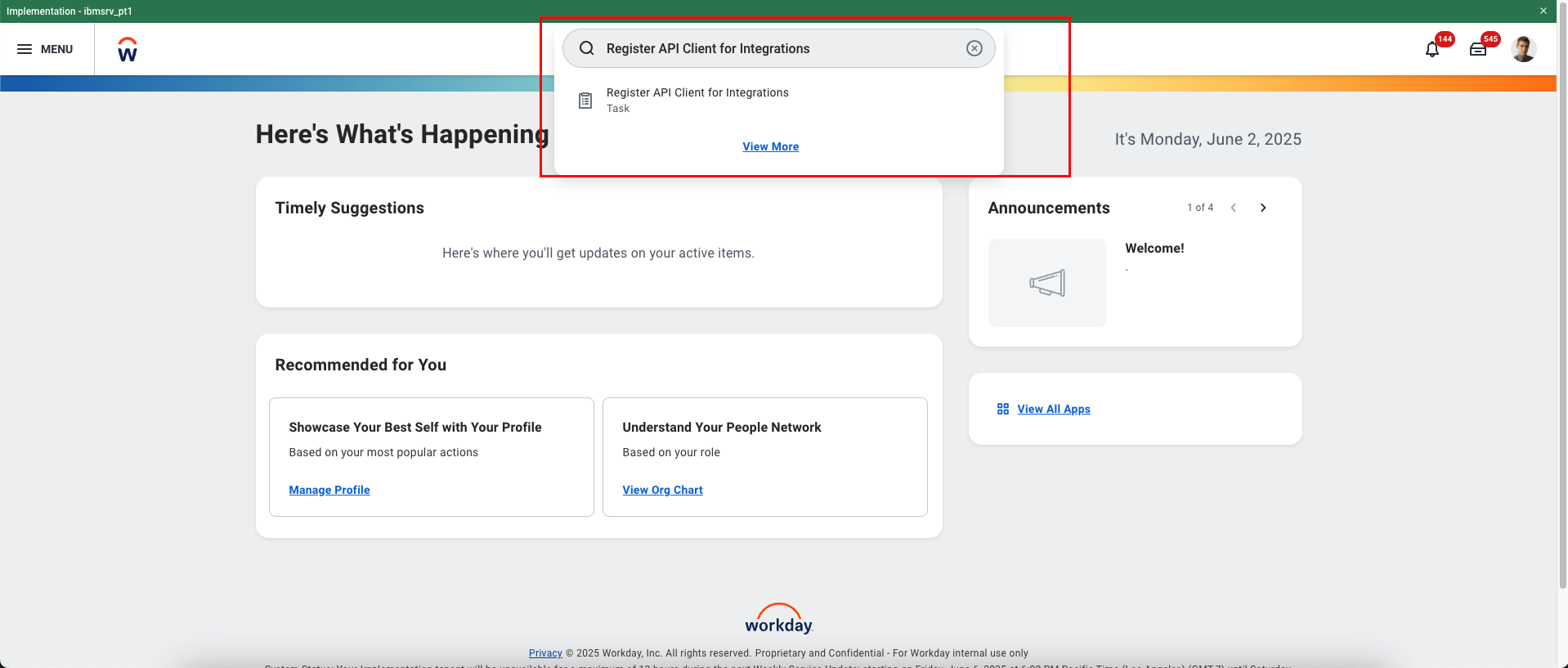
Go to the `Register API Client for Integration` Task.
## Register the Rest API Client
Go to the `Register API Client for Integration` Task.
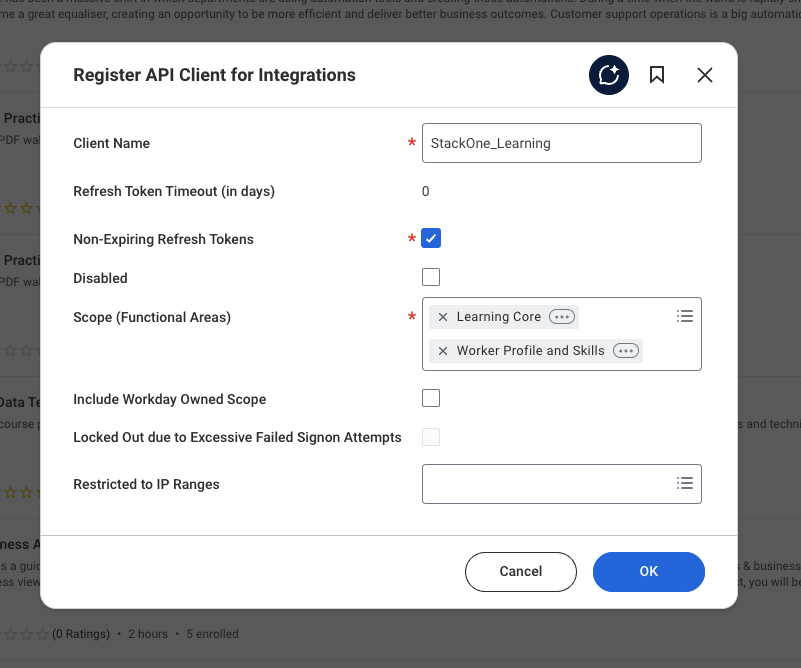
 Register the API Client with the following details and then click on **OK** button
* **Client Name**: e.g. StackOne\_Integrations
* **Non-Expiring Refresh Tokens**: Check the box
* **Scopes**: Select the required functional scopes to enable data access via API.
Learning Core
Worker Profile and Skills
Register the API Client with the following details and then click on **OK** button
* **Client Name**: e.g. StackOne\_Integrations
* **Non-Expiring Refresh Tokens**: Check the box
* **Scopes**: Select the required functional scopes to enable data access via API.
Learning Core
Worker Profile and Skills
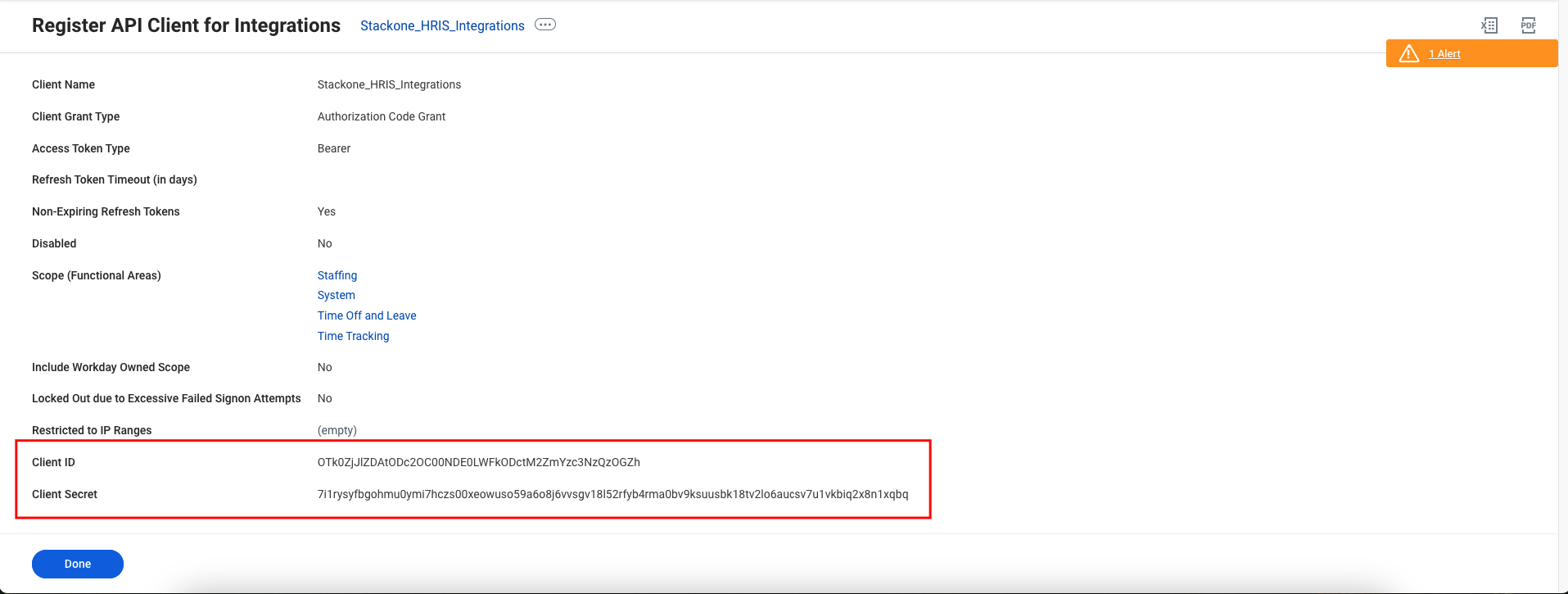
 After registering the client, you will be redirected to a page displaying the **Client ID** and **Client Secret**. Make sure to copy and securely store these credentials.
 Follow the steps below to generate the refresh tokens.
* At the top of the page, click the **menu (⋯)** icon.
* Select **API Client** from the menu.
* Click on **Manage Refresh Tokens for Integrations**.
Follow the steps below to generate the refresh tokens.
* At the top of the page, click the **menu (⋯)** icon.
* Select **API Client** from the menu.
* Click on **Manage Refresh Tokens for Integrations**.
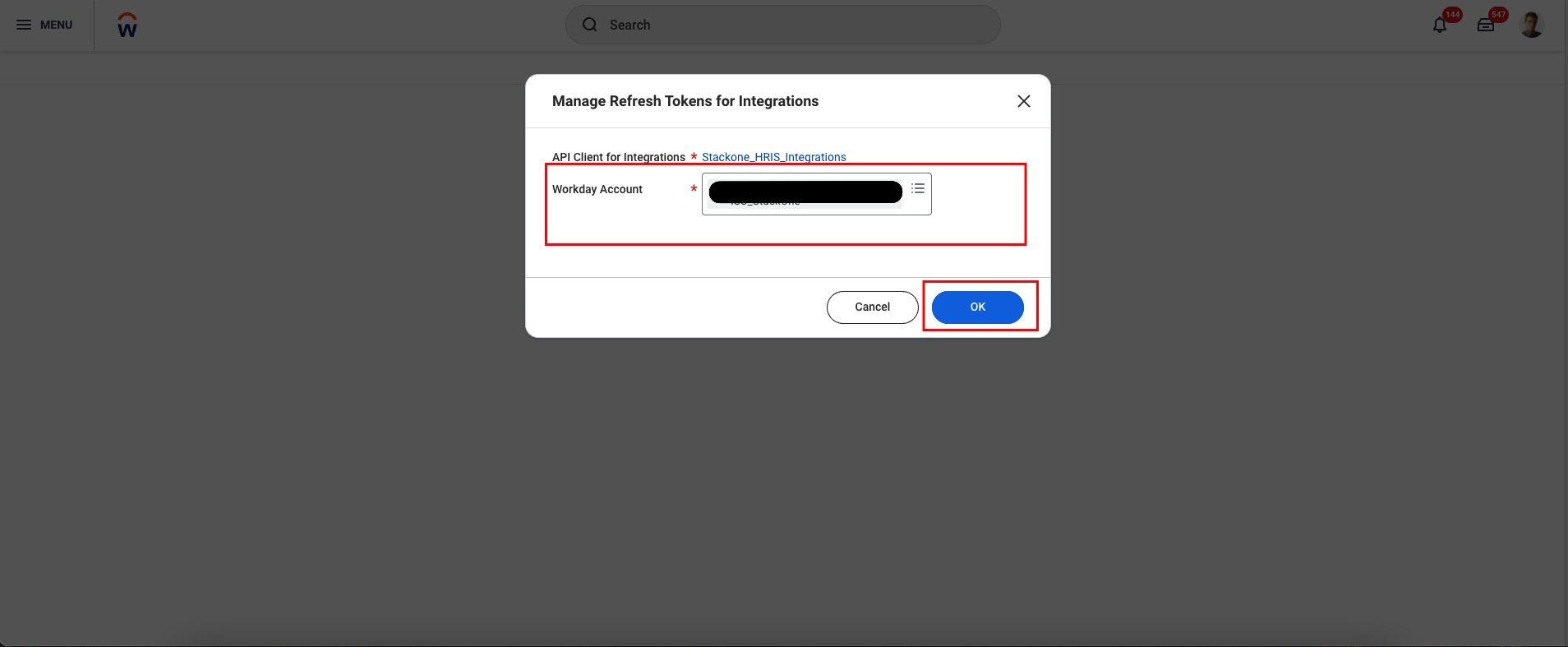
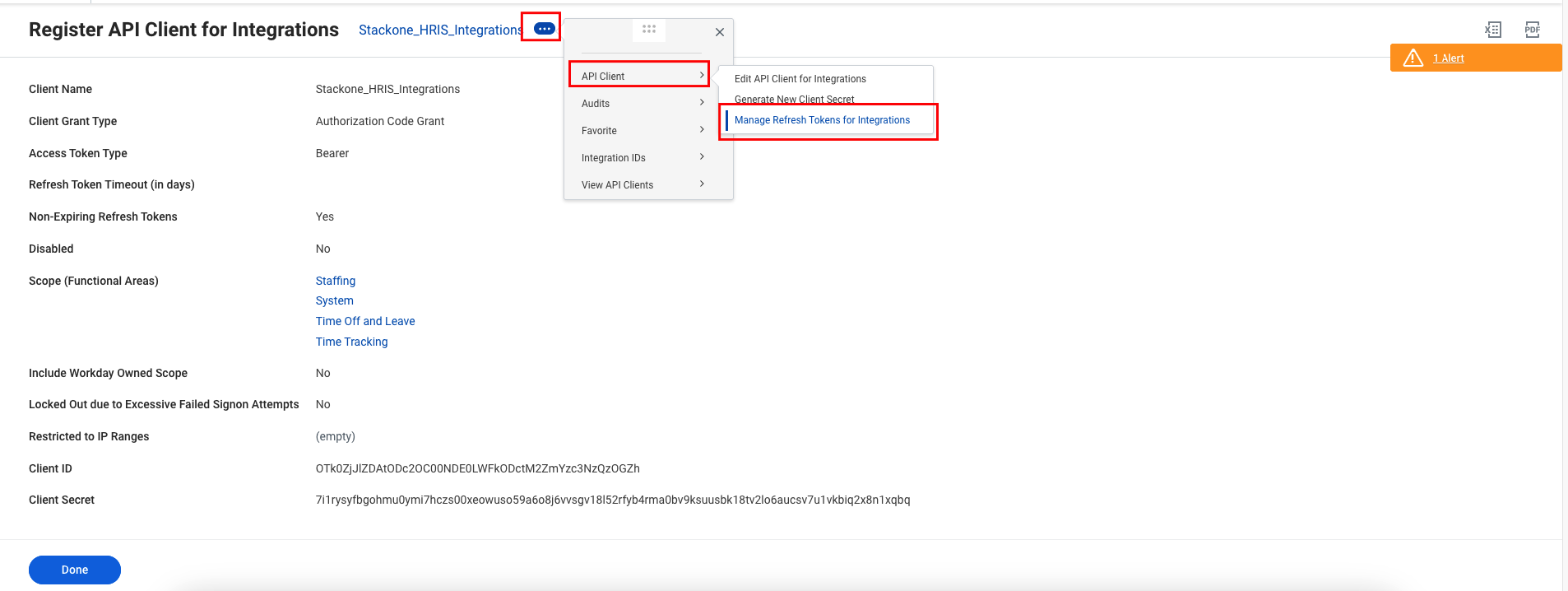 Once you select **menu (⋯) → API Client → Manage Refresh Tokens for Integrations**, you will be redirected to a screen to choose your Workday account. Select the account and click **OK**.
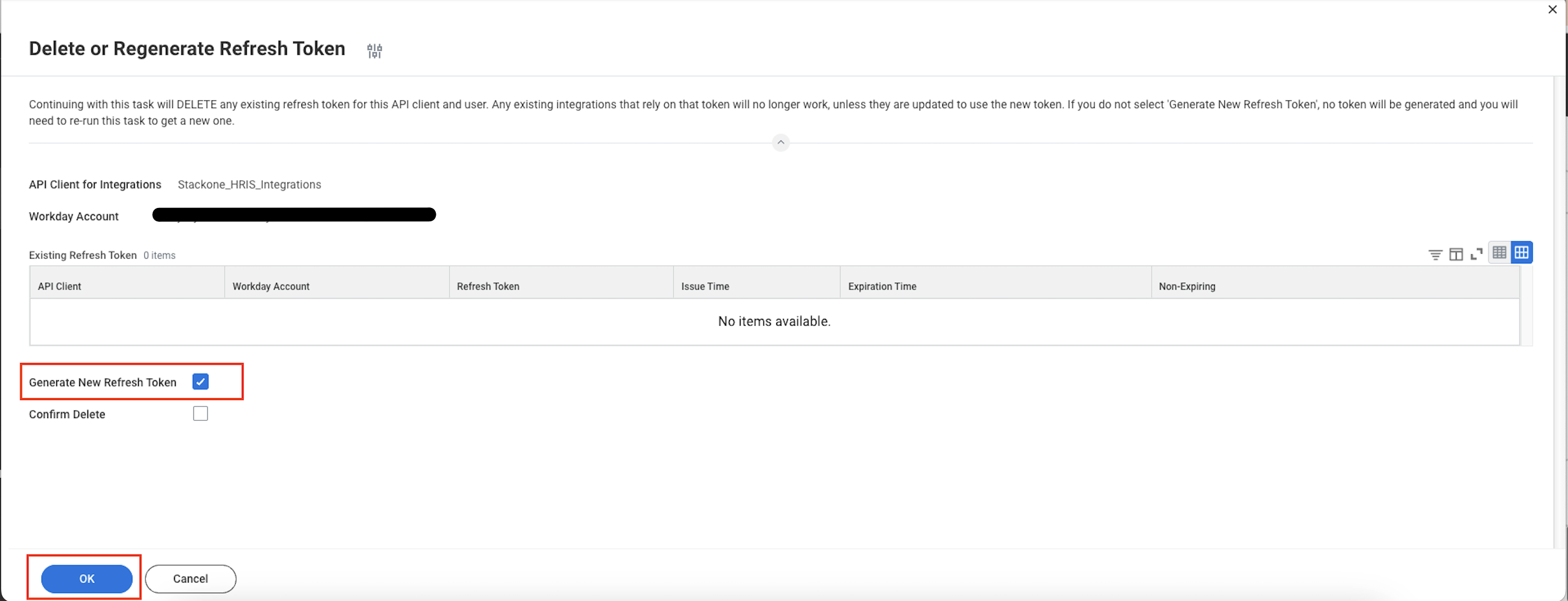
 Once you're on the Refresh Token page, select **Generate New Refresh Token** and click **OK**.
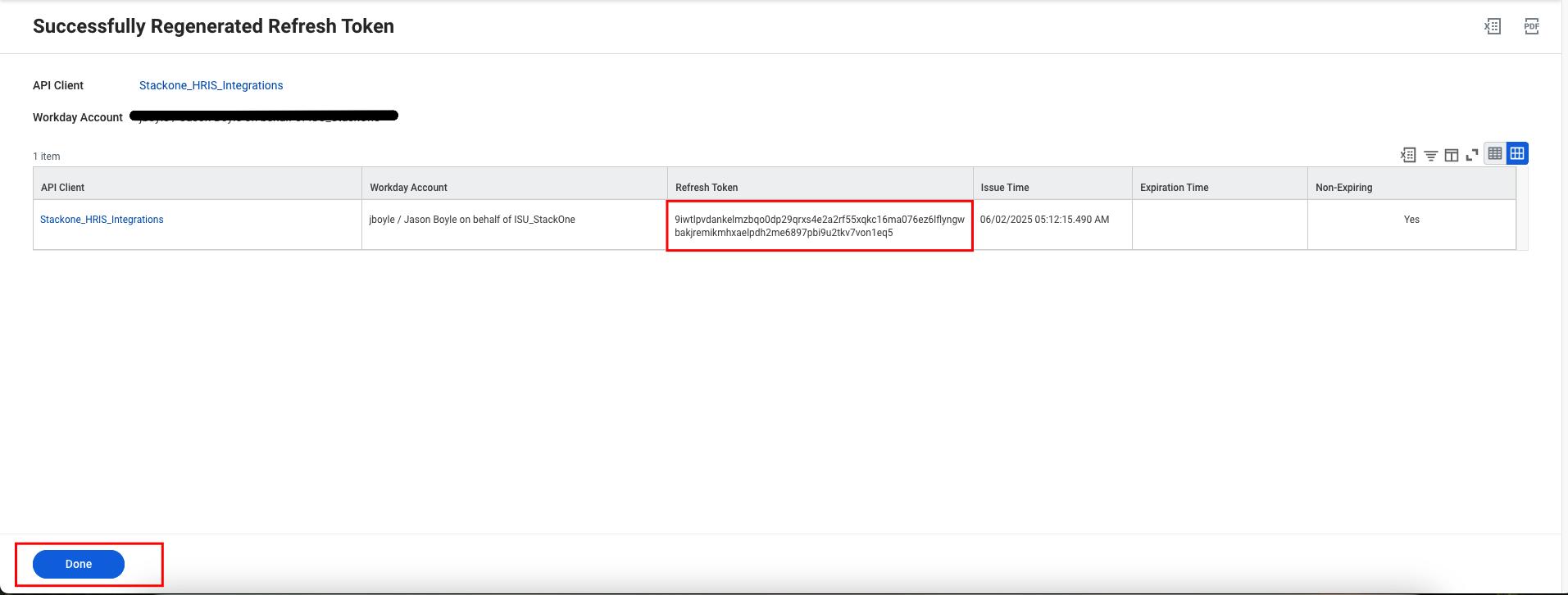
 Once the refresh token is generated successfully, copy the token and click Done.
 ## Linking to StackOne
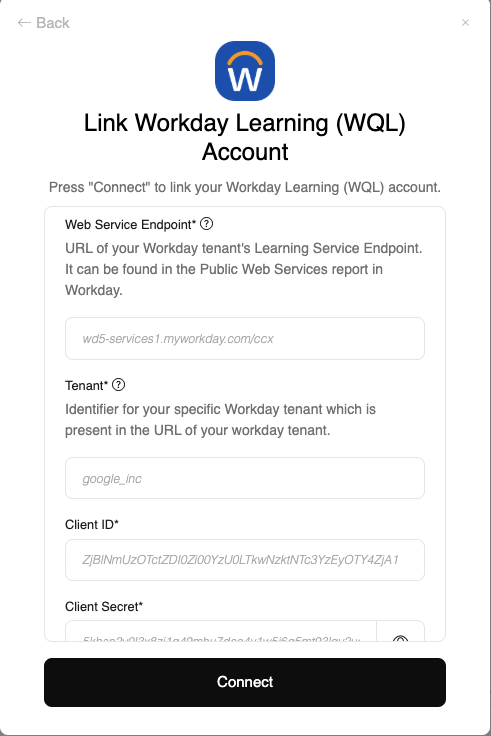
You can use the **Client ID**, **Client Secret** and **Refresh Token** credentials you created in steps 3 and 4 to link Workday.
## Linking to StackOne
You can use the **Client ID**, **Client Secret** and **Refresh Token** credentials you created in steps 3 and 4 to link Workday.
 [https://doc.workday.com](https://doc.workday.com)