> ## Documentation Index
> Fetch the complete documentation index at: https://hub.stackone.com/llms.txt
> Use this file to discover all available pages before exploring further.
# Udemy
> If you've been directed to StackOne to integrate with Udemy, the following steps will help you understand the process and any necessary actions to configure successful integration.
This guidance assumes you have Admin privileges for your Udemy account.
## Create Integrations App
Login to your Udemy account.
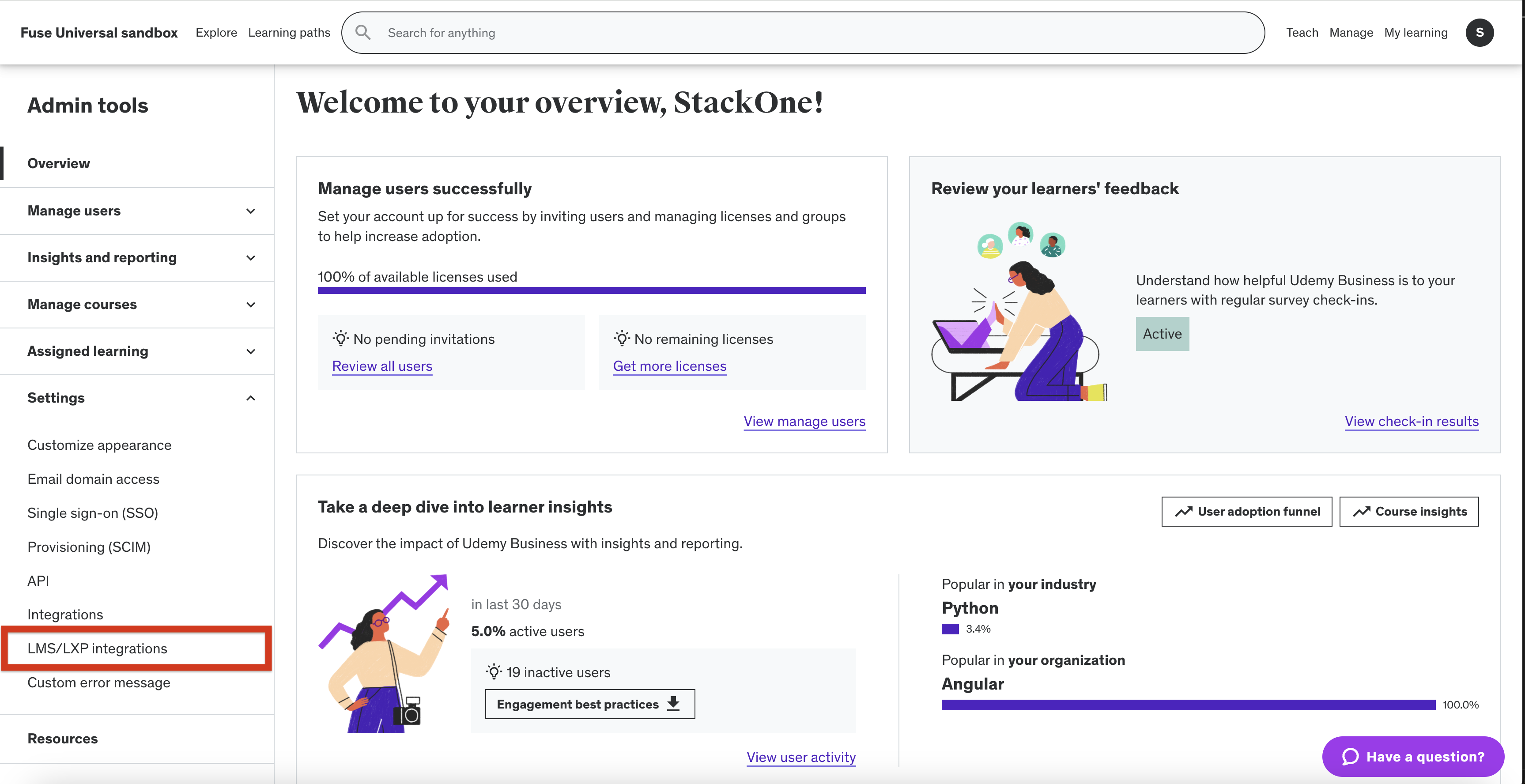
Click on Settings in the left hand Admin Tools menu.
Select `LMX/LXP Integrations` from the dropdown menu.
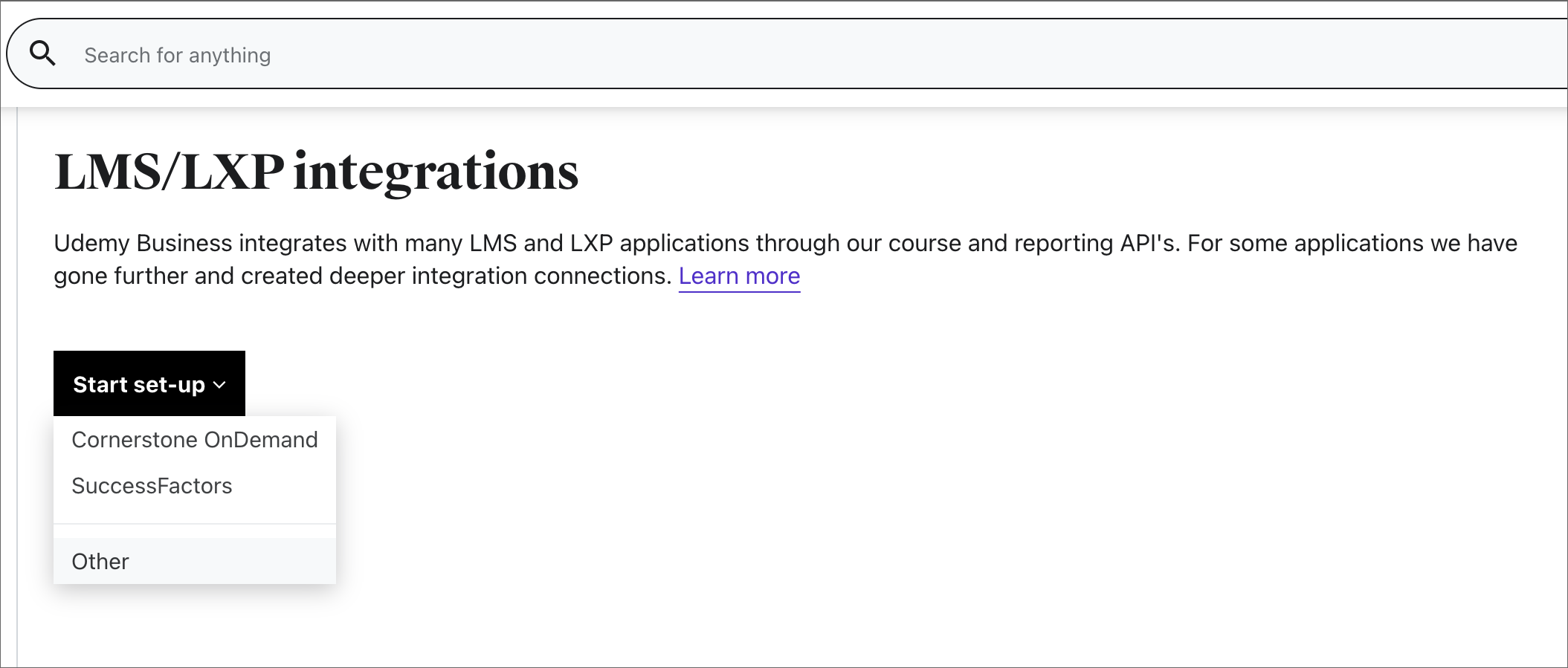
 From the `Start Setup` button dropdown, select `Other`.
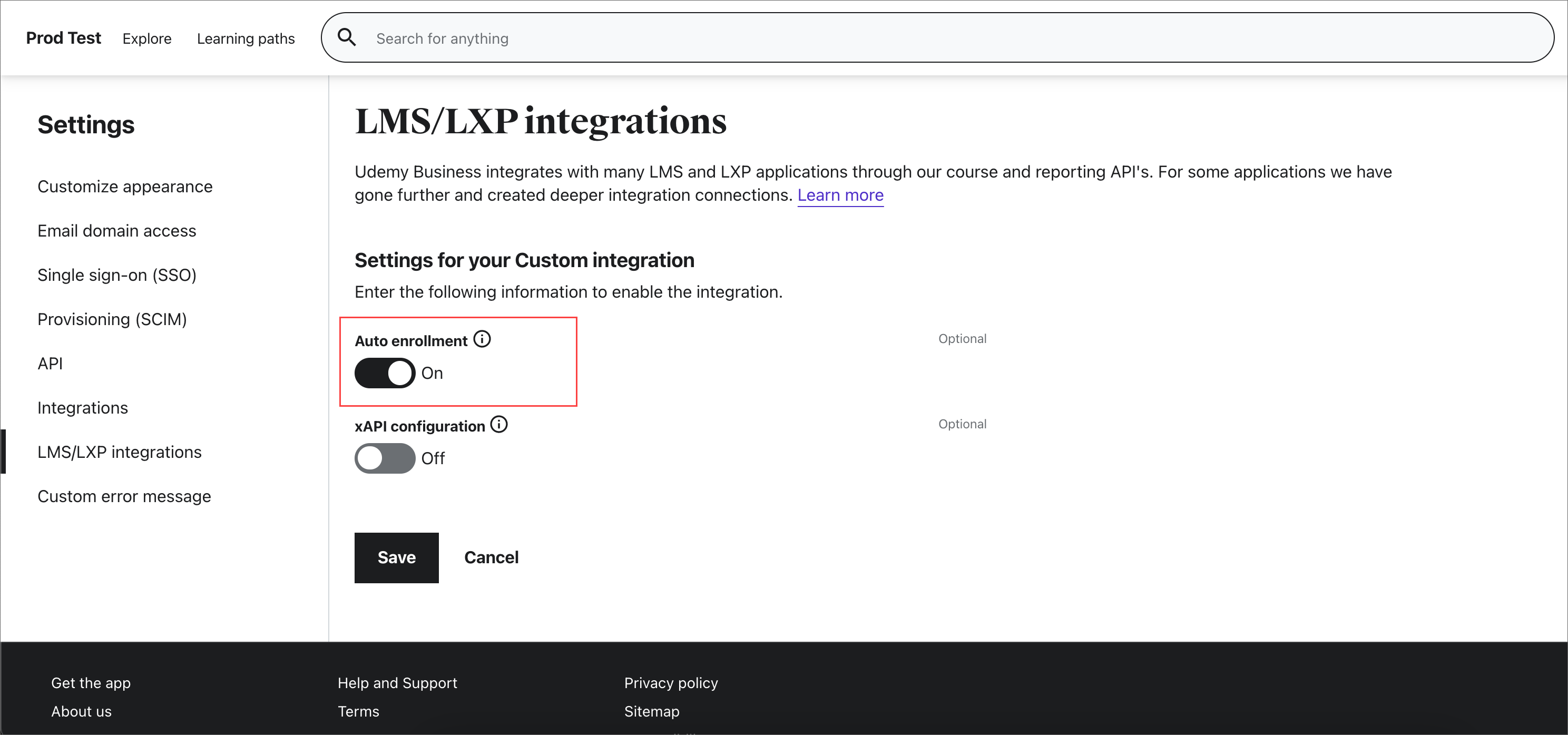
 Toggle Auto enrollment and click `Save`
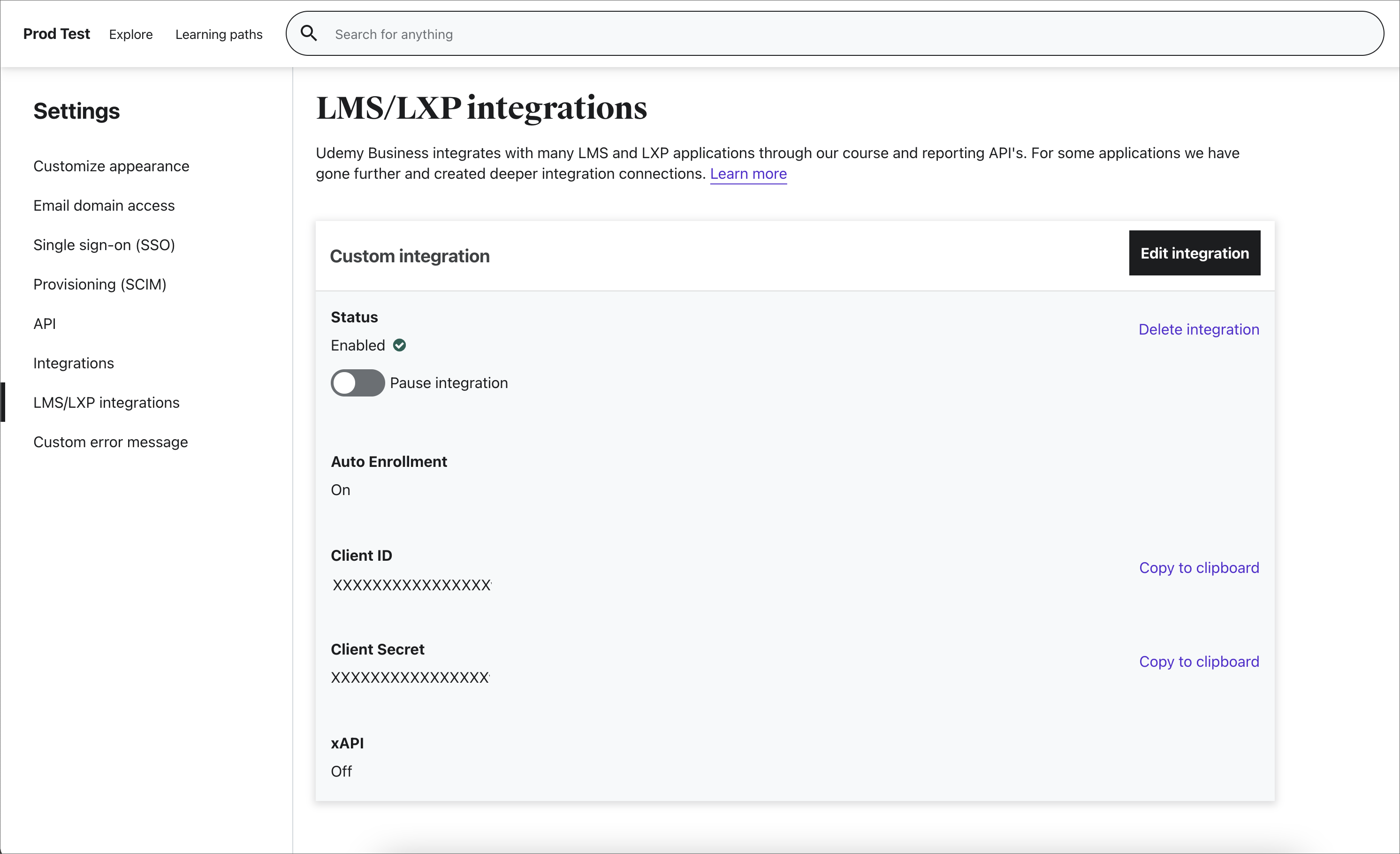
 Take note of the Client ID and Client Secret credentials.
 Login to your Udemy Business dashboard.
Your company subdomain can be found in the URL. If your URL is mycompany.udemy.com, your company subdomain is `mycompany`.
Login to your Udemy Business dashboard.
Your company subdomain can be found in the URL. If your URL is mycompany.udemy.com, your company subdomain is `mycompany`.
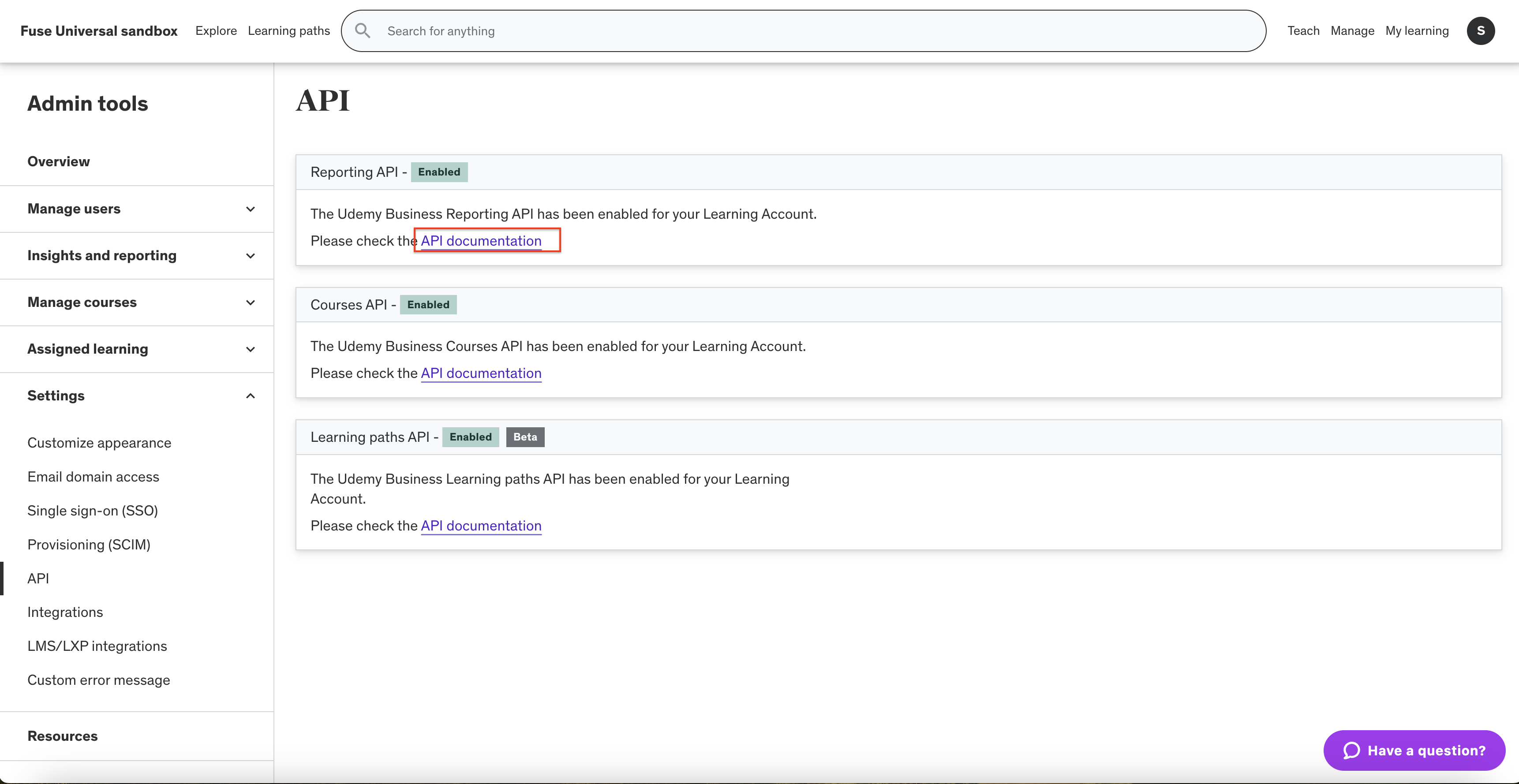
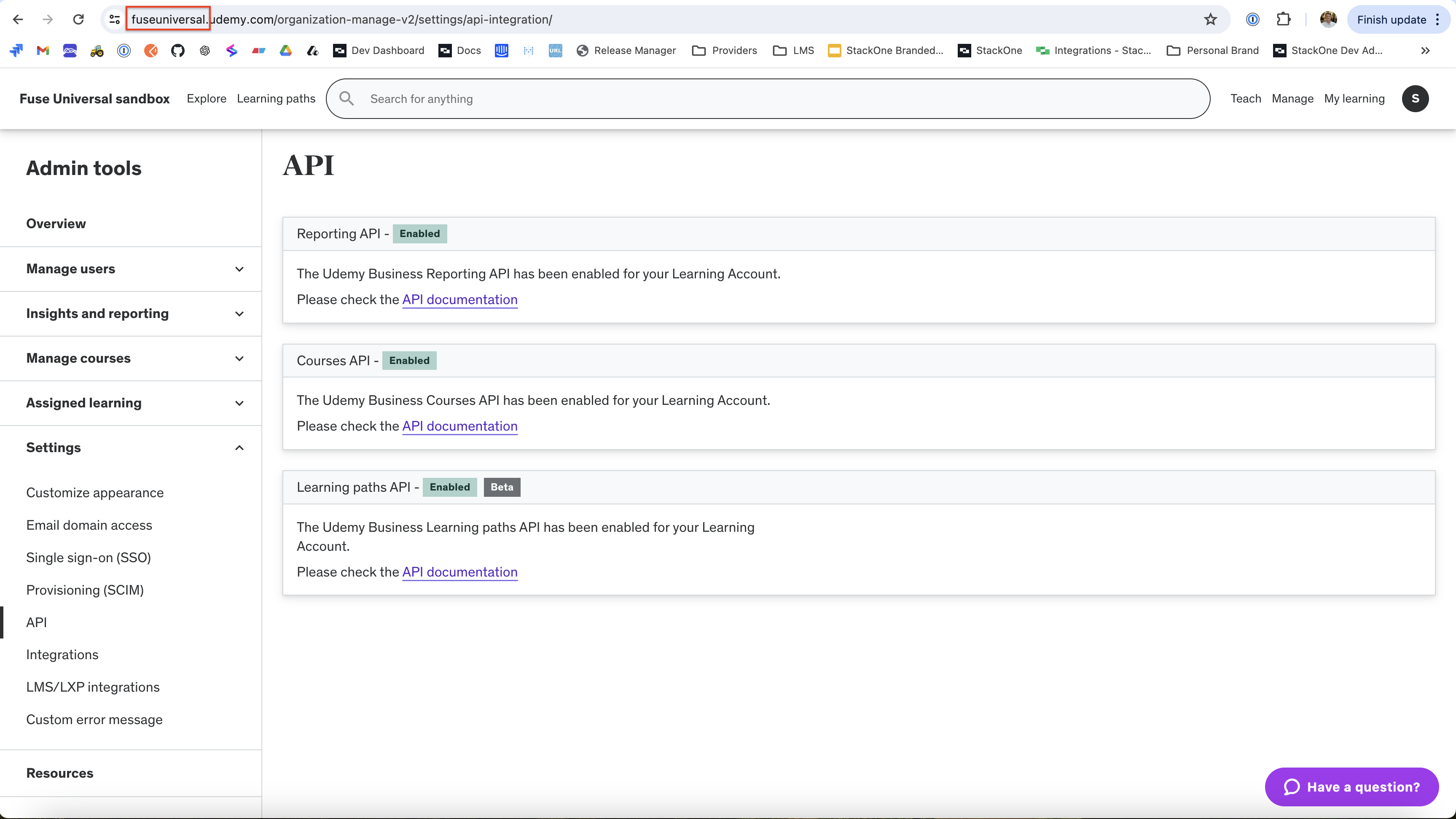 Log into your Udemy Business dashboard.
Navigate to Manage > Settings > API > API Documentation.
Log into your Udemy Business dashboard.
Navigate to Manage > Settings > API > API Documentation.
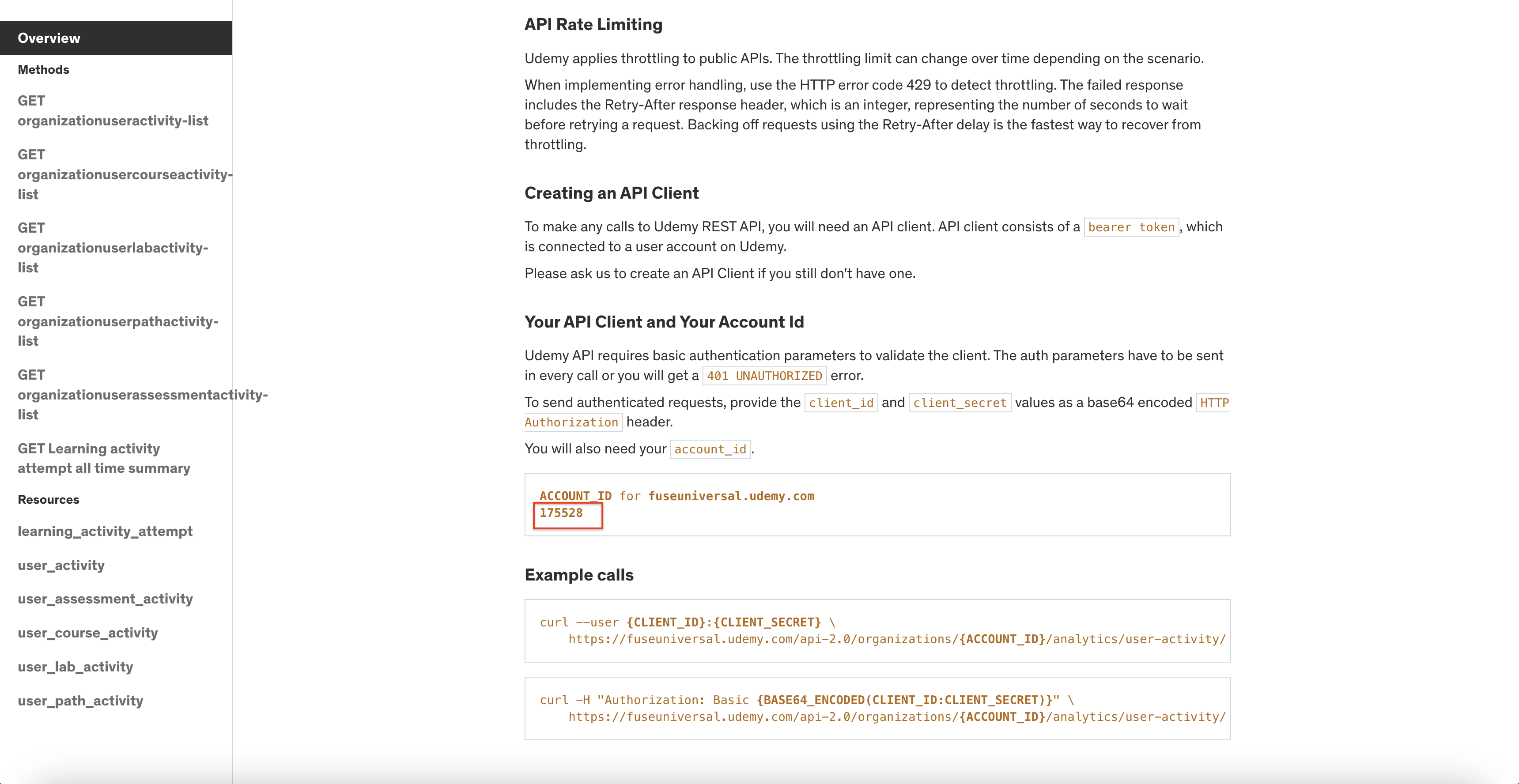
 Scroll down to the “Your API Client and Your Account Id” section to locate your Udemy Business Account ID.
 ## Using SCIM for User Provisioning
If the Udemy instance has SSO enabled, you will need to use SCIM for user provisioning.
Otherwise users will be provisioned from the Udemy API directly.
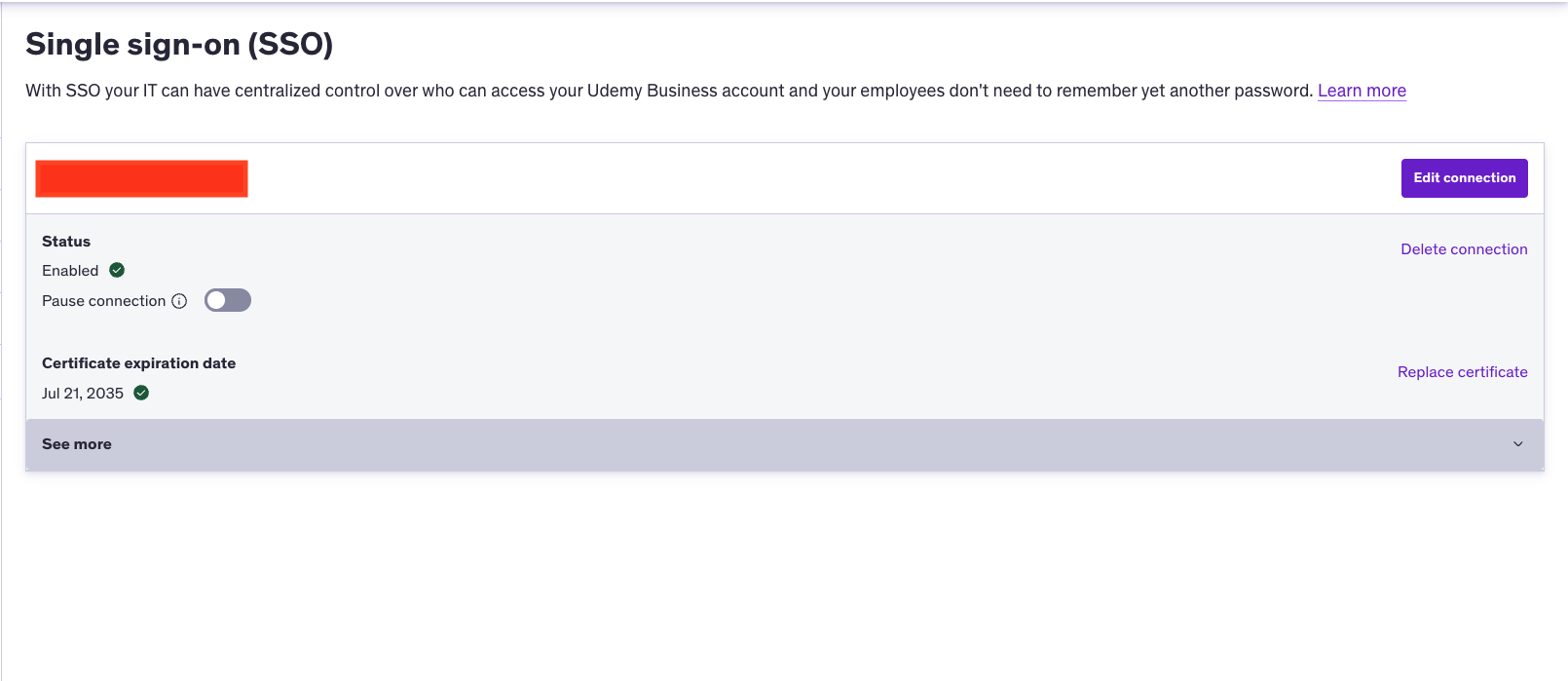
Navigate to Manage > Settings > Single sign-on (SSO).
You should see a connection to your Identity Provider.
Follow the [Udemy SSO Configuration](https://business-support.udemy.com/hc/en-us/articles/115008213828-Overview-of-Udemy-Business-SSO-Core-Features) steps if configuration required.
## Using SCIM for User Provisioning
If the Udemy instance has SSO enabled, you will need to use SCIM for user provisioning.
Otherwise users will be provisioned from the Udemy API directly.
Navigate to Manage > Settings > Single sign-on (SSO).
You should see a connection to your Identity Provider.
Follow the [Udemy SSO Configuration](https://business-support.udemy.com/hc/en-us/articles/115008213828-Overview-of-Udemy-Business-SSO-Core-Features) steps if configuration required.
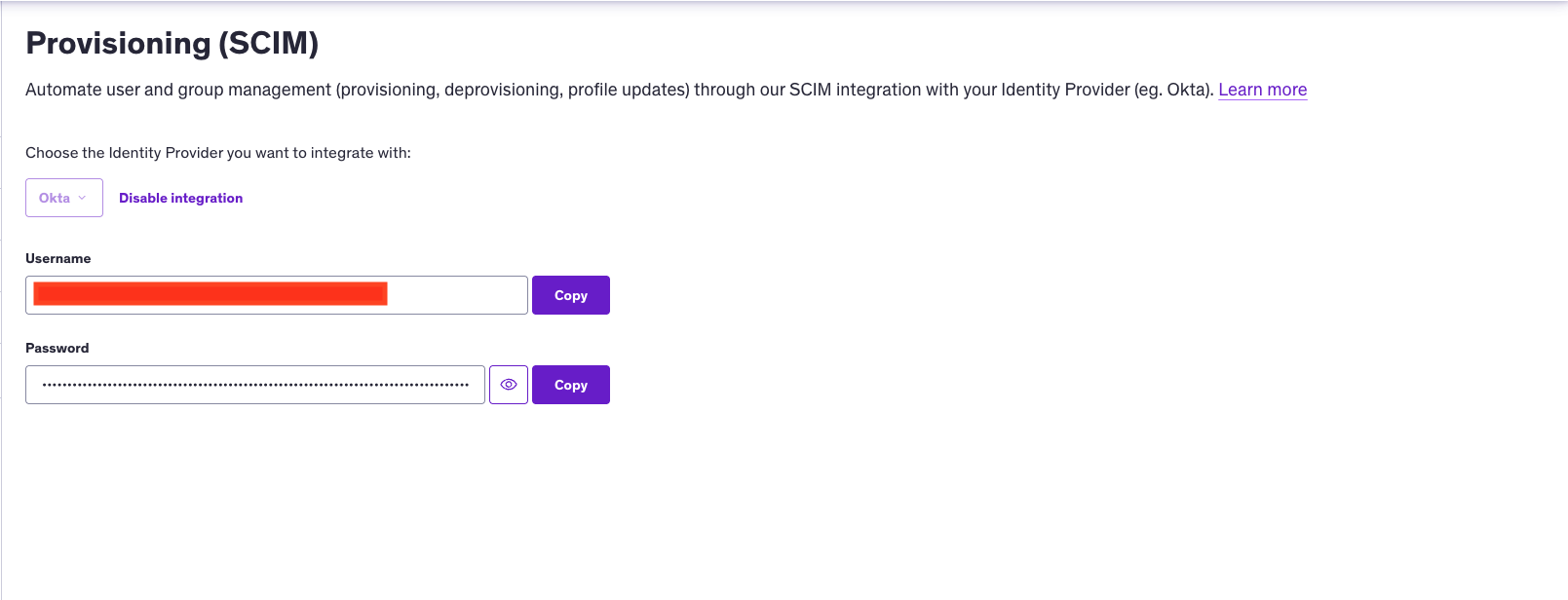
 Navigate to Manage > Settings > Provisioning (SCIM).
Setup the SCIM connection with the chosen Identity Provider.
Follow the [Udemy SCIM Configuration](https://business-support.udemy.com/hc/en-us/articles/360047732153-Configure-SCIM-Provisioning-With-Udemy-s-SCIM-API) steps if configuration required.
Navigate to Manage > Settings > Provisioning (SCIM).
Setup the SCIM connection with the chosen Identity Provider.
Follow the [Udemy SCIM Configuration](https://business-support.udemy.com/hc/en-us/articles/360047732153-Configure-SCIM-Provisioning-With-Udemy-s-SCIM-API) steps if configuration required.
 ## Linking your Account
In the modal enter the `Client ID`, `Client Secret`, `Company Subdomain` and `Account ID` from the previous steps.
## Linking your Account
In the modal enter the `Client ID`, `Client Secret`, `Company Subdomain` and `Account ID` from the previous steps.
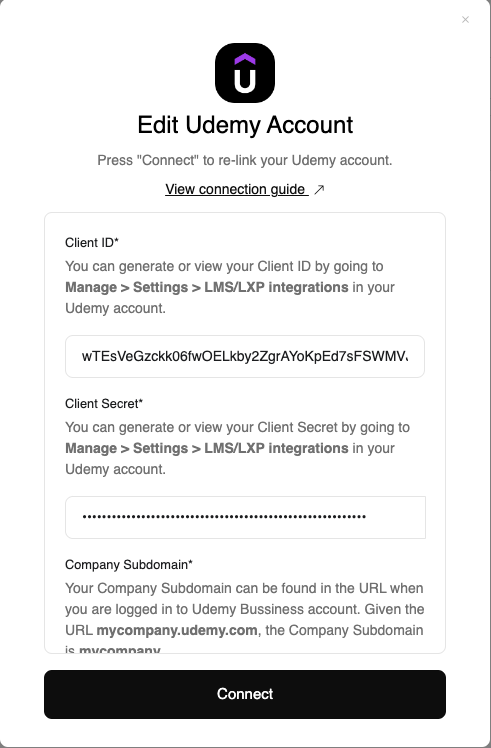 Click `Connect`.