> ## Documentation Index
> Fetch the complete documentation index at: https://hub.stackone.com/llms.txt
> Use this file to discover all available pages before exploring further.

# TalentLMS

> Follow these steps to connect TalentLMS via the StackOne Hub successfully.

<Warning>
  Ensure you are a SuperAdmin or Account Owner in your TalentLMS account.
</Warning>

If you've been directed to StackOne to integrate with TalentLMS, the following steps will help you understand the process and any necessary actions to configure successful integration.

## Get Your TalentLMS Domain

<Steps>
  <Step title="Find Your Domain">
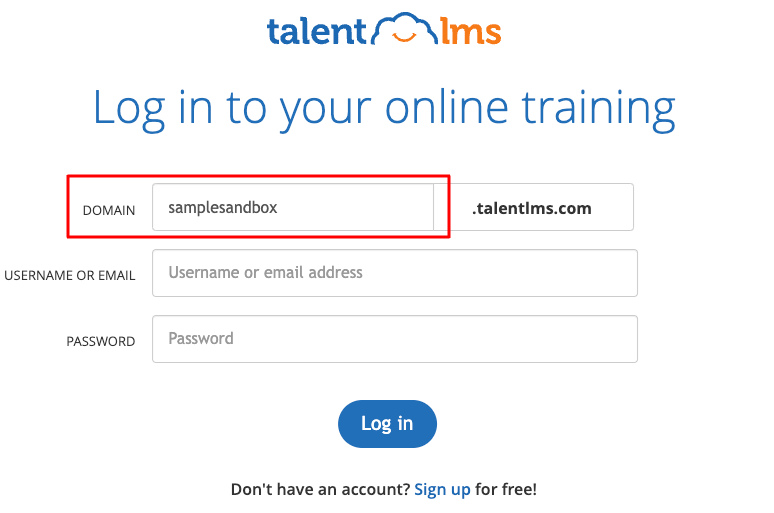
    Log in to your TalentLMS account. Your domain is visible in the URL.
    Example given the URL: `https://samplesandbox.talentlms.com/dashboard`
    The domain is `samplesandbox`.
    <Frame>
      <img className="rounded-md" style={{ margin: '0 auto', border: '1px solid #efefef' }} alt="Domain Example" src="https://mintcdn.com/stackone-hub/gadpffjrgyV-bM-D/images/talentlms/image1.png?fit=max&auto=format&n=gadpffjrgyV-bM-D&q=85&s=485a23b83ac9b0f6069a85aedbb5fba3" width="774" height="513" data-path="images/talentlms/image1.png" />
    </Frame>
  </Step>
</Steps>

## Get Your TalentLMS API Key

<Steps>
  <Step title="Navigate to Account Settings">
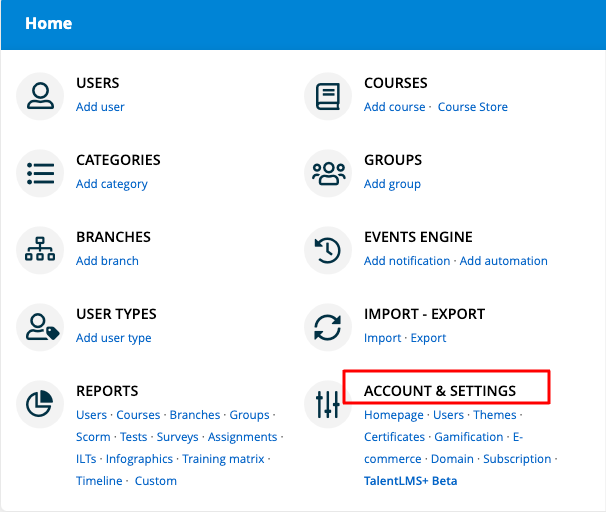
    Log in to your TalentLMS Dashboard, then click ACCOUNT & SETTINGS in the bottom right.
    <Frame>
      <img className="rounded-md" style={{ margin: '0 auto', border: '1px solid #efefef' }} alt="Account & Settings" src="https://mintcdn.com/stackone-hub/gadpffjrgyV-bM-D/images/talentlms/image2.png?fit=max&auto=format&n=gadpffjrgyV-bM-D&q=85&s=e1d9dc0ec3d744718f783037d288a8da" width="606" height="512" data-path="images/talentlms/image2.png" />
    </Frame>
  </Step>

  <Step title="Enable API">
    Scroll down to the SECURITY section and checkmark the Enable API checkbox.

    <Frame>
      <img className="rounded-md" style={{ margin: '0 auto', border: '1px solid #efefef' }} alt="Enable API" src="https://mintcdn.com/stackone-hub/gadpffjrgyV-bM-D/images/talentlms/image3.png?fit=max&auto=format&n=gadpffjrgyV-bM-D&q=85&s=be1a5dcf80f2ea7fb33a02d06c9e3fe7" width="1740" height="248" data-path="images/talentlms/image3.png" />
    </Frame>
  </Step>

  <Step title="Copy API Key">
    Copy your displayed API Key and store it safely.

    <Frame>
      <img className="rounded-md" style={{ margin: '0 auto', border: '1px solid #efefef' }} alt="Copy API Key" src="https://mintcdn.com/stackone-hub/gadpffjrgyV-bM-D/images/talentlms/image4.png?fit=max&auto=format&n=gadpffjrgyV-bM-D&q=85&s=219c6359af6edfef933c9226065be940" width="1742" height="240" data-path="images/talentlms/image4.png" />
    </Frame>
  </Step>
</Steps>

## Linking your Account

<Steps>
  <Step title="Enter API Key and Domain">
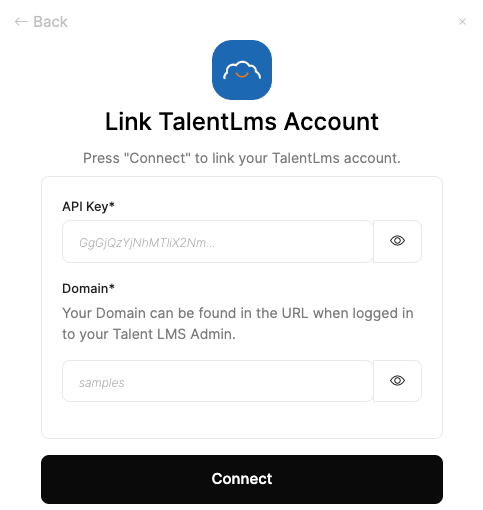
    In hte modal, enter your API Key and Domain from the previous steps.
    <Frame>
      <img className="rounded-md" style={{ margin: '0 auto', border: '1px solid #efefef' }} alt="Link Account" src="https://mintcdn.com/stackone-hub/gadpffjrgyV-bM-D/images/talentlms/image5.png?fit=max&auto=format&n=gadpffjrgyV-bM-D&q=85&s=585ce92576793933565c5fe51fb0b954" width="483" height="510" data-path="images/talentlms/image5.png" />
    </Frame>
  </Step>

  <Step title="Connect">
    Proceed by clicking the Connect button.
  </Step>
</Steps>

## Useful Links

<Card title="API Reference" icon="link" href="https://market.talentlms.com/pages/docs/TalentLMS-API-Documentation.pdf">
  [https://market.talentlms.com/pages/docs/TalentLMS-API-Documentation.pdf](https://market.talentlms.com/pages/docs/TalentLMS-API-Documentation.pdf)
</Card>
