> ## Documentation Index
> Fetch the complete documentation index at: https://hub.stackone.com/llms.txt
> Use this file to discover all available pages before exploring further.
# GO1
> If you've been directed to StackOne to integrate with GO1, the following steps will help you understand the process and any necessary actions to configure successful integration.
This guidance assumes you have Admin privileges for your GO1 account.
## Create Integrations App
Log into your GO1 account.
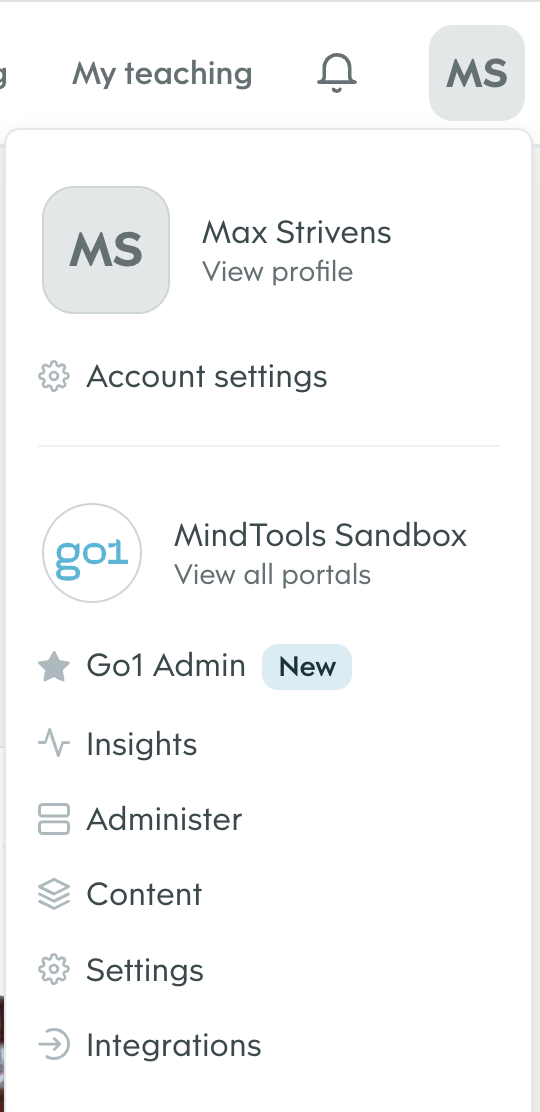
Click on your profile tab in the top right corner.
Select `Integrations` from the dropdown menu.
 From the `Integrations` menu on the left of the screen select `Developers`.
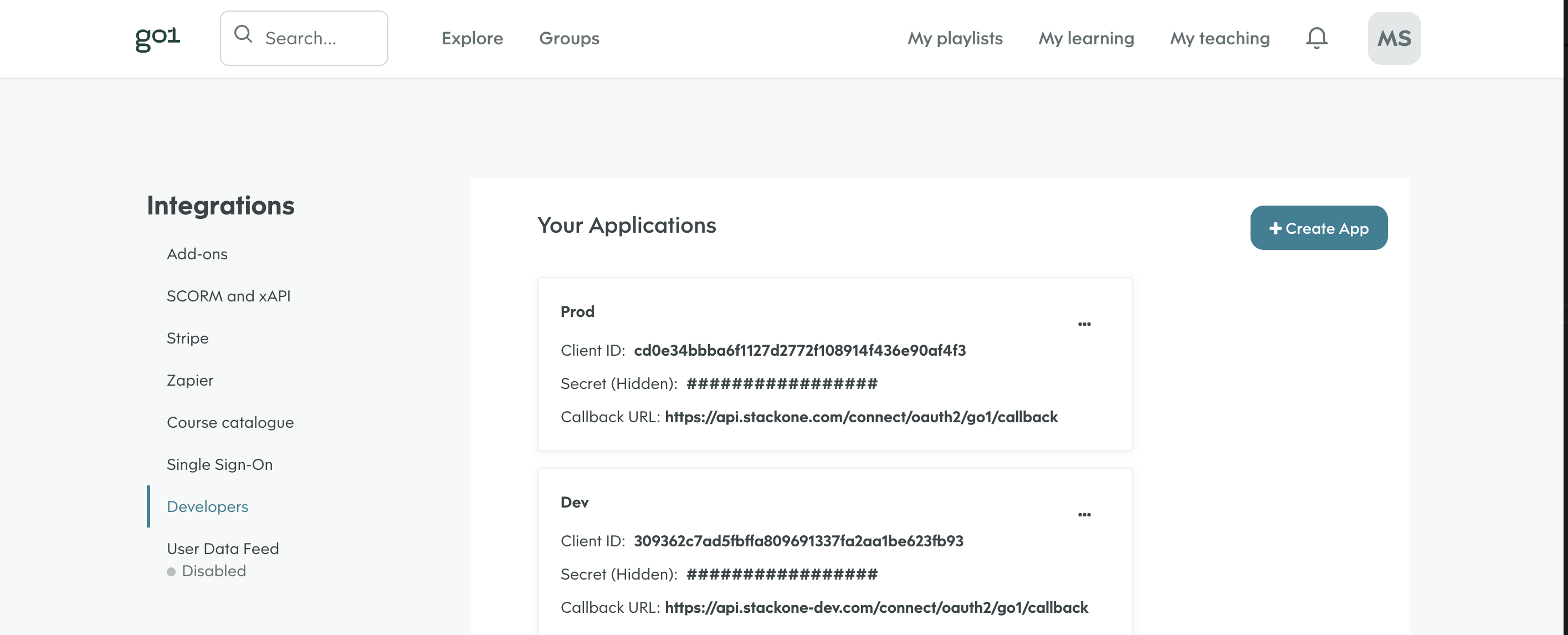 Click `Create App` in the top right.
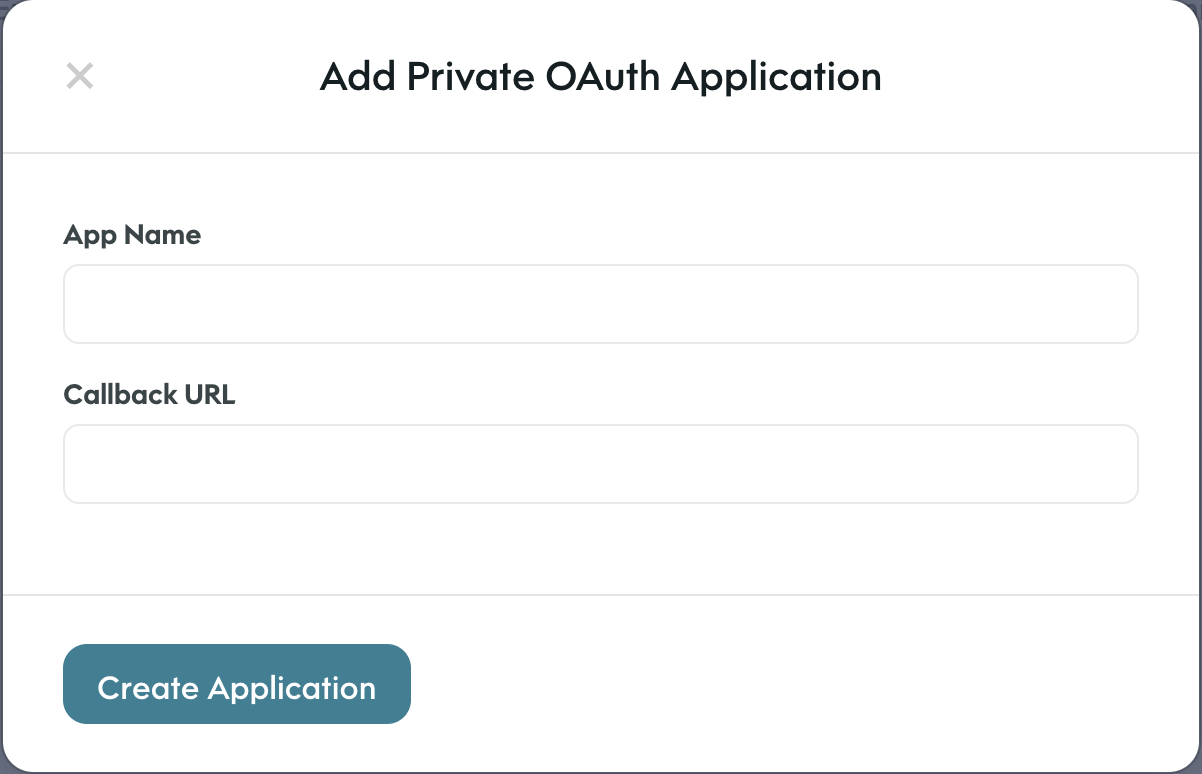
Enter the name of the app (e.g. Production, Development)
Enter the callback URL (e.g. Production: [https://api.stackone.com/connect/oauth2/go1/callback](https://api.stackone.com/connect/oauth2/go1/callback))
`Production: https://api.stackone.com/connect/oauth2/go1/callback`
Click `Create Application`
Click `Create App` in the top right.
Enter the name of the app (e.g. Production, Development)
Enter the callback URL (e.g. Production: [https://api.stackone.com/connect/oauth2/go1/callback](https://api.stackone.com/connect/oauth2/go1/callback))
`Production: https://api.stackone.com/connect/oauth2/go1/callback`
Click `Create Application`
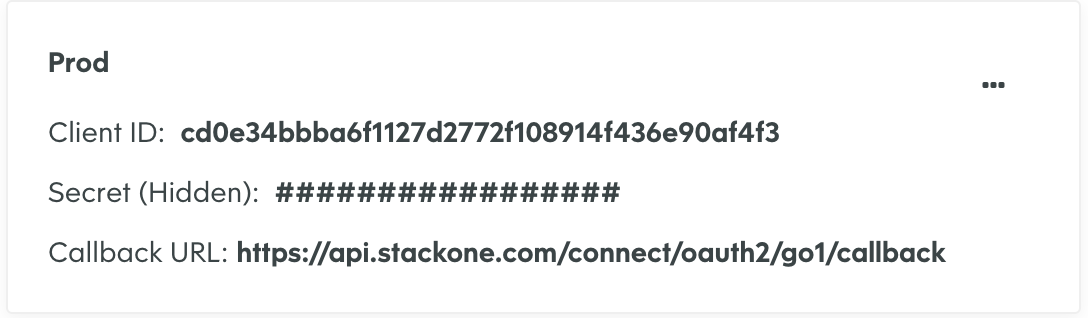
 Record the `Client ID` and `Client Secret` for use in the next steps.
 You can find the domain by taking the root URL from the address bar of your GO1 account and only taking the part before my.go1.com. and after the https\://.
E.g. If your url is `https://my-domain.go1.com` the domain is `my-domain`
## Linking your Account
In the modal enter the `Client ID` and `Client Secret` from the previous step.
Add relevant `Application Scopes` required for your integration and the `Domain` for the GO1 account you want to link.
E.g. `account:read`, `lo:read`, `portal:read`, `user:write`, `enrollment:write`
Add the `domain` for the GO1 account you want to link.
Click `Connect`.
In the GO1 pop up modal enter your GO1 username and password.
## Content Visibility (Pulling Content from Go1)
In order to give you control over managing what content will be available to your users you can curate the content via Go1Admin.
This is a centralised way to manage which content will be made available to your users in the third party LMS/LXP.
[GO1 Admin](https://developers.go1.com/products/go1-admin/)
You can find the domain by taking the root URL from the address bar of your GO1 account and only taking the part before my.go1.com. and after the https\://.
E.g. If your url is `https://my-domain.go1.com` the domain is `my-domain`
## Linking your Account
In the modal enter the `Client ID` and `Client Secret` from the previous step.
Add relevant `Application Scopes` required for your integration and the `Domain` for the GO1 account you want to link.
E.g. `account:read`, `lo:read`, `portal:read`, `user:write`, `enrollment:write`
Add the `domain` for the GO1 account you want to link.
Click `Connect`.
In the GO1 pop up modal enter your GO1 username and password.
## Content Visibility (Pulling Content from Go1)
In order to give you control over managing what content will be available to your users you can curate the content via Go1Admin.
This is a centralised way to manage which content will be made available to your users in the third party LMS/LXP.
[GO1 Admin](https://developers.go1.com/products/go1-admin/)