> ## Documentation Index
> Fetch the complete documentation index at: https://hub.stackone.com/llms.txt
> Use this file to discover all available pages before exploring further.
# 360 Learning
> If you've been directed to StackOne to integrate with 360 Learning, the following steps will help you understand the process and any necessary actions to configure successful integration.
This guidance assumes you have Admin privileges for your 360 Learning account.
## Create Integrations App
Log into your 360 Learning account.
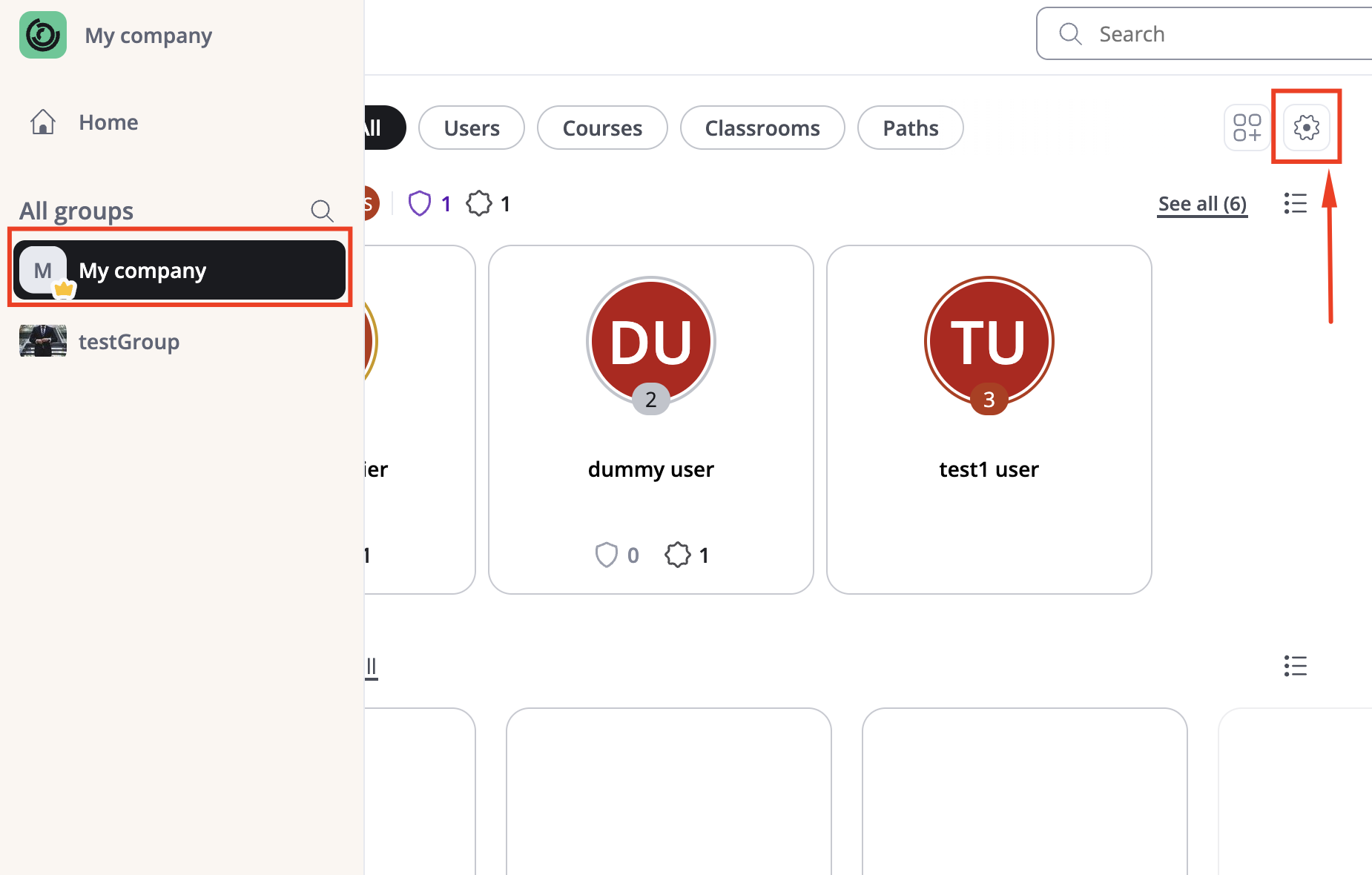
Select Root Parent Group under `All Groups`.
Click on `Settings` in the top right corner.
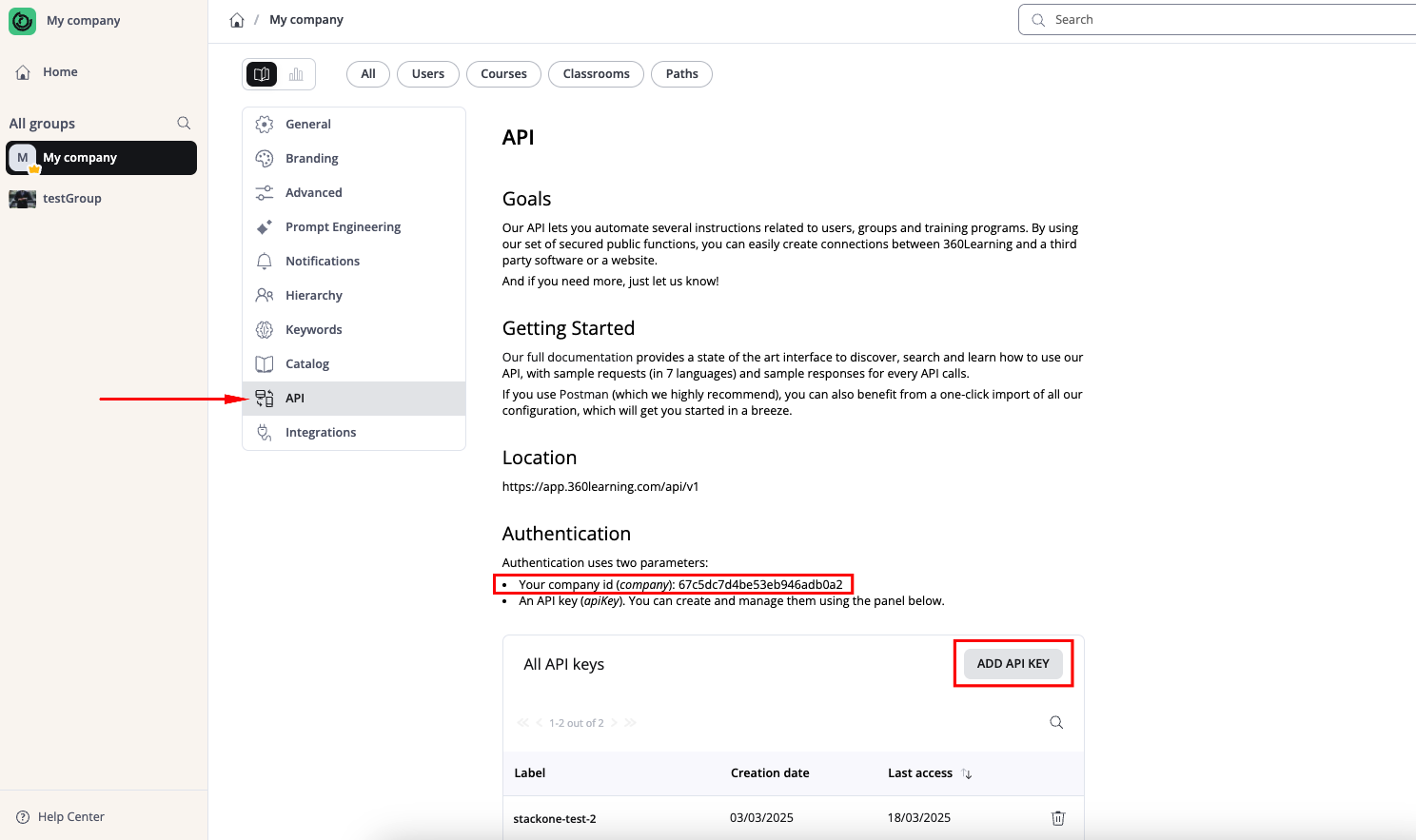
 From the left settings menu, select `API`.
Locate the `Company ID`, in the Authentication section.
Click `Add API Key` to create a new API key.
From the left settings menu, select `API`.
Locate the `Company ID`, in the Authentication section.
Click `Add API Key` to create a new API key.
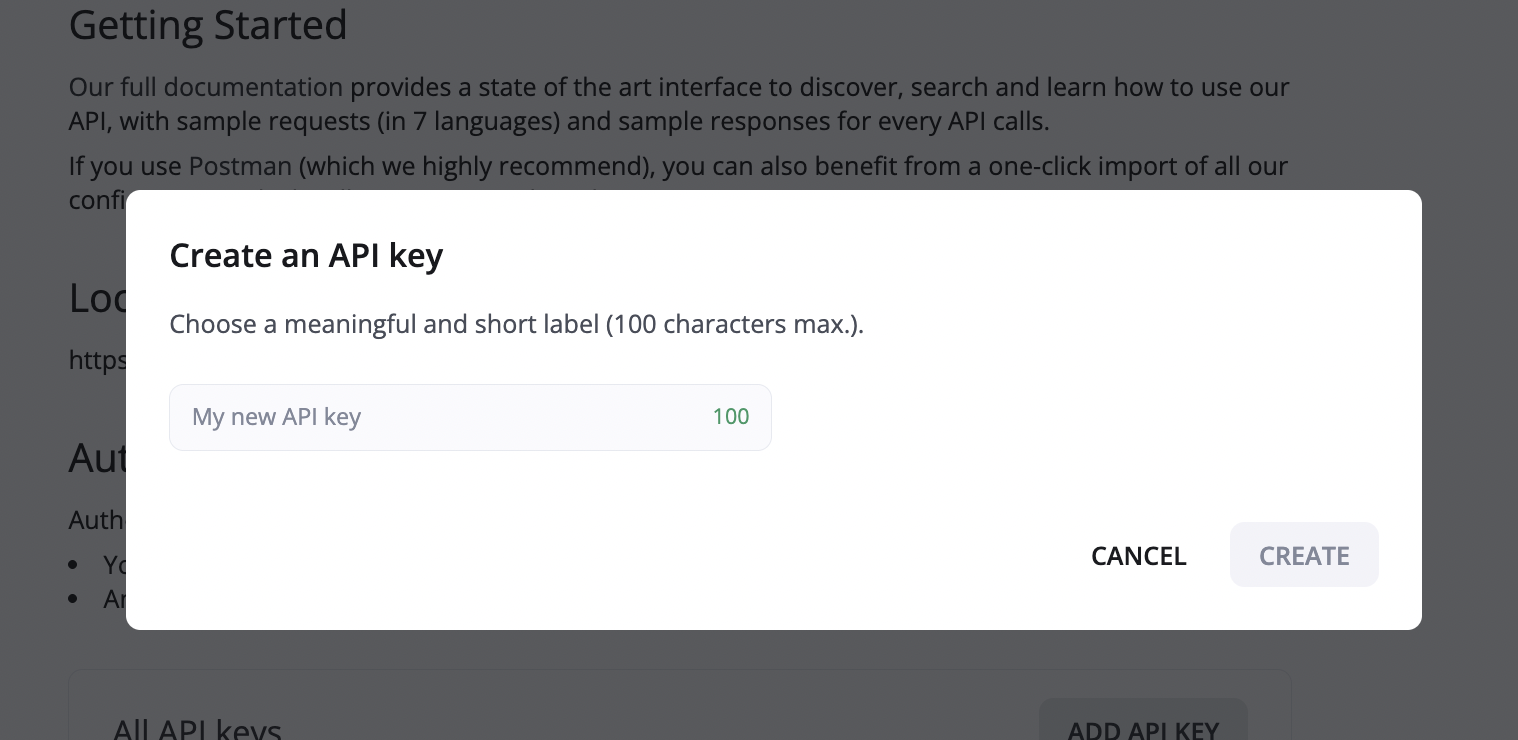
 Enter `API Key` and click `Create`.
 Record the `Company ID` and `API Key` for use in the next steps.
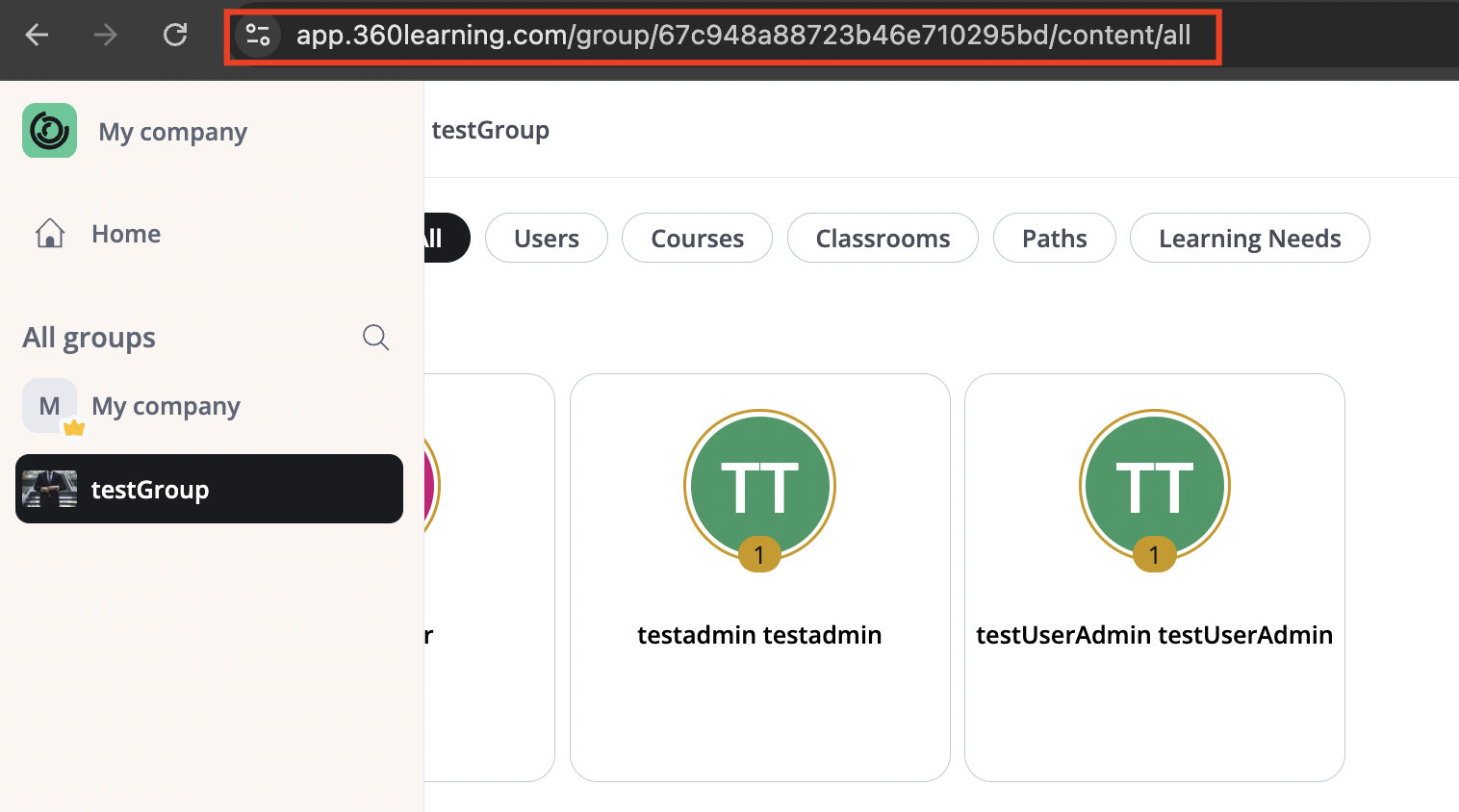
Select the desired group to find the `Group Id` in the address bar.
E.g. If your url is `https://app.360learning.com/group/67c948a88723b46e710295bd/content/all`, the Group Id is `67c948a88723b46e710295bd`.
Record the `Company ID` and `API Key` for use in the next steps.
Select the desired group to find the `Group Id` in the address bar.
E.g. If your url is `https://app.360learning.com/group/67c948a88723b46e710295bd/content/all`, the Group Id is `67c948a88723b46e710295bd`.
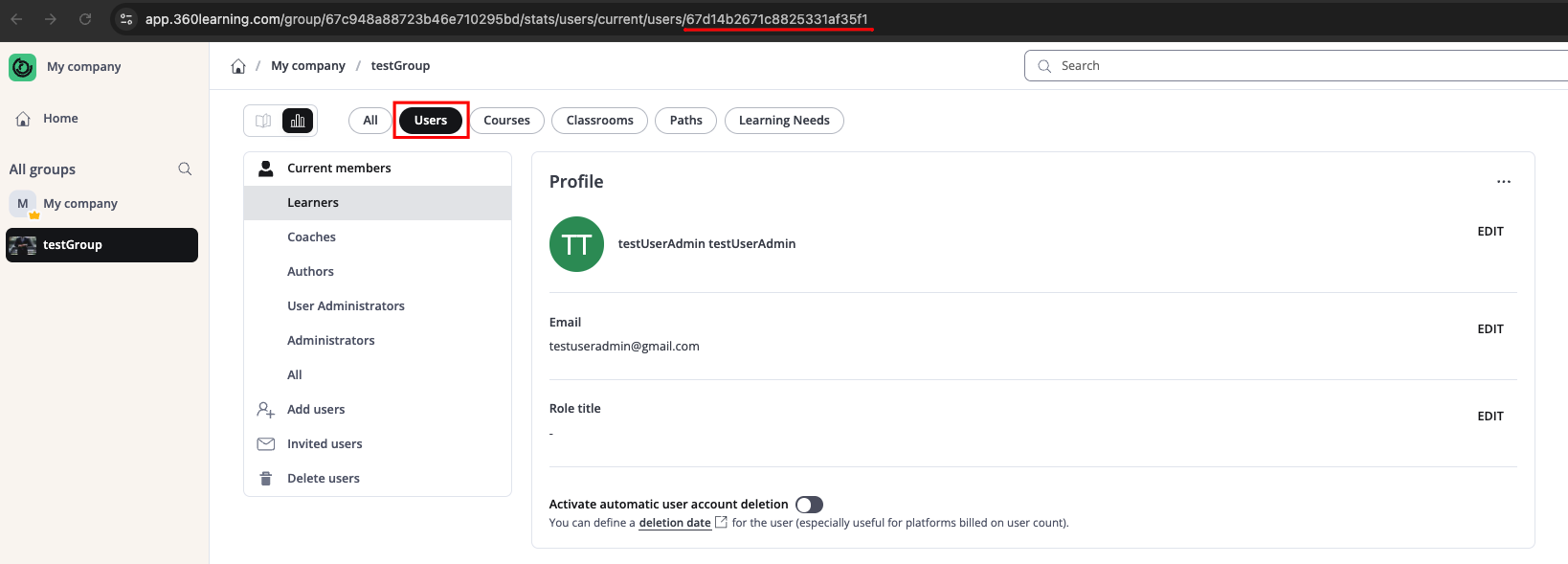
 Navigate to `Group` -> `Users`.
Open the User Profile to find the `User Id` in the address bar.
E.g. If your url is `https://app.360learning.com/group/67c948a88723b46e710295bd/stats/users/current/users/67d14b2671c8825331af35f1`, the User Id is `67d14b2671c8825331af35f1`.
Navigate to `Group` -> `Users`.
Open the User Profile to find the `User Id` in the address bar.
E.g. If your url is `https://app.360learning.com/group/67c948a88723b46e710295bd/stats/users/current/users/67d14b2671c8825331af35f1`, the User Id is `67d14b2671c8825331af35f1`.
 ## Linking Your Account
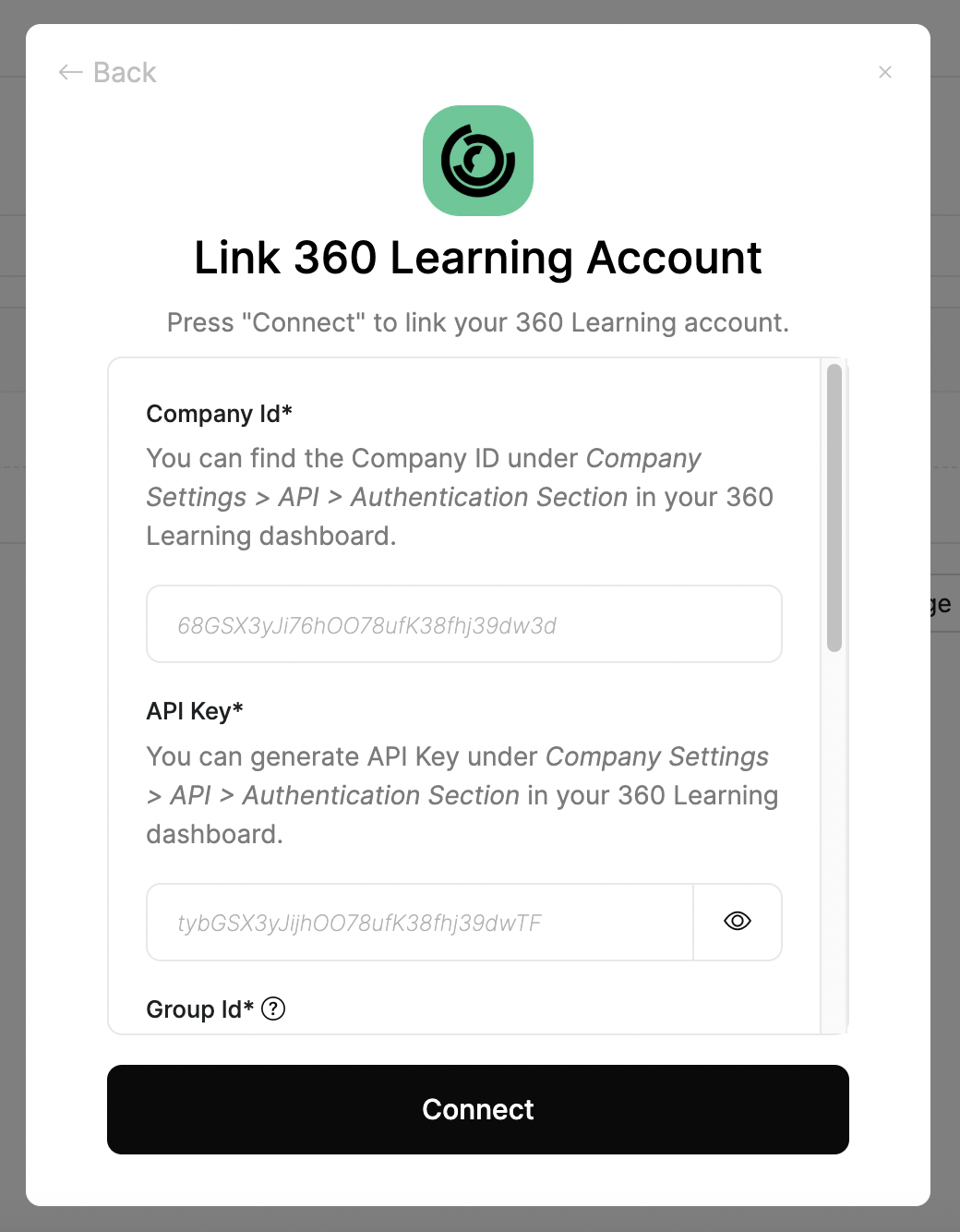
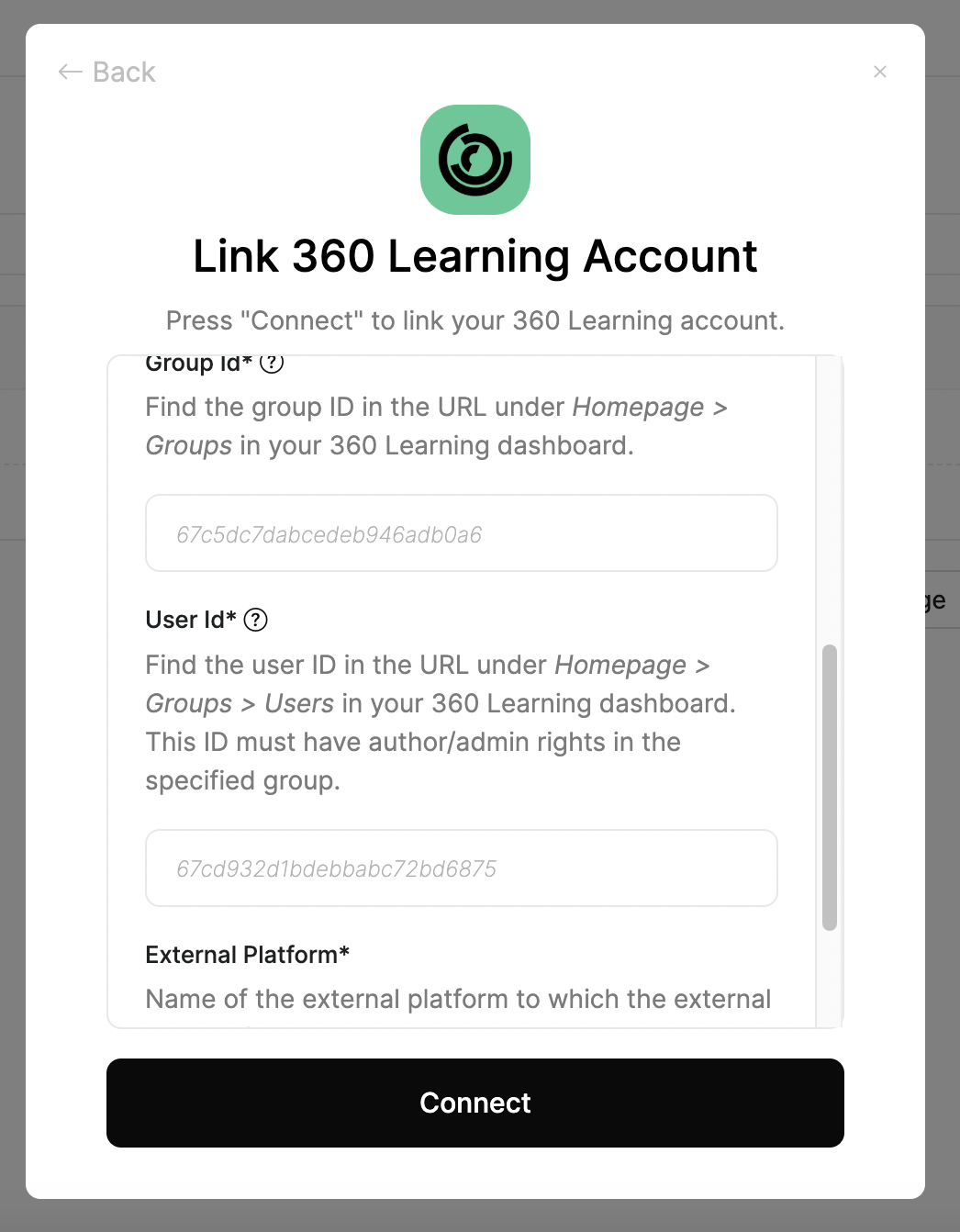
You can use the Company ID and API Key to link your 360 Learning account.
In the modal enter the `Company ID`, `API Key`, `Group Id`, `User Id` and `External Platform`.
## Linking Your Account
You can use the Company ID and API Key to link your 360 Learning account.
In the modal enter the `Company ID`, `API Key`, `Group Id`, `User Id` and `External Platform`.
 Click `Connect`.
## Useful Links
[https://api.360learning.com/](https://api.360learning.com/)
Click `Connect`.
## Useful Links
[https://api.360learning.com/](https://api.360learning.com/)