

Generating API key and getting Company ID
1
Navigate to Settings
In your Teamtailor account, click on Settings.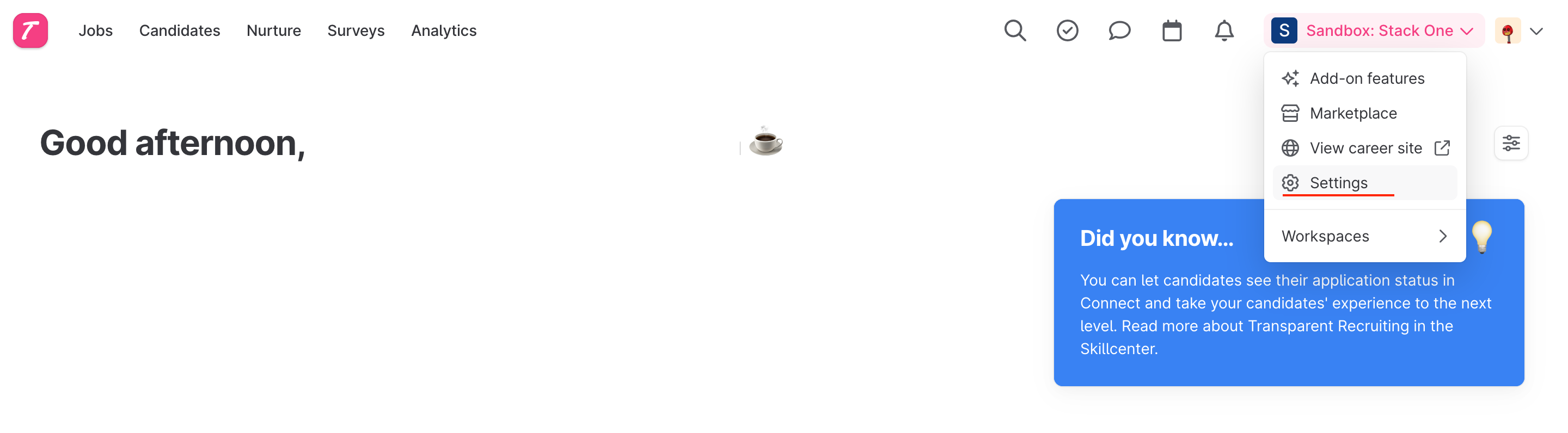
2
Find API Keys
On the left-hand menu under the integrations header, find API keys.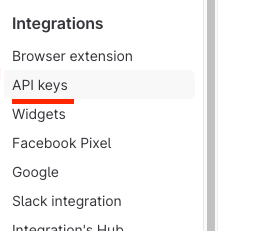
3
Create a New API Key
Click the New API Key button at the top right of the page.
4
Set Name and Permissions
Enter a descriptive name, set the scope to 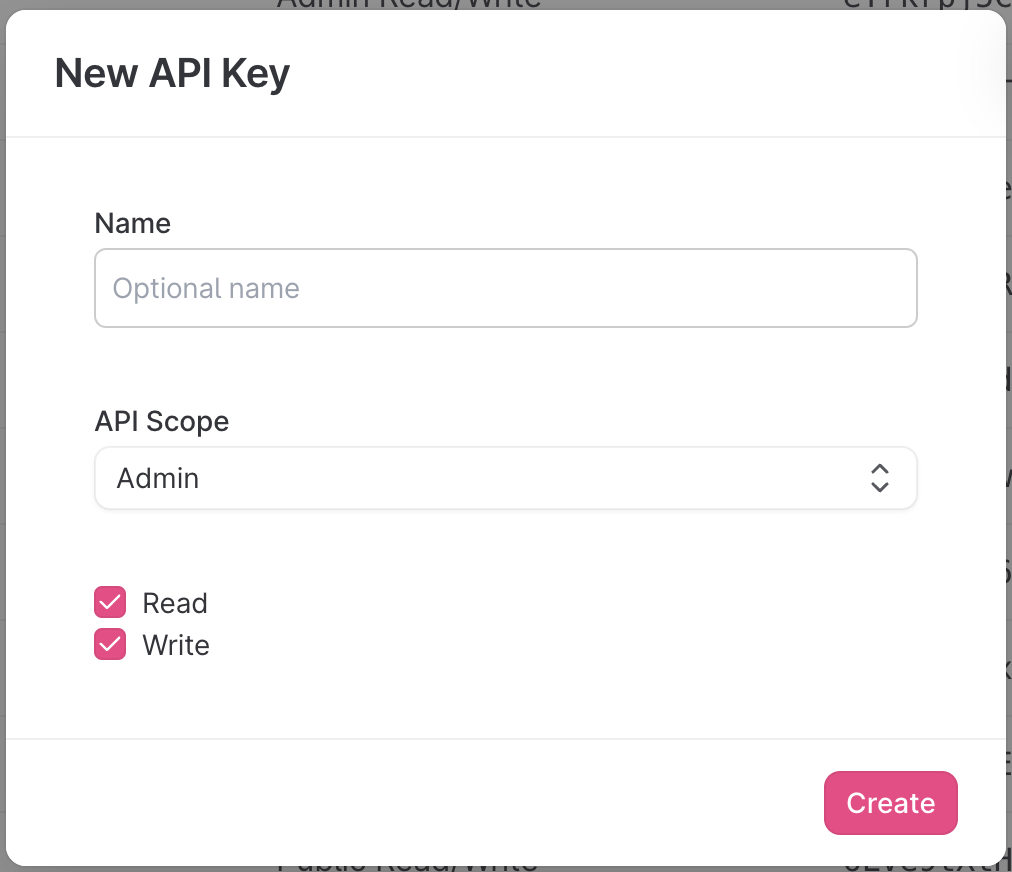
admin and permissions, where only Read is required.5
Copy API Key
Copy the API key to a safe place.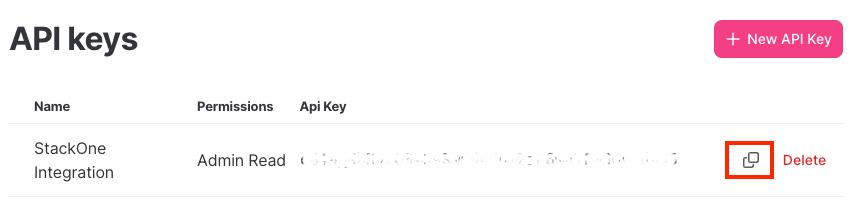
6
Get Company ID
Make a note of the 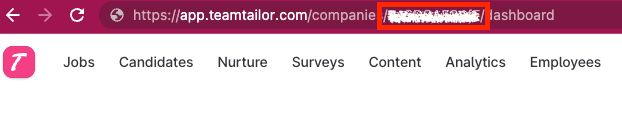
company ID, which is part of the URL as shown below:Get user credentials
You will also need to provide a user email and password. It is recommended that you set up a new account for integration purposes.1
Create a New Employee
Find the employees tab and click the ➕ to create a new employee.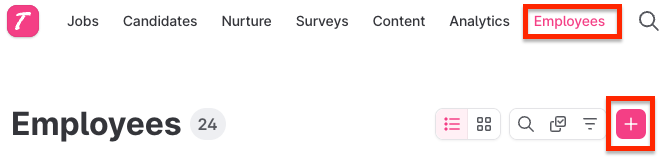
2
Fill Out Required Fields
Fill out the required fields and set the Role to Recruitment Admin. This will ensure the account has the correct permissions.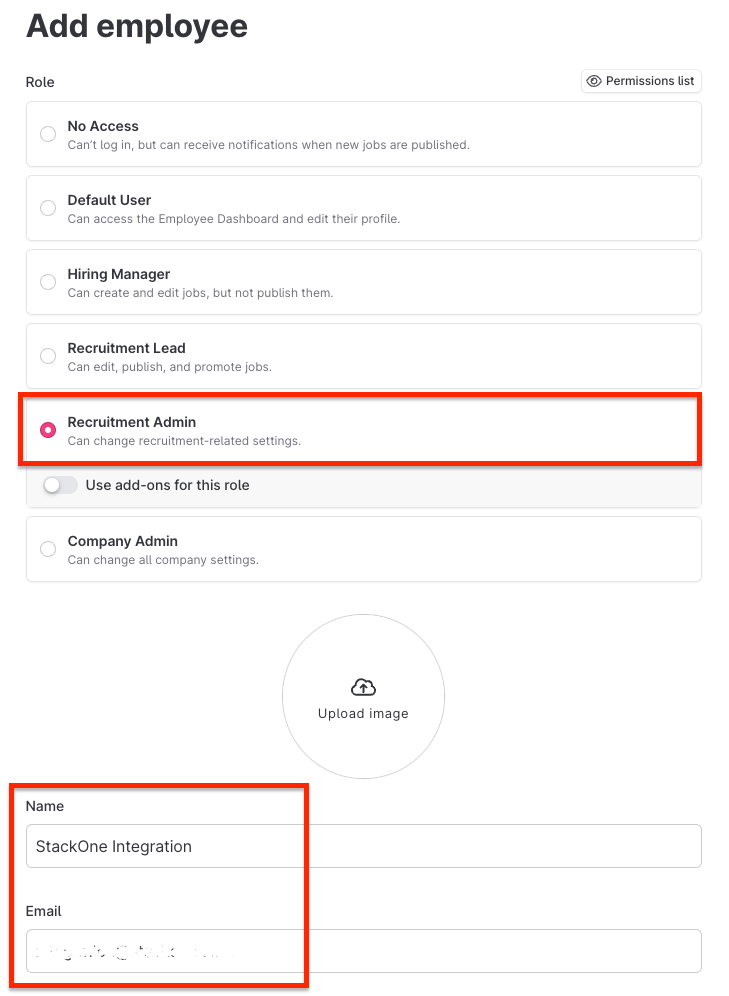
3
Add Employee
Click Add employee.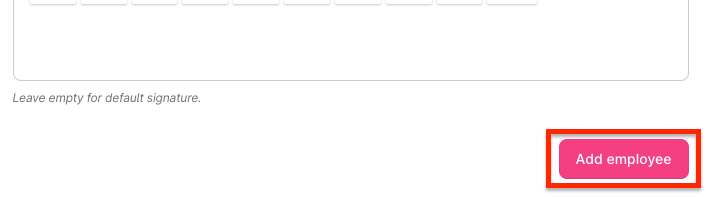
4
Create Account
The email address you entered will receive an invitation. Click 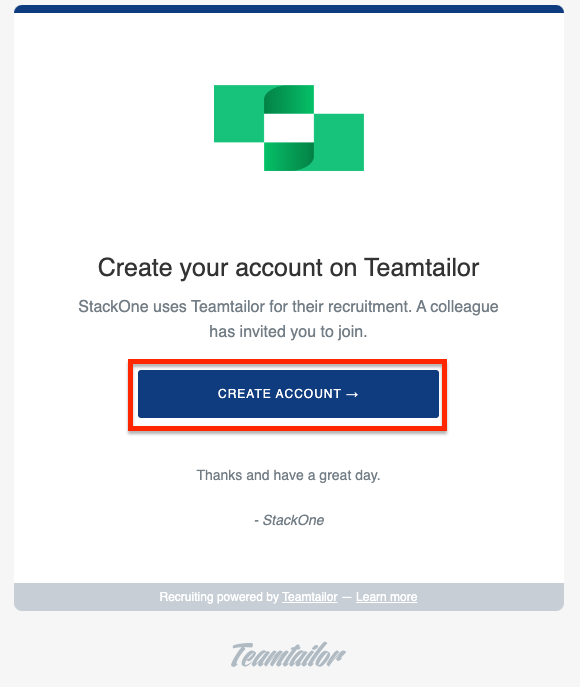
Create account, you may have to log out of your current account to create the password.5
Find the Invitation Link
If you have not received an invitation, you can go to the 
Employees tab again and click on the user’s pencil ✏️ icon to edit their profile. You will see a link to the invitation, and you can click through this to set up the account.6
Get Account Email and Password
You should now have the account email address and password to proceed with the Hub.
Accounts with Single Sign-On (SSO)
Follow steps 2.1 to 2.2 inclusive to create the employee, you will then have to exclude the employee from SSO, under the headingExclude individual users from SSO login, as detailed here:
1
Exclude from SSO
After the user has been excluded, ensure a password is set. You may have to edit the permissions of the user by accessing the Employees tab and clicking on the gear ⚙️ here.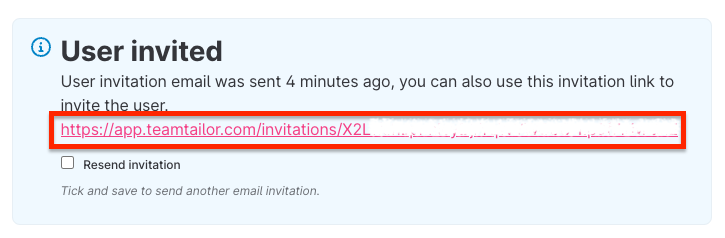
2
Set Role
You will see a page similar to step 2.2, where you can set the role to 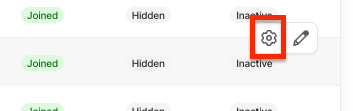
Recruitment admin.Input the collected inputs into the StackOne Hub
1
Link Account
Upon reaching the Link Account page, enter the gathered details and proceed by clicking the 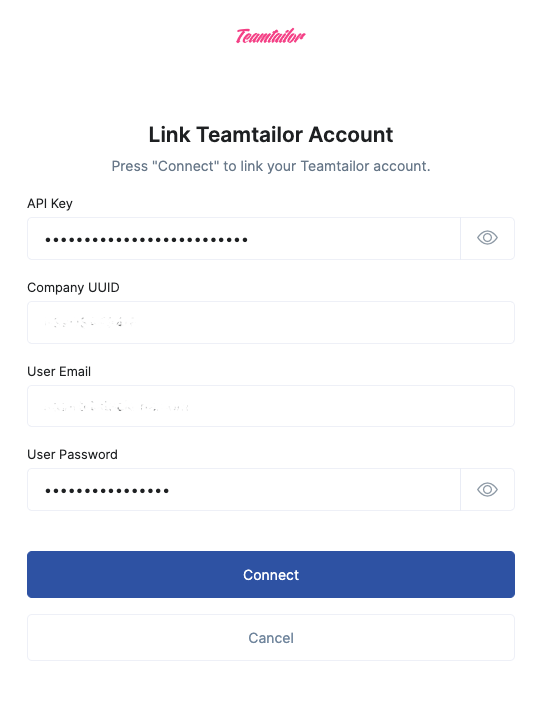
Connect button.Available data
This integration has the following IAM Resources available from the provider:- Users
- Roles
- Groups