> ## Documentation Index
> Fetch the complete documentation index at: https://hub.stackone.com/llms.txt
> Use this file to discover all available pages before exploring further.

# Canva

> Follow these steps to connect Canva via the StackOne Hub successfully.

<Warning>
  Ensure you have Admin privileges for your Canva Teams account.
</Warning>

If you've been directed to StackOne to integrate with Canva, the following steps will help you understand the process and any necessary actions to configure successful integration.

This guidance assumes that you are an Admin within Canva Teams.

## Get your Canva SCIM Key

<Steps>
  <Step title="Log in to Canva">
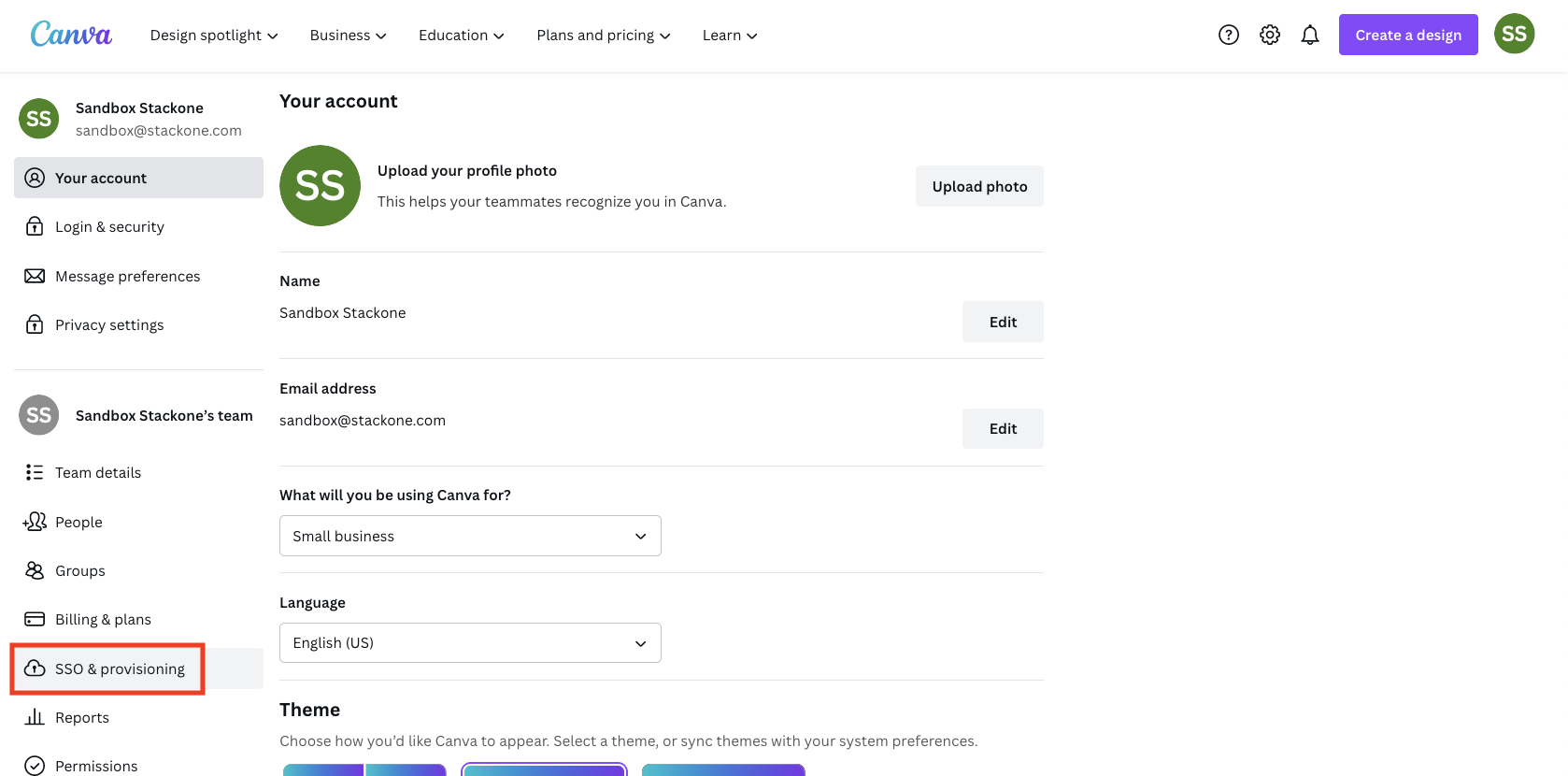
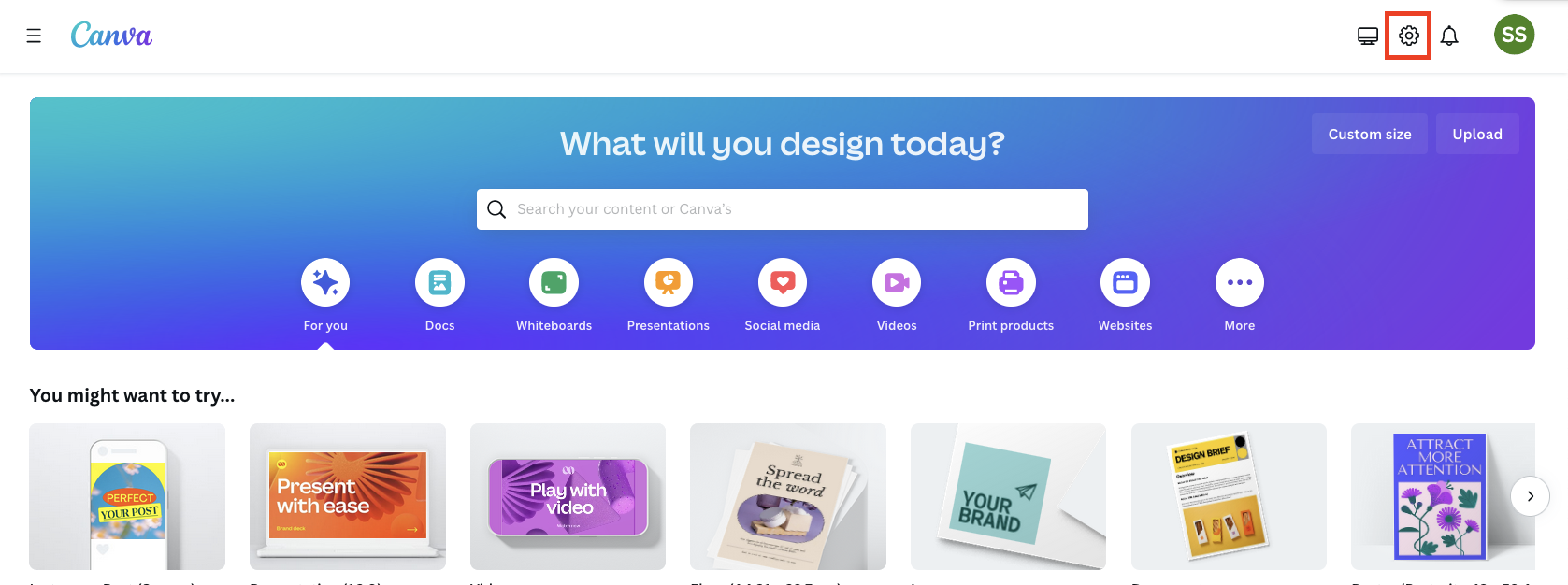
    Log in to your [Canva](https://www.canva.com) account and view your Account Settings.

    <Frame>
      <img className="rounded-md" style={{ margin: '0 auto', border: '1px solid #efefef' }} alt="Account Settings" src="https://mintcdn.com/stackone-hub/Yn_6S3z7TpLl43ff/images/canva/image1.png?fit=max&auto=format&n=Yn_6S3z7TpLl43ff&q=85&s=e68fe0c8c6fd80e76b3f4514f632ee12" width="1677" height="626" data-path="images/canva/image1.png" />
    </Frame>
  </Step>

  <Step title="SSO & Provisioning">
    Click SSO & provisioning under your Team on the left.

    <Frame>
      <img className="rounded-md" style={{ margin: '0 auto', border: '1px solid #efefef' }} alt="SSO & Provisioning" src="https://mintcdn.com/stackone-hub/Yn_6S3z7TpLl43ff/images/canva/image2.png?fit=max&auto=format&n=Yn_6S3z7TpLl43ff&q=85&s=b6ca4e48e57cda60ea38492a9517e144" width="1678" height="830" data-path="images/canva/image2.png" />
    </Frame>
  </Step>

  <Step title="Get Info from Identity Provider">
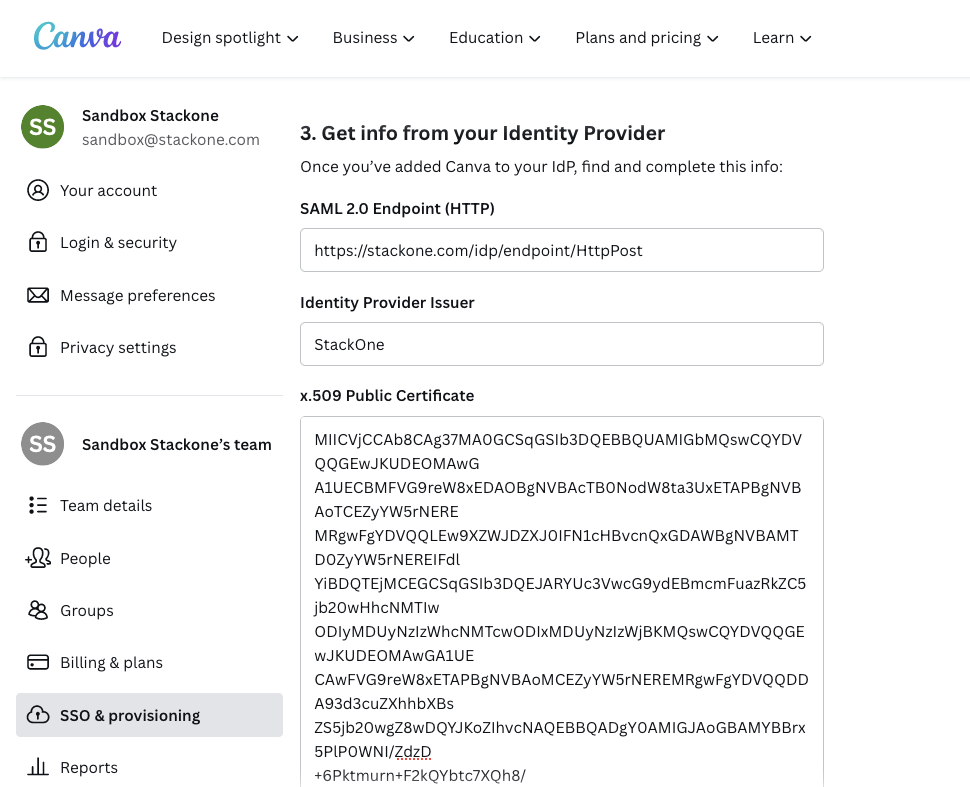
    If you do not currently have an Identity Provider set up in Canva, enter the following information under Get info from your Identity Provider:

    * **SAML 2.0 Endpoint (HTTP)**: `https://stackone.com/idp/endpoint/HttpPost`
    * **Identity Provider Issuer**: `StackOne`
    * **x.509 Public Certificate**:
      <pre>MIICVjCCAb8CAg37MA0GCSqGSIb3DQEBBQUAMIGbMQswCQYDVQQGEwJKUDEOMAwGA1UECBMFVG9reW8xEDAOBgNVBAcTB0NodW8ta3UxETAPBgNVBAoTCEZyYW5rNEREMRgwFgYDVQQLEw9XZWJDZXJ0IFN1cHBvcnQxGDAWBgNVBAMTD0ZyYW5rNEREMlRlYlJQMTAxEzARBgNVBAMMCkZyYW5rNEREMDEwDQYJKoZIhvcNAQEBBQADgY0AMIGJAoGBAMYBBrx5PlP0WNI/ZdzD+6Pktmurn+F2kQYbtc7XQh8/LTBvCo+P6iZoLEmUA9e7EXLRxgU1CVqeAi7QcAn9MwBlc8ksFJHB0rtf9pmf8Oza9E0Bynlq/4/Kb1x+d+AyhL7oK9tQwB24uHOueHi1C/iVv8CSWKiYe6hzN1txYe8rAgMBAAEwDQYJKoZIhvcNAQEFBQADgYEAASPdjigJkXCqKWpnZ/Oc75EUcMi6HztaW8abUMlYXPIgkV2F7YanHOB7K4f7OOLjiz8DTPFfjC9UeuErhaA/zzWi8ewMTFZW/WshOrm3fNvcMrMLKtH534JKvcdMg6qIdjTFINIrevnAhf0cwULaebn+lMs8Pdl7y37+sfluVok=</pre>

    <Note>
      Note: this is an unused public certificate, and StackOne only performs Read operations in this connection. Click Save changes for Canva to validate the input.
    </Note>
  </Step>

  <Step title="Enable SCIM Provisioning">
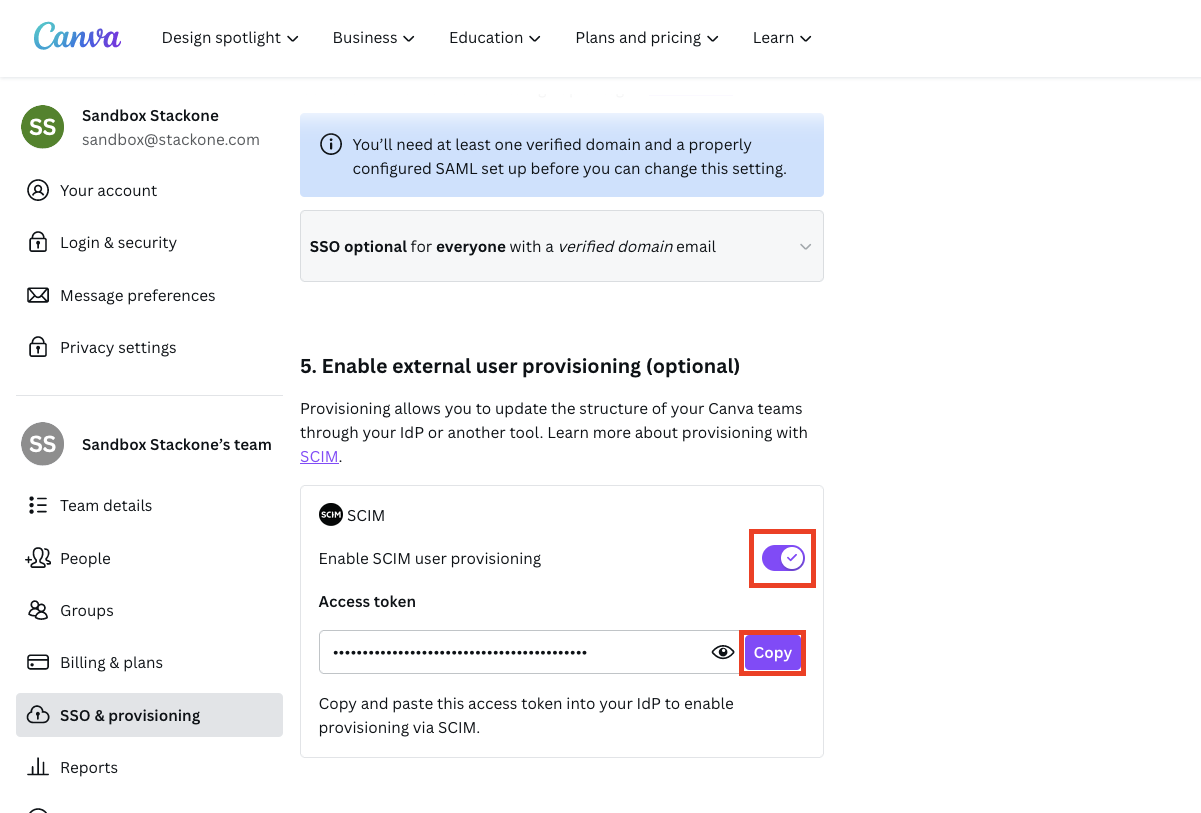
    Scroll down to Enable external user provisioning (optional), and Enable SCIM user provisioning. Copy your displayed SCIM Key (Access token) and store it safely.

    <Frame>
      <img className="rounded-md" style={{ margin: '0 auto', border: '1px solid #efefef' }} alt="SCIM Provisioning" src="https://mintcdn.com/stackone-hub/Yn_6S3z7TpLl43ff/images/canva/image3.png?fit=max&auto=format&n=Yn_6S3z7TpLl43ff&q=85&s=58f0c798d9e4a31c384cfa90ce01e550" width="970" height="787" data-path="images/canva/image3.png" />
    </Frame>
  </Step>
</Steps>

## Connecting to StackOne

<Steps>
  <Step title="Enter SCIM Key">
    Upon reaching the Link Account page, enter the SCIM Key from the previous step.

    <Frame>
      <img className="rounded-md" style={{ margin: '0 auto', border: '1px solid #efefef' }} alt="Link Account" src="https://mintcdn.com/stackone-hub/Yn_6S3z7TpLl43ff/images/canva/image4.png?fit=max&auto=format&n=Yn_6S3z7TpLl43ff&q=85&s=056625adc661d41a69367ad09c6adc78" width="1201" height="813" data-path="images/canva/image4.png" />
    </Frame>
  </Step>

  <Step title="Connect">
    Proceed by clicking the `Connect` button.
  </Step>
</Steps>

## Available data

This integration has the following [IAM Resources](https://docs.stackone.com/reference/iam_list_users) available from the provider:

<ul>
  <li>Users</li>
  <li>Roles</li>
  <li>Groups</li>
</ul>

## Useful Links

<Card title="SCIM User Provisioning" icon="link" href="https://www.canva.com/help/scim-provisioning-and-deprovisioning/">
  [https://www.canva.com/help/scim-provisioning-and-deprovisioning/](https://www.canva.com/help/scim-provisioning-and-deprovisioning/)
</Card>