> ## Documentation Index
> Fetch the complete documentation index at: https://hub.stackone.com/llms.txt
> Use this file to discover all available pages before exploring further.

# Humaans

> Follow these steps to connect Humaans with StackOne Hub successfully.

<Warning>
  Ensure you have API access permissions for your Humaans account.
</Warning>

If you've been directed to StackOne to integrate with Humaans, the following steps will help you understand the process and any necessary actions to configure successful integration.

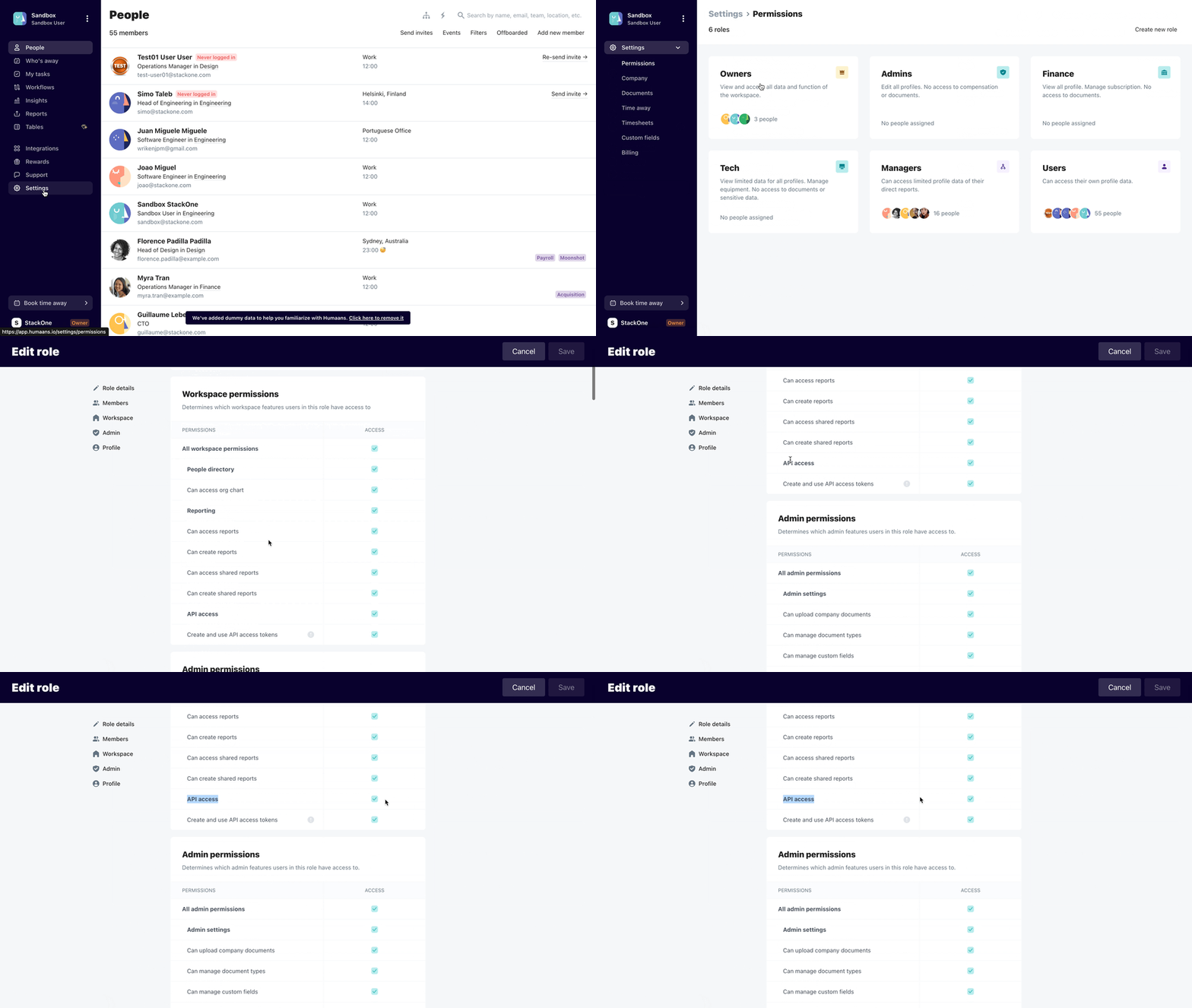
This guidance assumes you have API access permissions for your Humaans account:

* click Settings > Permissions
* choose your role group, e.g., Owners
* verify the Workspace permissions section has API access enabled
  <Frame>
    <img className="rounded-md" style={{ margin: '0 auto', border: '1px solid #efefef' }} alt="API Access Tokens" src="https://mintcdn.com/stackone-hub/TvtHDboh-oxH0_vz/images/humaans/api_access_permissions.gif?s=64966ac0b0018405a52dbc290177521d" width="960" height="542" data-path="images/humaans/api_access_permissions.gif" />
  </Frame>

## Generating API Key

<Steps>
  <Step title="Open API Access Tokens">
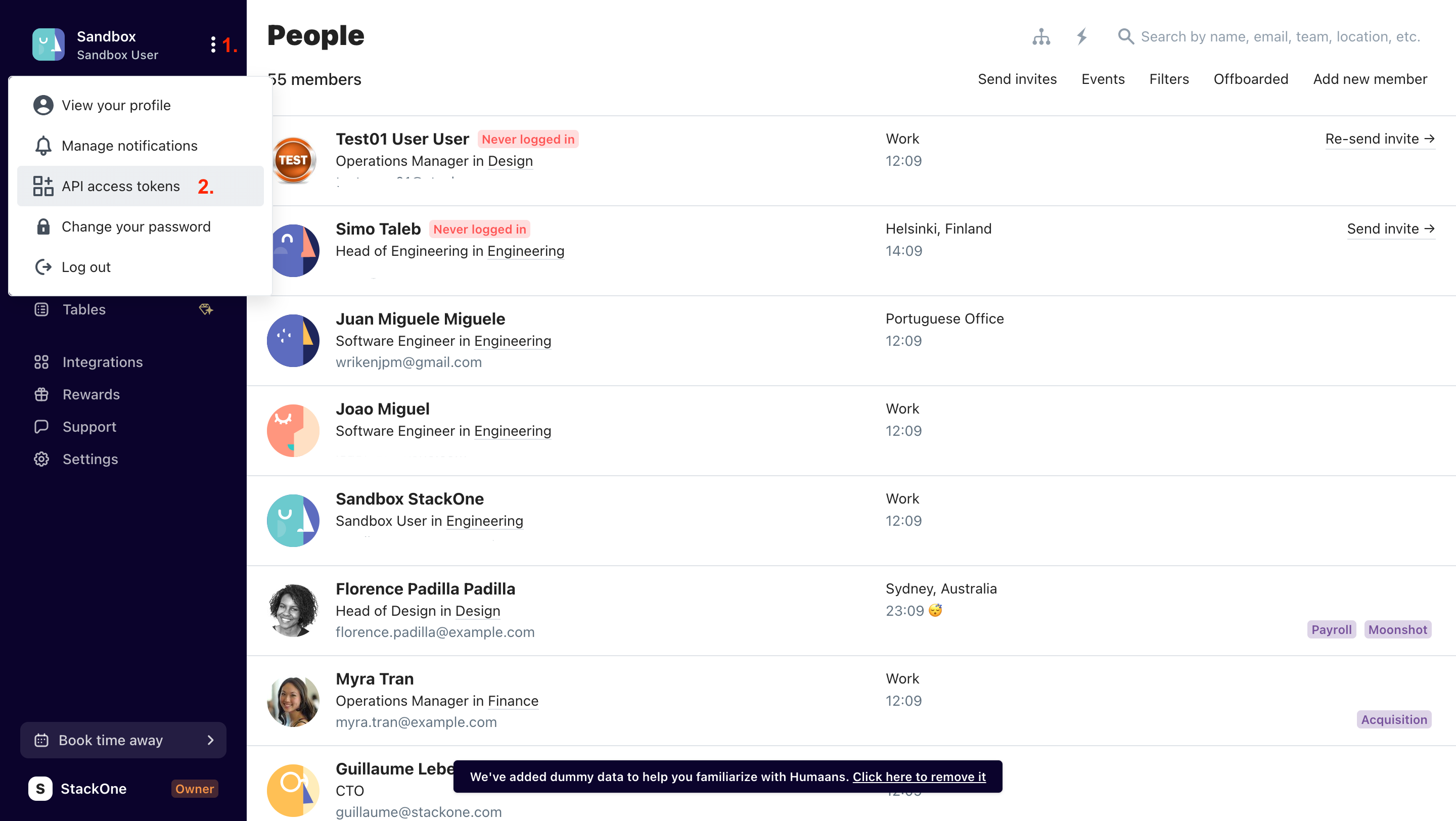
    Click the expandable menu ⋮ at the top left corner of your screen, beside your name. Then click [API access tokens](https://app.humaans.io).
    <Frame>
      <img className="rounded-md" style={{ margin: '0 auto', border: '1px solid #efefef' }} alt="API Access Tokens" src="https://mintcdn.com/stackone-hub/TvtHDboh-oxH0_vz/images/humaans/image1.png?fit=max&auto=format&n=TvtHDboh-oxH0_vz&q=85&s=d427472eb253f6fbb7e30c08de08e850" width="2880" height="1624" data-path="images/humaans/image1.png" />
    </Frame>
  </Step>

  <Step title="Generate New Token">
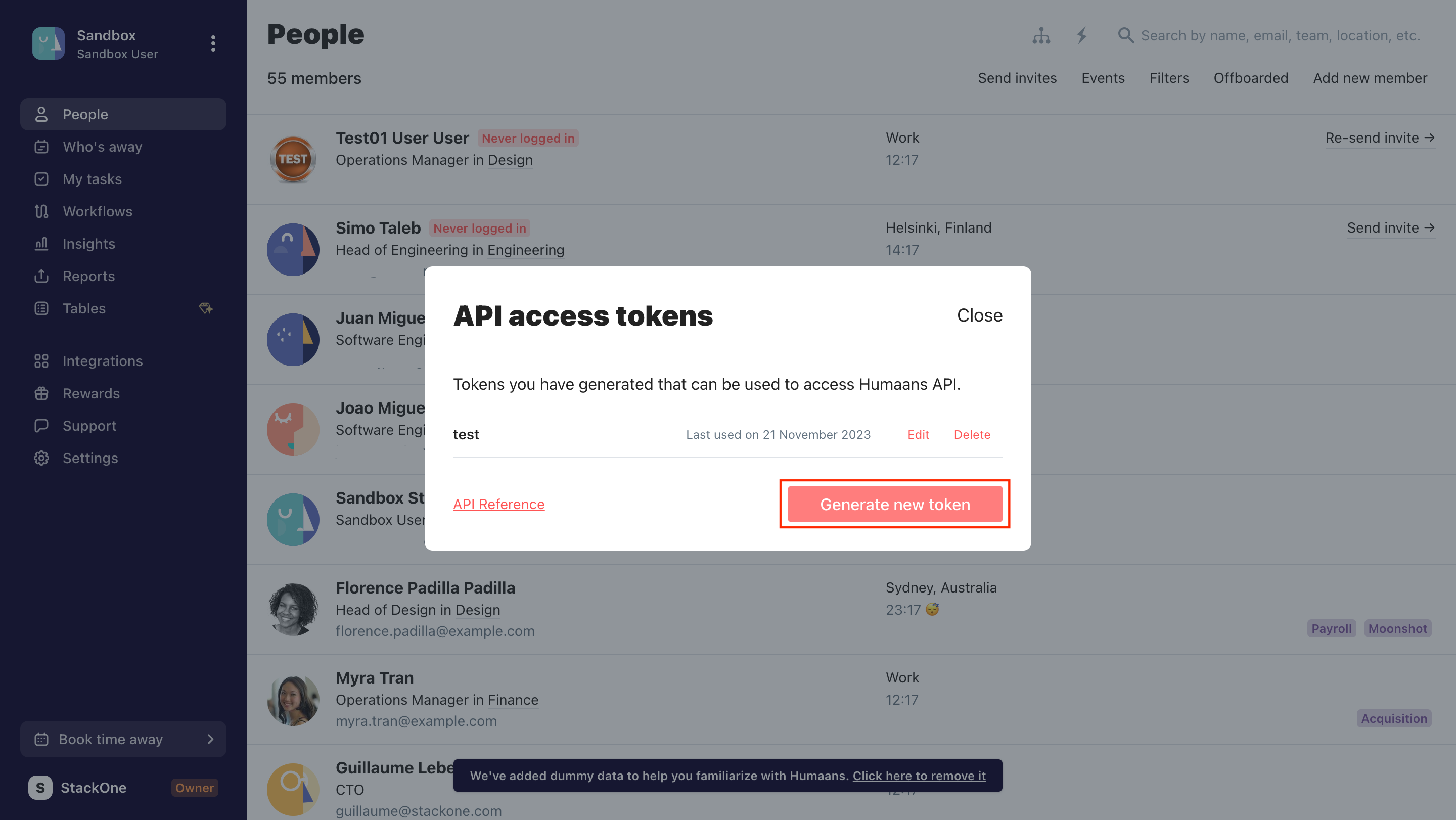
    Create a new API token by clicking the Generate new token button.
    <Frame>
      <img className="rounded-md" style={{ margin: '0 auto', border: '1px solid #efefef' }} alt="Generate New Token" src="https://mintcdn.com/stackone-hub/TvtHDboh-oxH0_vz/images/humaans/image2.png?fit=max&auto=format&n=TvtHDboh-oxH0_vz&q=85&s=fe1001732f7f57b27c73e1ff9402273f" width="2880" height="1622" data-path="images/humaans/image2.png" />
    </Frame>
  </Step>

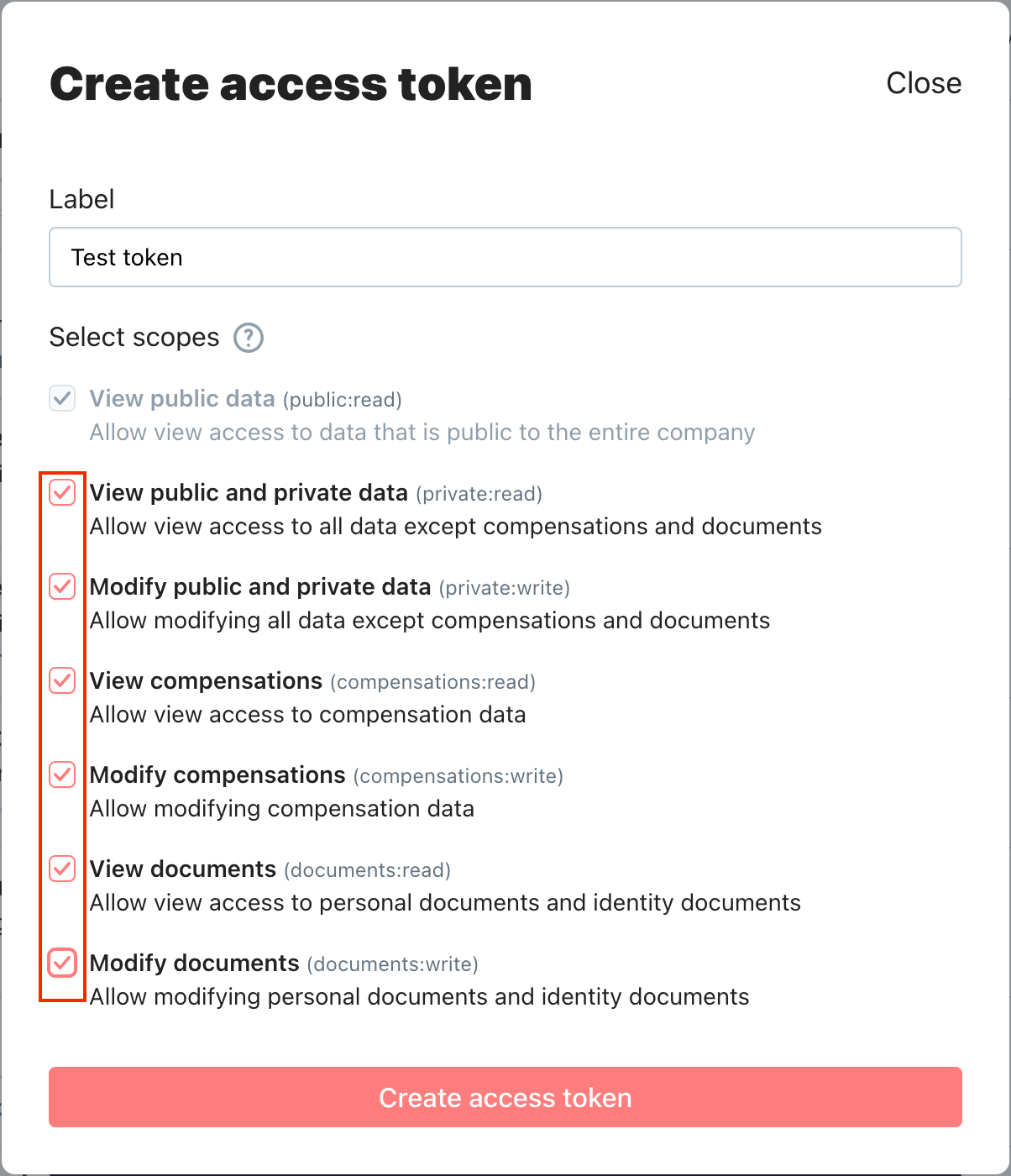
  <Step title="Assign a Label and Enable Scopes">
    Assign a label to your token and enable all of the scopes. Click Create access token.
    <Frame>
      <img className="rounded-md" style={{ margin: '0 auto', border: '1px solid #efefef' }} alt="Assign Label and Enable Scopes" src="https://mintcdn.com/stackone-hub/TvtHDboh-oxH0_vz/images/humaans/image3.png?fit=max&auto=format&n=TvtHDboh-oxH0_vz&q=85&s=85bf4b9bd65e80fb78ce503791b056e8" width="1204" height="1400" data-path="images/humaans/image3.png" />
    </Frame>
  </Step>

  <Step title="Copy the API Token">
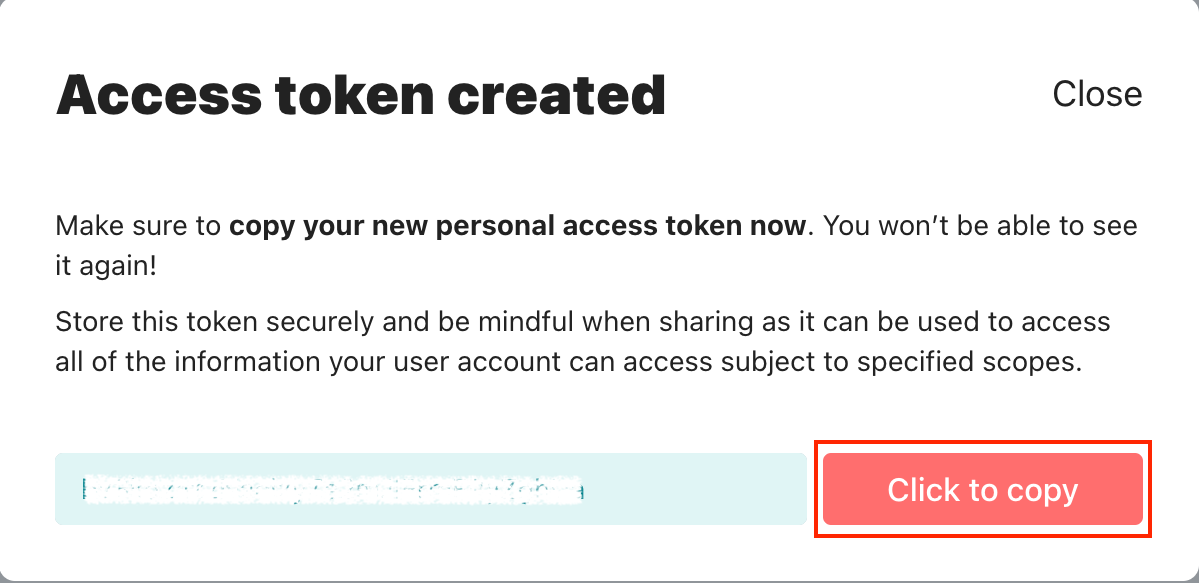
    Copy the API token to a safe place.

    <Frame>
      <img className="rounded-md" style={{ margin: '0 auto', border: '1px solid #efefef' }} alt="Copy API Token" src="https://mintcdn.com/stackone-hub/TvtHDboh-oxH0_vz/images/humaans/image4.png?fit=max&auto=format&n=TvtHDboh-oxH0_vz&q=85&s=7404b990e6a624b3520381cfa686a828" width="1199" height="583" data-path="images/humaans/image4.png" />
    </Frame>
  </Step>
</Steps>

## Use the API Key in the StackOne Hub

<Steps>
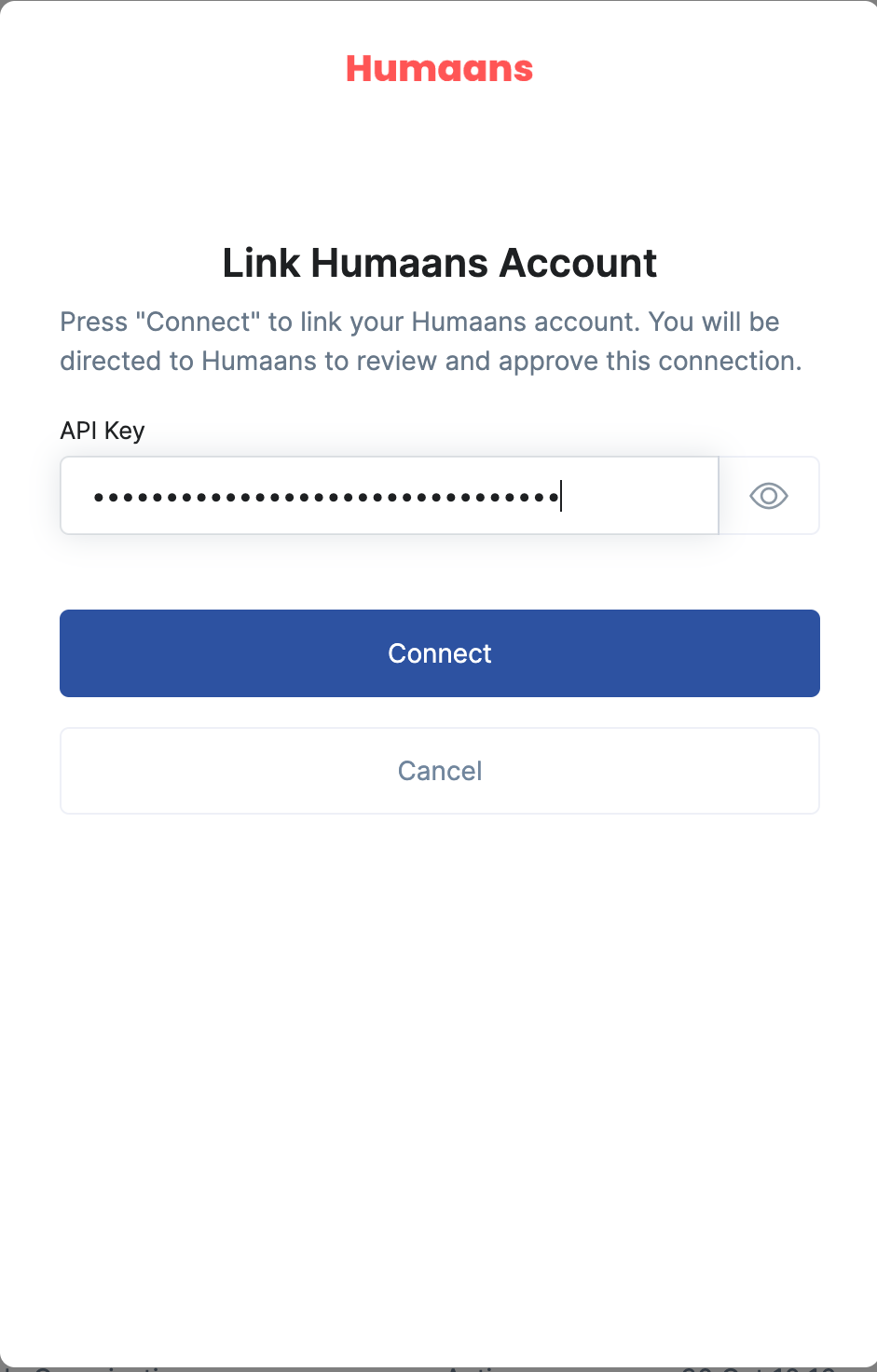
  <Step title="Enter API Key and Connect">
    Proceed to the Account page to establish a connection between Humaans and StackOne. Input your API key and proceed by clicking the `Connect` button.
    <Frame>
      <img className="rounded-md" style={{ margin: '0 auto', border: '1px solid #efefef' }} alt="Link Account" src="https://mintcdn.com/stackone-hub/TvtHDboh-oxH0_vz/images/humaans/image5.png?fit=max&auto=format&n=TvtHDboh-oxH0_vz&q=85&s=31ed0d023cfacf5d454525c3ce49f57a" width="941" height="1472" data-path="images/humaans/image5.png" />
    </Frame>
  </Step>
</Steps>