> ## Documentation Index
> Fetch the complete documentation index at: https://hub.stackone.com/llms.txt
> Use this file to discover all available pages before exploring further.
# Hibob - API Key Authentication
> Follow these steps to connect Hibob with StackOne Hub successfully.
Ensure you have Admin privileges for your Hibob account.
If you've been directed to StackOne to integrate with Hibob, the following steps will help you understand the process and any necessary actions to configure successful integration.
## Generating your Hibob API Key
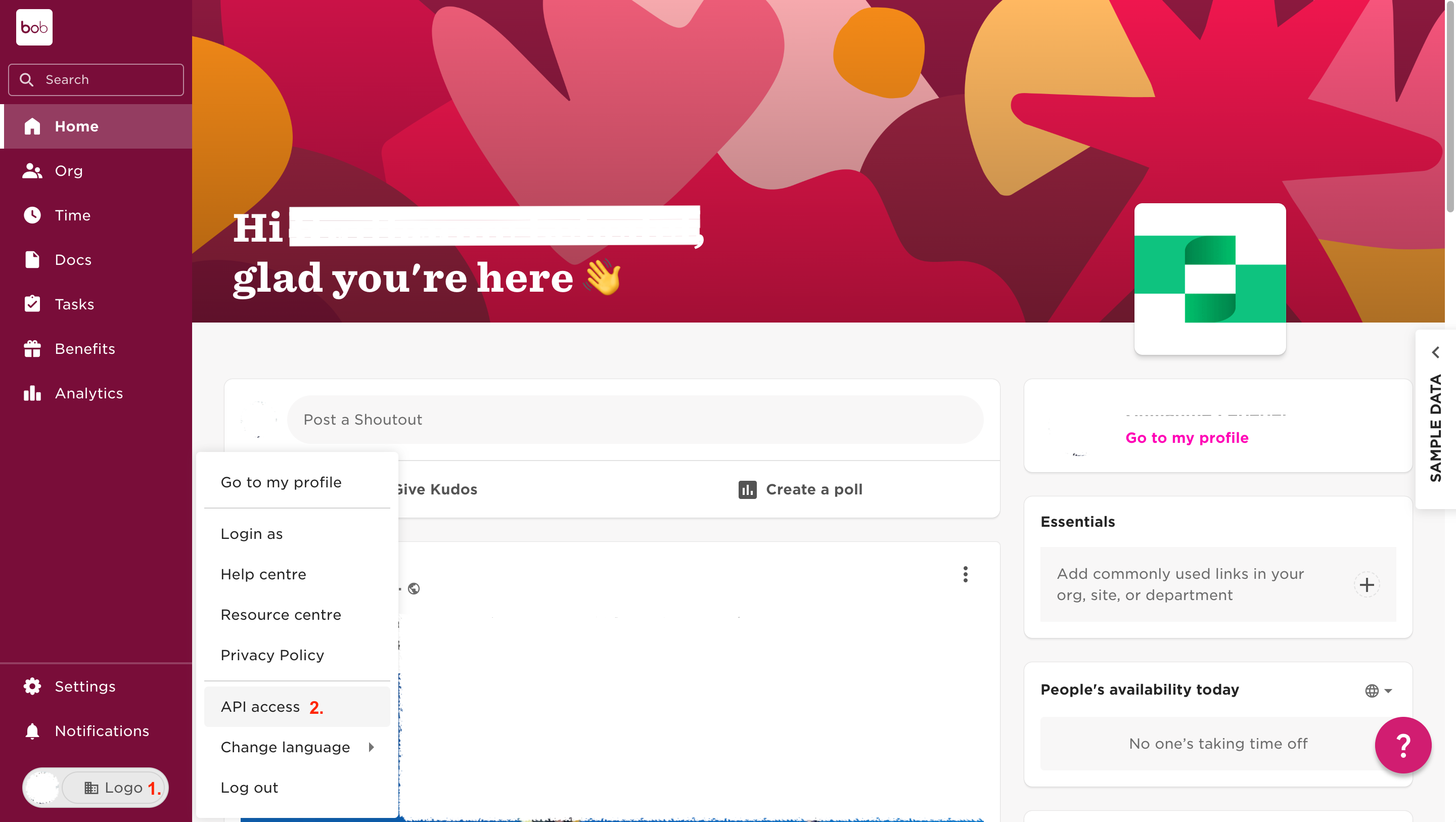
Login to your Hibob account and click on your account avatar in the bottom left corner. Select API access from the dropdown menu.
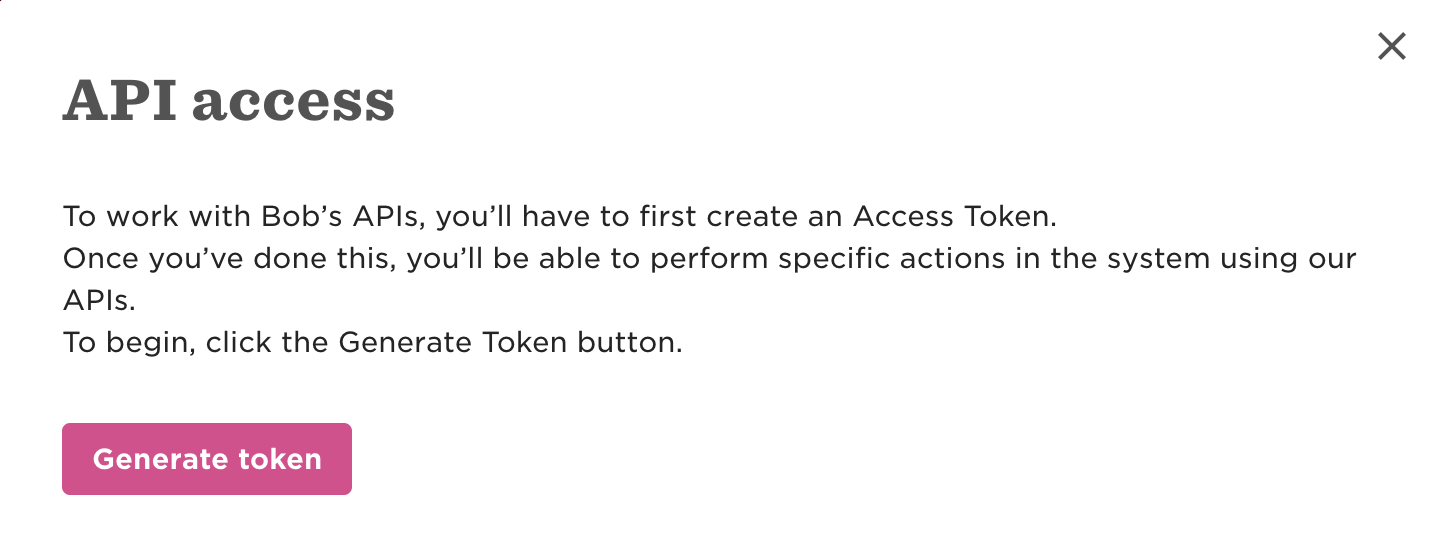
 Click Generate token.
 Enable the following Approved scopes and click Save.
* `Full employee read`
* `Employee fields read`
* `Payroll Info read`
* `Timeoff submit request & read who's out`
* `Employee update`
* `Employee fields write`
Enable the following Approved scopes and click Save.
* `Full employee read`
* `Employee fields read`
* `Payroll Info read`
* `Timeoff submit request & read who's out`
* `Employee update`
* `Employee fields write`
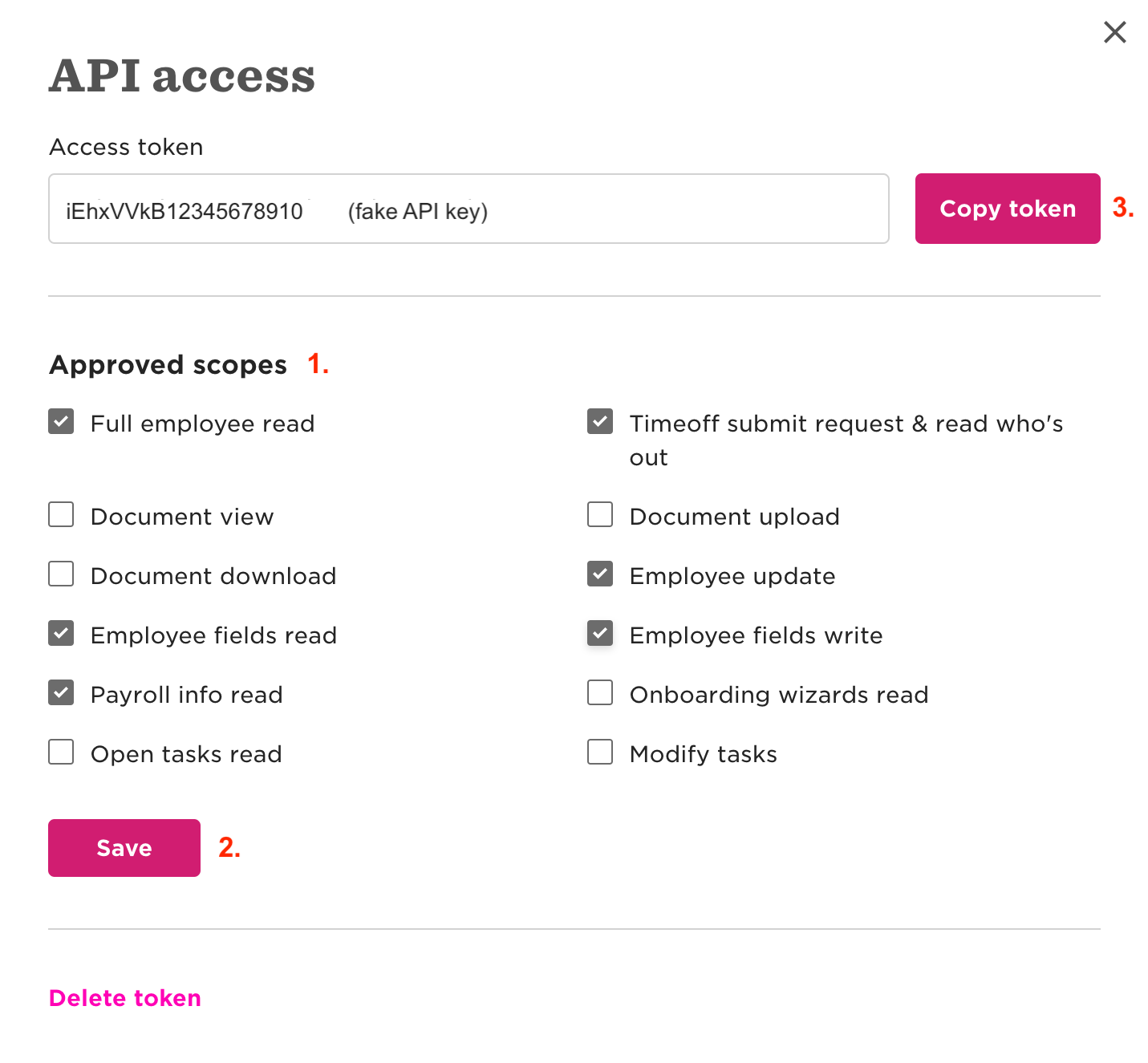 Click Copy token.
## Linking your account in StackOne
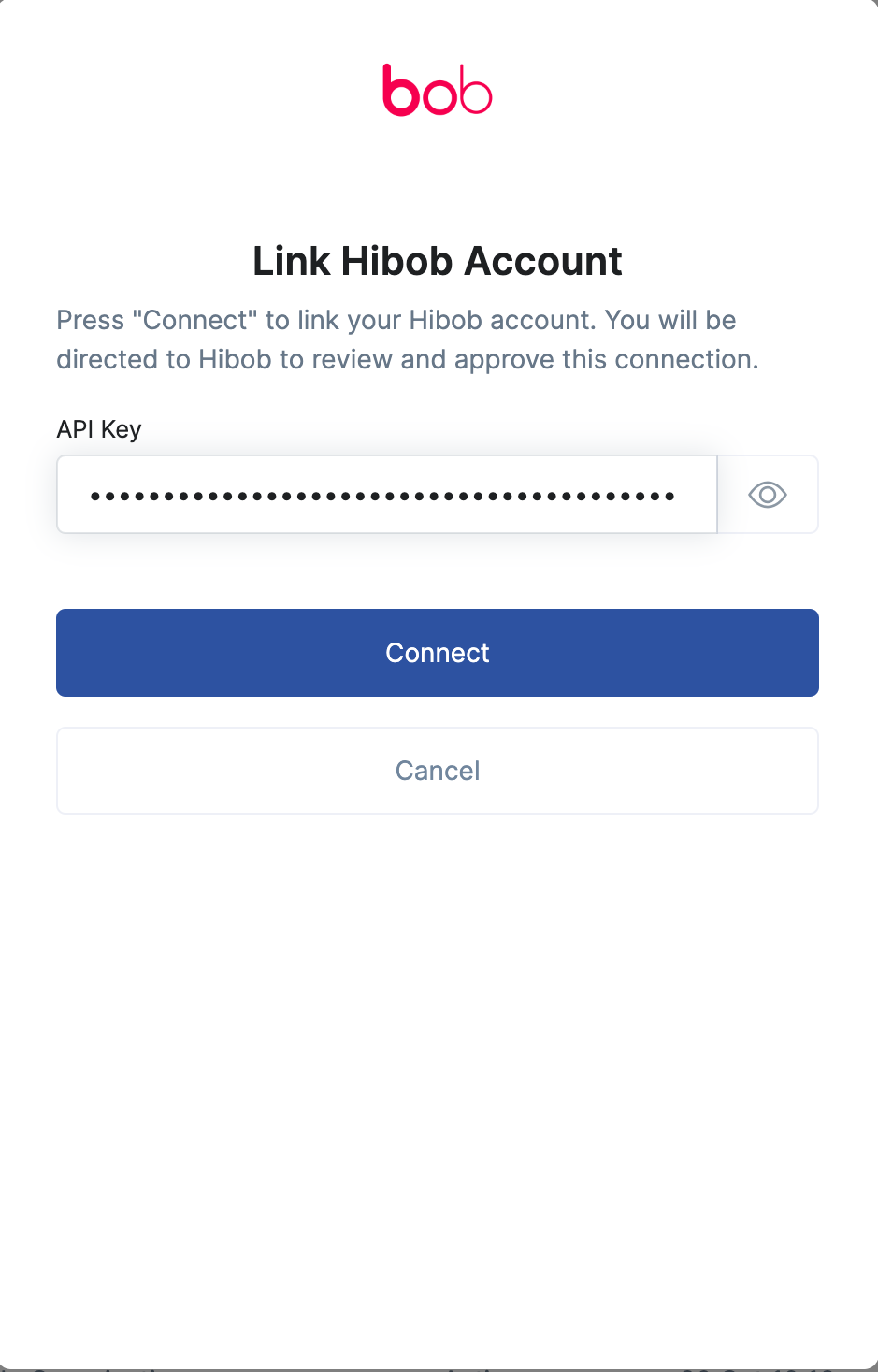
Upon reaching the Link Account page, enter the generated API key and proceed by clicking the `Connect` button.
Click Copy token.
## Linking your account in StackOne
Upon reaching the Link Account page, enter the generated API key and proceed by clicking the `Connect` button.
 ## Troubleshooting
If you're getting `Could not connect account. Please check your credentials and try again` error:
1. Verify you're pasting the correct API key from the Hibob interface.
2. Ensure to Save settings inside the Approved scopes section, since without permissions APIs can't communicate with each other.
## Useful Links
[https://apidocs.hibob.com/docs](https://apidocs.hibob.com/docs)
## Troubleshooting
If you're getting `Could not connect account. Please check your credentials and try again` error:
1. Verify you're pasting the correct API key from the Hibob interface.
2. Ensure to Save settings inside the Approved scopes section, since without permissions APIs can't communicate with each other.
## Useful Links
[https://apidocs.hibob.com/docs](https://apidocs.hibob.com/docs)