> ## Documentation Index
> Fetch the complete documentation index at: https://hub.stackone.com/llms.txt
> Use this file to discover all available pages before exploring further.

# Gusto

> Follow these steps to connect Gusto with StackOne Hub successfully.

<Warning>
  Ensure you have Admin Payroll Role privileges for your Gusto account.
</Warning>

If you've been directed to StackOne to integrate with Gusto, the following steps will help you understand the process and any necessary actions to configure successful integration.

## Establish a connection with StackOne

<Steps>
  <Step title="Proceed to the Accounts page">
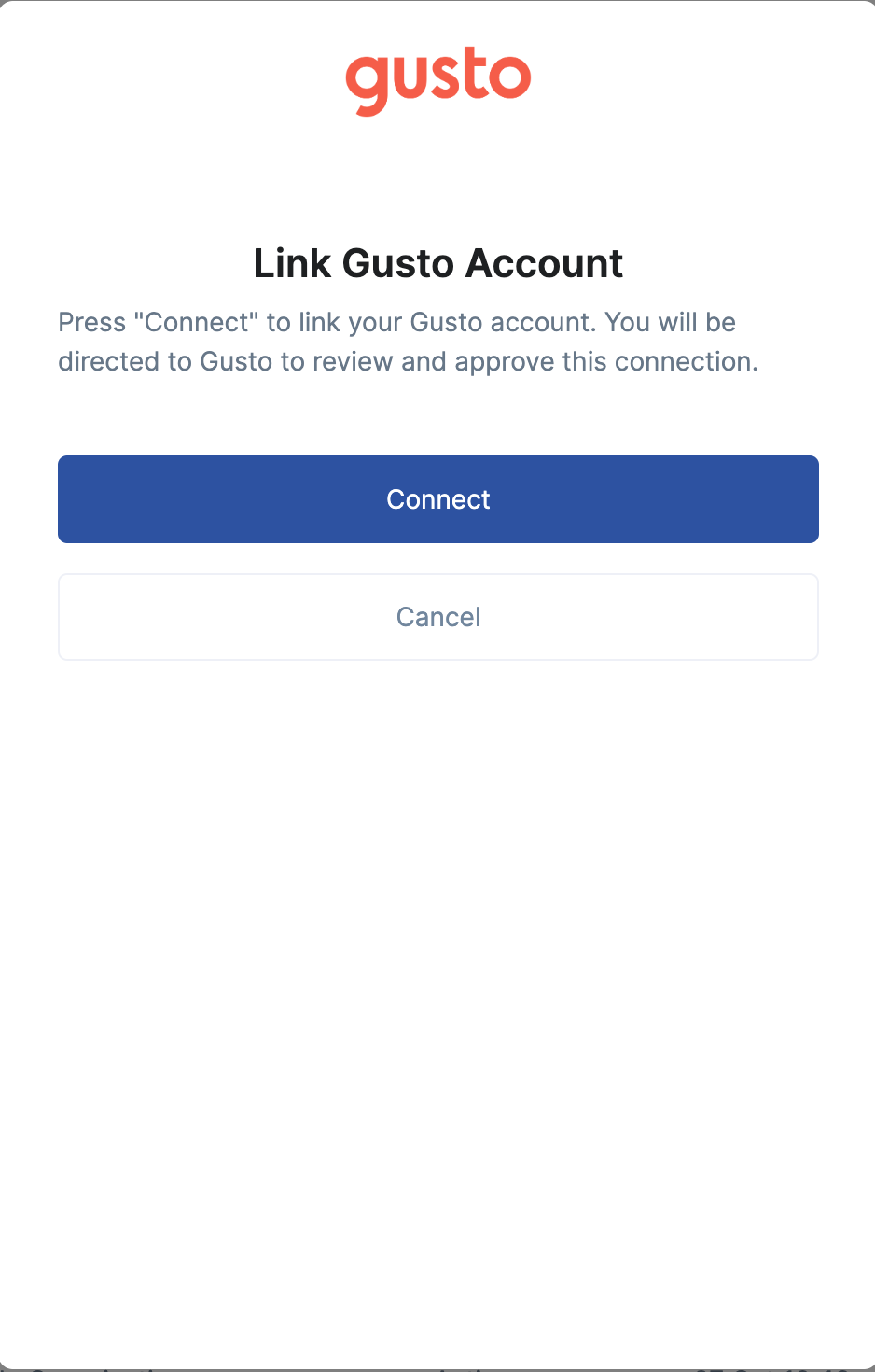
    Proceed to the Accounts page to establish a connection between Gusto and StackOne. Then click the `Connect` button.
    <Frame>
      <img className="rounded-md" style={{ margin: '0 auto', border: '1px solid #efefef' }} alt="Connect Button" src="https://mintcdn.com/stackone-hub/25_Td-yCcpPuw8-v/images/gusto/image1.png?fit=max&auto=format&n=25_Td-yCcpPuw8-v&q=85&s=245e4e77b88c2ad4126282baa9b047bc" width="938" height="1470" data-path="images/gusto/image1.png" />
    </Frame>
  </Step>

  <Step title="Enter your Gusto account credentials">
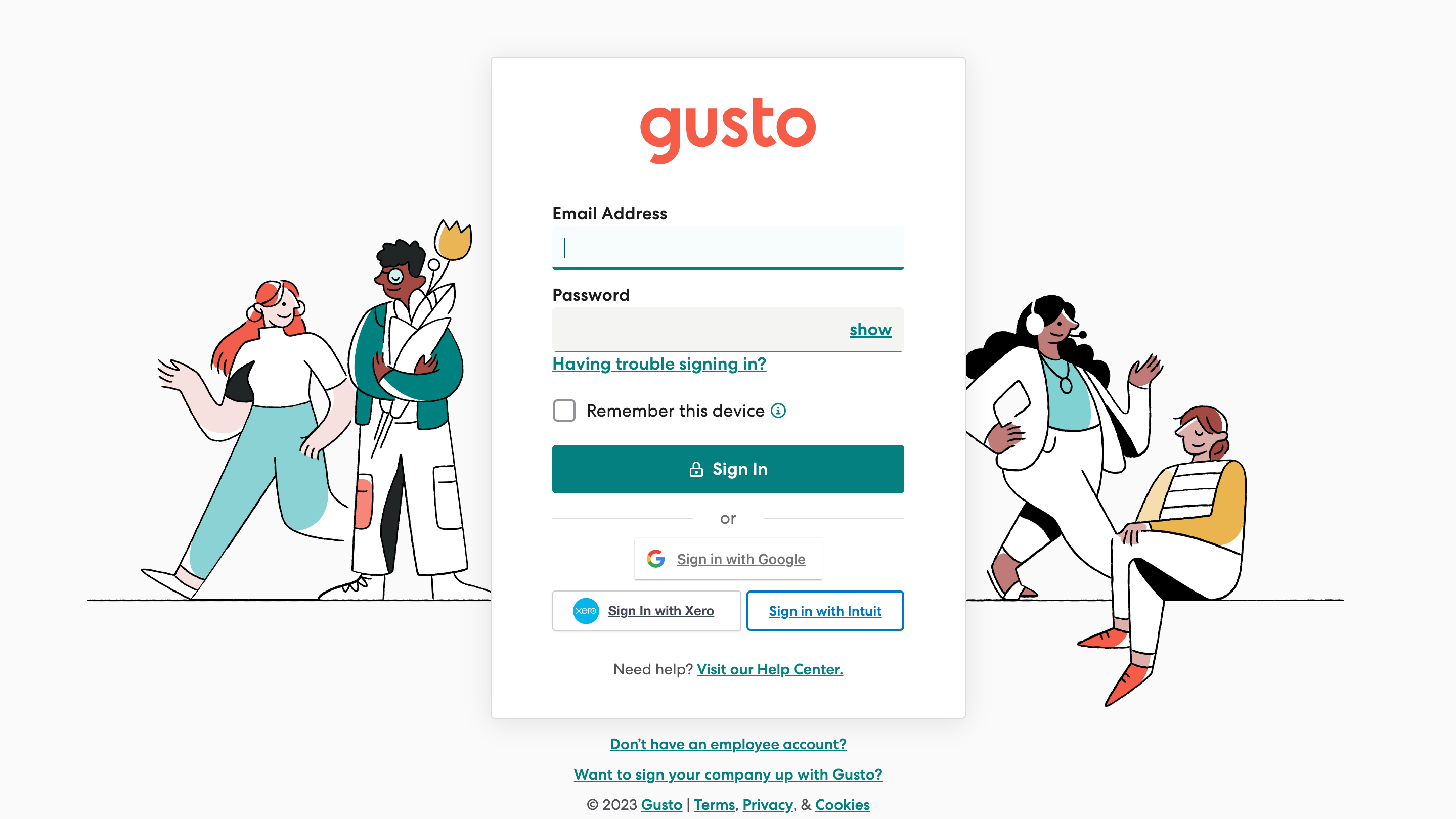
    Enter your Gusto account credentials in the opened tab.
    <Frame>
      <img className="rounded-md" style={{ margin: '0 auto', border: '1px solid #efefef' }} alt="Gusto Account Credentials" src="https://mintcdn.com/stackone-hub/25_Td-yCcpPuw8-v/images/gusto/image2.png?fit=max&auto=format&n=25_Td-yCcpPuw8-v&q=85&s=76ce958bf3db36d787aa3bb585f3f764" width="2879" height="1620" data-path="images/gusto/image2.png" />
    </Frame>
  </Step>

  <Step title="Select your Company">
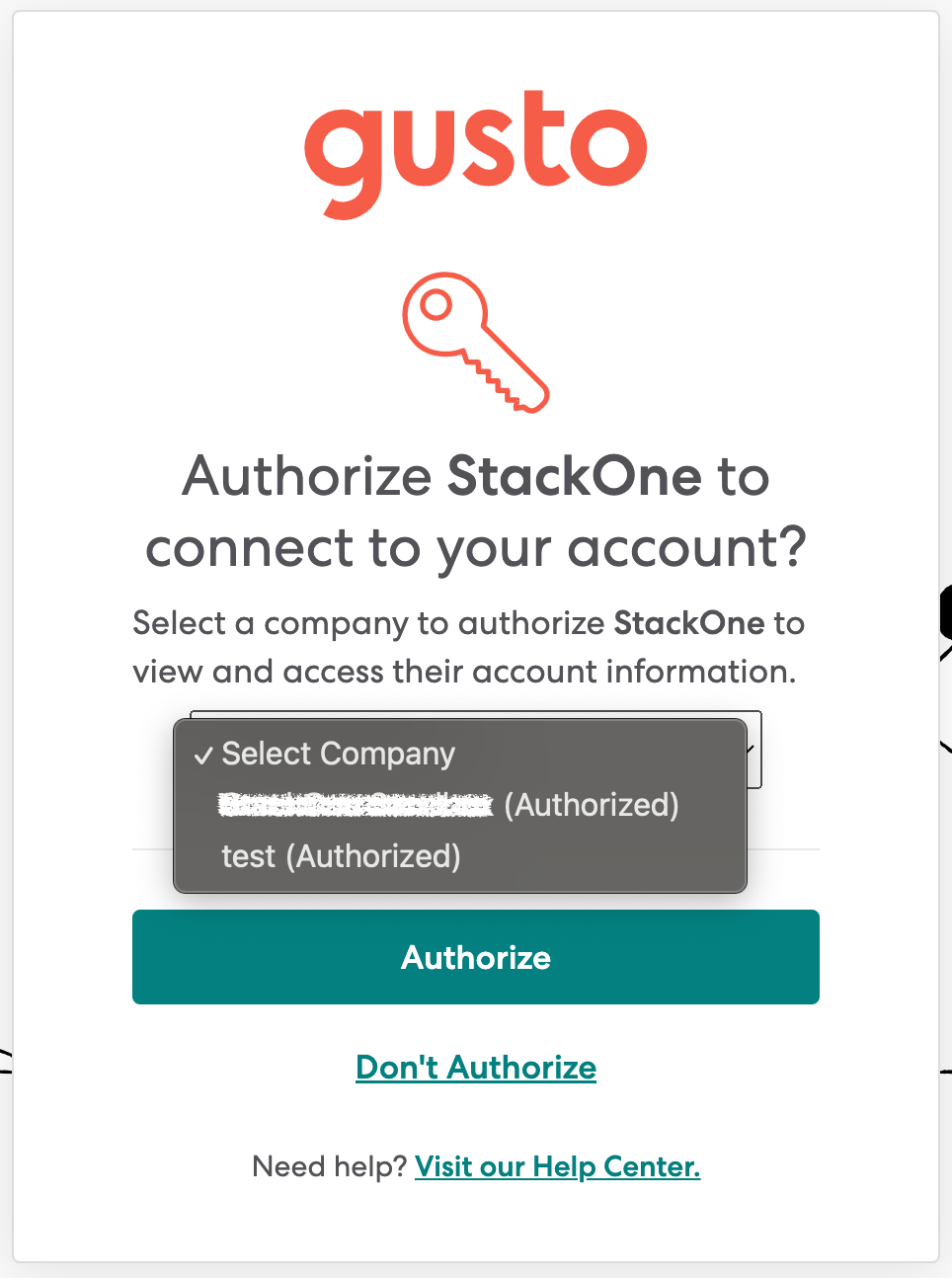
    Select your Company from the drop-down list, and click Authorize.
    <Frame>
      <img className="rounded-md" style={{ margin: '0 auto', border: '1px solid #efefef' }} alt="Authorize Company" src="https://mintcdn.com/stackone-hub/25_Td-yCcpPuw8-v/images/gusto/image3.png?fit=max&auto=format&n=25_Td-yCcpPuw8-v&q=85&s=e290362a0ec799d0f2408c1662a71504" width="964" height="1294" data-path="images/gusto/image3.png" />
    </Frame>
  </Step>
</Steps>

You'll get an instant "`Account connected`" success message and the opened tab will close.
