> ## Documentation Index
> Fetch the complete documentation index at: https://hub.stackone.com/llms.txt
> Use this file to discover all available pages before exploring further.

# Cezanne HR

> Follow these steps to connect Cezanne HR with StackOne Hub successfully.

<Warning>
  Ensure you have Admin privileges for your Cezanne HR account.
</Warning>

If you've been directed to StackOne to integrate with Cezanne HR, the following steps will help you understand the process and any necessary actions to configure successful integration.

## Getting your Subdomain

<Steps>
  <Step title="Find the Subdomain">
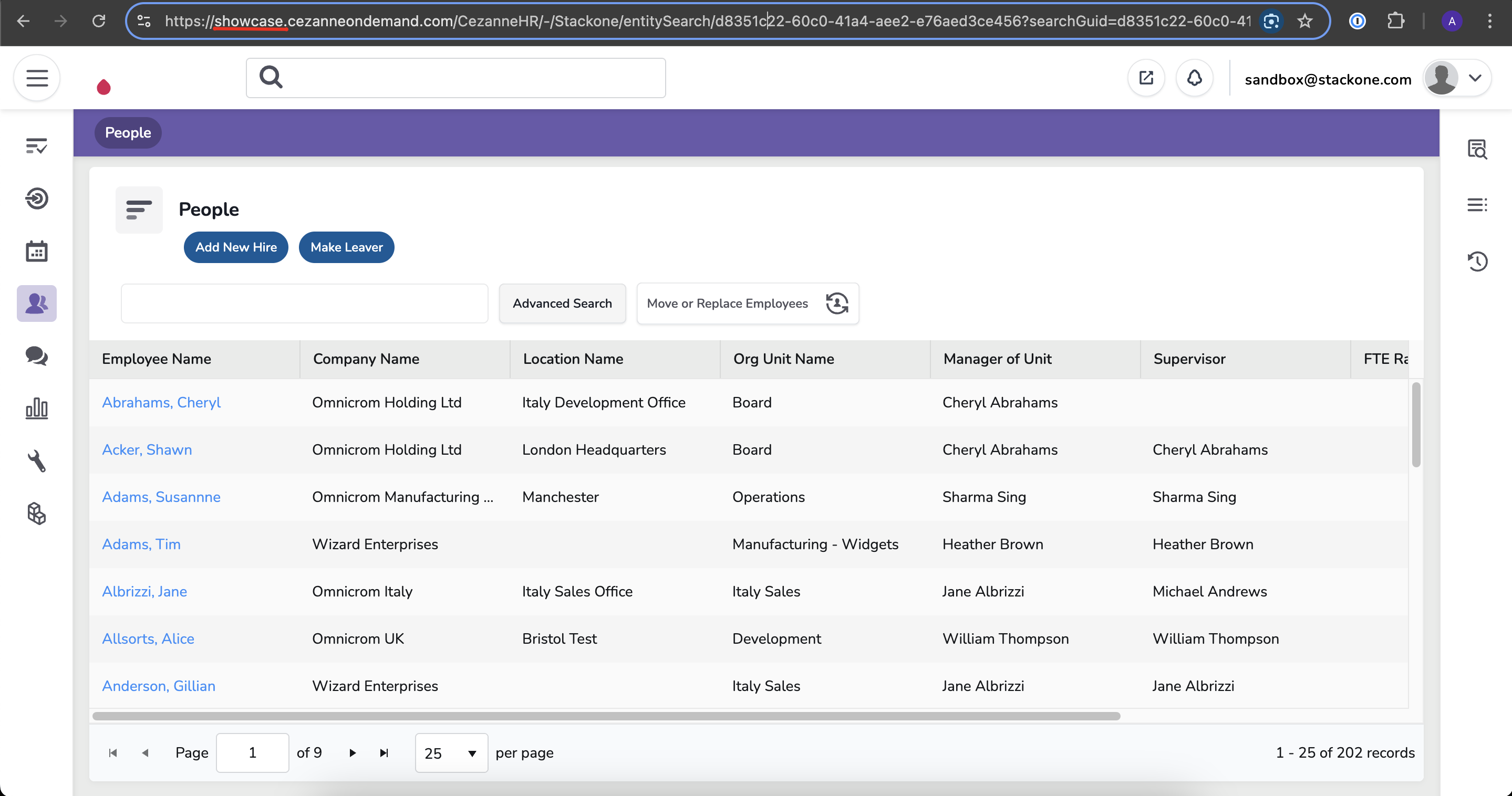
    You can find the subdomain in the URL of your Cezanne HR account by taking the portion that appears before `.cezanneondemand.com` and after `https://`.
    <Frame>
      <img className="rounded-md" style={{ margin: '0 auto', border: '1px solid #efefef' }} alt="Subdomain Example" src="https://mintcdn.com/stackone-hub/Yn_6S3z7TpLl43ff/images/cezannehr/image6.png?fit=max&auto=format&n=Yn_6S3z7TpLl43ff&q=85&s=b34447224ac8daae6a3245816e983ad9" width="2878" height="1516" data-path="images/cezannehr/image6.png" />
    </Frame>
  </Step>
</Steps>

## Creating an Application

<Steps>
  <Step title="Navigate to Applications">
    Sign in to your Cezanne HR account.

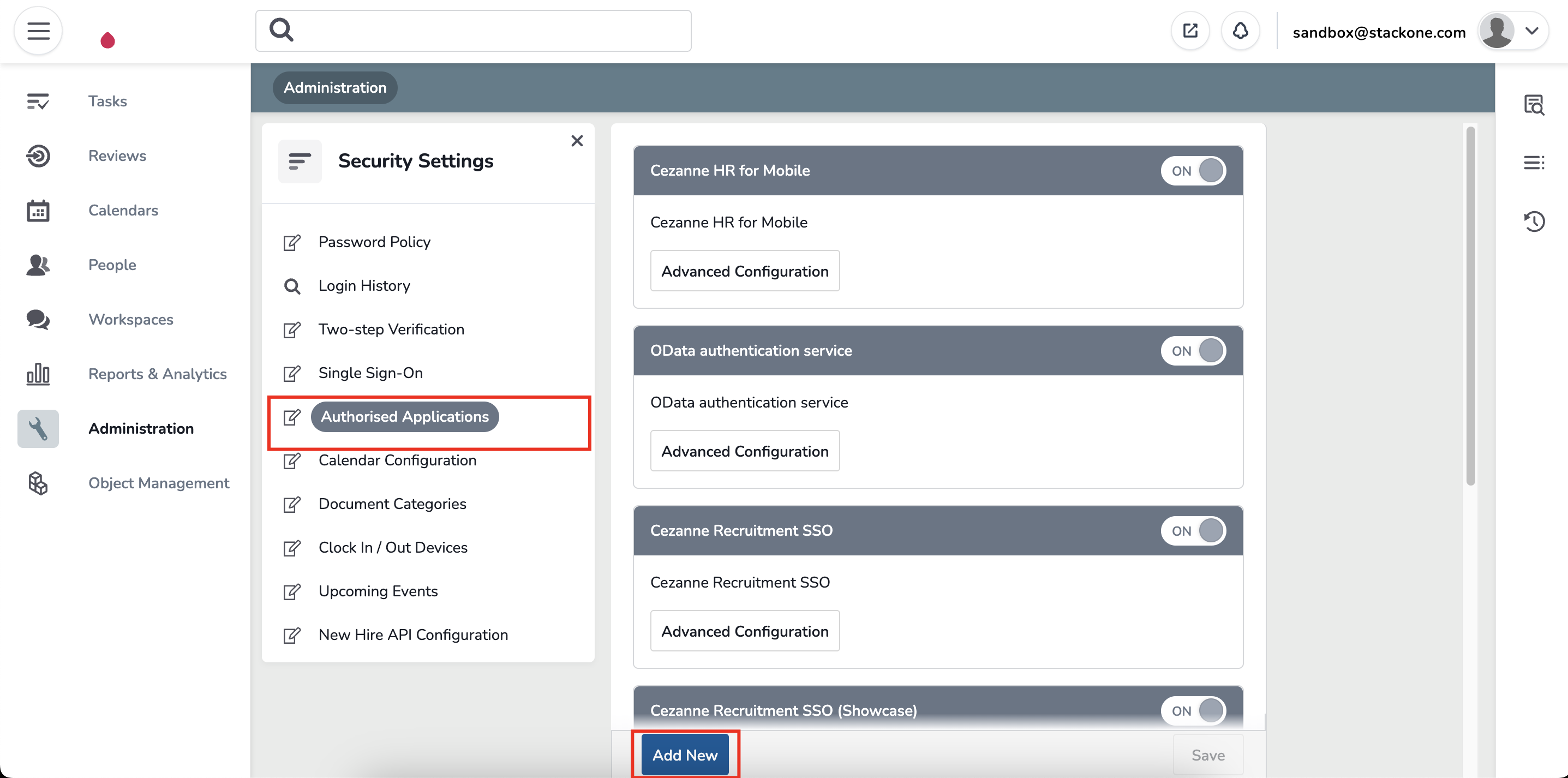
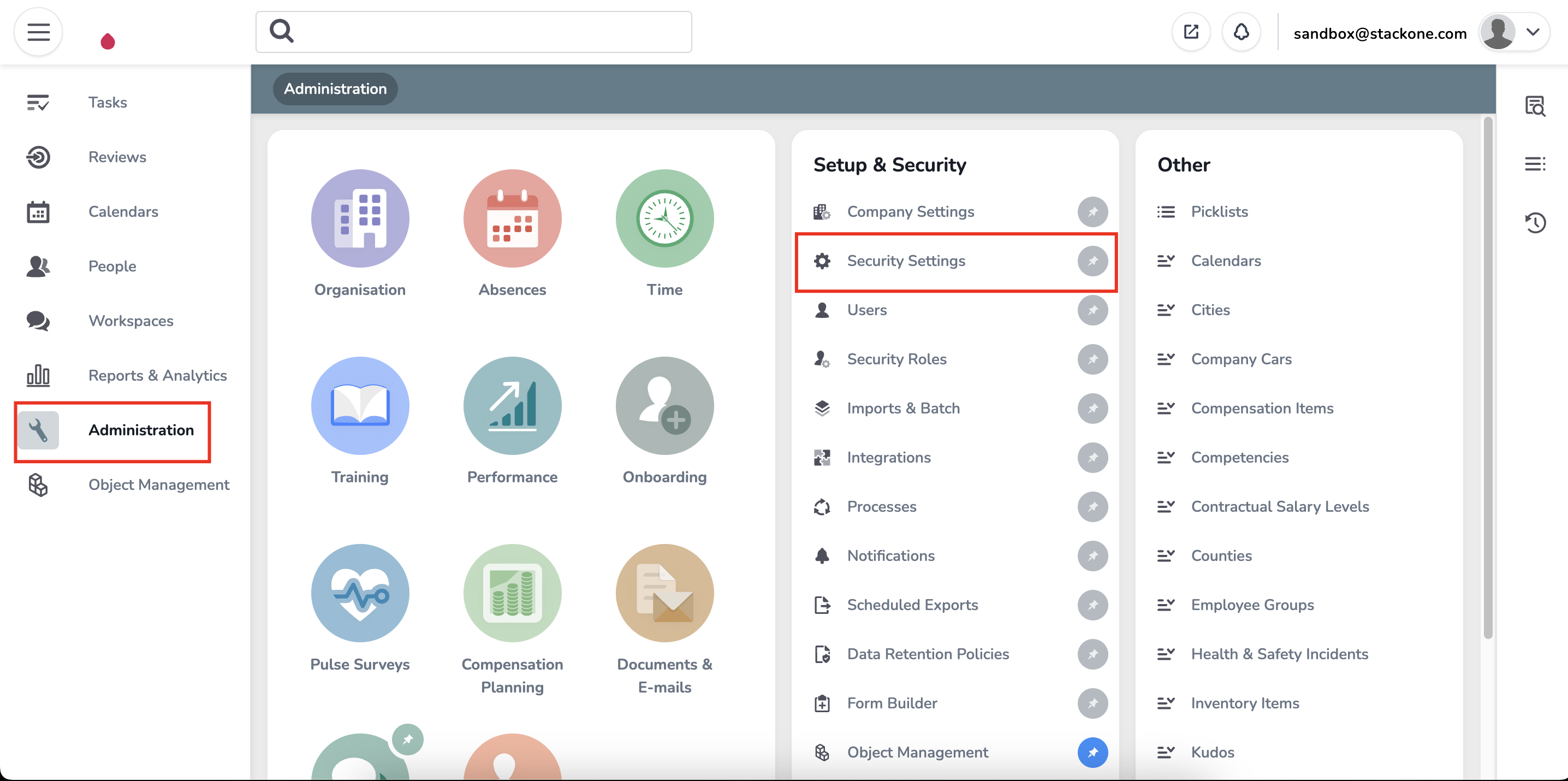
    In the sidebar, navigate to `Administration` → `Security Settings` → `Authorised Applications`.

    Click **Add New**.
    <Frame>
      <img className="rounded-md" style={{ margin: '0 auto', border: '1px solid #efefef' }} alt="Navigate to Applications" src="https://mintcdn.com/stackone-hub/Yn_6S3z7TpLl43ff/images/cezannehr/image1.png?fit=max&auto=format&n=Yn_6S3z7TpLl43ff&q=85&s=cf145a6f3729e53d456d1678c08ec61a" width="2872" height="1430" data-path="images/cezannehr/image1.png" />
    </Frame>

    <Frame>
      <img className="rounded-md" style={{ margin: '0 auto', border: '1px solid #efefef' }} alt="Navigate to Applications" src="https://mintcdn.com/stackone-hub/Yn_6S3z7TpLl43ff/images/cezannehr/image2.png?fit=max&auto=format&n=Yn_6S3z7TpLl43ff&q=85&s=8d81c41ea3a3c710ae6b6c44ca176b44" width="2874" height="1426" data-path="images/cezannehr/image2.png" />
    </Frame>
  </Step>

  <Step title="Creating an Application">
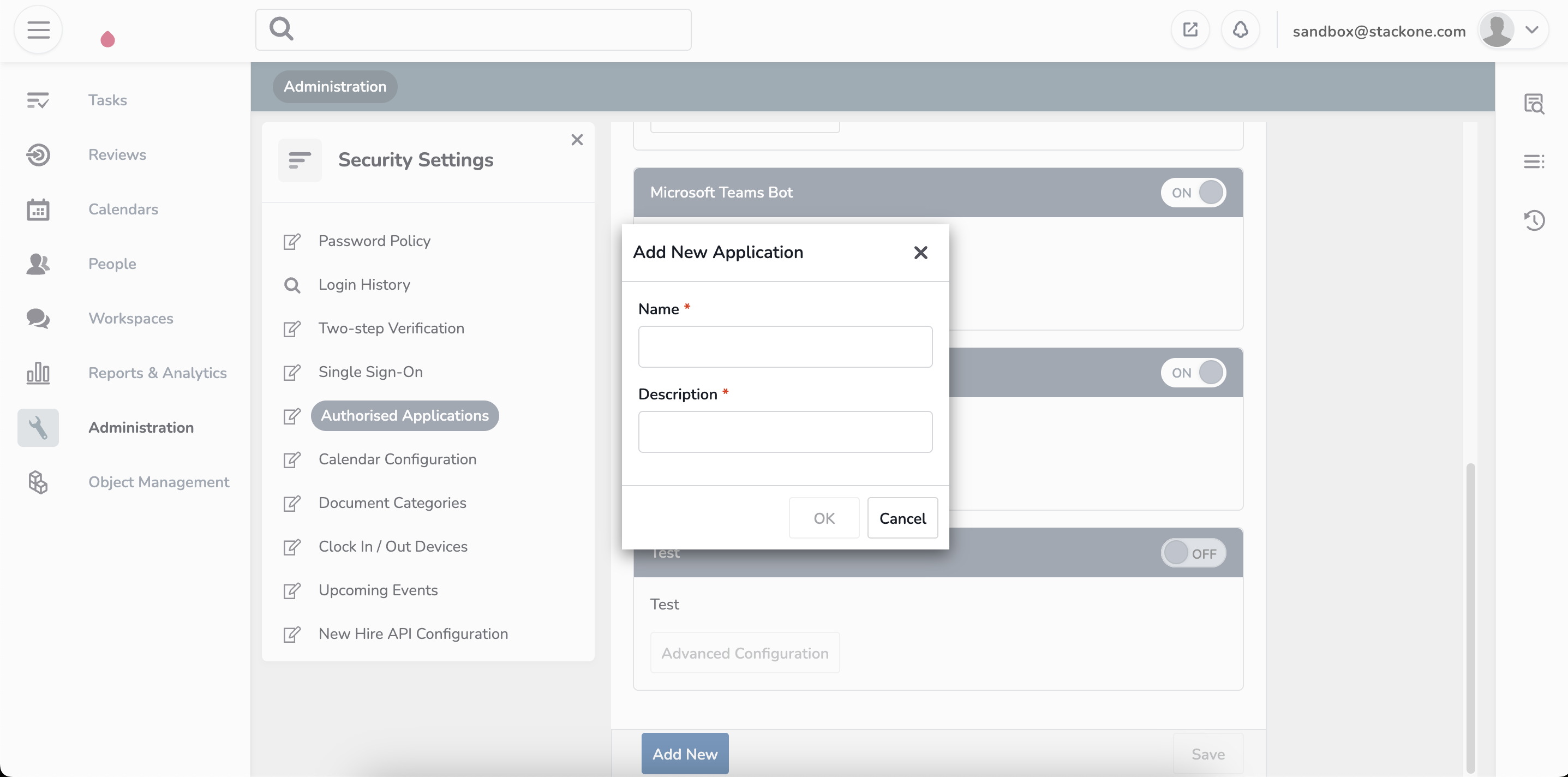
    Enter `Name` and `Description` for the application.

    Click **Ok**.
    <Frame>
      <img className="rounded-md" style={{ margin: '0 auto', border: '1px solid #efefef' }} alt="Creating Application" src="https://mintcdn.com/stackone-hub/Yn_6S3z7TpLl43ff/images/cezannehr/image3.png?fit=max&auto=format&n=Yn_6S3z7TpLl43ff&q=85&s=c33327ca685abe6bb2ecd2b11c239c18" width="2874" height="1424" data-path="images/cezannehr/image3.png" />
    </Frame>

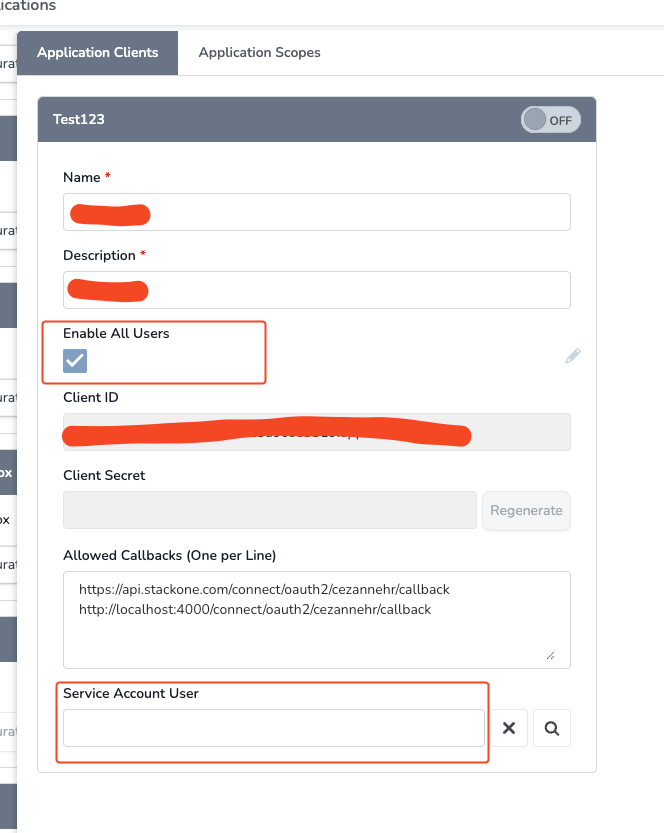
    Check the **Enable All Users** checkbox to allow any service user to authenticate using this application. If unchecked, only users explicitly added will be able to authenticate.
    <Frame>
      <img className="rounded-md" style={{ margin: '0 auto', border: '1px solid #efefef' }} alt="Enable All Users" src="https://mintcdn.com/stackone-hub/S_KsN1AKh0Qi49B2/images/cezannehr/image11.png?fit=max&auto=format&n=S_KsN1AKh0Qi49B2&q=85&s=73b6e02b3f029f31554bf51834336d72" width="664" height="833" data-path="images/cezannehr/image11.png" />
    </Frame>

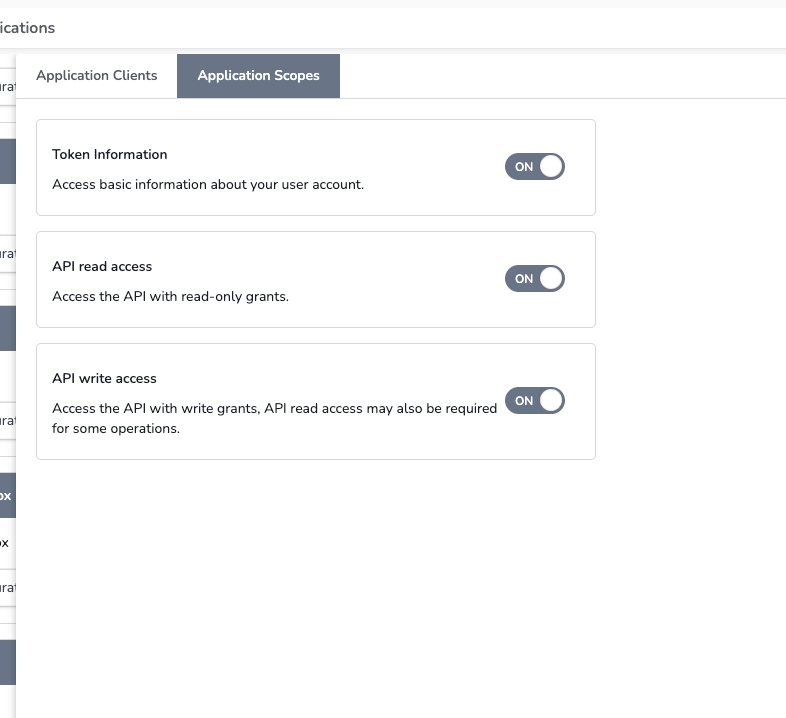
    In the scopes section, ensure at a minimum the following permissions are enabled:

    * **Token Details** - Required for authentication
    * **API Read Access** - Required for data retrieval
    <Frame>
      <img className="rounded-md" style={{ margin: '0 auto', border: '1px solid #efefef' }} alt="Configure Scopes" src="https://mintcdn.com/stackone-hub/S_KsN1AKh0Qi49B2/images/cezannehr/image12.png?fit=max&auto=format&n=S_KsN1AKh0Qi49B2&q=85&s=2f71f7affca41652a83ce9026e8af215" width="786" height="718" data-path="images/cezannehr/image12.png" />
    </Frame>

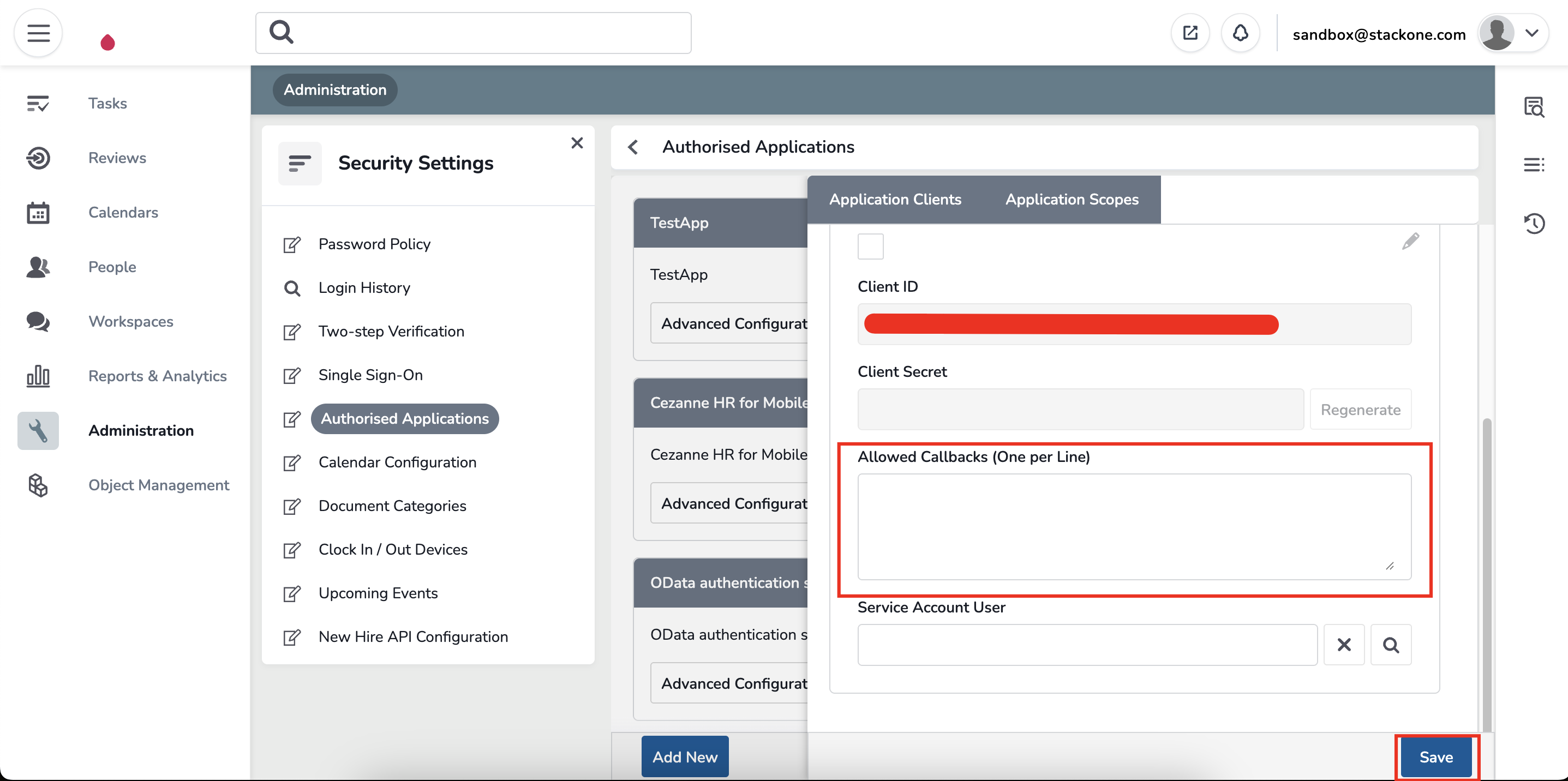
    In the `Allowed Callbacks` field, enter the following URL:

    ```
    https://api.stackone.com/connect/oauth2/cezannehr/callback
    ```

    Click **Save**.
    <Frame>
      <img className="rounded-md" style={{ margin: '0 auto', border: '1px solid #efefef' }} alt="Creating Application" src="https://mintcdn.com/stackone-hub/Yn_6S3z7TpLl43ff/images/cezannehr/image4.png?fit=max&auto=format&n=Yn_6S3z7TpLl43ff&q=85&s=88aa52c50f4f8c03cd58f72fc74d0c6b" width="2874" height="1432" data-path="images/cezannehr/image4.png" />
    </Frame>
  </Step>

  <Step title="Note Client ID and Client Secret">
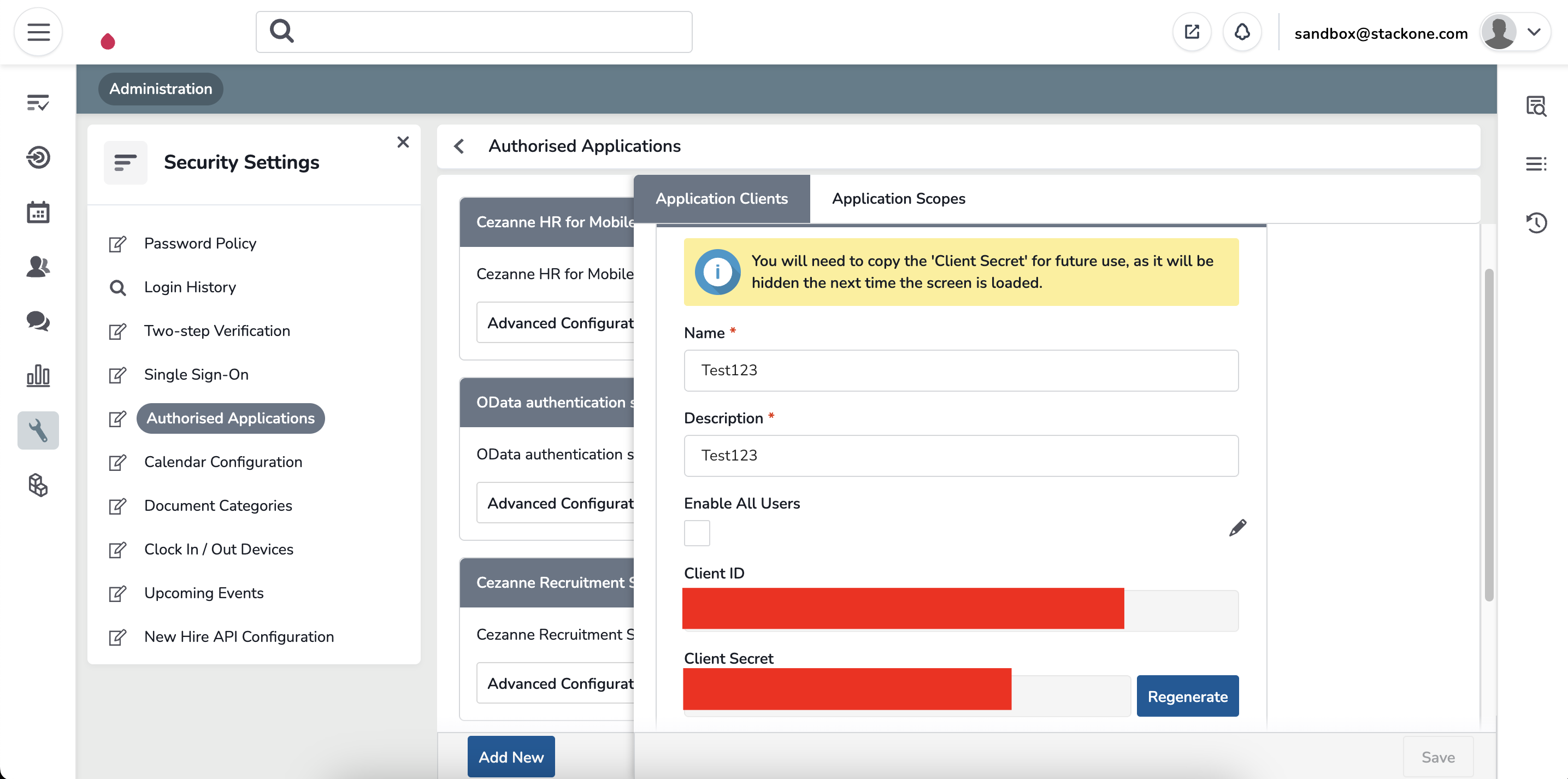
    Record the `Client ID` and `Client Secret` for use in the next steps.
    <Frame>
      <img className="rounded-md" style={{ margin: '0 auto', border: '1px solid #efefef' }} alt="Creating Application" src="https://mintcdn.com/stackone-hub/Yn_6S3z7TpLl43ff/images/cezannehr/image5.png?fit=max&auto=format&n=Yn_6S3z7TpLl43ff&q=85&s=95c346d4fc6cc63c2e2eaf39f1f69b4e" width="2870" height="1426" data-path="images/cezannehr/image5.png" />
    </Frame>
  </Step>
</Steps>

## Linking to StackOne

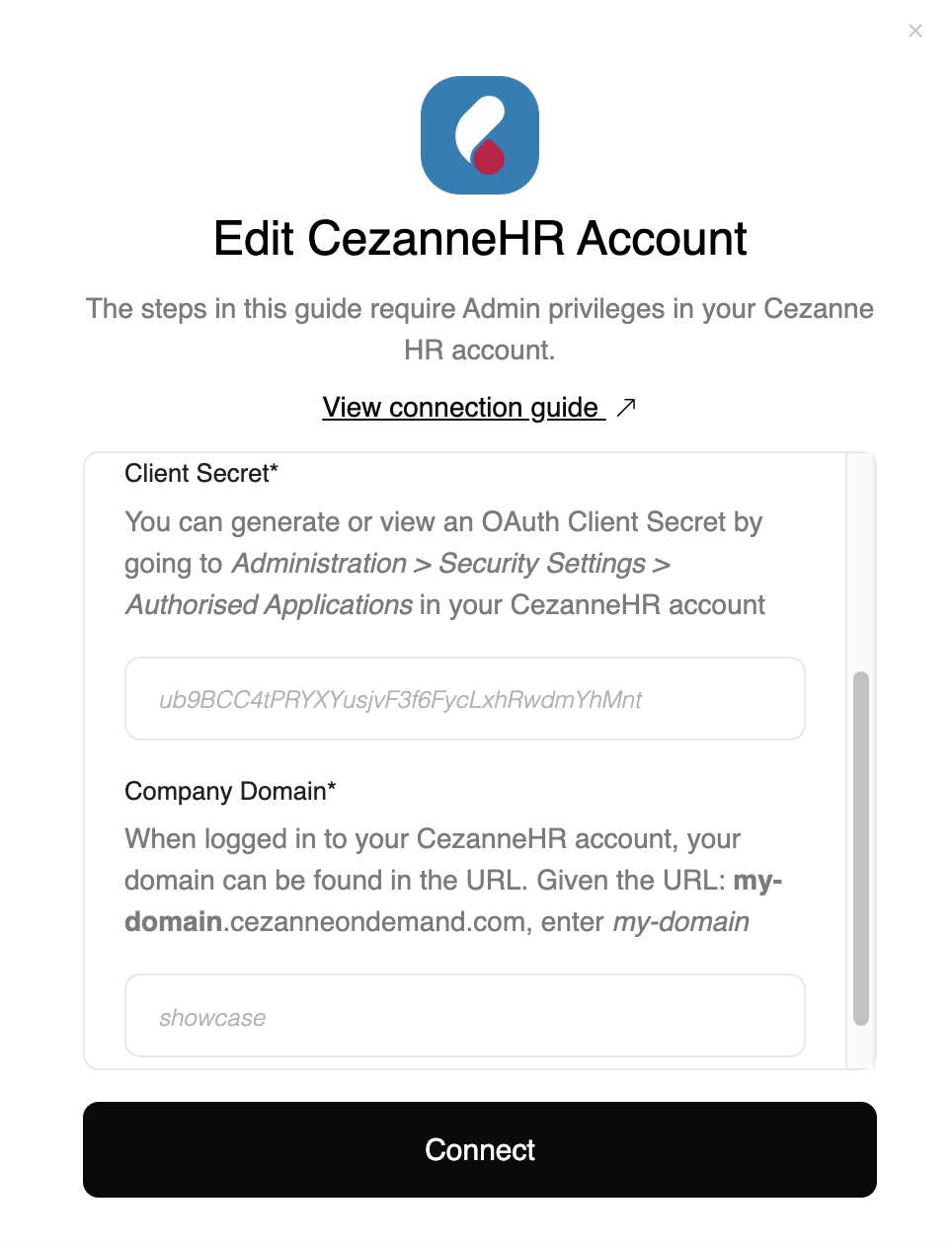
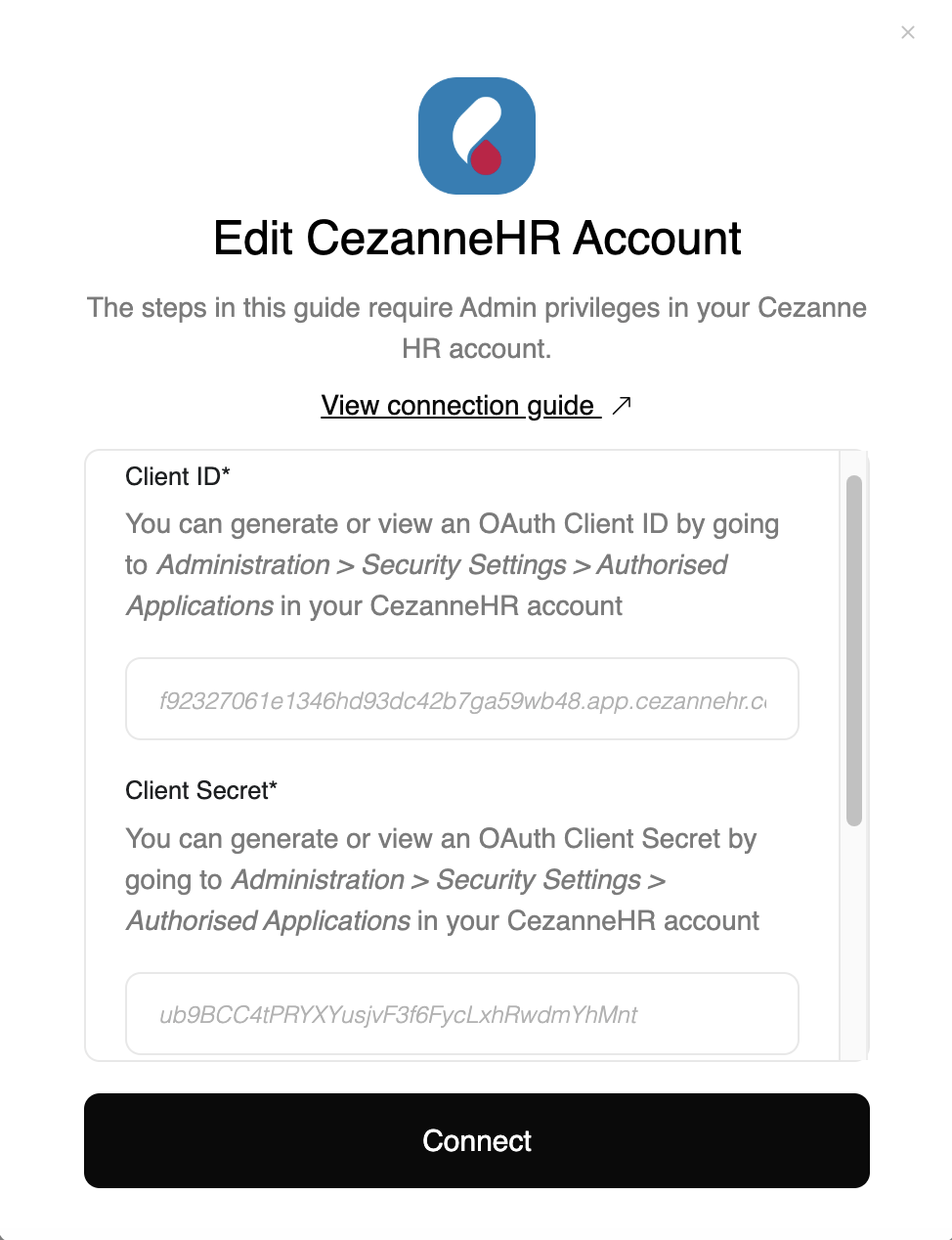
You can use the `Client ID`, `Client Secret`, and `Domain` to link your Cezanne HR account with StackOne.

<Steps>
  <Step title="Link Cezanne HR Account">
    In the modal, enter the `Client ID`, `Client Secret`, and `Domain` from the previous steps.

    Click **Connect**.
    <Frame>
      <img className="rounded-md" style={{ margin: '0 auto', border: '1px solid #efefef' }} alt="Link Account" src="https://mintcdn.com/stackone-hub/Yn_6S3z7TpLl43ff/images/cezannehr/image7.png?fit=max&auto=format&n=Yn_6S3z7TpLl43ff&q=85&s=0ab23b7190055cb11457e95f34ed5abb" width="974" height="1268" data-path="images/cezannehr/image7.png" />

      <img className="rounded-md" style={{ margin: '0 auto', border: '1px solid #efefef' }} alt="Link Account" src="https://mintcdn.com/stackone-hub/Yn_6S3z7TpLl43ff/images/cezannehr/image8.png?fit=max&auto=format&n=Yn_6S3z7TpLl43ff&q=85&s=0cd93f77c8cc1896a731231808832451" width="964" height="1262" data-path="images/cezannehr/image8.png" />
    </Frame>
  </Step>

  <Step title="Enter Login Details">
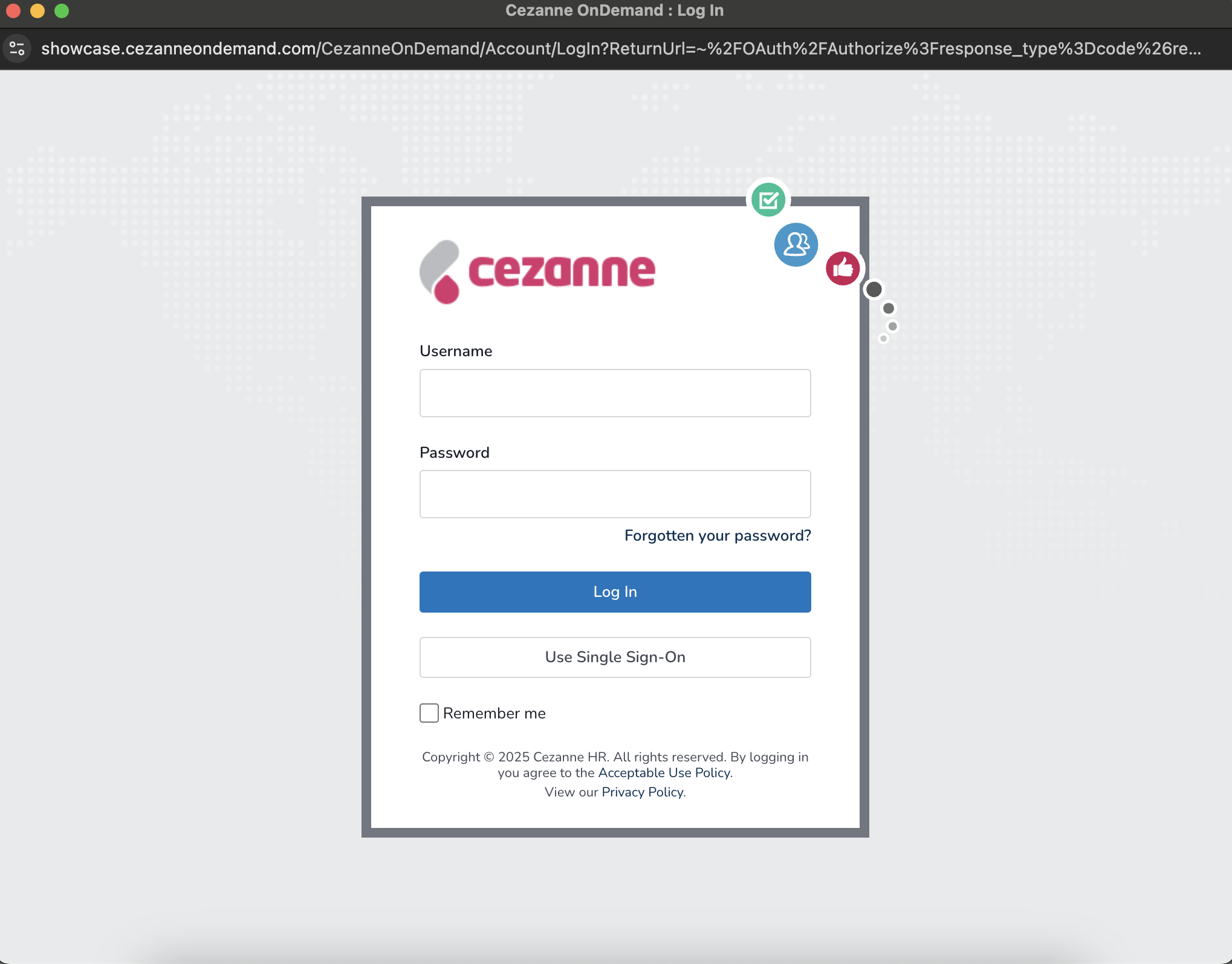
    In the Cezanne HR popup modal, enter your `Email` and `Password`.

    Click **Log In**.
    <Frame>
      <img className="rounded-md" style={{ margin: '0 auto', border: '1px solid #efefef' }} alt="Link Account" src="https://mintcdn.com/stackone-hub/Yn_6S3z7TpLl43ff/images/cezannehr/image9.png?fit=max&auto=format&n=Yn_6S3z7TpLl43ff&q=85&s=c161b9c6b86be1ae01e119a2b661f55f" width="2038" height="1594" data-path="images/cezannehr/image9.png" />
    </Frame>
  </Step>

  <Step title="Authorize Request">
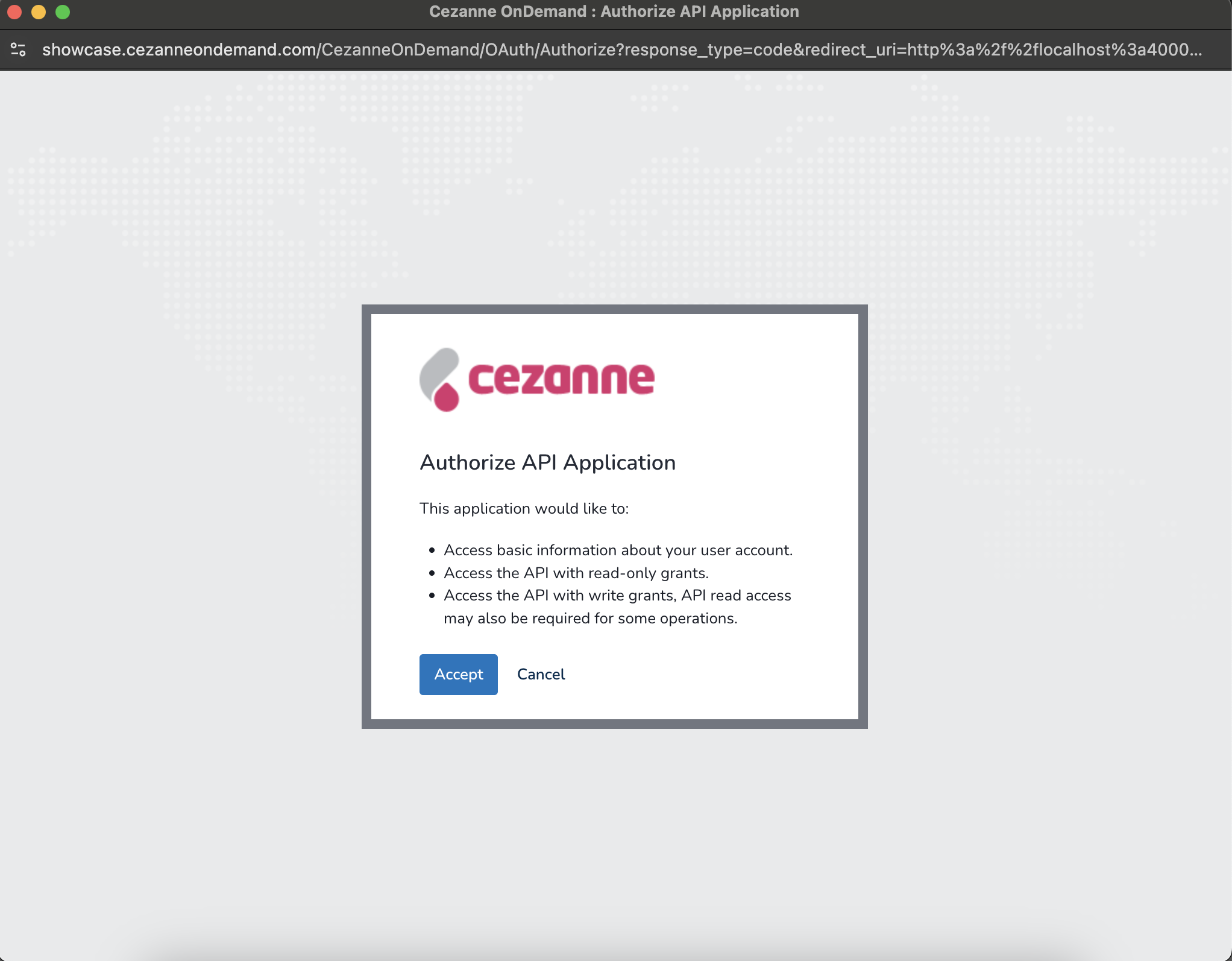
    Click **Accept**.

    <Frame>
      <img className="rounded-md" style={{ margin: '0 auto', border: '1px solid #efefef' }} alt="Link Account" src="https://mintcdn.com/stackone-hub/Yn_6S3z7TpLl43ff/images/cezannehr/image10.png?fit=max&auto=format&n=Yn_6S3z7TpLl43ff&q=85&s=4e9bfb9a97760e348c2184586ec04124" width="2044" height="1594" data-path="images/cezannehr/image10.png" />
    </Frame>
  </Step>
</Steps>

## Useful Links

<Card title="API Reference" icon="link" href="https://api.cezannehr.com/">
  [https://api.cezannehr.com/](https://api.cezannehr.com/)
</Card>