> ## Documentation Index
> Fetch the complete documentation index at: https://hub.stackone.com/llms.txt
> Use this file to discover all available pages before exploring further.
# ADP Workforce Now
> Follow these steps to connect ADP Workforce Now with StackOne Hub successfully.
Ensure you have Admin privileges for your ADP Workforce Now account.
If you've been directed to StackOne to integrate with ADP Workforce Now, the following steps will help you understand the process and any necessary actions to configure successful integration.
## Prerequisites
Before you begin, ensure you have the following:
* **Admin Access**: Admin privileges are required for ADP Marketplace, project creation, and certificate management
* **ADP API Central App**: Purchase & Install "ADP API Central for ADP Workforce Now" from [https://apps.adp.com/en-US/apps/410612](https://apps.adp.com/en-US/apps/410612)
## Step 1: Obtaining Client ID and Client Secret
Access credentials via the ADP API Central app in your ADP account:
1. Log in to ADP Central at [https://api-central.adp.com](https://api-central.adp.com)
2. Navigate to **Projects** in the left menu
3. Click **Create a Project**
 4. Enter project name, description (optional).
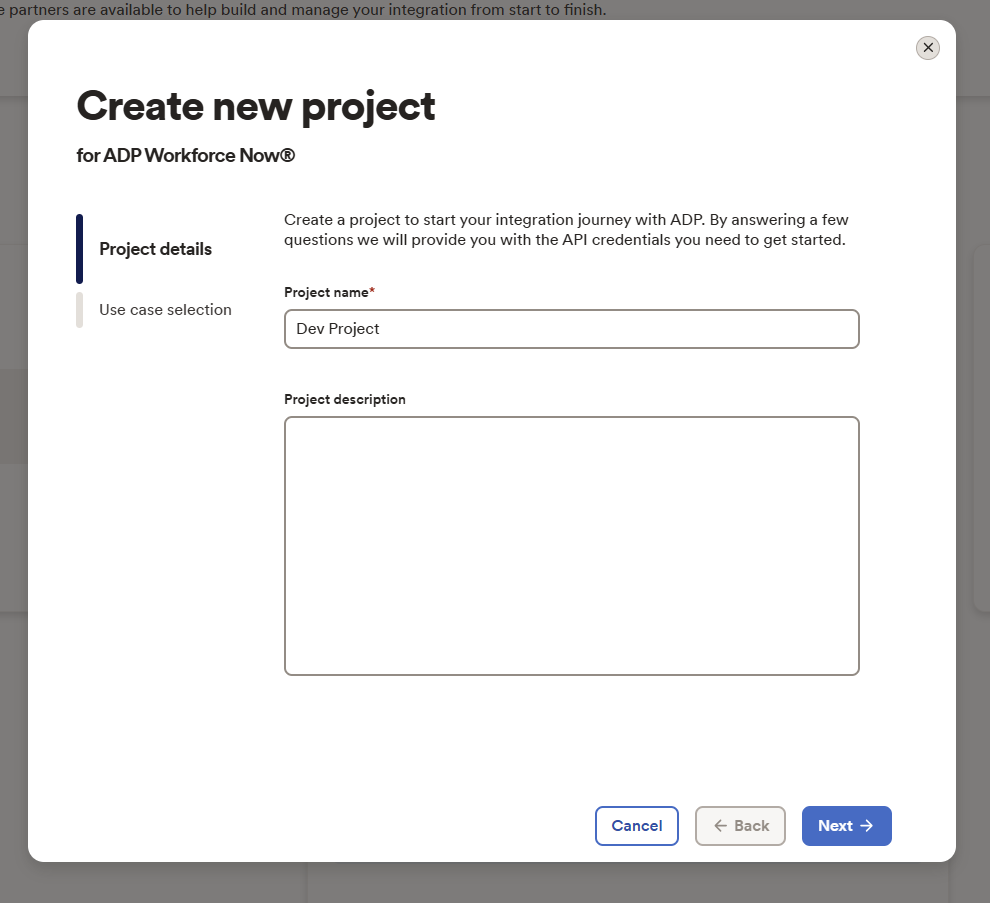 5. Select the required use case(s) (minimum: Worker Demographics & Pay Profile (Read/Write))
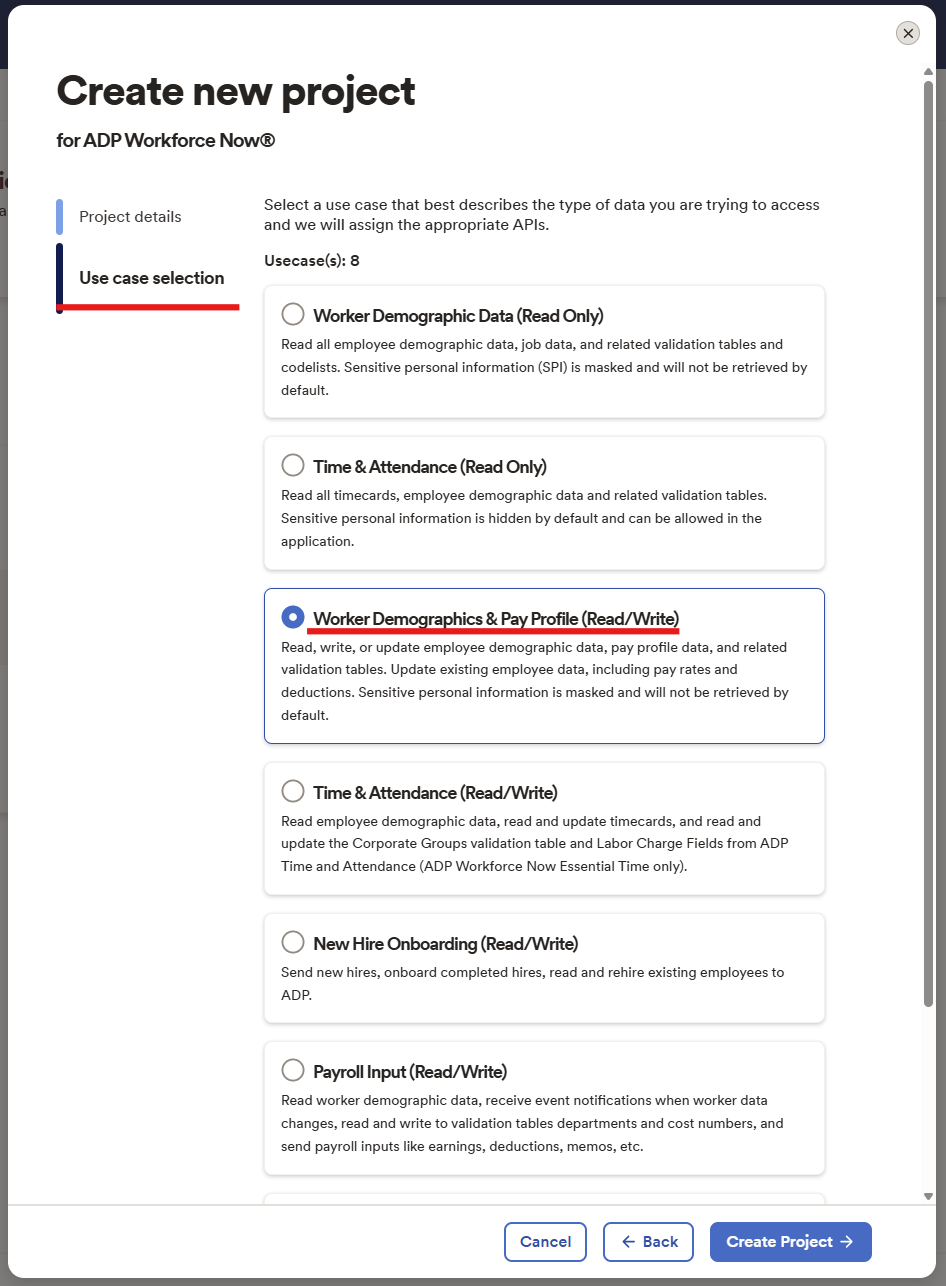 * After project creation, enable all additional required APIs via the API Discovery tool within the project
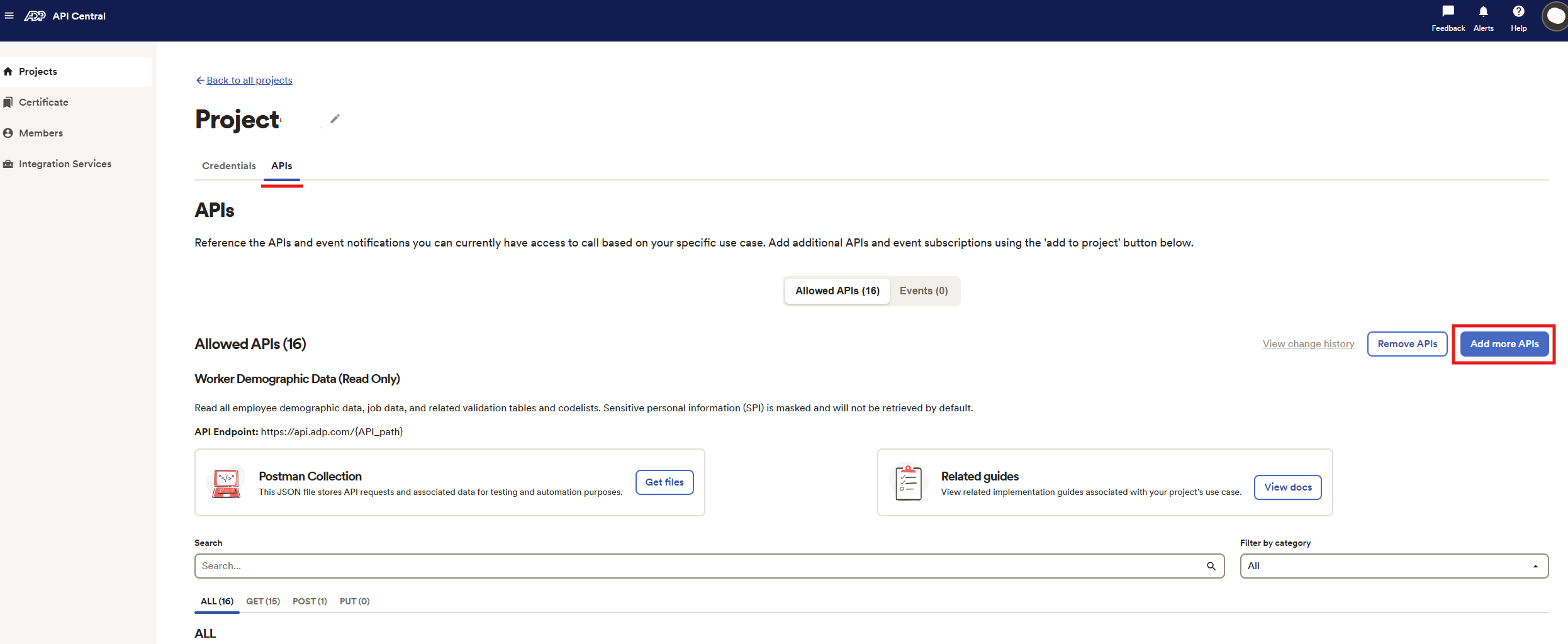 6. Click **Create Project**
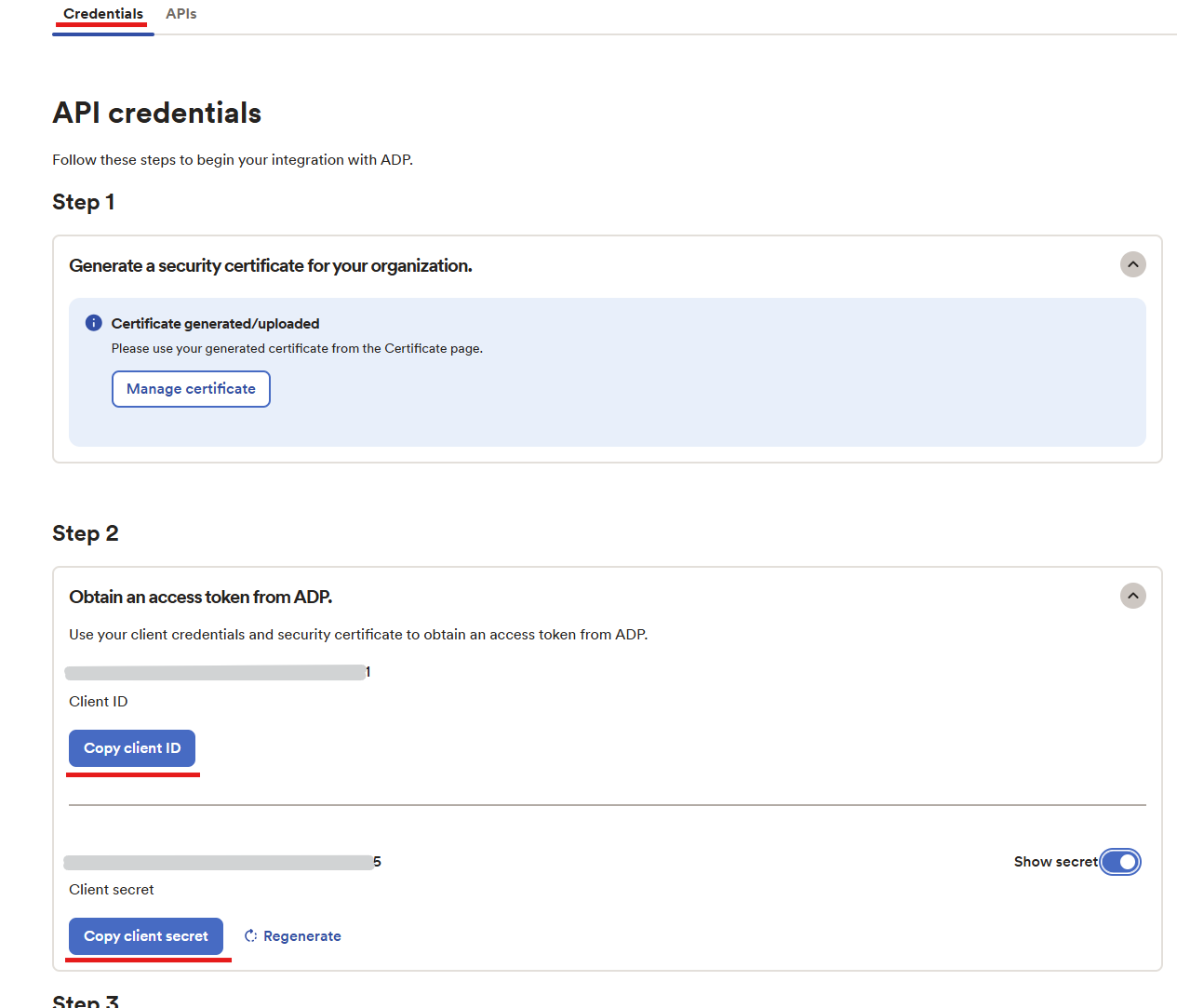
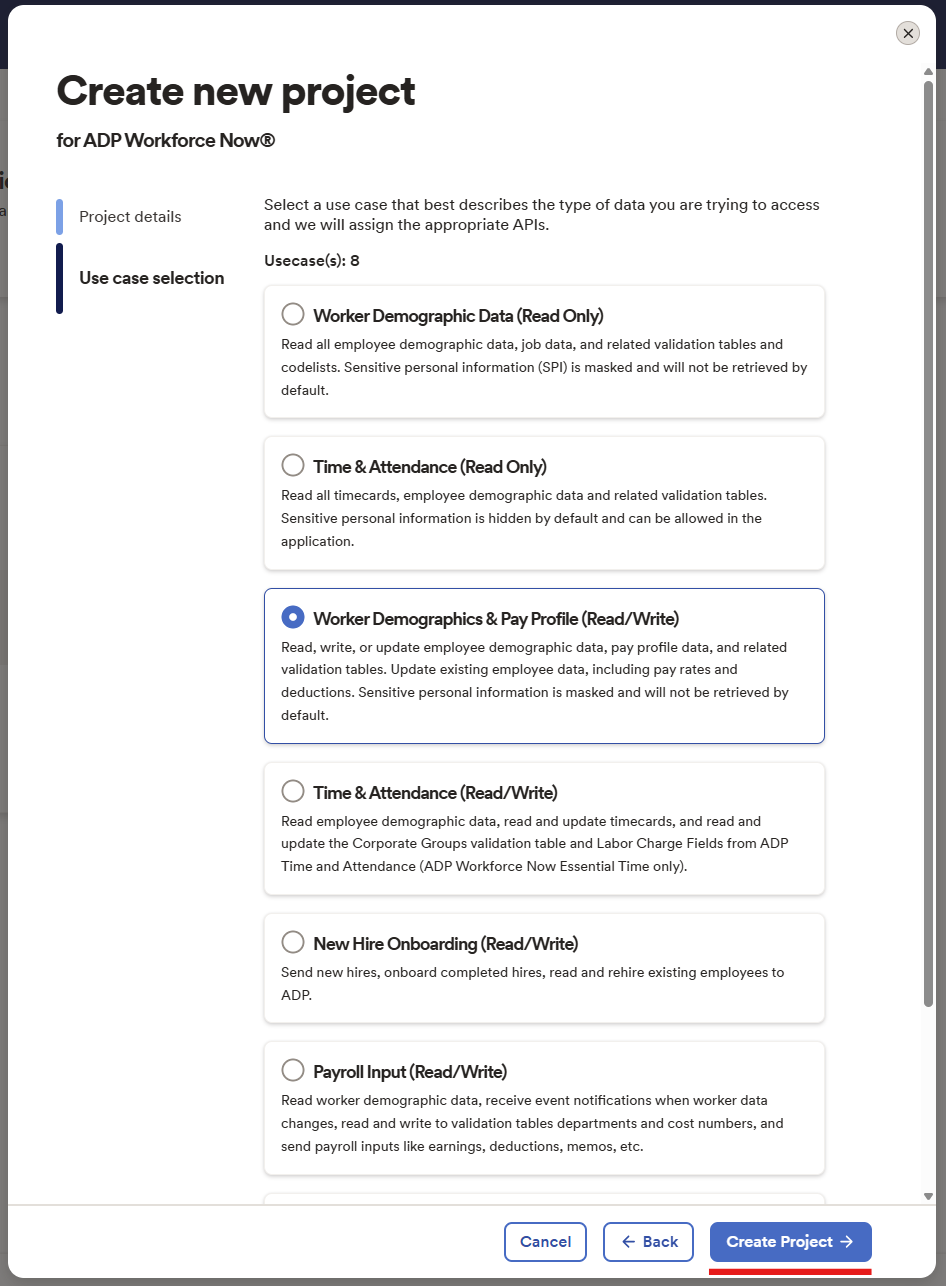 7. In the project, go to **Credentials** tab
8. Copy your **Client ID** and **Client Secret**
7. In the project, go to **Credentials** tab
8. Copy your **Client ID** and **Client Secret**
 ## Step 2: Generating Certificate Files
Generate certificate/private key files for secure authentication:
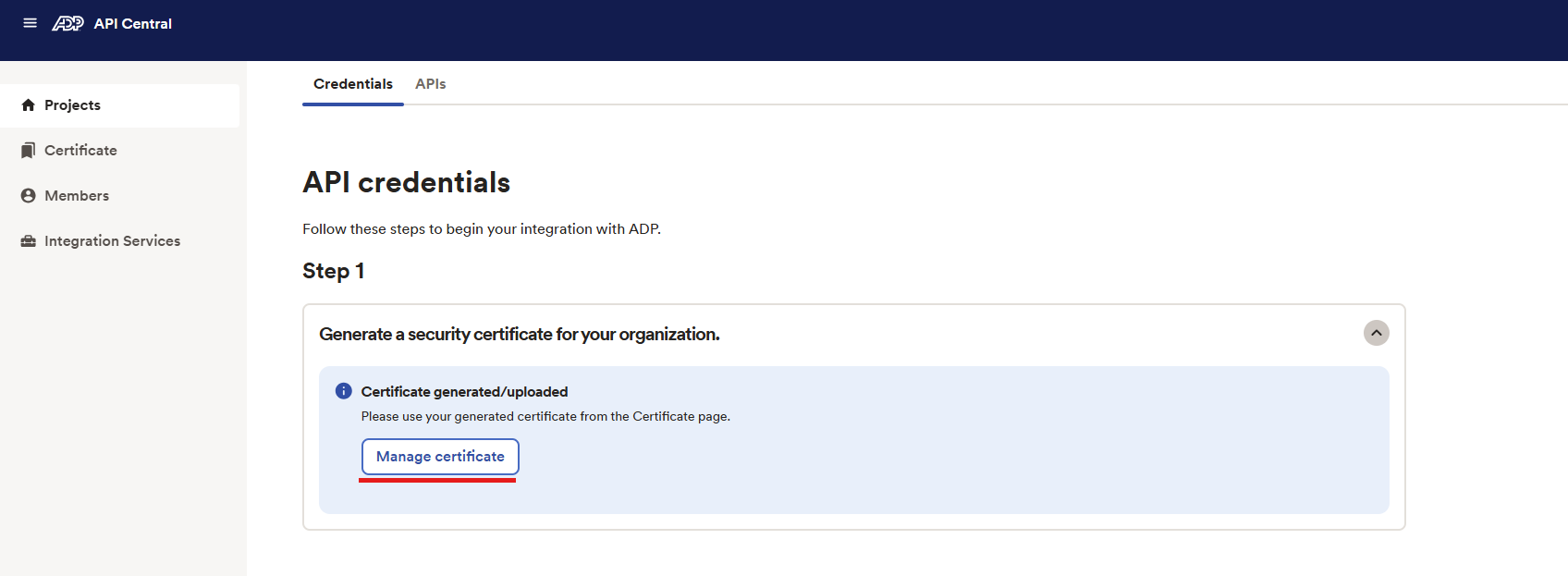
1. In the ADP Central project, click **Manage Certificate**
## Step 2: Generating Certificate Files
Generate certificate/private key files for secure authentication:
1. In the ADP Central project, click **Manage Certificate**
 2. Follow the steps to generate a certificate. Refer to ADP's official guide: [Generating a Certificate Signing Request](https://developers.adp.com/learn/how-to-articles/generate-a-certificate-signing-request)
3. Download and save the certificate (.pem) and private key files
4. Ensure full headers are included like `-----BEGIN PRIVATE KEY-----` and `-----END PRIVATE KEY-----`
## Step 3: Connecting to StackOne
Complete the integration with the following steps:
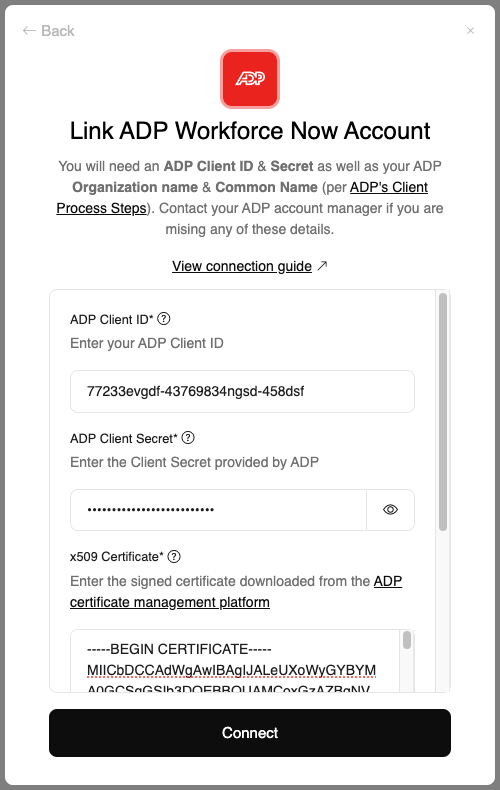
1. Enter your **Client ID** and **Client Secret** from Step 1
2. Locate the certificate (.pem) issued by ADP and your private key file
3. Open both files in a text editor and copy their full contents
4. Paste the certificate content into the Certificate field and private key into the Private Key field in StackOne
5. Click the `Connect` button
2. Follow the steps to generate a certificate. Refer to ADP's official guide: [Generating a Certificate Signing Request](https://developers.adp.com/learn/how-to-articles/generate-a-certificate-signing-request)
3. Download and save the certificate (.pem) and private key files
4. Ensure full headers are included like `-----BEGIN PRIVATE KEY-----` and `-----END PRIVATE KEY-----`
## Step 3: Connecting to StackOne
Complete the integration with the following steps:
1. Enter your **Client ID** and **Client Secret** from Step 1
2. Locate the certificate (.pem) issued by ADP and your private key file
3. Open both files in a text editor and copy their full contents
4. Paste the certificate content into the Certificate field and private key into the Private Key field in StackOne
5. Click the `Connect` button
 ## Useful Links
ADP API Central Overview
Generate CSR
API Reference
## Useful Links
ADP API Central Overview
Generate CSR
API Reference