> ## Documentation Index
> Fetch the complete documentation index at: https://hub.stackone.com/llms.txt
> Use this file to discover all available pages before exploring further.
# Workday
> If you've been directed to StackOne to integrate with Workday, the following steps will help you understand the process and any necessary actions to configure successful integration.
This guidance assumes you have Admin privileges for your Workday account.
## Finding your Workday Tenant
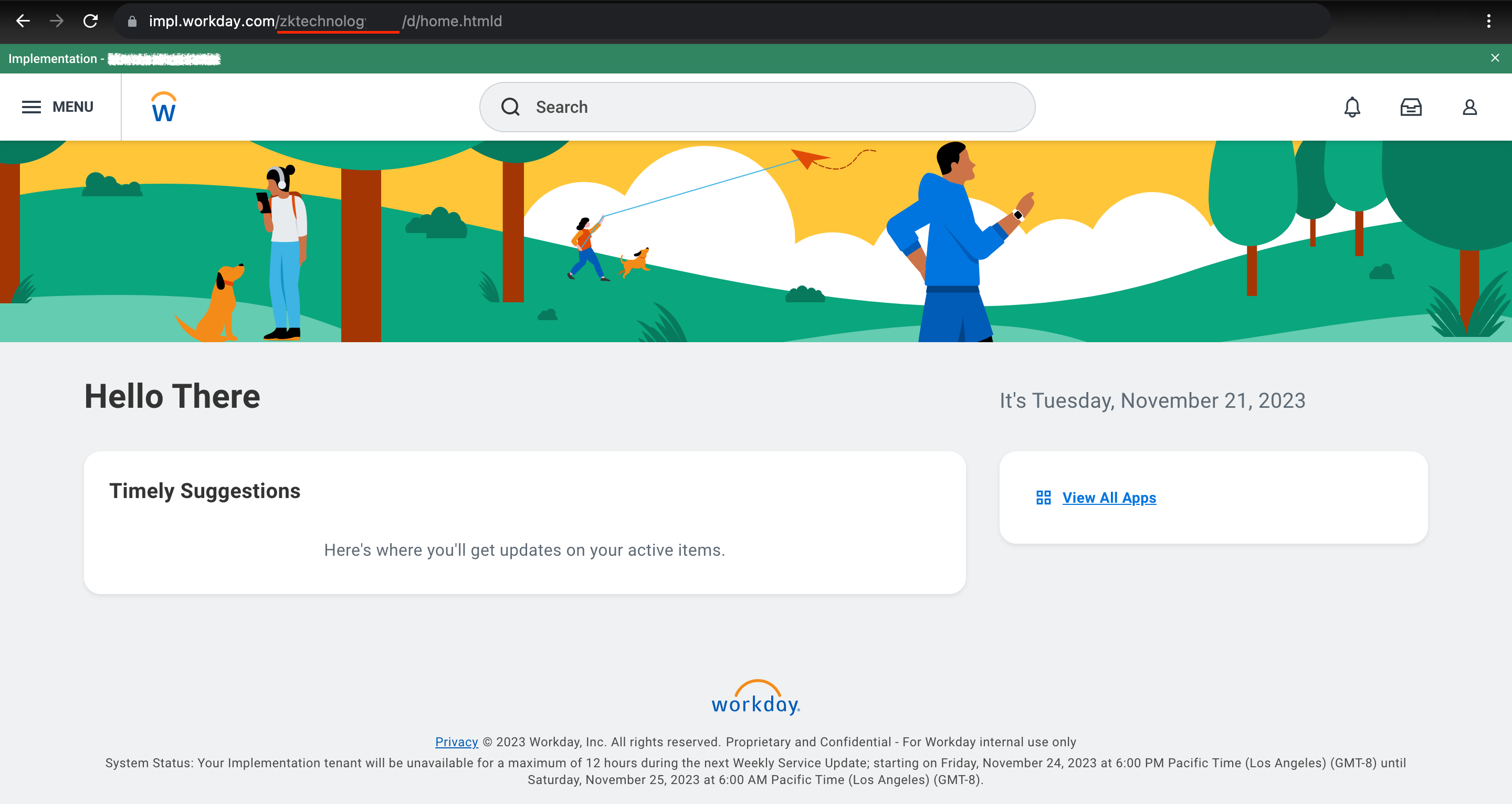
Log into your Workday account. Look at the address bar at the top of the browser window where the URL is displayed. Find your tenant immediately after `workday.com/`.
 ## Finding the Web Services Endpoint
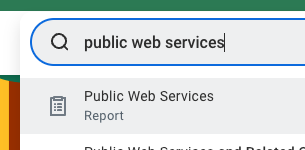
Go to the `Public Web Services` report.
## Finding the Web Services Endpoint
Go to the `Public Web Services` report.
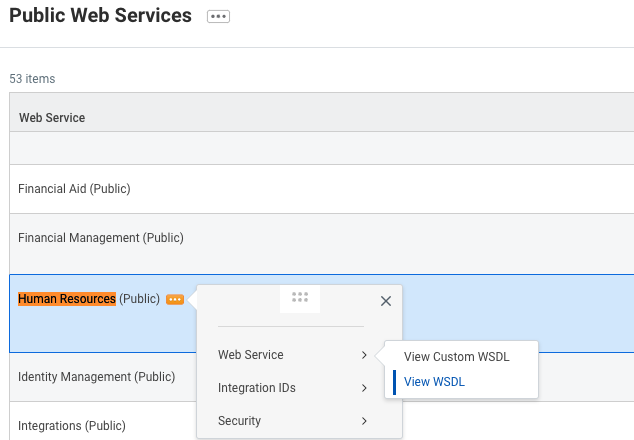
 Find Human Resources and hover over it to be able to interact with the menu. Via the three-dots menu, go to `Web Service` and click on `View SDL` (note that the page may take a minute to fully load).
 Search for `wsdl:service` in the file OR navigate directly to the very bottom of the page. You should see something like this:
 Copy everything before `service` in the location attribute. Do not include the `https://` prefix. In the example tenant above, this would be `wd2-impl-services1.workday.com/ccx` but it may be different for your tenant (e.g., `wd5-services1.myworkday.com/ccx`).
## Set up an Integration System User
Log in to your Workday tenant in the Workday portal. In the Search field, search for "Create Integration System User".
Copy everything before `service` in the location attribute. Do not include the `https://` prefix. In the example tenant above, this would be `wd2-impl-services1.workday.com/ccx` but it may be different for your tenant (e.g., `wd5-services1.myworkday.com/ccx`).
## Set up an Integration System User
Log in to your Workday tenant in the Workday portal. In the Search field, search for "Create Integration System User".
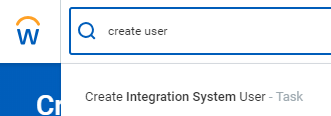 Choose the "Create Integration System User" task.
Enter a username and password in the Account Information section on the "Create Integration System User" page.
Choose the "Create Integration System User" task.
Enter a username and password in the Account Information section on the "Create Integration System User" page.
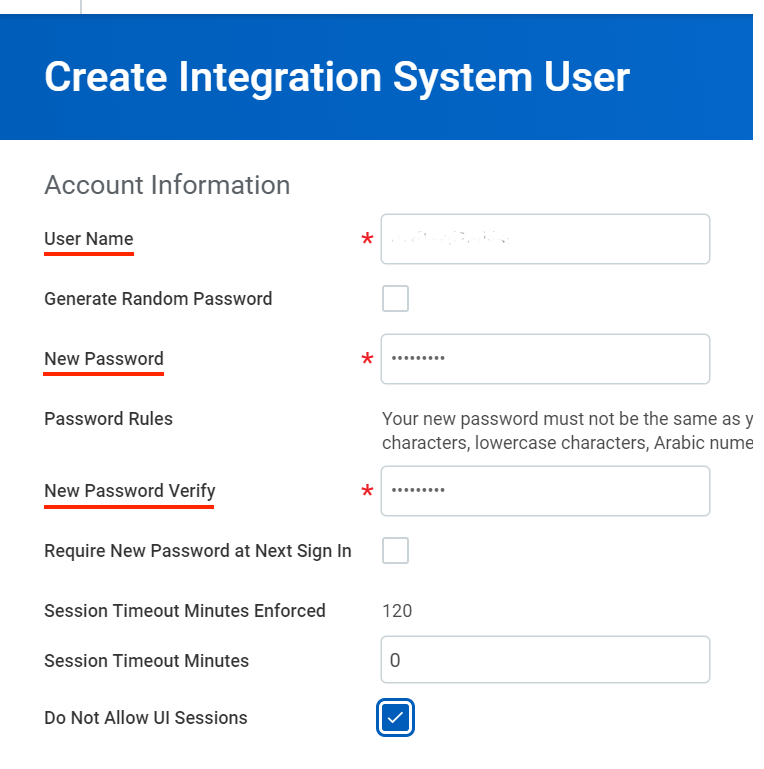 Click OK.
## Add the Integration System User to a Security Group
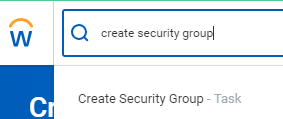
In the Search field, search for "Create Security Group". Select the "Create Security Group" task.
Click OK.
## Add the Integration System User to a Security Group
In the Search field, search for "Create Security Group". Select the "Create Security Group" task.
 Choice: There are two types of security groups that can be chosen:
* Integration System Security Group (Unconstrained)
* Integration System Security Group (Constrained)\
\
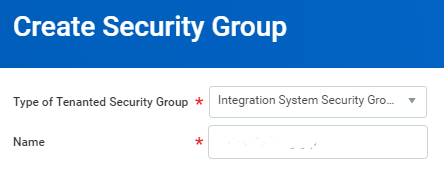
The constrained security group will allow you to specify On the "Create Security Group" page, select "Integration System Security Group" from the Type of Tenanted Security Group pull-down menu. Enter a name in the Name field.
Choice: There are two types of security groups that can be chosen:
* Integration System Security Group (Unconstrained)
* Integration System Security Group (Constrained)\
\
The constrained security group will allow you to specify On the "Create Security Group" page, select "Integration System Security Group" from the Type of Tenanted Security Group pull-down menu. Enter a name in the Name field.
 Click OK.
a. On the "Edit Integration System Security Group (Unconstrained)" page, enter the same name you used when creating the ISU in the first section. Click OK.
b. On the "Edit Integration System Security Group (Constrained)@ page, there will be additional options to choose the groups that the associated user will have access to.
Click OK.
a. On the "Edit Integration System Security Group (Unconstrained)" page, enter the same name you used when creating the ISU in the first section. Click OK.
b. On the "Edit Integration System Security Group (Constrained)@ page, there will be additional options to choose the groups that the associated user will have access to.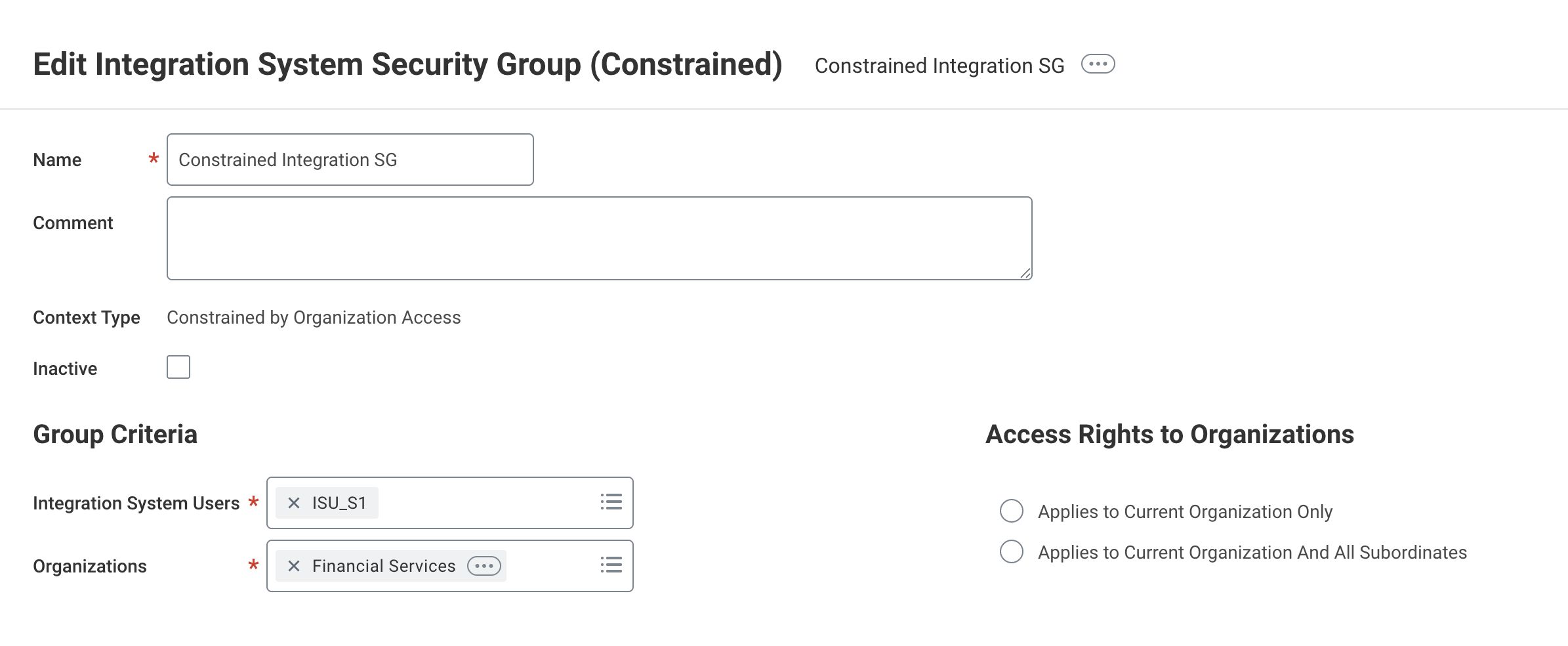 ## Configure Domain Security Policy Permissions
The Workday ATS integration currently requires **all** of the permissions listed below to be enabled for full support.
Workday's API may return an error response if any of these permissions are missing.
You can reach this interface by searching for "Maintain Permissions for Security Group" in the search bar, and selecting the name of the Security Group you created in the previous step.
This integration uses the following Workday Security Group Permissions. For each listed permission, select either **Get Only** for read-only access, or **Get and Put** for read and write access in the *View/Modify Access* column.
## Configure Domain Security Policy Permissions
The Workday ATS integration currently requires **all** of the permissions listed below to be enabled for full support.
Workday's API may return an error response if any of these permissions are missing.
You can reach this interface by searching for "Maintain Permissions for Security Group" in the search bar, and selecting the name of the Security Group you created in the previous step.
This integration uses the following Workday Security Group Permissions. For each listed permission, select either **Get Only** for read-only access, or **Get and Put** for read and write access in the *View/Modify Access* column.
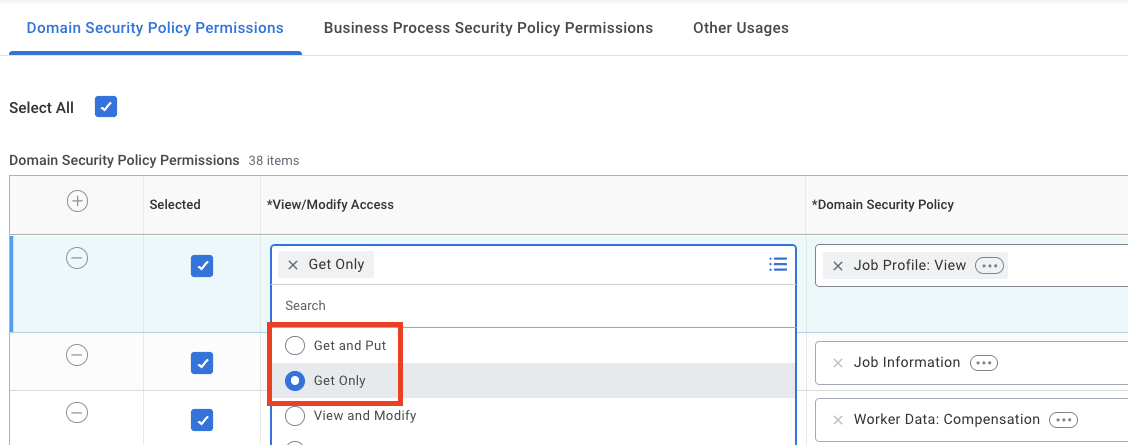 Please note that Security Group Permissions can be customized within a Workday organization, and this list does not account for such customizations.
* Job Requisition Data
* **Candidate Data:**
* Interview Schedule
* Offer details
* Other Jobs
* Other Information
* Photo
* Attachment
* Personal Information
* Job Application
* Interview Schedule
* Jobs Requisitions
* Offer Details
* Other Jobs
* **Person Data:**
* Personal Data
* Name
* Citizenship Status
* Date of Birth
* Disabilities
* Gender
* Government IDs
* ID Information
* Marital Status
* National ID Identification
* Personal Information
* Personal Photo
* Home Address
* Home Email
* Home Phone
* Work Address
* Work Email
* Work Phone
* Pre-Hire Data: Employment Agreement
* Pre-Hire Personal Data
## Approve the Security Policy Changes
In the Search bar, search for "Activate Pending Security Policy Changes". Review the policies that need approval in the summary of the changes in the security policy. Approve the pending security policy changes to activate them.
## Linking your Account
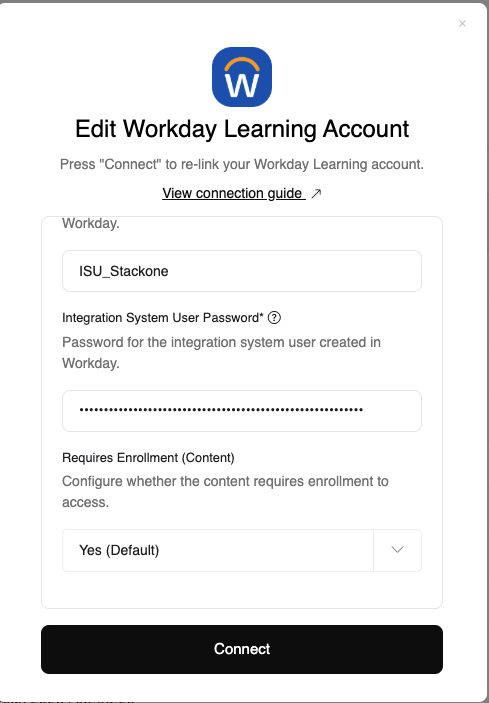
You can use the Tenant and System User credentials you created in steps 1 & 2 to link Workday.
Please note that Security Group Permissions can be customized within a Workday organization, and this list does not account for such customizations.
* Job Requisition Data
* **Candidate Data:**
* Interview Schedule
* Offer details
* Other Jobs
* Other Information
* Photo
* Attachment
* Personal Information
* Job Application
* Interview Schedule
* Jobs Requisitions
* Offer Details
* Other Jobs
* **Person Data:**
* Personal Data
* Name
* Citizenship Status
* Date of Birth
* Disabilities
* Gender
* Government IDs
* ID Information
* Marital Status
* National ID Identification
* Personal Information
* Personal Photo
* Home Address
* Home Email
* Home Phone
* Work Address
* Work Email
* Work Phone
* Pre-Hire Data: Employment Agreement
* Pre-Hire Personal Data
## Approve the Security Policy Changes
In the Search bar, search for "Activate Pending Security Policy Changes". Review the policies that need approval in the summary of the changes in the security policy. Approve the pending security policy changes to activate them.
## Linking your Account
You can use the Tenant and System User credentials you created in steps 1 & 2 to link Workday.
 ## Useful Links
[https://doc.workday.com/](https://doc.workday.com/)
## Useful Links
[https://doc.workday.com/](https://doc.workday.com/)