> ## Documentation Index
> Fetch the complete documentation index at: https://hub.stackone.com/llms.txt
> Use this file to discover all available pages before exploring further.
# Workable
> If you've been directed to StackOne to integrate with Workable, the following steps will help you understand the process and any necessary actions to configure successful integration.
This guidance assumes you have Super Admin privileges for your Workable account.
## Generating Workable API key & enabling permissions
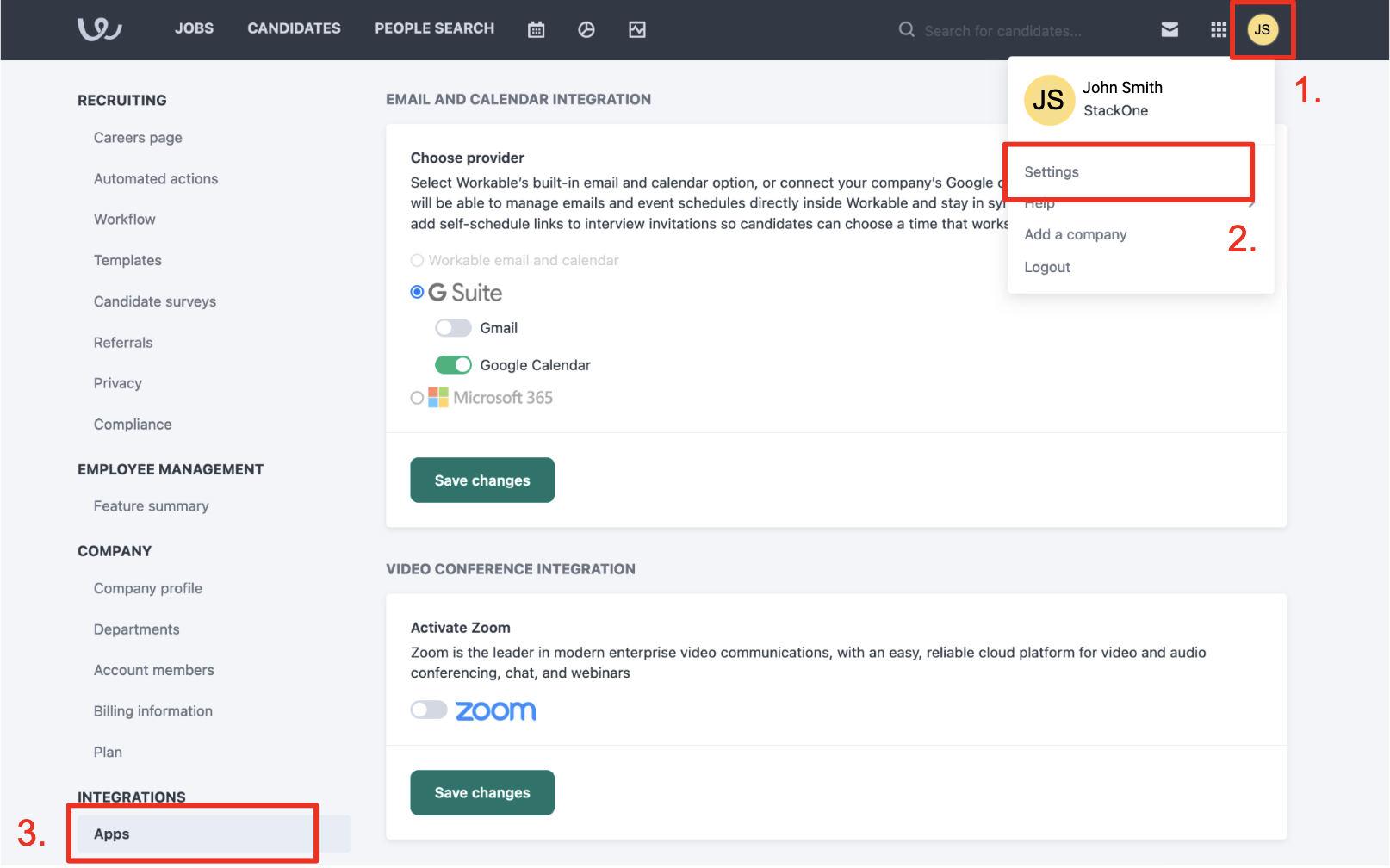
Click on your user initials in the top right menu and open Settings > Apps.
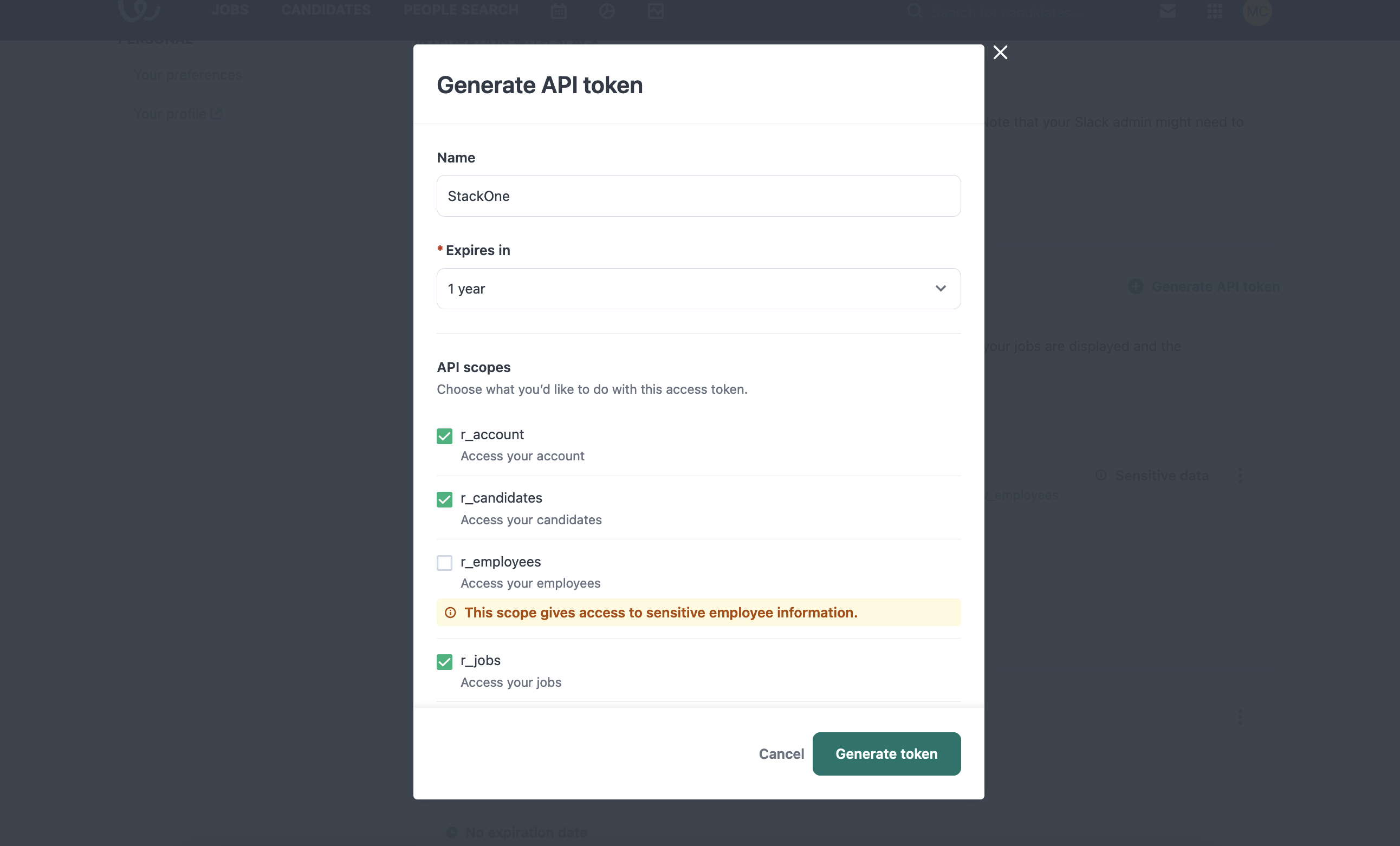
 Scroll down and click Generate API Token. Give the token these minimum permissions:
* Name - (The SaaS you're creating this API token for - eg: StackOne)
* Expires in - 1 year (make a note internally that you will have to generate a new token before that time)
* Scopes - This integration requires minimum scopes: r\_account, r\_candidates, r\_jobs, w\_account, w\_candidates, r\_requisitions.
Scroll down and click Generate API Token. Give the token these minimum permissions:
* Name - (The SaaS you're creating this API token for - eg: StackOne)
* Expires in - 1 year (make a note internally that you will have to generate a new token before that time)
* Scopes - This integration requires minimum scopes: r\_account, r\_candidates, r\_jobs, w\_account, w\_candidates, r\_requisitions.
 Click Generate token.
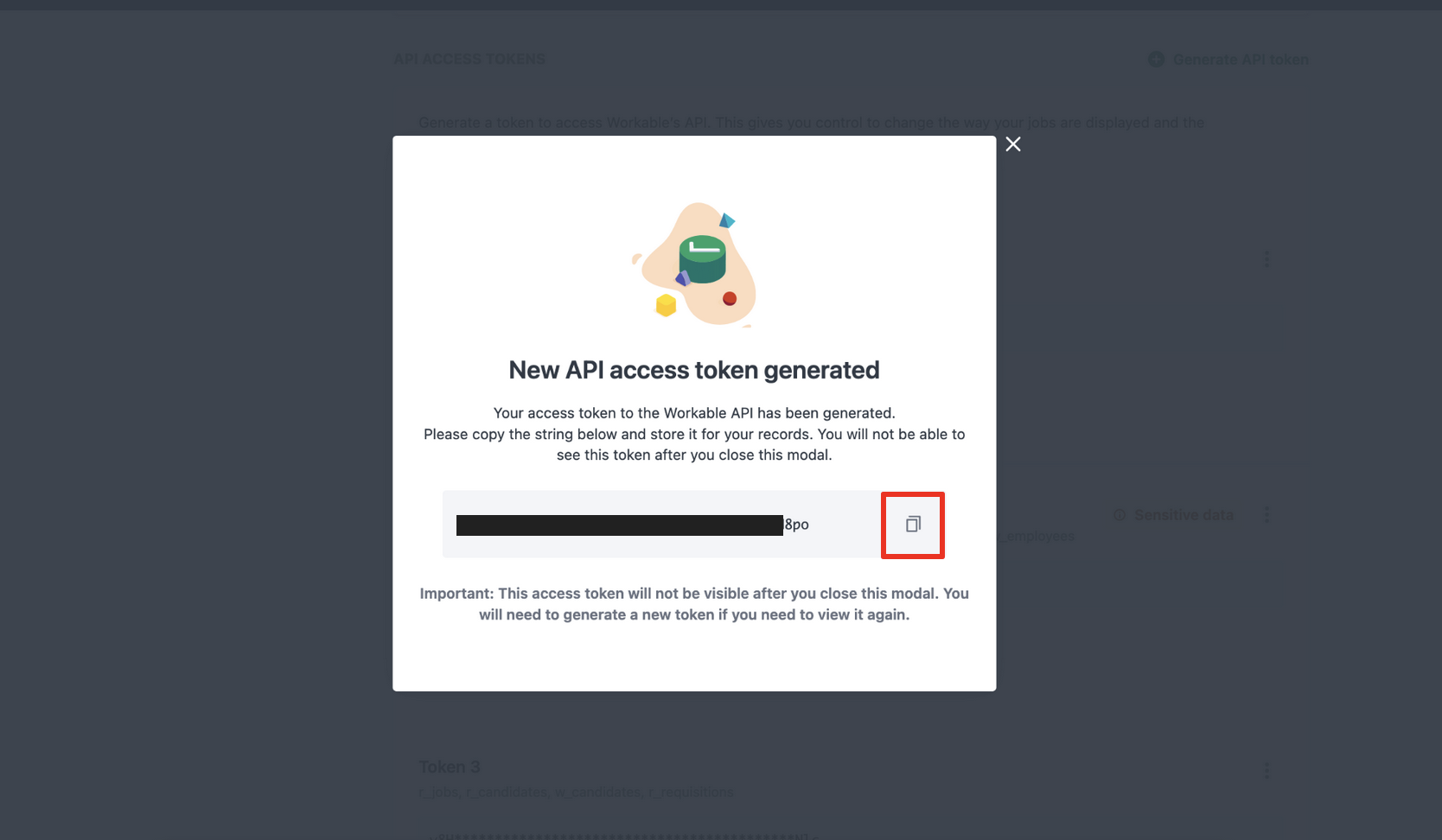
Copy your newly generated API key to a safe place. Then close the modal.
Click Generate token.
Copy your newly generated API key to a safe place. Then close the modal.
 ## Getting Company Subdomain
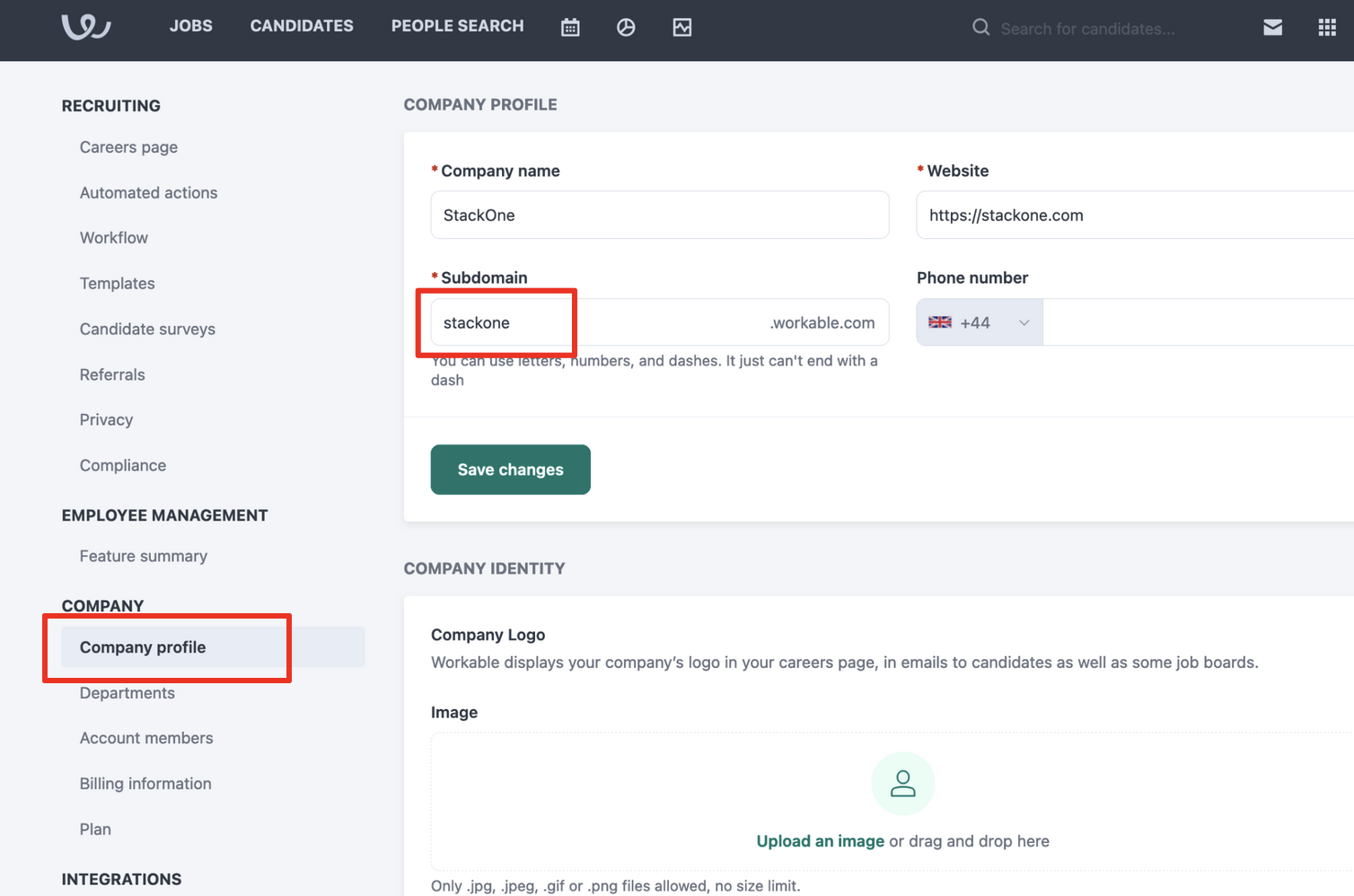
In Settings > Company profile, copy the Subdomain.
## Getting Company Subdomain
In Settings > Company profile, copy the Subdomain.
 ## Connect with StackOne
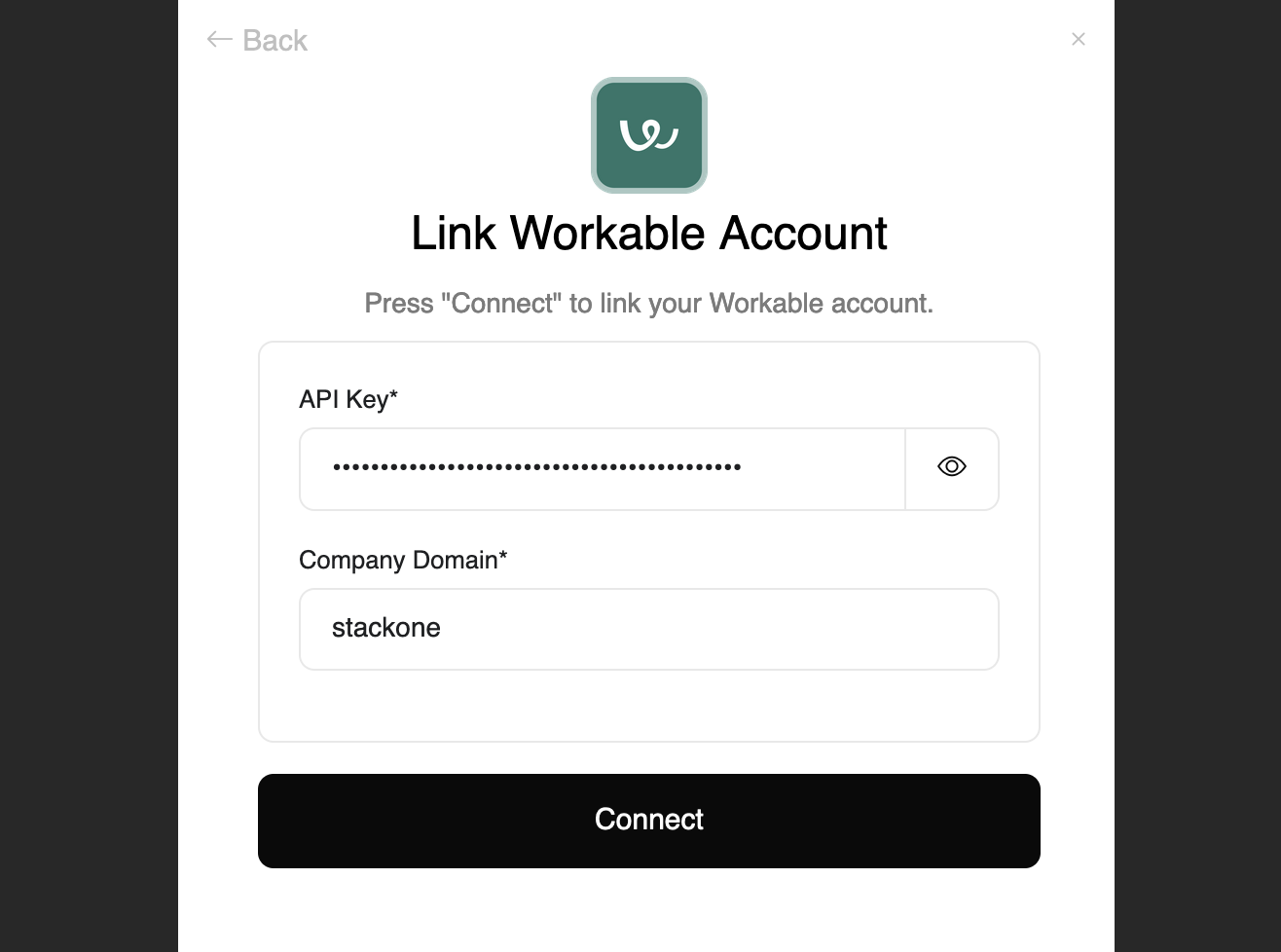
In StackOne, ensure the Workable integration is enabled. In Accounts > Link Account > Workable, enter the API key and subdomain copied from earlier and click the Connect button.
## Connect with StackOne
In StackOne, ensure the Workable integration is enabled. In Accounts > Link Account > Workable, enter the API key and subdomain copied from earlier and click the Connect button.
 ## Useful Links
[https://workable.readme.io/reference/](https://workable.readme.io/reference/)
## Useful Links
[https://workable.readme.io/reference/](https://workable.readme.io/reference/)