> ## Documentation Index
> Fetch the complete documentation index at: https://hub.stackone.com/llms.txt
> Use this file to discover all available pages before exploring further.
# JazzHR
> Follow these steps to connect JazzHR with StackOne Hub successfully.
Ensure you have Admin privileges for your JazzHR account.
If you've been directed to StackOne to integrate with JazzHR, the following steps will help you understand the process and any necessary actions to configure successful integration.
## Getting the API key
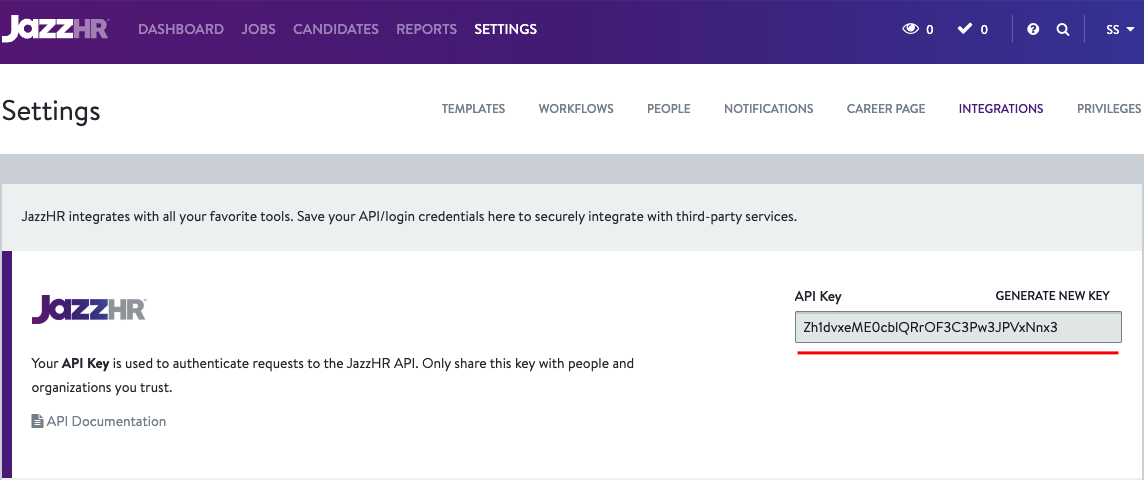
After login, click on Settings which will direct you to the settings page.
 Once you are directed to Settings, click on the Integrations tab in the subheader.
 Once you are directed to the Integrations page, you’ll find the auto-generated API key in the first section.
 ## Generating New API key (Optional)
If required, you can generate a new API key by clicking on the GENERATE NEW KEY.
## Generating New API key (Optional)
If required, you can generate a new API key by clicking on the GENERATE NEW KEY.
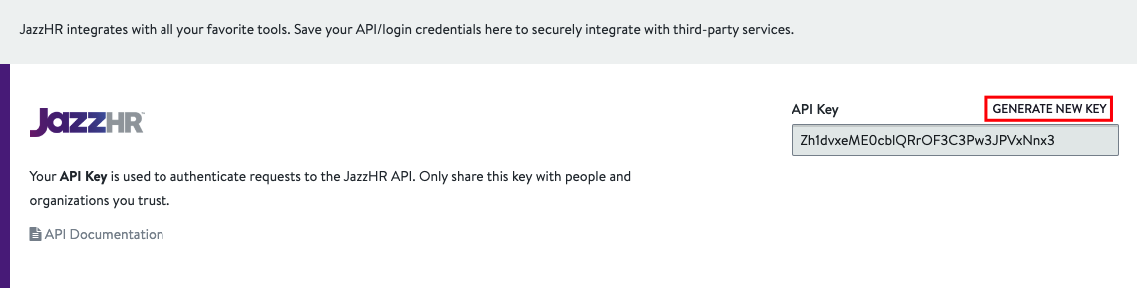 After generating the new key, the existing key will be replaced with a new one.
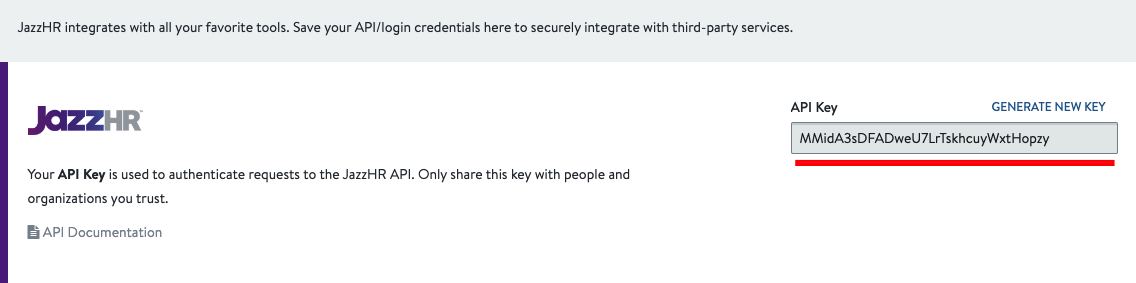 NOTE: You can use the auto-generated API key if you don’t want to generate a new one.
## Connecting with StackOne
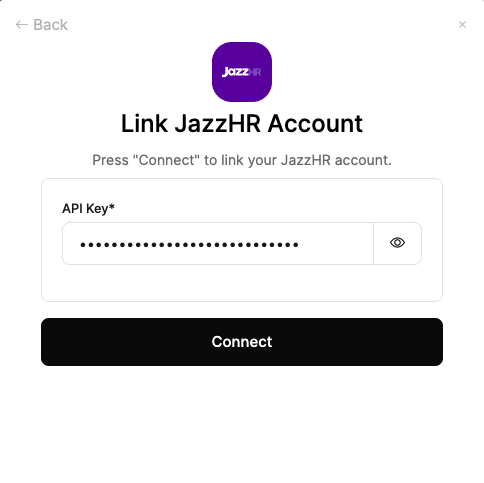
Upon reaching the Link Account page, enter the gathered details and proceed by clicking the Connect button.
NOTE: You can use the auto-generated API key if you don’t want to generate a new one.
## Connecting with StackOne
Upon reaching the Link Account page, enter the gathered details and proceed by clicking the Connect button.
 ## Useful Links
[https://www.resumatorapi.com/v1/](https://www.resumatorapi.com/v1/)
## Useful Links
[https://www.resumatorapi.com/v1/](https://www.resumatorapi.com/v1/)